
Introduction
This manual provides detailed instructions for the installation, operation, and maintenance of your AKASO Mirror Dash Cam 2K. Please read this manual thoroughly before using the device to ensure proper function and safety. This device is designed to record driving footage and assist with parking.
Package Contents
Verify that all items are present in the package:
- AKASO Mirror Dash Cam 2K (Main Unit)
- Rear Camera with Extension Cable
- Car Charger
- GPS Module
- Mounting Straps/Bands
- 32GB Micro SD Card
- User Manual
- Cable Clips (optional, for cable management)
Product Overview
The AKASO Mirror Dash Cam 2K is a comprehensive vehicle recording system designed to enhance driving safety and provide evidence in case of incidents. It features a 12-inch touchscreen display, dual cameras for front and rear recording, advanced night vision, and parking assistance.

Image: The AKASO Mirror Dash Cam 2K main unit, showcasing its 12-inch display and key features such as Sony sensor, 2K UHD resolution, wide field of view, IPS touchscreen, GPS module, parking monitor, and night vision capabilities.
- Display: 12-inch IPS Touchscreen for intuitive control and clear viewing.
- Front Camera: Records in 1080P with a 170° wide-angle lens.
- Rear Camera: Records in 1080P with a 170° wide-angle lens, providing a total 340° viewing angle.
- Night Vision: Equipped with an advanced Sony IMX307 sensor and F1.8 6-glass fixed-focus lens for enhanced low-light performance.
- Parking Monitor: Automatically records and saves video if an impact is detected while parked.
- G-Sensor: Detects sudden movements or collisions and locks the current video footage to prevent overwriting.
- Loop Recording: Continuously records, overwriting the oldest unlocked files when the memory card is full.
- GPS Module: Records driving route, speed, and location data (requires connection).
- Storage: Supports Micro SD cards up to 128GB (32GB card included).
Setup and Installation
Follow these steps to properly install your dash cam system.
1. Insert Micro SD Card
Before powering on, insert the provided 32GB Micro SD card (or another compatible card up to 128GB, Class 10 or higher) into the designated slot on the main unit. Ensure the card is inserted correctly until it clicks into place.
2. Mount the Main Unit
Attach the mirror dash cam to your vehicle's existing rearview mirror using the provided rubber mounting straps. Securely fasten the straps to prevent movement during driving.

Image: A close-up of the main dash cam unit, highlighting the adjustable front camera lens. The lens can be moved horizontally and rotated to achieve the optimal recording angle.
3. Install the Rear Camera
The rear camera can be installed either inside the rear window or externally near the license plate. For external installation, ensure it is mounted securely and the cable is routed safely into the vehicle, avoiding water ingress. Connect the rear camera cable to the main unit.
- Choose a suitable location for the rear camera (e.g., above the license plate or inside the rear window).
- Secure the camera using screws or adhesive tape.
- Route the rear camera cable to the front of the vehicle, concealing it along the headliner and A-pillars.
- Connect the rear camera cable to the designated port on the main dash cam unit.
- (Optional) If using the reverse assist function, connect the red wire from the rear camera cable to your vehicle's reverse light positive wire.
4. Connect Power
Plug the car charger into your vehicle's cigarette lighter socket and connect the other end to the main unit's power input. Route the power cable neatly to avoid obstructing your view or driving controls.
5. Connect GPS Module (Optional)
If included, connect the GPS module to its dedicated port on the main unit. Mount the GPS module on the dashboard or windshield where it has a clear view of the sky for optimal signal reception.
Operating Instructions
Power On/Off
- The dash cam will automatically power on and begin recording when your vehicle's ignition is turned on (if connected to a switched power source).
- To manually power on/off, press and hold the power button on the side of the unit.
Basic Recording
Once powered on, the dash cam will automatically start loop recording. Video files are saved in segments (e.g., 1, 3, or 5 minutes) to the Micro SD card. When the card is full, the oldest unlocked files will be overwritten.

Image: A graphic representation of loop recording, showing how the dash cam continuously records video in segments, overwriting the oldest files when the storage card is full, ensuring uninterrupted recording.
Touchscreen Operation
The 12-inch IPS touchscreen allows for easy navigation and control:
- Swipe Left/Right: Switch between front camera view, rear camera view, or split-screen display.
- Swipe Up/Down (on camera view): Adjust the vertical viewing angle of the selected camera.
- Tap Icons: Access settings, playback, lock video, or take a photo.
G-Sensor (Emergency Recording)
The built-in G-Sensor detects sudden impacts or collisions. When triggered, it automatically locks the current video file, preventing it from being overwritten by loop recording. These files are stored in a separate "Event" folder on the SD card.

Image: An illustration showing a car accident with a prominent padlock icon, indicating the G-Sensor's function to automatically lock and protect video footage during an impact.
Parking Monitor
When enabled, the Parking Monitor function uses the G-Sensor to detect impacts while your vehicle is parked. If an impact is detected, the dash cam will automatically power on and record a short video, then power off. This requires a continuous power supply (e.g., hardwire kit, sold separately).
Reverse Assist / Parking Guidelines
When the vehicle is put into reverse (and the rear camera's red wire is connected to the reverse light), the display will automatically switch to the rear camera view with parking guidelines. These guidelines assist in safe parking.
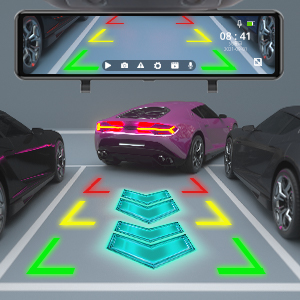
Image: The dash cam screen displaying the rear camera view with dynamic parking guidelines, assisting the driver in safely maneuvering into a parking space.
GPS Functionality
With the GPS module connected, the dash cam will record your vehicle's speed, location, and driving route. This data can be viewed using a dedicated GPS player software on a computer (software typically available for download from the manufacturer's website).
Playback
Access recorded videos directly on the dash cam's screen by tapping the playback icon. You can browse through front and rear camera footage. Alternatively, remove the Micro SD card and view files on a computer.
Maintenance
- Cleaning Lenses and Screen: Use a soft, lint-free cloth to gently wipe the camera lenses and the display screen. Avoid abrasive materials or chemical cleaners.
- Micro SD Card Management:
- Format the Micro SD card regularly (e.g., once a month) within the dash cam's settings to ensure optimal performance and prevent data corruption.
- Replace the Micro SD card if it shows signs of wear, errors, or reduced performance.
- Firmware Updates: Check the AKASO official website periodically for firmware updates. Follow the provided instructions carefully to update the device.
Troubleshooting
If you encounter issues with your dash cam, refer to the following common problems and solutions:
- Dash cam does not power on.
- Ensure the car charger is securely plugged into both the dash cam and the vehicle's cigarette lighter socket.
- Check if the vehicle's cigarette lighter socket is receiving power.
- Try a different car charger or USB cable if available.
- Dash cam stops recording or shows "Card Error".
- Format the Micro SD card within the dash cam's settings.
- Ensure the Micro SD card is Class 10 or higher and supports up to 128GB.
- Replace the Micro SD card if the issue persists, as it may be faulty.
- Poor video quality or blurry images.
- Clean the front and rear camera lenses with a soft cloth.
- Ensure the protective film (if any) has been removed from the lenses.
- Adjust the camera angle to avoid glare from the windshield or dashboard reflections.
- For night vision, ensure the windshield is clean.
- Rear camera not displaying or showing "No Signal".
- Check the connection of the rear camera cable to the main unit.
- Ensure the rear camera cable is not damaged.
- Verify the rear camera itself is properly installed and connected.
- GPS signal is weak or not acquired.
- Ensure the GPS module is connected and mounted in a location with a clear view of the sky (e.g., dashboard, top of windshield).
- Avoid placing the GPS module under metallic objects or tinted areas that might block the signal.
- Mirror unit shakes or vibrates.
- Ensure the mounting straps are securely tightened around your vehicle's original rearview mirror.
- Adjust the position to ensure a snug fit.
Specifications
| Feature | Detail |
|---|---|
| Product Dimensions | 10.04 x 2.76 x 1.5 inches |
| Item Weight | 2.33 pounds |
| Item Model Number | 13 |
| Batteries | 1 Lithium Ion battery (included) |
| Brand | AKASO |
| Model Name | AKASO Mirror Dash Cam 2K |
| Vehicle Service Type | Car |
| Connectivity Technology | USB |
| Special Feature | G-Sensor |
| Video Capture Resolution | 1080p (Front & Rear) |
| Mounting Type | Rearview Mirror Mount |
| Color | Black |
| Field Of View | 170 Degrees (Front & Rear) |
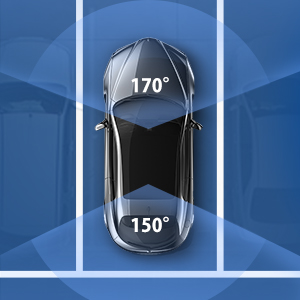
Image: An overhead diagram of a car illustrating the wide field of view provided by the dash cam system, covering 170 degrees at the front and 150 degrees at the rear for comprehensive coverage.

Image: A visual representation of the dash cam's ability to operate in various environmental conditions, depicted by a split image showing a snowy landscape with a snowflake and a desert scene with a sun icon.
Warranty and Support
AKASO products come with a standard warranty. For specific warranty terms, technical support, or customer service inquiries, please refer to the warranty card included in your package or visit the official AKASO website. You can also contact AKASO customer support directly for assistance.
Official AKASO Website: AKASO Store on Amazon
Important Safety Information
- Do not operate the dash cam or access its settings while driving.
- Ensure the dash cam is installed in a location that does not obstruct the driver's view or interfere with vehicle safety features.
- Use only the original car charger provided or a certified replacement.
- Do not expose the device to extreme temperatures, direct sunlight for prolonged periods, or moisture.
- Keep the device away from children.


