
1. Introduction
The SGEYR 5x1 HDMI Switcher allows you to connect up to five HDMI source devices to a single HDMI display, such as an HD TV, monitor, or projector. This device supports Ultra HD 4K@30Hz, 3D, and Full-HD 1080P resolutions, ensuring a clear and detailed viewing experience. It is compatible with HDMI 1.4 and HDCP 1.4 standards, and features a durable metal enclosure for reliable performance. Easily switch between connected devices using the included IR remote control or the manual button on the unit.

Image 1: SGEYR 5x1 HDMI Switcher and Remote Control
2. Package Contents
Please verify that all items are present in your package:
- 1 x SGEYR 5x1 HDMI Switcher
- 1 x IR Remote Control
- 1 x USB Power Cable
- 1 x User Manual

Image 2: Package Contents
3. Product Features
- 5-Input, 1-Output Design: Connects up to five HDMI source devices to one HDMI display.
- High Resolution Support: Supports Ultra HD 4K@30Hz, 3D, and Full-HD 1080P resolutions.
- HDMI 1.4 & HDCP 1.4: Compatible with HDMI 1.4 and HDCP 1.4 standards.
- Enhanced Color Depth: Supports deep color 24bit, 30bit, and 36bit.
- Durable Metal Enclosure: Features a slim, robust metal body designed for heat dissipation and longevity.
- Flexible Control: Switch inputs via the included IR remote control or the manual button on the device.
- Wide Compatibility: Works with HDTVs, computers, DVD players, projectors, Blu-ray players, gaming consoles (PS3, Xbox), and other HDMI-capable devices.
4. Product Diagram
Familiarize yourself with the ports and indicators on your SGEYR HDMI Switcher:
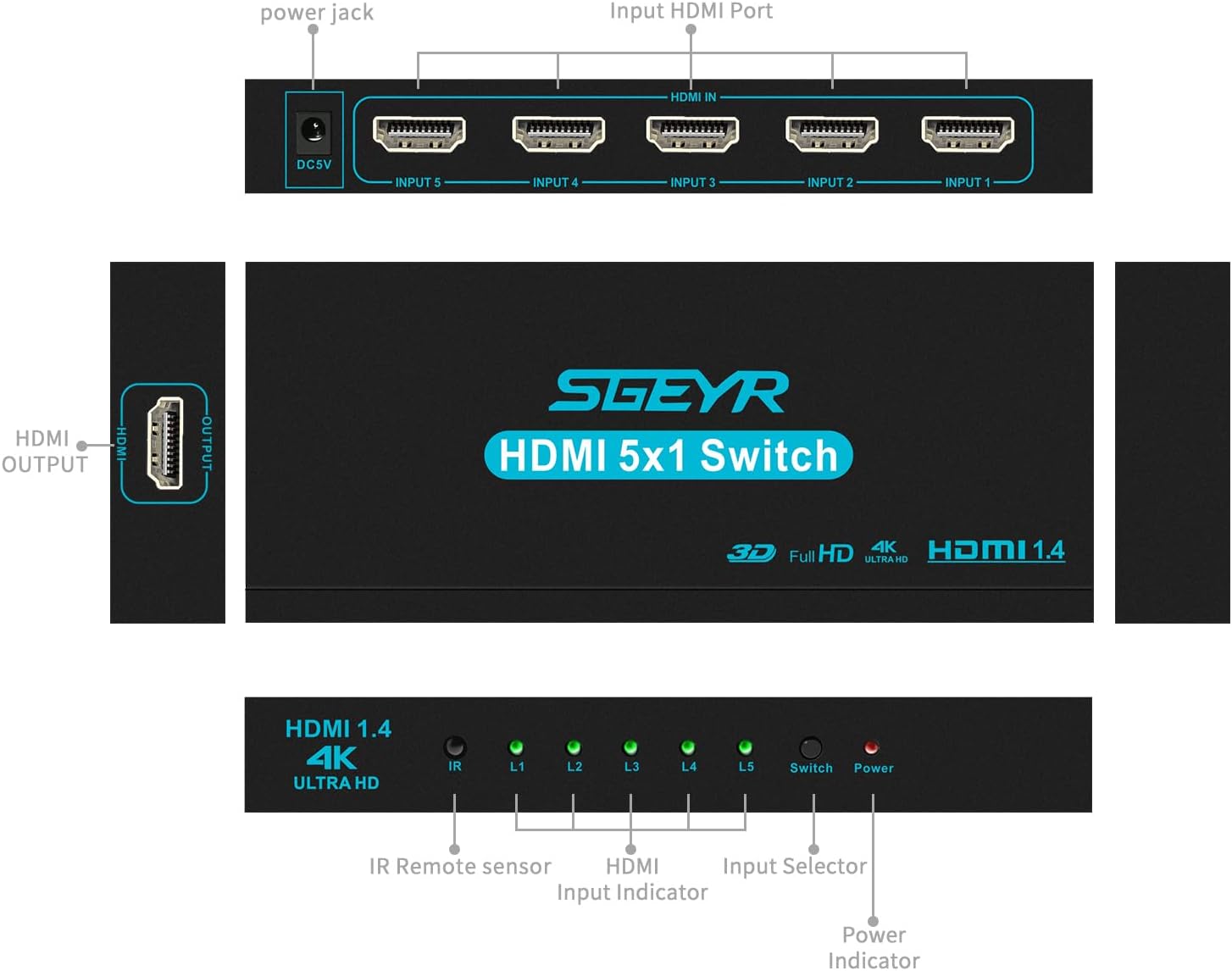
Image 3: Front, Back, and Side View of the HDMI Switcher
- DC5V Power Jack: Connect the USB power cable here.
- HDMI IN (Input 1-5): Connect your HDMI source devices (e.g., game console, Blu-ray player, PC).
- HDMI OUTPUT: Connect to your display device (e.g., TV, monitor, projector).
- IR Remote Sensor: For receiving signals from the IR remote control.
- L1-L5 Input Indicators: Green LEDs light up to show which input is currently selected.
- Switch Button: Manually cycle through the HDMI inputs.
- Power Indicator: Red LED indicates the device is powered on.
5. Setup Instructions
Follow these steps to set up your HDMI Switcher:
- Connect your HDMI source devices (e.g., gaming console, laptop, DVD player) to the HDMI IN ports (Input 1-5) on the switcher using HDMI cables.
- Connect your HDMI display device (e.g., TV, monitor, projector) to the HDMI OUTPUT port on the side of the switcher using an HDMI cable.
- Connect the provided USB power cable to the DC5V power jack on the switcher. Plug the other end into a USB power source (e.g., TV's USB port, digital STB USB port, or an external USB power adapter).
- Ensure all devices are powered on. The power indicator on the switcher will light up.

Image 4: Example Connection Diagram
Powering Options
The HDMI Switcher can be powered in three ways:
- Powered by your TV's USB port.
- Powered by a Digital STB USB port.
- Powered by an external USB power adapter (not included).
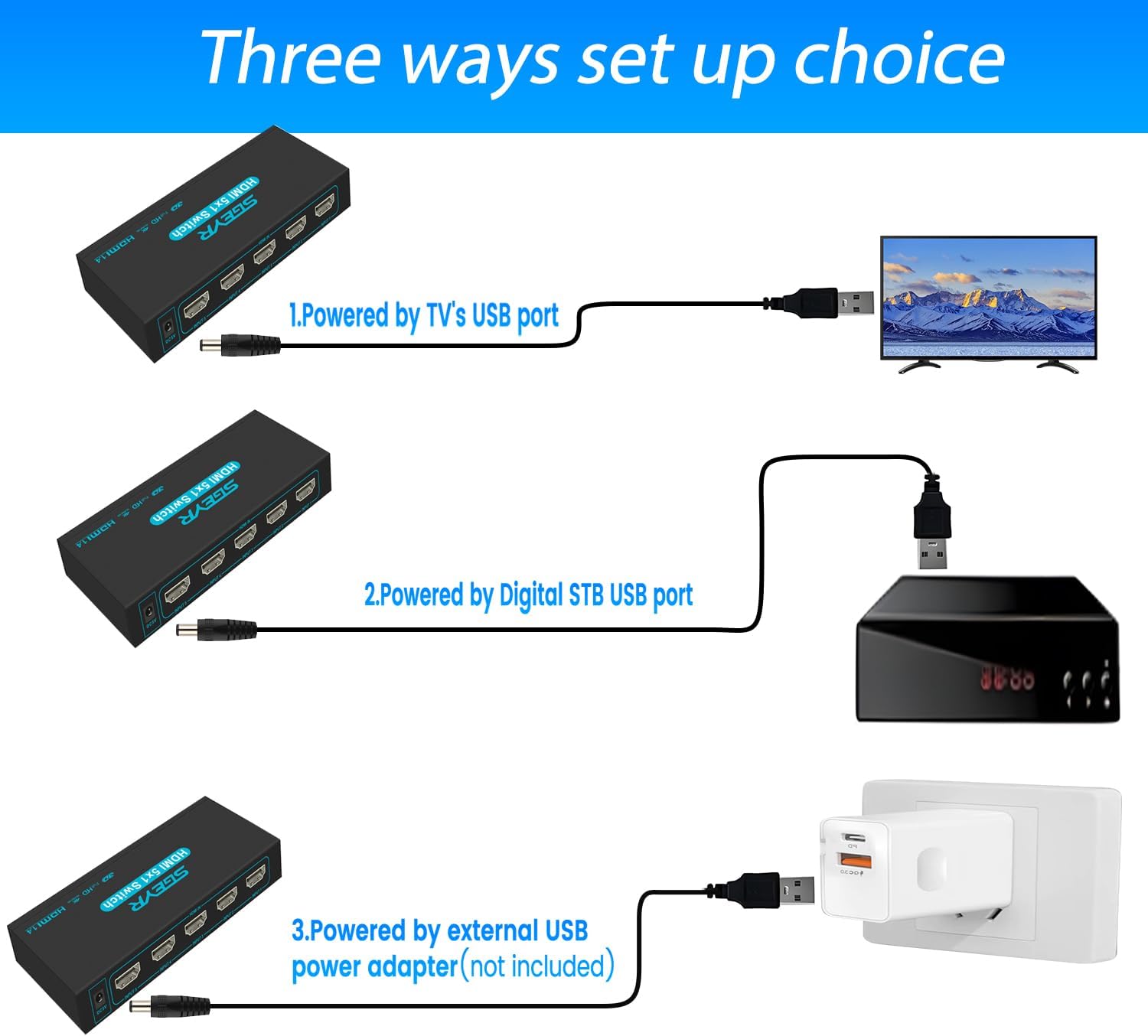
Image 5: Powering Options
6. Operating Instructions
You can switch between your connected HDMI sources using either the manual button on the switcher or the IR remote control.
Using the Manual Switch Button
Press the 'Switch' button on the front panel of the HDMI switcher to cycle through the connected HDMI input sources (L1, L2, L3, L4, L5). The corresponding green LED will illuminate to indicate the active input.
Using the IR Remote Control
Point the IR remote control towards the IR sensor on the front of the HDMI switcher. Press the numbered buttons (1-5) on the remote to directly select the desired HDMI input. The 'ON/OFF' button controls the power of the switcher.
Image 6: Switching between devices with remote or button
Demonstration Video: Switching Inputs
Video 1: This video demonstrates the functionality of the SGEYR 5x1 HDMI Switcher, showing how to connect devices and switch between inputs using the remote control.
7. Troubleshooting
If you encounter issues with your HDMI switcher, please refer to the following common solutions:
- Remote Control Not Working:
- Ensure 2 AAA batteries are installed correctly in the remote.
- Confirm the infrared control cable is connected to the switcher.
- Maintain a distance of within 16 feet and an angle of 45 degrees between the remote and the IR sensor.
- Ensure there are no obstructions blocking the signal path between the remote and the IR sensor.
- No Signal or Signal Issues with 4K/60Hz Display (e.g., PS5/Xbox):
- Connect the PS5/Xbox directly to your TV and manually reduce the resolution of these devices first. Then reconnect them to the switcher.
- Alternatively, set the HDMI version of your TV to HDMI 1.4.
- You can also directly connect the switcher to an HDMI 1.4 port on your TV without any additional settings.
- Ensure you are using Real HDMI 1.4 10.2 Gbps AWG26 standard cables for 4K@30Hz.
- Verify that your TV's output resolution is set to 4K.

Image 7: Common Troubleshooting Questions
8. Specifications
| Product Dimensions | 2.44 x 5.83 x 0.83 inches |
| Item Weight | 7.4 ounces |
| Model Number | 8541770065 |
| Brand | SGEYR |
| Connector Type | HDMI |
| Compatible Devices | Blu-Ray Player, DVD Player, Monitor, Projector, Television |
| Cable Type | HDMI |
| Date First Available | January 15, 2019 |
9. Warranty and Support
SGEYR provides lifetime technical support for this product. If you have any questions or require assistance, please contact SGEYR customer service.

