Introduction
The Canon VIXIA HF G50 4K30P Camcorder is designed for capturing high-quality video with exceptional detail and color. Featuring a large-format CMOS Sensor and DIGIC DV 6 Image Processor, it delivers brilliant results. The advanced 20x Optical Zoom lens provides impressive telephoto power and a wide angle of view, complemented by a 5-axis Image Stabilization system for steady footage. This manual provides essential information for setting up, operating, and maintaining your camcorder.
What's in the Box
Before you begin, ensure all components are present:
- VIXIA HF G50 Camcorder Body
- Compact Power Adapter CA-570
- Battery Pack BP-820
- Lens Hood with Lens Barrier
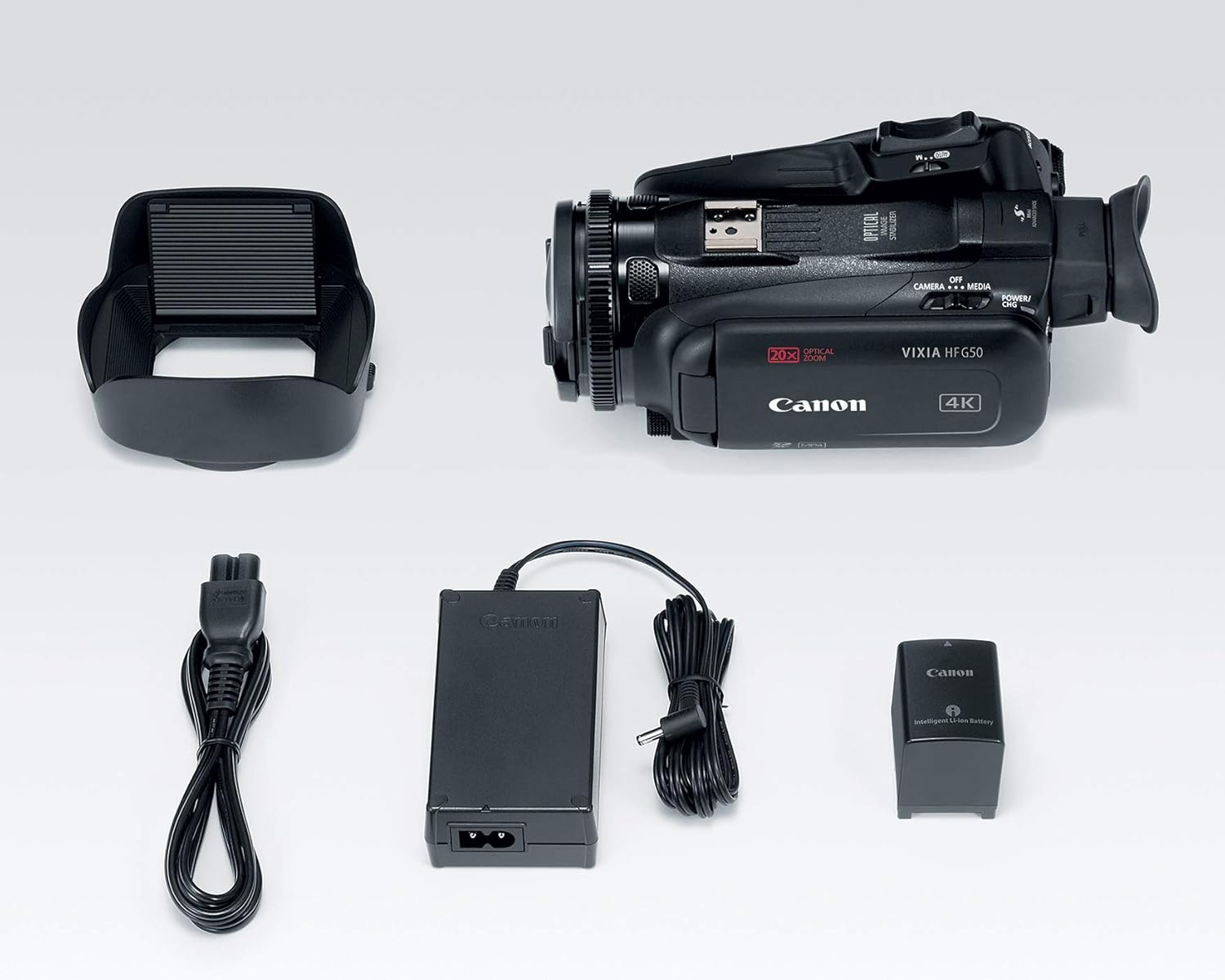
Image: All components included in the Canon VIXIA HF G50 camcorder package.
Setup
1. Charging the Battery
- Connect the Compact Power Adapter CA-570 to the camcorder and a power outlet.
- Insert the Battery Pack BP-820 into the camcorder. The charging indicator will illuminate.
- Charge until the indicator turns off, signifying a full charge.
2. Inserting an SD Card
- Open the SD card slot cover.
- Insert an SDXC memory card into one of the dual slots until it clicks into place.
- Close the SD card slot cover.

Image: Rear view of the camcorder, highlighting the battery and dual SD card slots.
3. Attaching the Lens Hood
- Align the lens hood with the front of the lens.
- Twist the lens hood clockwise until it locks securely.
- Ensure the lens barrier is open before recording.
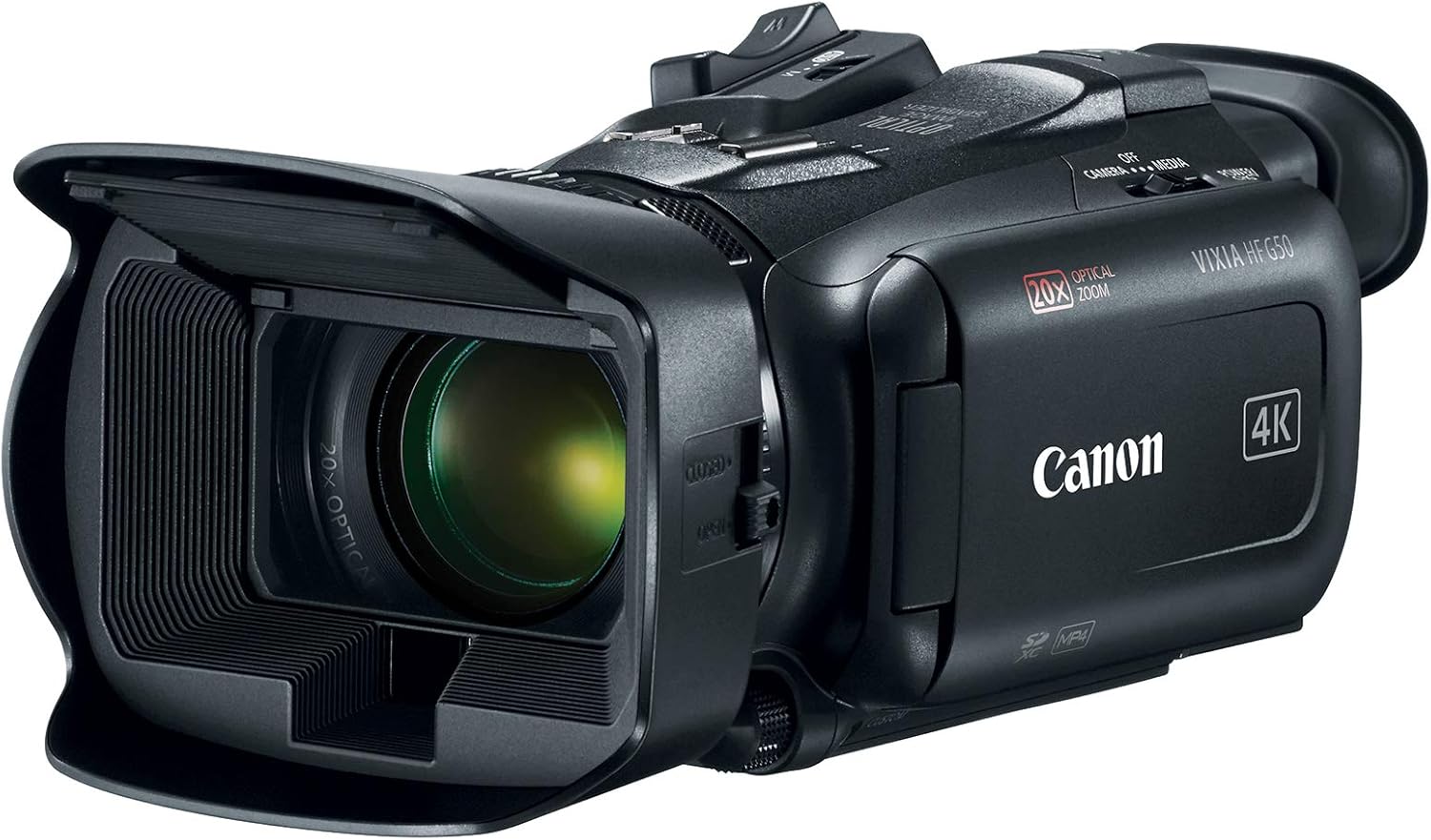
Image: The Canon VIXIA HF G50 camcorder with its lens hood and open LCD screen.
4. Powering On/Off
To power on the camcorder, slide the POWER switch to the 'CAMERA' or 'MEDIA' position. To power off, slide the switch to 'OFF'.
Operating Instructions
Recording 4K UHD 30p Video
The VIXIA HF G50 supports 4K UHD 30p recording for high-resolution video. Ensure your SD card has sufficient space and speed for 4K recording. Press the record button to start and stop recording.
20x Optical Zoom
Utilize the zoom lever to control the 20x optical zoom lens. Push the lever towards 'W' for wide-angle shots and towards 'T' for telephoto magnification.
Intelligent 5-axis Image Stabilization
The camcorder features Intelligent 5-axis Image Stabilization to reduce blur caused by camera shake. This function is automatically engaged during recording to ensure smooth footage.
Display and Viewfinder
The 3.0-inch LCD Capacitive Touchscreen allows for intuitive control and menu navigation. For bright conditions or precise framing, use the Tiltable Electronic Viewfinder.

Image: The camcorder with its LCD screen open, showing the interface for operation.
Custom Controls
Personalize your shooting experience using the five assignable buttons, joystick, lens ring, and custom dial. These controls can be configured for quick access to frequently used functions.
Special Recording Modes
Explore creative options with Slow and Fast Motion recording, including Interval Recording, available for both 4K and Full HD resolutions.
Webcam Functionality with Clean HDMI Output
Transform your VIXIA HF G50 into a high-quality webcam using its clean HDMI output. This feature allows you to stream video without on-screen display information, ideal for live streaming and video conferencing.
Video: Official Canon guide on using your camcorder for livestreaming with clean HDMI output.
Maintenance
Cleaning the Camcorder
- Use a soft, dry cloth to clean the camcorder body.
- For the lens, use a lens brush or a soft, lint-free cloth specifically designed for optical surfaces. Avoid touching the lens directly with your fingers.
- Do not use organic solvents such as alcohol or benzene, as these may damage the finish.
Battery Care
- Store batteries in a cool, dry place when not in use.
- Avoid fully discharging the battery for extended periods.
- Charge the battery at least once every six months to maintain its lifespan.
Storage
When storing the camcorder for an extended period, remove the battery and store it separately. Keep the camcorder in a dry, dust-free environment, ideally in a protective case.
Troubleshooting
No Power
- Ensure the battery is fully charged and correctly inserted.
- Verify the power adapter is securely connected to both the camcorder and a working power outlet.
- Check the POWER switch position.
Recording Issues
- Confirm an SD card is inserted and has sufficient free space.
- Check the SD card's write-protect tab.
- Ensure the camcorder is in recording mode.
Image Quality Concerns
- Clean the lens if images appear blurry or smudged.
- Adjust lighting conditions for optimal exposure.
- Check image stabilization settings if footage is shaky.
For more detailed troubleshooting or persistent issues, please refer to the comprehensive user manual available on the Canon support website or contact Canon customer support.
Specifications
| Feature | Detail |
|---|---|
| Product Dimensions | 9.1 x 4.5 x 3.3 inches |
| Item Weight | 1.25 pounds |
| Item Model Number | 3667C002 |
| Batteries | 1 Lithium Ion batteries required (included) |
| Photo Sensor Technology | CMOS |
| Video Capture Resolution | 4K, 1080p |
| Maximum Focal Length | 73.4 Millimeters |
| Maximum Aperture | 2.8 f |
| Flash Memory Type | SDXC |
| Video Capture Format | MPEG-4 |
| Supported Audio Format | AAC, Dolby Digital/AC-3 |
| Screen Size | 3 Inches |
| Connectivity Technology | USB, Wireless |
| 4K UHD 30p Recording | Yes |
| Optical Zoom | 20x |
| Image Stabilization | Intelligent 5-axis |
| Clean HDMI Output | Yes |
| Dual SD Card Slots | Yes |
Warranty and Support
The Canon VIXIA HF G50 Camcorder is covered by a manufacturer's warranty. For specific warranty terms and conditions, please refer to the documentation included with your product or visit the official Canon website.
For technical support, driver downloads, or to access the full user manual, please visit the Canon USA support website.


