
Introduction
This user manual provides detailed instructions for the installation, operation, and maintenance of your Peteme Smart WiFi Light Bulb. This smart LED bulb offers 16 million color options, dimmable white light, and can be controlled via a mobile application or voice commands through compatible smart home assistants.

Image: The Peteme Smart WiFi Light Bulb, showcasing its A19 E26 form factor and the vibrant color capabilities of its LED element.
Safety Information
- Ensure the power is turned off before installing or removing the bulb.
- Do not use in fully enclosed fixtures as this may shorten the bulb's lifespan.
- Not suitable for dimmers. Use the app or voice control for dimming.
- For indoor use only.
- Avoid exposing the bulb to water or high humidity.
- Keep out of reach of children.
Setup Guide
1. Physical Installation
- Turn off the power switch to the light fixture where you intend to install the smart bulb.
- Carefully screw the Peteme Smart WiFi Light Bulb into a standard E26 light socket.
- Turn on the power switch. The bulb should blink, indicating it is in pairing mode. If it does not blink, turn it off and on three times quickly.

Image: A Peteme smart bulb installed in a table lamp, ready for setup. This image illustrates the bulb's physical integration into a home lighting setup.
2. App Download and Account Creation
- Scan the QR code on the product packaging or search for "Smart Life" or "Tuya Smart" in your mobile app store (App Store for iOS, Google Play for Android).
- Download and install the application.
- Open the app and register a new account. Follow the on-screen prompts to complete the registration process.
3. Pairing the Bulb with the App (Wi-Fi Connection)
- Ensure your mobile device is connected to a 2.4GHz Wi-Fi network. The bulb does not support 5GHz Wi-Fi.
- Open the Smart Life/Tuya Smart app. Tap the "+" icon in the top right corner to add a device.
- Select "Lighting" or "Light Source (Wi-Fi)" from the device list.
- Confirm that the bulb is blinking rapidly. If not, power cycle it three times (off-on-off-on-off-on) until it blinks.
- Enter your Wi-Fi network password and confirm.
- The app will begin the pairing process. Once connected, the bulb will stop blinking and glow steadily.
- You can rename the bulb in the app for easier control (e.g., "Living Room Lamp").
4. Connecting to Voice Assistants (Optional)
- For Amazon Alexa:
- Open the Alexa app. Go to "Skills & Games".
- Search for "Smart Life" or "Tuya Smart" skill and enable it.
- Link your Smart Life/Tuya Smart account with your Alexa account.
- Discover devices. You can now control your bulb with voice commands like "Alexa, turn on Living Room Lamp."
- For Google Home:
- Open the Google Home app. Tap "+" > "Set up device" > "Works with Google".
- Search for "Smart Life" or "Tuya Smart" and link your account.
- Assign the bulb to a room. You can now use commands like "Hey Google, change Living Room Lamp to blue."
- For Siri (via Shortcuts):
- In the Smart Life/Tuya Smart app, navigate to the bulb's control interface.
- Look for an option to "Add to Siri" or "Tap to Run" automation.
- Create a custom phrase for the desired action (e.g., "Turn on the light").

Image: An illustration demonstrating voice control capabilities with Siri, Alexa, and Google Assistant, showing how users can command the smart bulb to change color or brightness.
Operating Instructions
1. Color and Brightness Adjustment
- Open the Smart Life/Tuya Smart app and select your Peteme Smart Bulb.
- You can choose from 16 million colors using the color wheel.
- Adjust the brightness level using the slider.
- Switch between RGB color mode and warm/cool white light modes as needed.

Image: Multiple smart bulbs illuminating a room with different colors, demonstrating the extensive color-changing capabilities and the ability to switch between cool and warm white light.
2. Group Control
- In the app, go to the device list.
- Tap the "..." or "Settings" icon for one of your bulbs and select "Create Group".
- Select all the bulbs you wish to control together.
- Name your group (e.g., "Living Room Lights"). Now you can control all bulbs in the group simultaneously.

Image: A smartphone screen displaying the group control feature within the smart home app, showing how multiple smart bulbs can be managed as a single unit.
3. Timer and Schedule Setting
- From the bulb's control interface in the app, select "Schedule" or "Timer".
- Set specific times for the bulb to turn on or off.
- You can also set recurring schedules for daily routines (e.g., wake-up light, bedtime light).

Image: A smartphone screen displaying the timer and scheduling options within the smart home app, illustrating how users can set specific times for the bulb to turn on or off, such as for waking up or going to sleep.
4. Remote Control
- As long as your smart bulb is connected to Wi-Fi and your phone has internet access, you can control your lights from anywhere.
- Simply open the app and manage your bulbs remotely.
Image: A smartphone screen demonstrating remote control capabilities, showing a user adjusting lighting in a house from a distance. This highlights the convenience of managing lights even when away from home.
5. Music Sync (If available in app)
- Some versions of the app may include a music sync feature.
- If available, navigate to the "Music" or "Scene" section within the bulb's control interface.
- Enable music sync to have the bulb's colors change in rhythm with music played through your phone's microphone.
Maintenance
- Before cleaning, ensure the bulb is off and cool to the touch.
- Wipe the bulb with a soft, dry cloth. Do not use liquid cleaners or abrasive materials.
- Regularly check for any loose connections in the light fixture.
Troubleshooting
| Problem | Possible Cause | Solution |
|---|---|---|
| Bulb not blinking during setup. | Not in pairing mode. | Turn the bulb off and on three times quickly (on-off-on-off-on) until it blinks rapidly. |
| Cannot connect to Wi-Fi. | Incorrect Wi-Fi band (5GHz), wrong password, or weak signal. | Ensure your phone is connected to a 2.4GHz Wi-Fi network. Double-check the Wi-Fi password. Move the bulb closer to the router. |
| Bulb is offline in the app. | Wi-Fi disconnected, power outage, or router issue. | Check your Wi-Fi connection. Power cycle the bulb and your router. Re-pair if necessary. |
| Voice control not working. | Skill not enabled, account not linked, or incorrect commands. | Verify the Smart Life/Tuya Smart skill is enabled and linked in your voice assistant app. Use the correct voice commands. |
Specifications
| Feature | Detail |
|---|---|
| Brand | Peteme |
| Light Type | LED |
| Special Feature | Color Changing, Dimmable |
| Wattage | 7 watts |
| Incandescent Equivalent | 60 Watts |
| Bulb Shape Size | A19 |
| Bulb Base | E26 |
| Brightness | 600 Lumens |
| Voltage | 220 Volts (Accepted voltage frequency: 220 to 240 Volts and 50 Hertz) |
| Connectivity Technology | Wi-Fi (2.4GHz only) |
| Control Method | App, Voice (Alexa, Google Assistant, Siri via Shortcuts) |
| Product Dimensions | 3.11"W x 4.6"H |
| Item Weight | 5.9 ounces |
| Material | Glass |
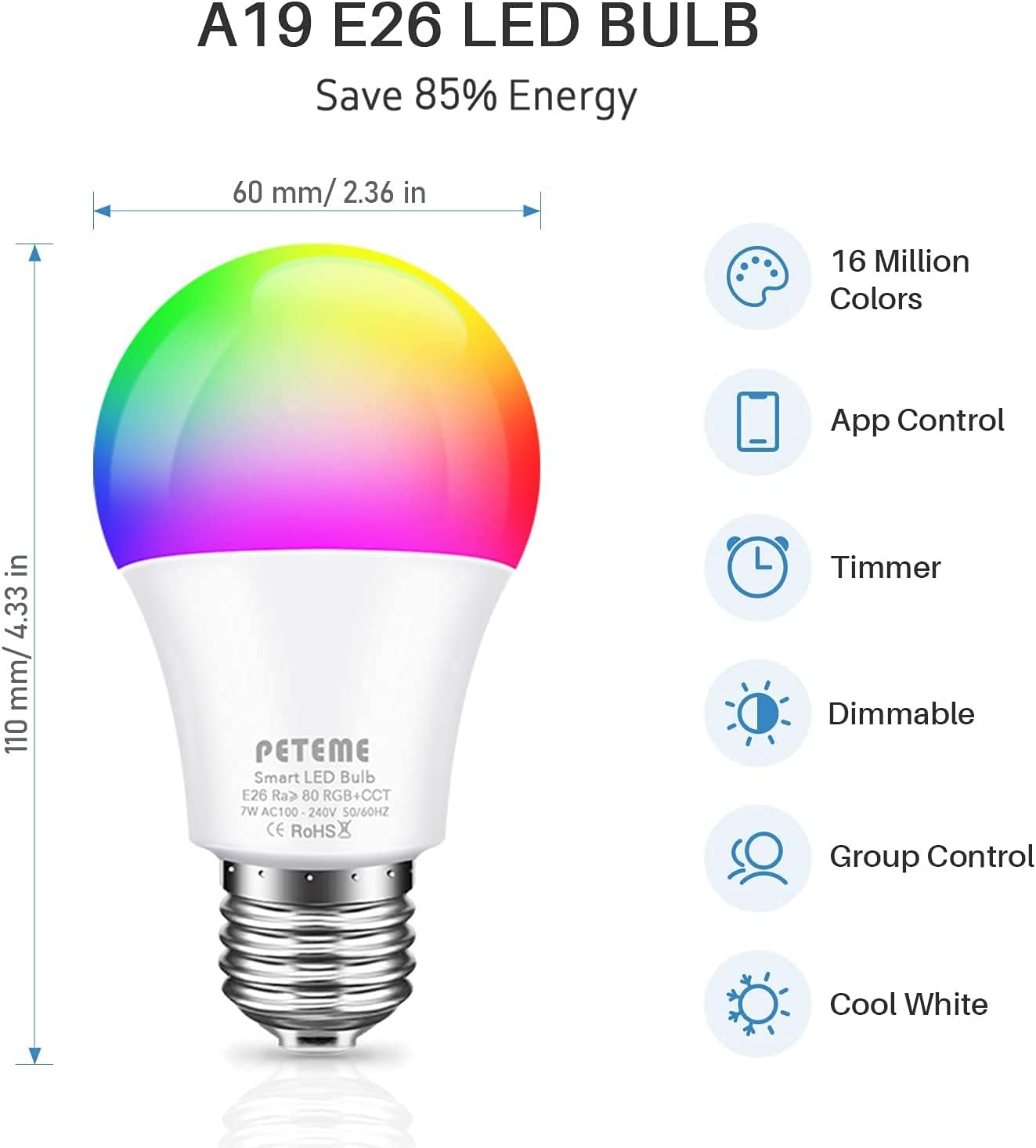
Image: A technical diagram illustrating the dimensions (60mm width, 110mm height) and key features of the A19 E26 LED bulb, including 16 million colors, app control, timer, dimmable function, group control, and cool white light capability.
Warranty and Support
The Peteme Smart WiFi Light Bulb comes with a 1-year warranty from the date of purchase. This warranty covers manufacturing defects and malfunctions under normal use.
For technical support, troubleshooting assistance, or warranty claims, please contact Peteme customer service through the contact information provided on the product packaging or the official Peteme website. Please have your purchase receipt and product model number ready when contacting support.
