
1. Introduction
This manual provides detailed instructions for the FAIYIWO Zealot B19 Wireless Bluetooth Headphones. Please read this manual carefully before using the product to ensure proper operation and to maximize your listening experience. Keep this manual for future reference.
2. Product Overview
The FAIYIWO Zealot B19 headphones offer a versatile audio experience with Bluetooth connectivity, an integrated microphone, an LCD display, FM radio, and support for TF card playback. The design includes comfortable over-ear cushions and intuitive controls.
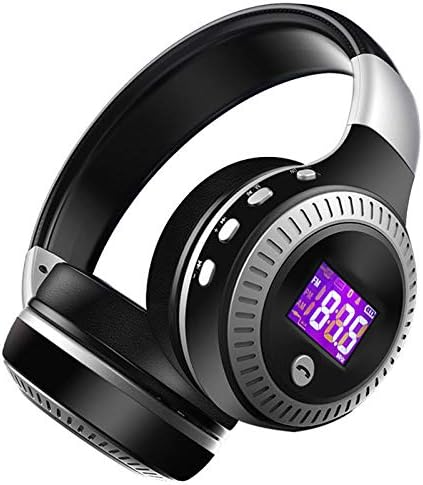
Image 2.1: Front view of the FAIYIWO Zealot B19 Wireless Bluetooth Headphones in black. The headphones feature an adjustable headband, cushioned earcups, and an LCD display on the right earcup.
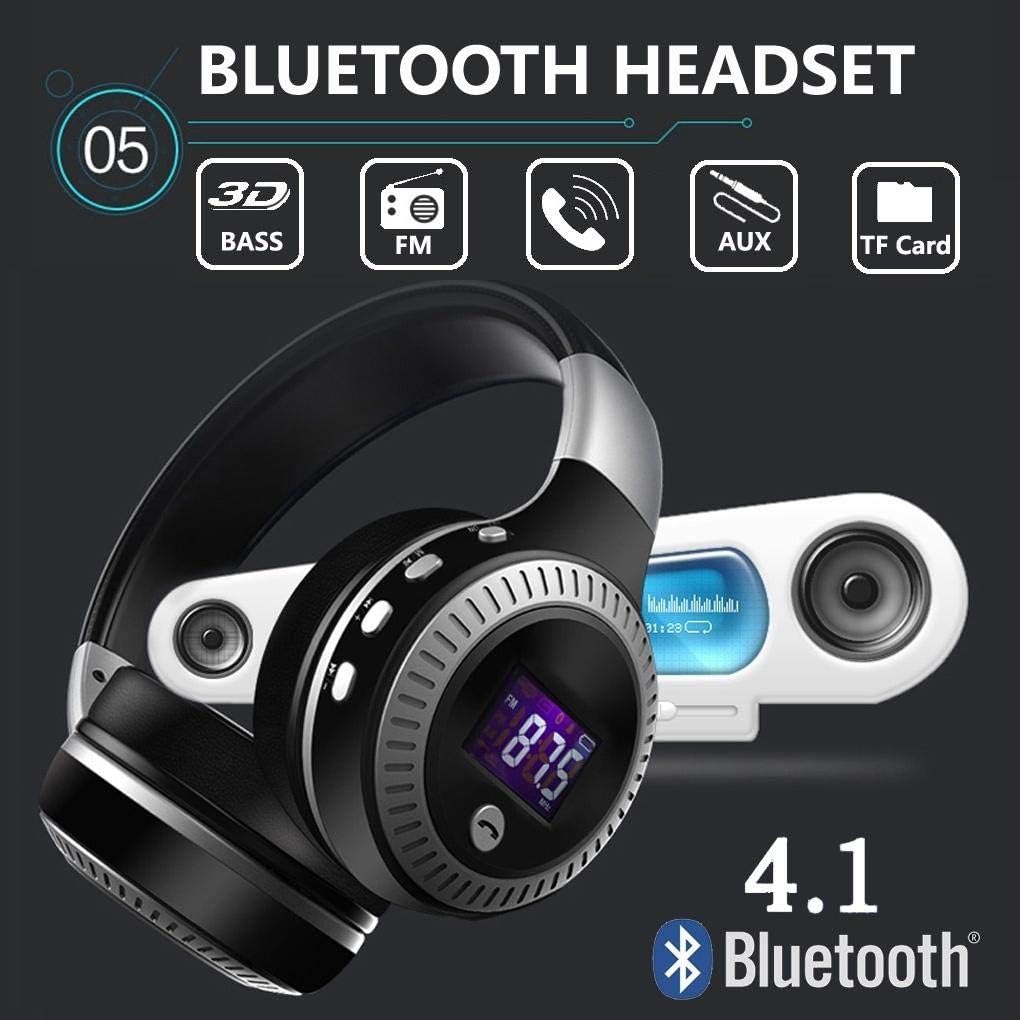
Image 2.2: Graphic illustrating key features of the B19 headphones, including 3D Bass, FM radio, call functionality, AUX input, TF card support, and Bluetooth 4.1 connectivity.
2.1 Components and Controls
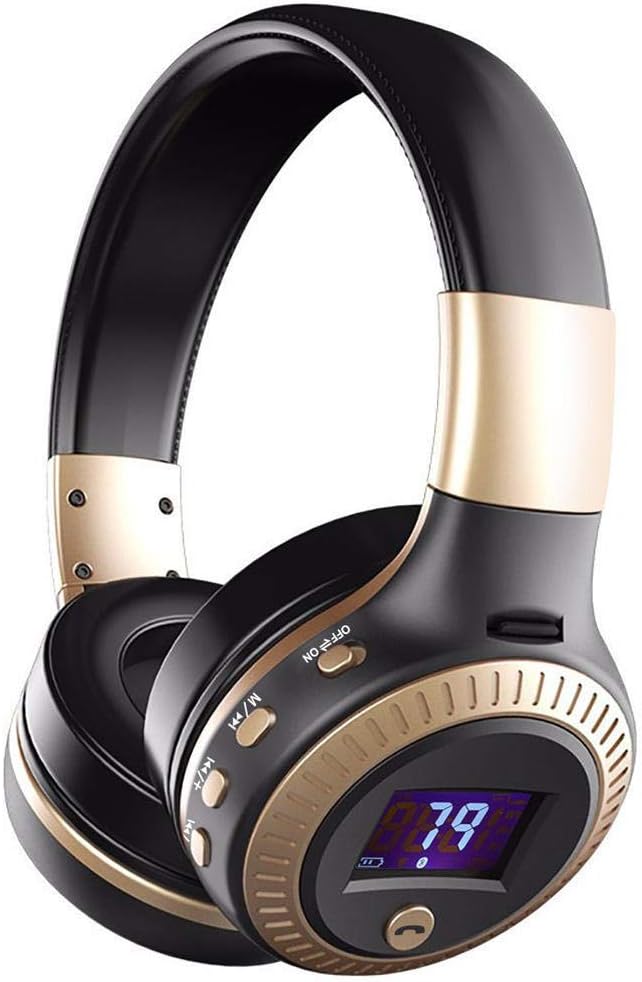
Image 2.3: Detailed view of the right earcup, showing the LCD display, power switch, mode button (M), volume/track control buttons (+/-), and the call button.
- Power Switch: ON/OFF slider.
- Mode Button (M): Switches between Bluetooth, FM Radio, and TF Card modes.
- Volume Up / Next Track (+): Short press for volume up, long press for next track.
- Volume Down / Previous Track (-): Short press for volume down, long press for previous track.
- Play/Pause / Call Button: Press to play/pause music, answer/end calls. Long press to reject calls.
- LCD Display: Shows mode, battery level, track information, or FM frequency.
- Microphone: For hands-free calling.
- Charging Port: Micro USB port for charging.
- AUX Input: 3.5mm audio jack for wired connection.
- TF Card Slot: For playing music directly from a MicroSD card.
3. Setup
3.1 Charging the Headphones
- Connect the Micro USB charging cable to the charging port on the headphones.
- Connect the other end of the cable to a USB power source (e.g., computer USB port, USB wall adapter).
- The LCD display will indicate charging status. A full charge typically takes 2-3 hours.
- Once fully charged, disconnect the charging cable.
3.2 Powering On/Off
- To Power On: Slide the power switch to the "ON" position. The LCD display will light up, and you will hear an audible prompt.
- To Power Off: Slide the power switch to the "OFF" position. The LCD display will turn off.
3.3 Bluetooth Pairing
- Ensure the headphones are powered on and in Bluetooth mode (indicated on the LCD display). If not, press the 'M' button to switch modes.
- On your Bluetooth-enabled device (smartphone, tablet, computer), go to the Bluetooth settings and enable Bluetooth.
- Search for available devices. The headphones will appear as "B19" or "Zealot B19".
- Select "B19" or "Zealot B19" to pair. Once paired, the headphones will provide an audible confirmation, and the Bluetooth icon on the LCD will stabilize.
- If prompted for a password, enter "0000".
3.4 Connecting via AUX Cable
- Insert one end of the 3.5mm audio cable into the AUX input port on the headphones.
- Connect the other end of the cable to the audio output jack of your device.
- The headphones will automatically switch to AUX mode. Note that some controls on the headphones may not function in AUX mode, and playback will be controlled by your connected device.
3.5 TF Card Playback
- Insert a MicroSD (TF) card with MP3 audio files into the TF card slot on the headphones.
- Press the 'M' button to switch to TF Card mode. The headphones will automatically begin playing music from the card.
4. Operating Instructions
4.1 Music Playback (Bluetooth / TF Card Mode)
- Play/Pause: Press the Play/Pause button once.
- Next Track: Long press the '+' button.
- Previous Track: Long press the '-' button.
- Volume Up: Short press the '+' button.
- Volume Down: Short press the '-' button.
4.2 Call Functions
- Answer Call: Press the Play/Pause button once when an incoming call rings.
- End Call: Press the Play/Pause button once during a call.
- Reject Call: Long press the Play/Pause button when an incoming call rings.
- Redial Last Number: Double-press the Play/Pause button.
4.3 FM Radio Mode
- Press the 'M' button to switch to FM Radio mode. The LCD will display the FM frequency.
- Auto Scan: Long press the Play/Pause button to automatically scan and save available FM stations.
- Change Station: Short press the '+' or '-' buttons to switch between saved stations.
- Volume Adjustment: Use the volume controls on your connected device or the headphone's volume buttons if they function in this mode.
4.4 LCD Display Information
The LCD display provides visual feedback on the headphone's status:
- Mode Indicator: Shows current mode (Bluetooth, FM, TF Card).
- Battery Level: Displays remaining battery charge.
- Track Number/FM Frequency: Shows current track number in TF card mode or FM frequency in radio mode.
- Bluetooth Connection Status: Icon indicates if Bluetooth is connected or pairing.
5. Maintenance
- Cleaning: Use a soft, dry cloth to clean the headphones. Do not use abrasive cleaners or solvents.
- Storage: Store the headphones in a cool, dry place away from direct sunlight and extreme temperatures.
- Avoid Water: Do not expose the headphones to water or excessive moisture.
- Handle with Care: Avoid dropping or subjecting the headphones to strong impacts.
6. Troubleshooting
| Problem | Possible Solution |
|---|---|
| Headphones do not power on. | Ensure the battery is charged. Connect to a power source and charge for at least 30 minutes. |
| Cannot pair via Bluetooth. | Ensure headphones are in Bluetooth pairing mode. Turn off and on Bluetooth on your device. Move closer to the headphones. Clear previous Bluetooth connections on your device. |
| No sound or low volume. | Check headphone volume and device volume. Ensure headphones are properly connected (Bluetooth or AUX). Try another audio source. |
| FM radio reception is poor. | Move to an open area. The AUX cable can sometimes act as an antenna; try plugging it in (without connecting to a device) to improve reception. |
| TF card not recognized. | Ensure the TF card is inserted correctly. Check if the card is formatted correctly and contains supported audio files (e.g., MP3). Try a different TF card. |
7. Specifications
| Feature | Detail |
|---|---|
| Model Name | Zealot B19 |
| Connectivity Technology | Wireless (Bluetooth) |
| Wireless Communication Technology | Bluetooth |
| Compatible Devices | Bluetooth-enabled Devices |
| Item Weight | 7.04 ounces (approximately 199.6 grams) |
| Frequency Range | 20 Hz - 20,000 Hz |
| Control Method | Remote (on-headphone controls) |
| Audio Driver Type | Dynamic Driver |
| Earpiece Shape | On-ear |
| Form Factor | Over Ear |
| UPC | 761822030377 |
8. Warranty and Support
For warranty information, please refer to the documentation provided at the time of purchase or contact your retailer. For technical support or further assistance, please reach out to the product manufacturer or the point of purchase.