
1. Introduction
This manual provides essential information for the proper use and maintenance of your Haehne Q88 7-inch Android 5.0 Tablet PC. Please read this guide thoroughly before operating your device to ensure optimal performance and longevity. The Haehne Q88 is a compact and versatile tablet designed for everyday use, featuring a Quad-Core processor, 1GB RAM, 8GB ROM, and dual cameras, running on Android 5.0.
2. Safety Information
- Charging: Use only compatible chargers. The package includes a USB cable; please use an Android phone charger or adapter for power.
- Battery: Do not attempt to replace the battery yourself. Avoid exposing the tablet to extreme temperatures or direct sunlight.
- Water Exposure: This device is not waterproof. Avoid contact with liquids.
- Cleaning: Use a soft, dry cloth for cleaning. Do not use harsh chemicals.
- Disposal: Dispose of the device and its battery responsibly according to local regulations.
3. Package Contents
Please check the box for the following items:
- Haehne Q88 7-inch Android Tablet PC
- USB Cable
- User Manual (this document)
4. Device Overview
Familiarize yourself with the physical components and ports of your Haehne Q88 tablet.

Front and rear view of the Haehne Q88 tablet, showcasing its compact design and pink casing.
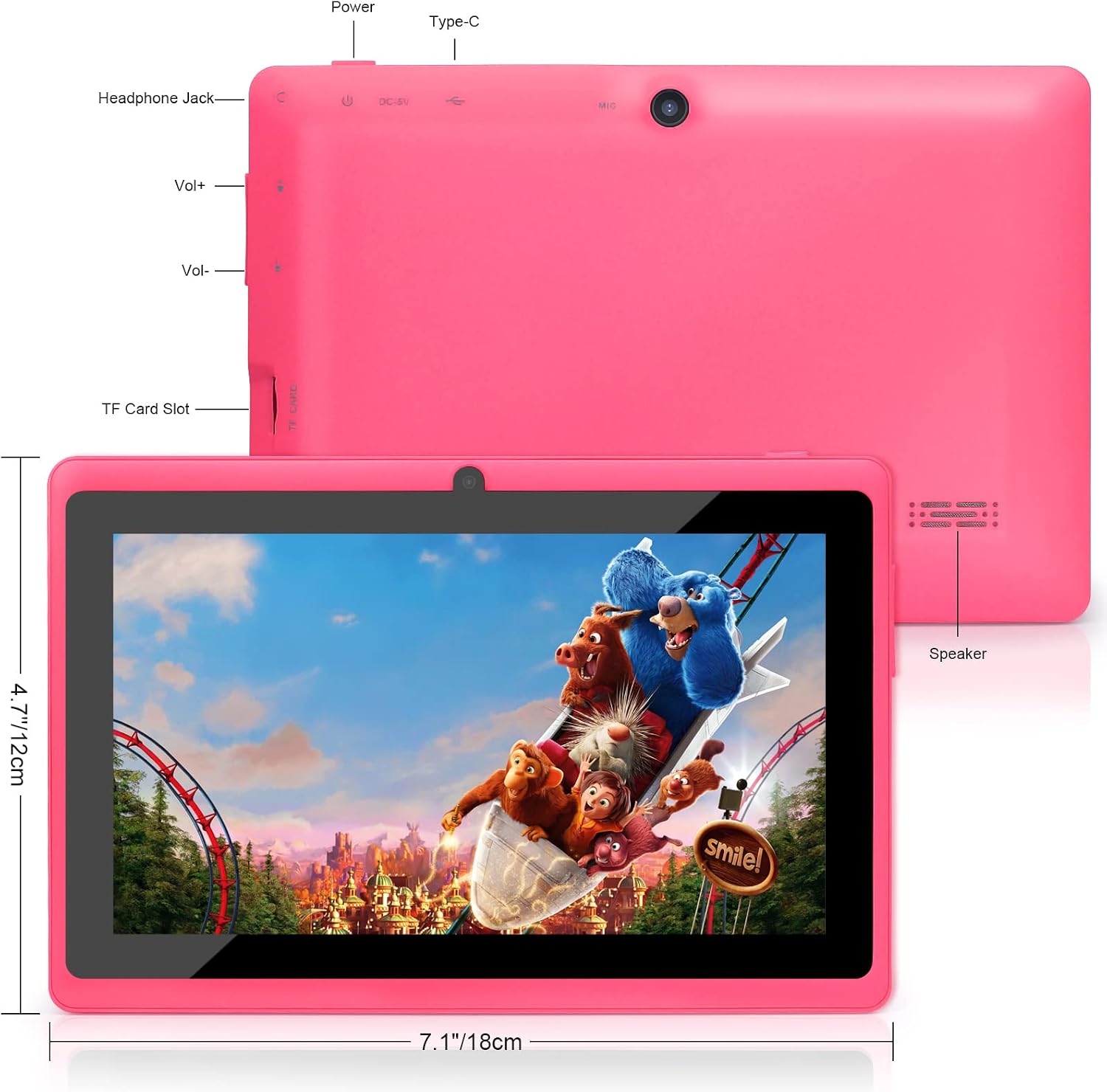
Detailed diagram of the Haehne Q88 tablet highlighting its ports including headphone jack, power, Type-C, microphone, volume controls, TF card slot, and speaker, along with its dimensions.
Port Identification:
- Headphone Jack: For connecting wired headphones.
- Power Button: To turn the tablet on/off or put it to sleep/wake.
- Type-C Port: For charging and data transfer.
- Microphone (MIC): For audio input.
- Volume Buttons (Vol+, Vol-): To adjust the audio volume.
- TF Card Slot: For inserting a Micro SD card to expand storage.
- Speaker: For audio output.
5. Getting Started
5.1. Charging the Tablet
Before first use, fully charge your tablet. Connect the provided USB cable to the tablet's Type-C port and plug the other end into a compatible Android phone charger or a computer's USB port. The charging indicator will show the charging status.
5.2. Powering On/Off
- To Power On: Press and hold the Power Button until the screen lights up.
- To Power Off: Press and hold the Power Button until a power-off menu appears, then select 'Power off'.
- Sleep/Wake: Briefly press the Power Button to put the tablet to sleep or wake it up.
5.3. Initial Setup
Upon first power-on, the tablet will guide you through the initial setup process:
- Select your preferred language.
- Connect to a Wi-Fi network (see section 6.2).
- Set up your Google account (optional, but recommended for app downloads).
- Configure date, time, and other settings as prompted.
5.4. Inserting a Micro SD Card
To expand the tablet's storage, you can insert a Micro SD card (up to 32GB) into the TF Card Slot. Gently push the card until it clicks into place. To remove, push it again until it springs out.

Visual representation of the tablet's storage capabilities, featuring 1GB RAM and 8GB internal storage, expandable up to 32GB via a Micro SD card.
6. Basic Operation
6.1. Touchscreen Navigation
The tablet features a capacitive touchscreen. Use the following gestures:
- Tap: To select an item or open an application.
- Tap & Hold: To access contextual menus or move icons.
- Swipe: To scroll through pages or lists.
- Pinch: To zoom in or out on images and web pages.
6.2. Wi-Fi Connection
- Go to Settings > Wi-Fi.
- Toggle Wi-Fi On.
- Select your desired network from the list.
- Enter the password if prompted, then tap Connect.
6.3. Bluetooth Pairing
- Go to Settings > Bluetooth.
- Toggle Bluetooth On.
- Ensure the device you want to pair with is in pairing mode.
- Select the device from the 'Available devices' list and follow the on-screen prompts to complete pairing.
6.4. Using the Cameras
The tablet is equipped with a 0.3MP front camera and a 2.0MP rear camera.
- Open the Camera application.
- Tap the camera icon to switch between front and rear cameras.
- Tap the shutter button to take a photo or start/stop video recording.
6.5. Installing Applications
You can download and install various applications from the Google Play Store.
- Ensure you are connected to Wi-Fi and logged into your Google account.
- Tap the Play Store icon on your home screen or app drawer.
- Search for the desired application.
- Tap Install and follow the on-screen instructions.

The tablet screen showing the Android 5.0 operating system interface with icons for popular applications like Google Play Store, YouTube, Facebook, and more, indicating app compatibility.
7. Maintenance
- Cleaning: Wipe the screen and body with a soft, lint-free cloth. For stubborn marks, slightly dampen the cloth with water. Avoid abrasive materials.
- Software Updates: Periodically check for system updates in Settings > About tablet > System updates to ensure optimal performance and security.
- Storage Management: Regularly clear unnecessary files and uninstall unused apps to free up storage space and improve performance.
- Battery Care: To prolong battery life, avoid fully discharging the tablet frequently. Charge it when the battery level is low, but avoid leaving it plugged in for extended periods after it's fully charged.
8. Troubleshooting
If you encounter issues with your tablet, refer to the table below for common problems and solutions.
| Problem | Possible Solution |
|---|---|
| Tablet does not turn on | Ensure the tablet is charged. Connect it to a charger for at least 30 minutes, then try powering on again. If it still doesn't turn on, perform a hard reset by holding the power button for 10-15 seconds. |
| Slow performance / Freezing | Close unused applications. Clear cache from apps in Settings > Apps. Uninstall unnecessary apps. Restart the tablet. |
| Wi-Fi connection issues | Ensure Wi-Fi is enabled. Restart your router and the tablet. Forget the network in Wi-Fi settings and reconnect. |
| Battery drains quickly | Reduce screen brightness. Turn off Wi-Fi, Bluetooth, and GPS when not in use. Close background apps. Check battery usage in Settings to identify power-hungry apps. |
| Cannot install apps | Ensure you have a stable internet connection. Check available storage space. Verify your Google account is properly set up in Play Store. |
9. Specifications
Key technical specifications for the Haehne Q88 Tablet PC.

An overview of the tablet's main features presented with icons, including Android 5.0, 7-inch display, Quad Core processor, 1024x600 resolution, 1GB RAM + 8GB ROM, Bluetooth, 2500mAh battery, dual cameras, and GPS.
| Feature | Detail |
|---|---|
| Brand | Haehne |
| Model Name | Q88 |
| Operating System | Android 5.0 |
| Processor | MediaTek Quad-Core, 1.3 GHz |
| RAM Size | 1 GB |
| Memory Storage Capacity | 8 GB (expandable up to 32 GB via Micro SD card) |
| Screen Size | 7 Inches |
| Screen Resolution | 800 x 480 pixels |
| Graphics Chipset | ARM Mali-400 MP2 |
| Connectivity | Wi-Fi (802.11b), Bluetooth |
| Cameras | Front: 0.3MP, Rear: 2.0MP |
| Item Dimensions (L x W x H) | 18 x 12 x 1 centimeters |
| Color | Pink |
10. Warranty and Support
For warranty information and technical support, please refer to the documentation provided at the time of purchase or contact your retailer. Keep your proof of purchase for any warranty claims.