
1. Introduction
This manual provides detailed instructions for the setup, operation, and maintenance of your Miracle Digital 7-inch IPS Digital Photo Frame, Model SB-122. Please read this manual thoroughly before using the device to ensure proper functionality and to maximize your viewing experience. This digital photo frame is designed to display your cherished photos, play videos, and audio, offering a versatile way to relive your memories.
2. Package Contents
Upon unpacking, please verify that all items listed below are present and in good condition:
- Miracle Digital 7-inch IPS Digital Photo Frame (Model SB-122)
- Power Adapter
- Remote Control
- User Manual (this document)

Image: The digital photo frame along with its power adapter, remote control, and user manual.
3. Product Overview
The Miracle Digital SB-122 features a 7-inch IPS display for wide viewing angles and clear image presentation. It includes various ports for media input and can be placed on a flat surface using its integrated stand or mounted on a wall.
3.1 Front View
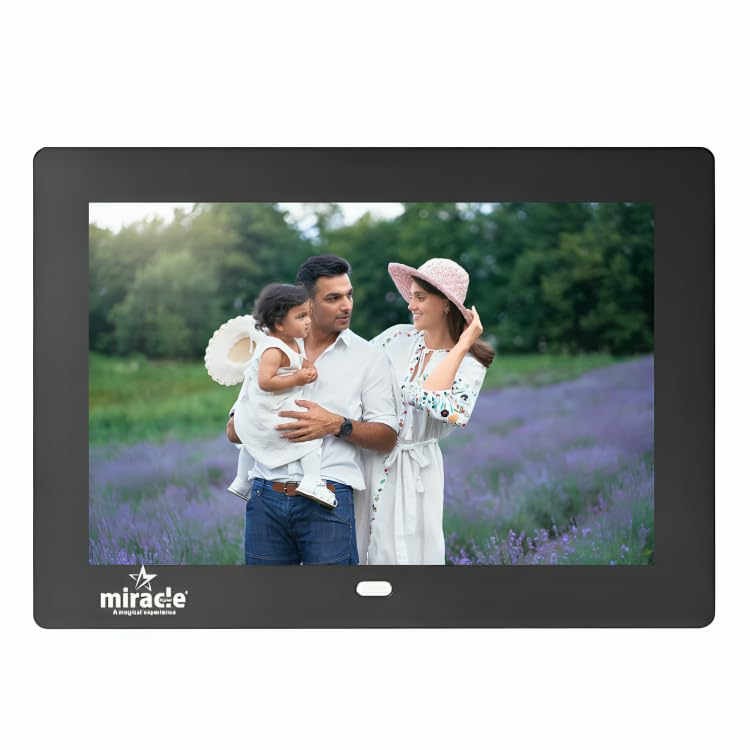
Image: Front view of the digital photo frame, showcasing its display.
3.2 Rear View and Ports
The rear of the device houses the control buttons, various input ports, and a foldable stand for versatile placement.
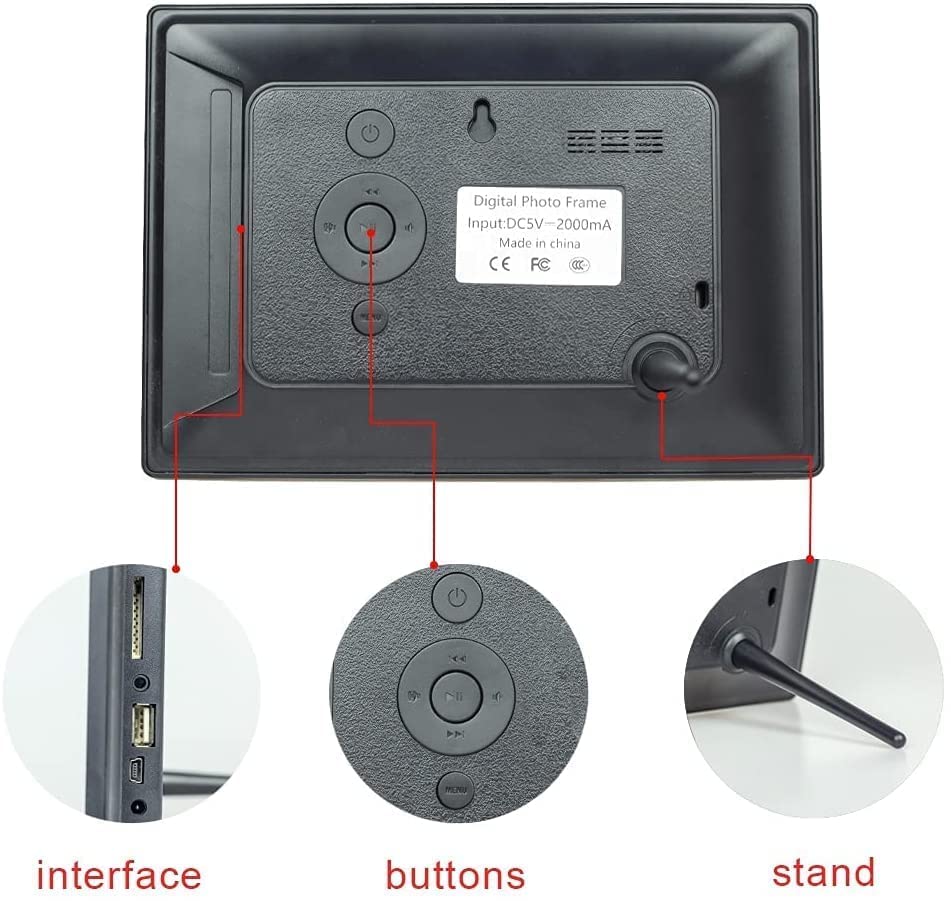
Image: Detailed rear view showing the interface, buttons, and stand.
- SD/MMC/SDHC Card Slot: For inserting memory cards up to 32GB.
- USB Port: For connecting USB flash drives.
- Mini USB Port: For connecting to a computer (if supported for data transfer).
- DC IN: Power input port for the adapter.
- Earphone Jack: For connecting headphones or external speakers.
- Control Buttons: Navigation and selection buttons for menu operation.
- Stand: Foldable stand for desktop placement.
- Wall Mount Holes: For mounting the frame on a wall.
4. Setup
- Power Connection: Connect the power adapter to the DC IN port on the frame and then plug it into a power outlet. The frame will automatically power on.
- Initial Settings: Upon first use, you may be prompted to set the language, time, and date. Use the control buttons on the back of the frame or the remote control to navigate and confirm your selections.
- Placement: Place the frame on a stable, flat surface using its integrated stand, or mount it on a wall using appropriate hardware (not included) and the designated wall mount holes.
5. Operating Instructions
5.1 Inserting Memory Devices
The frame supports SD/MMC/SDHC cards up to 32GB and USB flash drives. Simply insert your chosen memory device into the corresponding slot. The frame will automatically detect the device and display its contents.

Image: Illustration of inserting a USB drive and SD card into the frame.
5.2 Viewing Photos
The frame can display JPEG images up to 8000 x 8000 pixels. Once a memory device is inserted, the frame will typically start a slideshow automatically. You can customize the slideshow settings:
- Slideshow Mode: Choose from various transition effects and set interval times between photos.
- Zoom/Rotate: Use the remote control or on-device buttons to zoom in/out or rotate photos.

Image: The digital photo frame displaying multiple images in a collage layout.
5.3 Playing Videos and Audio
The frame supports MPEG1/2/4, AVI (DIVX and Xvid), and M-JPEG video files, as well as audio playback. Navigate to the video or music section in the main menu to select and play your media files. The built-in stereo speaker provides audio output, or you can connect headphones via the earphone jack.
5.4 Using Calendar and Clock
The frame includes convenient calendar and clock functions. Access these features through the main menu. You can set alarms and view the current date and time.
5.5 Remote Control Operation
The included remote control allows for convenient operation of the frame from a distance. Functions include power on/off, menu navigation, volume control, playback controls (play, pause, next, previous), and settings adjustments.
6. Maintenance
- Cleaning: Use a soft, dry cloth to clean the screen and frame. Avoid using liquid cleaners or abrasive materials.
- Storage: When not in use for extended periods, store the frame in a cool, dry place away from direct sunlight and extreme temperatures.
- Power Off: Always power off the device correctly before unplugging it.
7. Troubleshooting
| Problem | Possible Cause | Solution |
|---|---|---|
| Frame does not power on. | Power adapter not connected or faulty. | Ensure the power adapter is securely connected to the frame and a working power outlet. Test the outlet with another device. |
| No images or videos displayed. | Memory card/USB not inserted correctly or no compatible files. | Reinsert the memory device. Ensure files are in supported formats (JPEG for photos, MPEG1/2/4, AVI, M-JPEG for videos). Check if the memory device is formatted correctly. |
| Remote control not working. | Batteries are low or depleted; remote not pointed at sensor. | Replace remote control batteries. Ensure there is a clear line of sight between the remote and the frame's IR sensor. |
| Images appear distorted or low quality. | Image resolution is too low for the screen. | Use higher resolution images. The frame's native resolution is 800x600 pixels. |
8. Specifications
| Feature | Detail |
|---|---|
| Screen Size | 7 Inches (17.78 cm) |
| Display Type | IPS LED |
| Screen Resolution | 800 x 600 pixels |
| Image Aspect Ratio | 16:9 |
| Viewing Angle | 180° Wide Angle |
| Internal Memory | 8 GB |
| Memory Card Support | SD/MMC/SDHC (up to 32 GB) |
| USB Support | USB Flash Drive |
| Image Formats | JPEG (up to 8000 x 8000 pixels) |
| Video Formats | MPEG1/2/4, AVI (DIVX and Xvid), M-JPEG |
| Audio Support | Yes |
| Special Features | Card Slot, Internal Memory, Remote Control, Calendar, Clock |
| Power Source | Corded Electric (DC5V-2000mA) |
| Mounting Options | Table-top (with stand), Wall-mountable |
| Color | Black |
9. Warranty and Support
Miracle Digital products typically come with a manufacturer's warranty. Please refer to the warranty card included in your package or visit the official Miracle Digital website for detailed warranty information and terms. For technical assistance, troubleshooting not covered in this manual, or customer service inquiries, please contact Miracle Digital customer support.
Manufacturer: Miracle Digital India
Address: Miracle Digital T-ii Sunbeam Chambers 6th Floor, 7 Vithaldas Thackersay Marg Opp Liberty Cinema New Marine Lines, Mumbai 400020


