
XISEDO CS-HY016
XISEDO CS-HY016 7-Inch Single DIN Retractable Car Stereo User Manual
Model: CS-HY016 | Brand: XISEDO
Introduction
This manual provides detailed instructions for the installation, operation, and maintenance of your XISEDO CS-HY016 7-Inch Single DIN Retractable Car Stereo. Please read this manual thoroughly before using the product to ensure proper operation and to prevent damage.
Product Overview
The XISEDO CS-HY016 is a single DIN in-dash car stereo featuring a 7-inch retractable capacitive touch screen. It offers a range of functionalities including GPS navigation, Bluetooth hands-free calling and music streaming, Mirror Link for Android phones, FM radio, and support for various media playback modes.

Figure 1: Front view of the XISEDO CS-HY016 car stereo with its 7-inch retractable screen fully extended, displaying a scenic mountain image.
Setup and Installation
Installation of this unit requires basic knowledge of car audio wiring. Professional installation is recommended. Ensure the vehicle's power is disconnected before beginning installation.
Physical Installation
- Mounting the Unit: Insert the single DIN chassis into the vehicle's dashboard opening. Secure it using the provided mounting hardware.
- Wiring Connections: Connect the power harness, speaker wires, and other auxiliary inputs/outputs according to the wiring diagram (refer to the separate wiring diagram provided with the product).
- Antenna Connections: Connect the FM radio antenna and the GPS antenna. Ensure the GPS antenna is placed in a location with a clear view of the sky for optimal signal reception.
- Reverse Camera Connection: If installing a reverse camera, connect its video output to the "Reverse Input" on the stereo and its power to the vehicle's reverse light circuit.

Figure 2: Diagrams illustrating the retractable screen mechanism and the physical dimensions (188mm width, 170mm depth, 58mm height) of the XISEDO CS-HY016 unit.
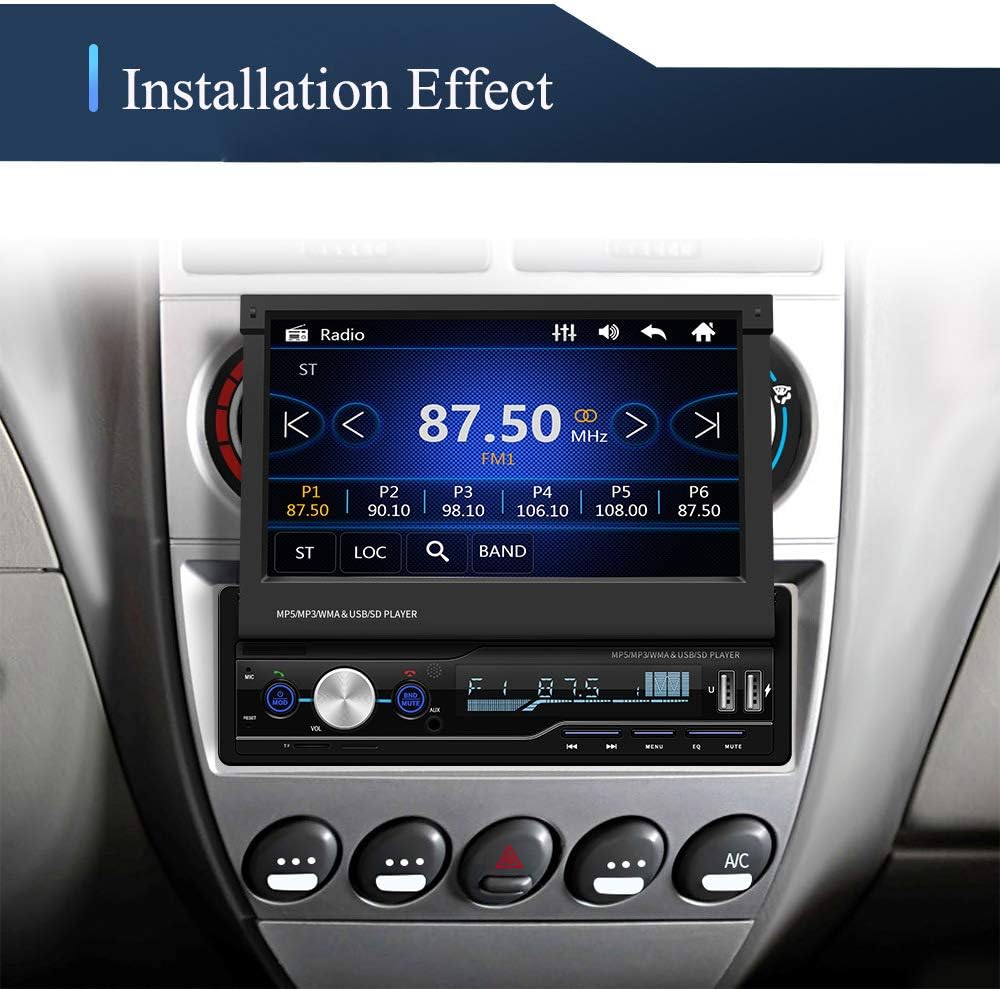
Figure 3: An example of the XISEDO CS-HY016 car stereo installed within a vehicle's dashboard, demonstrating its integrated appearance.
Operating Instructions
Power On/Off and Screen Retraction
- Press the power button (usually labeled "MOD" or similar) to turn the unit on or off.
- The screen retracts or extends manually. Gently pull or push the screen to adjust its position.
Basic Controls
- Volume Control: Rotate the central knob to adjust the volume.
- Mode Selection: Press the "MOD" button to cycle through available audio sources (Radio, USB, AUX, Bluetooth, TF Card).
- Menu: Press the "MENU" button to access system settings and options.
- Mute: Press the "MUTE" button to silence audio output.
Bluetooth Functionality
The unit supports hands-free calling and audio streaming via Bluetooth 4.0.
- Pairing:
- Enable Bluetooth on your smartphone.
- On the car stereo, select the Bluetooth mode.
- Search for available devices on your phone and select "XISEDO" or a similar device name.
- Enter the default pairing password "0000" if prompted.
- Hands-Free Calling: Once paired, you can make and receive calls directly through the stereo.
- Bluetooth Music: Stream audio from your paired smartphone to the car stereo.

Figure 4: Illustration of the Bluetooth hands-free calling and music streaming capabilities, alongside the steering wheel control integration for convenient operation.
GPS Navigation
The unit features a built-in GPS module and supports offline navigation. A free GPS map card is included.
- Insert the GPS map card into the designated slot.
- Press the "NAVI" button or select the GPS application from the main menu to launch navigation.
- Follow on-screen instructions to set destinations and view routes.
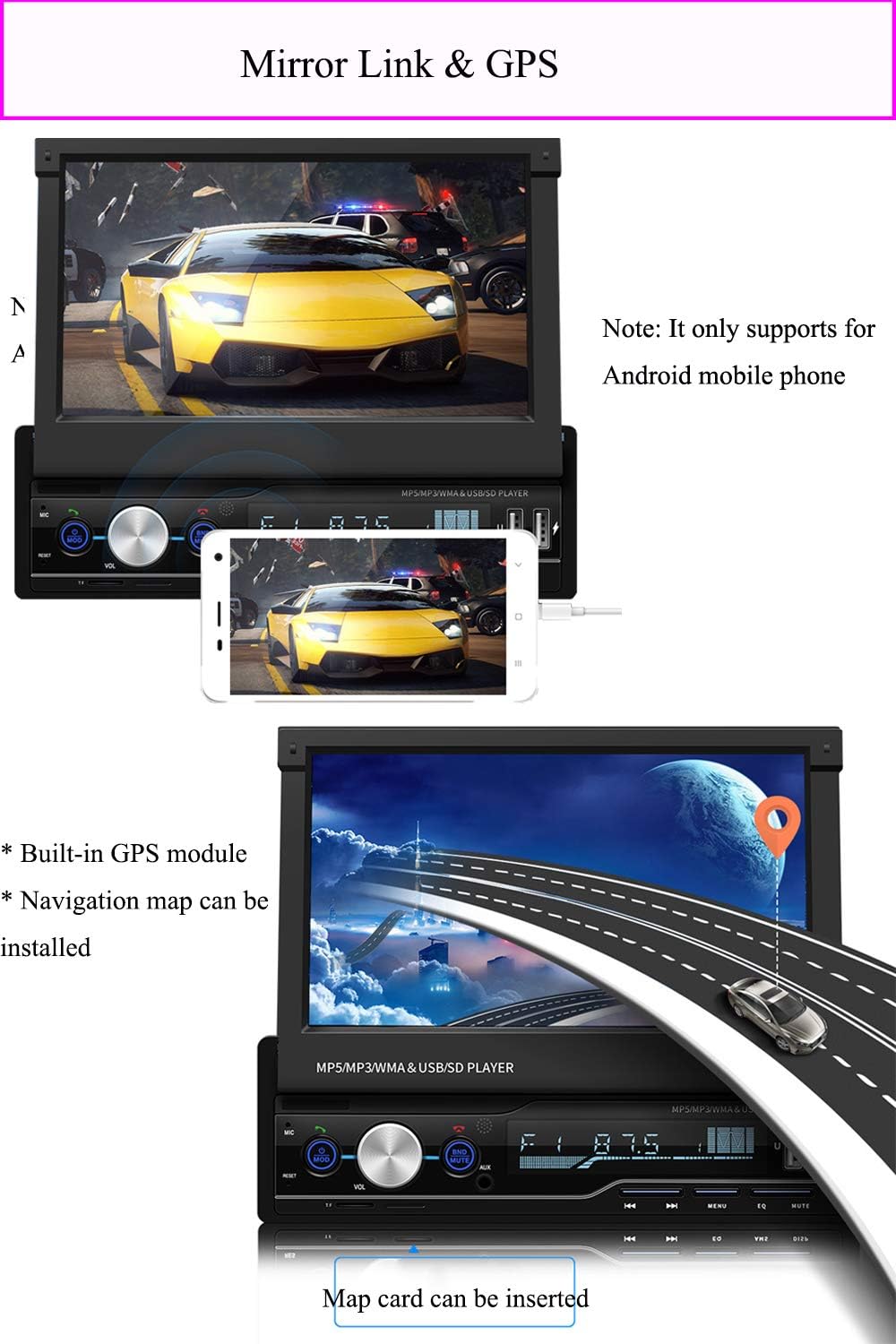
Figure 5: Depiction of the Mirror Link feature, allowing Android phone content to be displayed on the stereo screen, and the integrated GPS navigation system with a map card slot.
Mirror Link (Android Only)
Connect your Android smartphone via USB cable to mirror its screen onto the car stereo display. This allows direct control of your phone's applications from the stereo's touch screen.
- Connect your Android phone to the stereo's USB port using a USB cable.
- Follow any prompts on your phone to allow screen mirroring.
- The phone's display will appear on the stereo screen, and you can interact with it via touch.
Radio Operation
The unit supports FM radio with automatic station search and RDS.
- Select "Radio" mode.
- Use the "BND/AMS" button for automatic station search and storage.
- Manually tune using the arrow buttons or touch screen.
- FM Frequency Range: 87.5-108MHz.

Figure 6: Display of the FM radio interface with frequency range and automatic search capabilities, along with icons representing supported media playback modes: SD Card, AUX, USB Disk, and Bluetooth.
Media Playback (USB/AUX/TF Card)
The unit supports various audio and video formats from USB drives, TF cards, and AUX input.
- USB: Insert a USB drive into one of the dual USB ports. USB 1 is for reading and playing media, USB 2 is for charging devices.
- TF Card: Insert a TF (Micro SD) card into the designated slot.
- AUX: Connect an external audio device to the 3.5mm AUX input.
- Supported video formats: RM/RMVB/AVI/MP4/MKV/3GP (Resolution within 720P).
- Supported audio formats: MP3/WMA/WAV/APE/FLAC.

Figure 7: Illustration of the reverse camera input, which automatically displays the rear view when the vehicle is in reverse, and the dual USB ports for media playback and device charging.
Steering Wheel Control (SWC)
If your vehicle supports steering wheel controls, you can connect them to the stereo to manage volume and other functions directly from your steering wheel.
- Refer to the wiring diagram for SWC connections.
- Access the system settings to configure and map your steering wheel buttons.
Maintenance
- Screen Cleaning: Use a soft, lint-free cloth to gently wipe the touch screen. Do not use abrasive cleaners or solvents.
- General Cleaning: Keep the unit free from dust and debris. Use a dry cloth for the main body.
- Software Updates: Periodically check the manufacturer's website for any available firmware updates to ensure optimal performance and compatibility.
Troubleshooting
| Problem | Possible Cause | Solution |
|---|---|---|
| No power | Incorrect wiring; Blown fuse | Check power connections; Replace fuse if necessary. |
| No sound | Volume too low; Incorrect speaker wiring; Mute activated | Increase volume; Check speaker connections; Deactivate mute. |
| Bluetooth not pairing | Incorrect password; Device not in pairing mode; Interference | Ensure correct password "0000"; Restart both devices; Move closer to the unit. |
| GPS signal weak/lost | Antenna obstruction; Poor antenna placement | Ensure GPS antenna has a clear view of the sky; Reposition antenna. |
| Mirror Link not working | Only supports Android; USB cable issue; Phone settings | Confirm Android phone; Try a different USB cable; Check phone's USB debugging/mirroring settings. |
Specifications
| Model | CS-HY016 |
| Operating System | WINCE |
| Screen Type | Capacitive Touch Screen |
| Screen Size | 7 Inches |
| Screen Resolution | 1024x600 |
| DIN Type | Single DIN |
| Product Dimensions (W*L*H) | 188mm * 170mm * 58mm |
| Item Weight | 3.7 pounds |
| Bluetooth Version | 4.0 (Password: 0000) |
| FM Frequency Range | 87.5-108MHz |
| Supported Audio Formats | MP3/WMA/WAV/APE/FLAC |
| Supported Video Formats | RM/RMVB/AVI/MP4/MKV/3GP (Resolution within 720P) |
| Output Terminals | 2 Audio Output, 2 Video Output, 1 Reverse Input, 1 Video Input |
| Languages Supported | English, Spanish, German, French, Italian, Portuguese, Russian, Polish, Turkish, Czech, Hebrew, Chinese |
Warranty and Support
For warranty information and technical support, please refer to the documentation included with your purchase or visit the official XISEDO website. Keep your purchase receipt as proof of purchase for warranty claims.
Manufacturer: XISEDO