
Product Overview
The Maxcio Smart WiFi Light Switch (Model KS-601) is designed to modernize your home lighting with smart control capabilities. This 2-way smart switch integrates seamlessly with your home Wi-Fi network, allowing for convenient control via a mobile application, voice commands through Amazon Alexa or Google Assistant, and traditional touch control. It also features powerful timer functions and LED backlighting for enhanced usability.
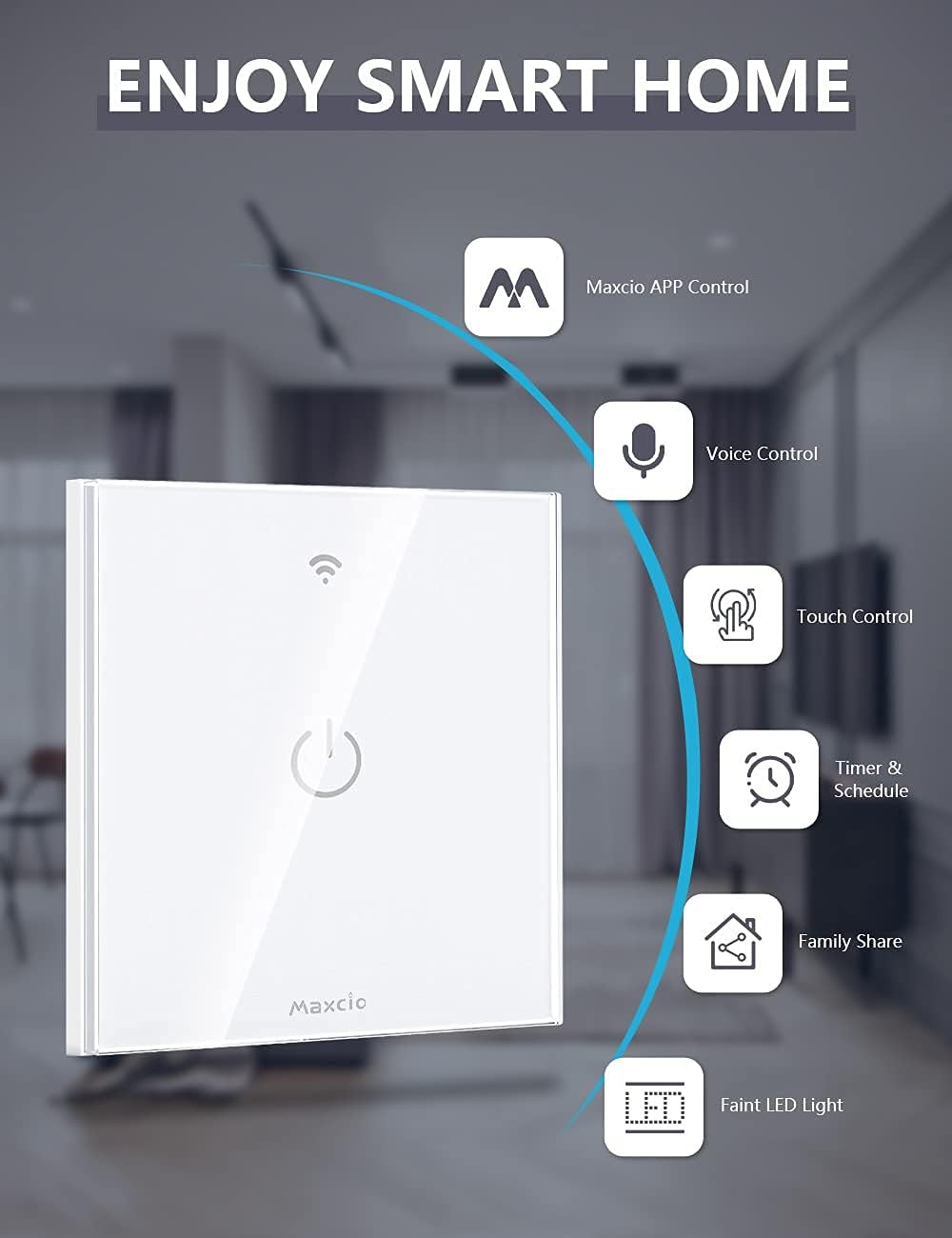
Image: The Maxcio Smart WiFi Light Switch highlighting its features: Maxcio APP Control, Voice Control, Touch Control, Timer & Schedule, Family Share, and Faint LED Light.
Safety Information
- WARNING: Before installation, always disconnect the power supply at the circuit breaker to prevent electric shock.
- Installation should be performed by a qualified electrician or in accordance with local electrical codes.
- Ensure your home wiring includes a neutral wire. This switch requires a neutral line + phase line circuit for proper operation.
- Do not exceed the maximum load capacity of 600W per gang (3500W total).
Setup and Installation
1. Wiring Compatibility
This smart switch requires a neutral wire for installation. Please verify your home's electrical wiring before purchasing or attempting installation. The switch supports a neutral line + phase line circuit.

Image: Diagram illustrating the requirement for a neutral wire (blue) in the electrical circuit for the smart switch to function. It shows a 'NO SUPPORT' diagram with only live wires and a 'SUPPORT' diagram with neutral and live wires.
2. Installation Steps
- Power Off: Turn off the power at the main circuit breaker before starting any electrical work.
- Remove Old Switch: Carefully remove your existing wall switch.
- Identify Wires: Identify the Live wire (Phase), Neutral wire, and Load wire(s). Typically, the neutral wire is blue, and the live wire is brown or black.
- Connect Wires: Connect the wires to the Maxcio Smart WiFi Light Switch terminals as follows:
- Connect the Neutral wire to the 'N' terminal.
- Connect the Live wire to the 'L' terminal.
- Connect the Load wire(s) to the 'L1', 'L2', 'L3' terminals as appropriate for your setup (e.g., L1 for a single light).
- Mount Switch: Secure the switch into the wall box using the provided screws.
- Attach Faceplate: Snap the glass faceplate onto the switch module.
- Power On: Restore power at the circuit breaker. The LED indicator on the switch should light up.

Image: A detailed wiring diagram showing connections for Neutral Wire (blue), Live Wire (red), and Load Wire (red) from the switch to a light fixture, emphasizing the 'Neutral Wire Required' for installation.
Operating Instructions
1. App Control (Smart Life / Tuya)
Download the free 'Smart Life' or 'Tuya' app from the Google Play Store or Apple App Store. Follow the in-app instructions to add your Maxcio Smart WiFi Light Switch. The switch is compatible only with 2.4 GHz Wi-Fi networks.
- Remote Control: Turn your lights on or off from anywhere using your smartphone via 4G or Wi-Fi.
- Timer Function: Set single, repeat, or loop timers to automate your home's electrical appliances.
- Device Sharing: Share control of the switch with family members through the app.
- Group Control: Create groups to control multiple devices simultaneously.
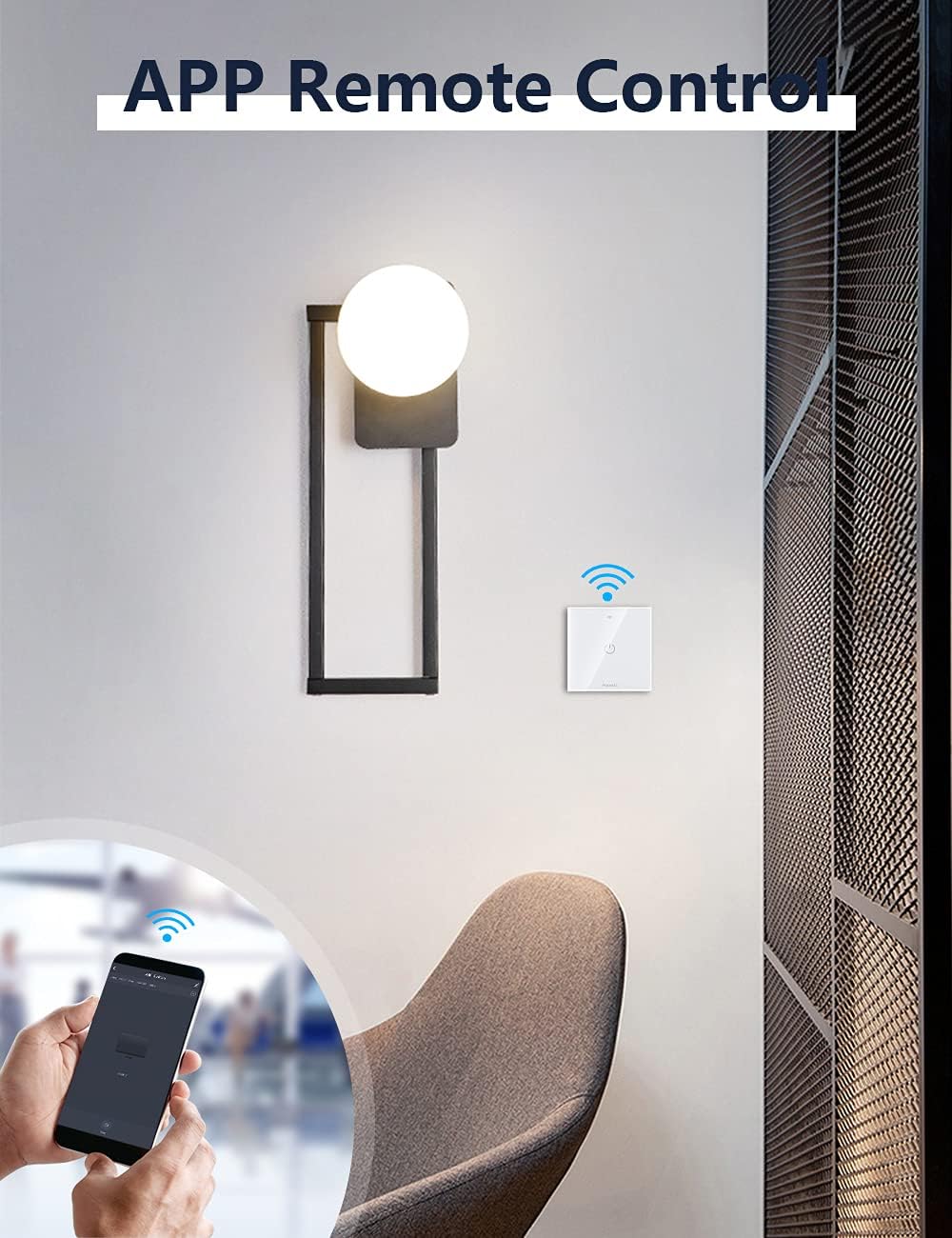
Image: A hand holding a smartphone displaying the 'Smart Life' app, remotely controlling a Maxcio Smart WiFi Light Switch installed on a wall, indicating remote app control functionality.

Image: A smartphone screen displaying a light scheduling interface within the app, showing 'Turn ON' at 08:00 AM and 'Turn OFF' at 22:00 PM, demonstrating the timer and scheduling features.

Image: An illustration depicting multiple family members (Brother, Sister, Dad, Mom) sharing control of smart home devices, symbolizing the 'Family Group Share' function of the Maxcio app.
2. Voice Control
The Maxcio Smart WiFi Light Switch is compatible with Amazon Alexa (Echo / Dot / Tap) and Google Assistant. Connect your switch by enabling the Maxcio skill in the Alexa or Google Assistant app. Once connected, you can control your lights with simple voice commands.
- Example commands: "Alexa, turn on the light." or "Hey Google, turn off the light."

Image: A dining room scene with an Amazon Echo device on the table, and a speech bubble saying "Alexa, turn on the light.", demonstrating the voice control feature of the Maxcio Smart WiFi Light Switch.
3. Touch Control
The switch features a physical touch-sensitive panel for manual operation. Simply tap the designated area on the switch to turn your lights on or off. The LED backlight ensures visibility in the dark.

Image: A hand interacting with the touch-sensitive surface of a Maxcio Smart WiFi Light Switch, with a bedroom in the background, illustrating the manual touch control functionality.
4. Advanced Features
- LED Backlight Control: Turn off the backlight at night to avoid disturbance.
- Power-off Memory: The switch remembers its last state (on/off) after a power outage and restores it when power returns.
- Delay Off Function: Configure the switch to automatically turn off after a set period.

Image: A multi-panel image illustrating advanced features: 'Control de Luz de Fondo' (Backlight Control), 'Actualizar Chip CB' (Updated CB Chip for stability), 'Función de Retardo de Apagado' (Delay Off Function), and 'Memoria de Apagado' (Power-off Memory).
Maintenance
To ensure optimal performance and longevity of your Maxcio Smart WiFi Light Switch, follow these simple maintenance guidelines:
- Cleaning: Gently wipe the glass panel with a soft, dry cloth. Avoid using abrasive cleaners or solvents that could damage the surface.
- Firmware Updates: Periodically check the 'Smart Life' or 'Tuya' app for available firmware updates to ensure your switch has the latest features and security enhancements.
- Environmental Conditions: Avoid installing the switch in areas with excessive moisture or extreme temperatures, as this may affect its performance and lifespan.
Troubleshooting
- Switch not responding: Ensure the power supply is connected and the circuit breaker is on. Check the wiring connections for any loose ends.
- Cannot connect to Wi-Fi: Verify that your Wi-Fi network is 2.4 GHz. Ensure the switch is within range of your Wi-Fi router. Try restarting your router and the switch.
- Voice control not working: Confirm that the Maxcio skill is enabled in your Alexa or Google Assistant app and that the switch is properly linked. Check your internet connection.
- LED backlight not working: Check the app settings to ensure the backlight is enabled.
Specifications
| Feature | Specification |
|---|---|
| Manufacturer | Maxcio |
| Model Number | KS-601 |
| Product Dimensions | 8.6 x 3.2 x 8.6 cm |
| Product Weight | 200 g |
| Color | White |
| Material | Acrylonitrile Butadiene Styrene (ABS) |
| Electrical Power | 600 Watts (per gang) |
| Maximum Power | 3500 Watts (total) |
| Operating Voltage | 220 Volts |
| Rated Current | 10 Amperes |
| Circuit Type | 2-Way |
| Connectivity | 2.4 GHz Wi-Fi (IEEE 802.11 b/g/n) |
| Control Methods | App, Voice (Alexa/Google Home), Touch |
| Components Included | 1x Switch, 1x Manual |
Official Product Video
Video: A demonstration of the Maxcio Smart WiFi Light Switch, including its installation process, wiring connections, and how to control it using a smartphone app and voice commands. The video shows the physical switch, wiring terminals, and the app interface for turning lights on and off.
Warranty and Support
Maxcio products typically come with a standard manufacturer's warranty. For specific warranty details, technical support, or assistance with installation and troubleshooting, please refer to the contact information provided in your product packaging or visit the official Maxcio website. You may also contact the seller directly through your purchase platform for support.