
1. Introduction
This manual provides essential information for the safe and effective use of your BatteryMon 90W Laptop Charger. Please read these instructions thoroughly before using the product. This charger is designed to provide reliable power to compatible HP laptop models.

Image 1.1: Overview of the BatteryMon 90W Laptop Charger, including the power brick, detachable AC power cord, and the DC output cable with a blue-tipped connector.
2. Product Compatibility
The BatteryMon 90W Laptop Charger is compatible with various HP laptop series. Verify your laptop's power requirements and connector type before use.
Compatible HP Laptop Series:
- HP Envy X360, M6-k, M7-j, 15-j, 17-j series
- HP Pavilion 11, 14, 15, 17 series
- HP EliteBook Folio 1040 G1
- HP Probook 640 G3
- HP Split 13 x2 13-g100, 13-m000, 13-m100 series
- HP Spectre X360 360 13, 13t series
Compatible Part Numbers:
- 741727-001, 710413-001, 710414-001, 709986-003, 740015-001, 854117-850
- PPP009C, PPP009A, PPP009D, PPP009L-E
- HSTNN-DA15, HSTNN-LA15, HSTNN-CA15, HSTNN-LA13
- PA-1650-34HE, AD9043-022G2, PA-1650-32HE, PA-1900-34HE
- 709985-001, 710412-001, 709985-002, 709985-003, 714657-001, 714149-001, 714149-002, 714149-003, 709967-001
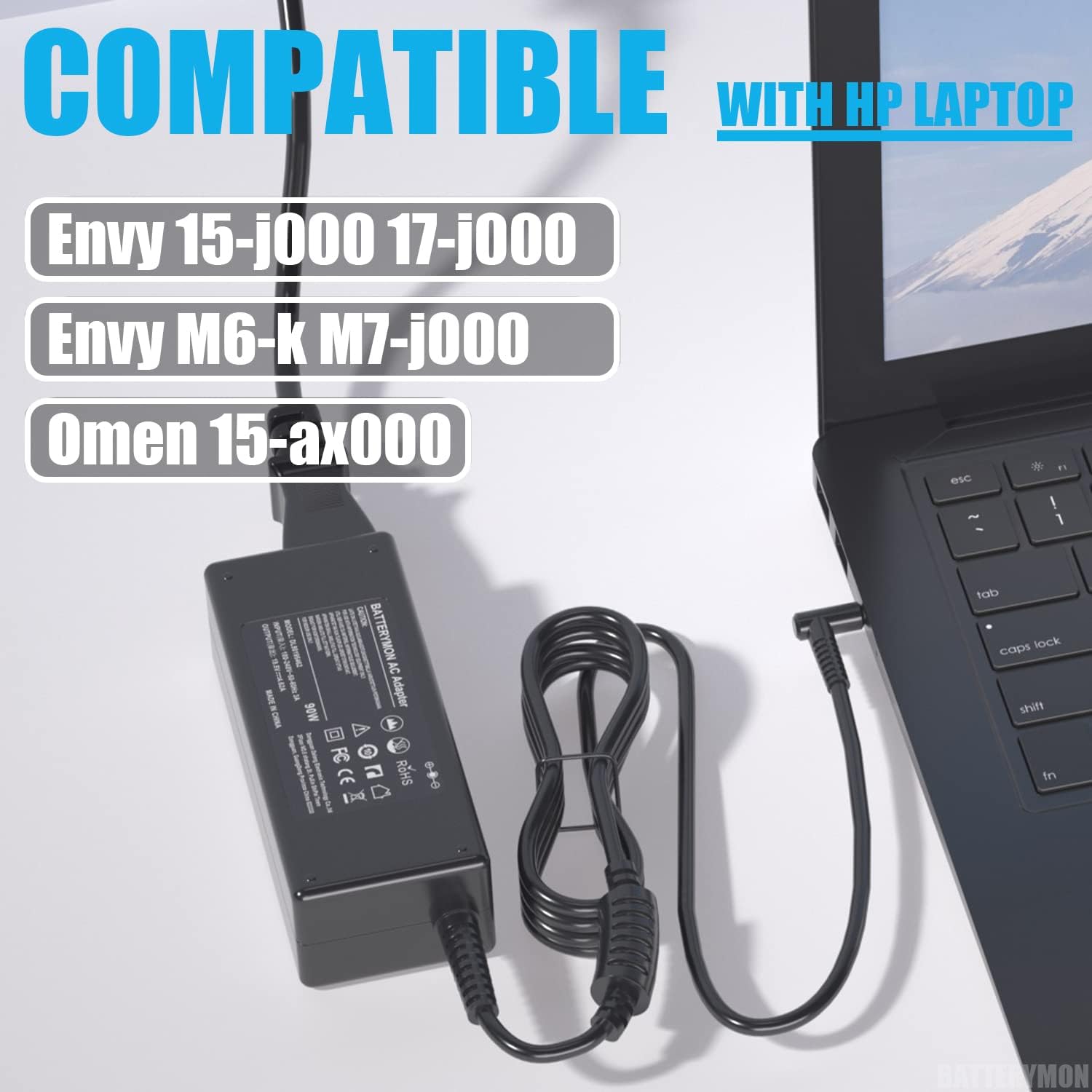
Image 2.1: The charger connected to an HP laptop, illustrating compatibility with various HP Envy and Omen models.
3. Setup and Connection
Follow these steps to properly connect your BatteryMon laptop charger.
- Connect the AC Power Cord: Insert the three-prong end of the AC power cord into the power brick. Ensure it is firmly seated.
- Plug into Wall Outlet: Insert the two-prong end of the AC power cord into a standard wall outlet (100-240V, 50/60Hz).
- Connect to Laptop: Carefully insert the blue-tipped DC connector (4.5 x 3.0mm) into the power input port of your compatible HP laptop. Ensure a snug fit.

Image 3.1: The charger properly connected to a laptop, illustrating the setup process.
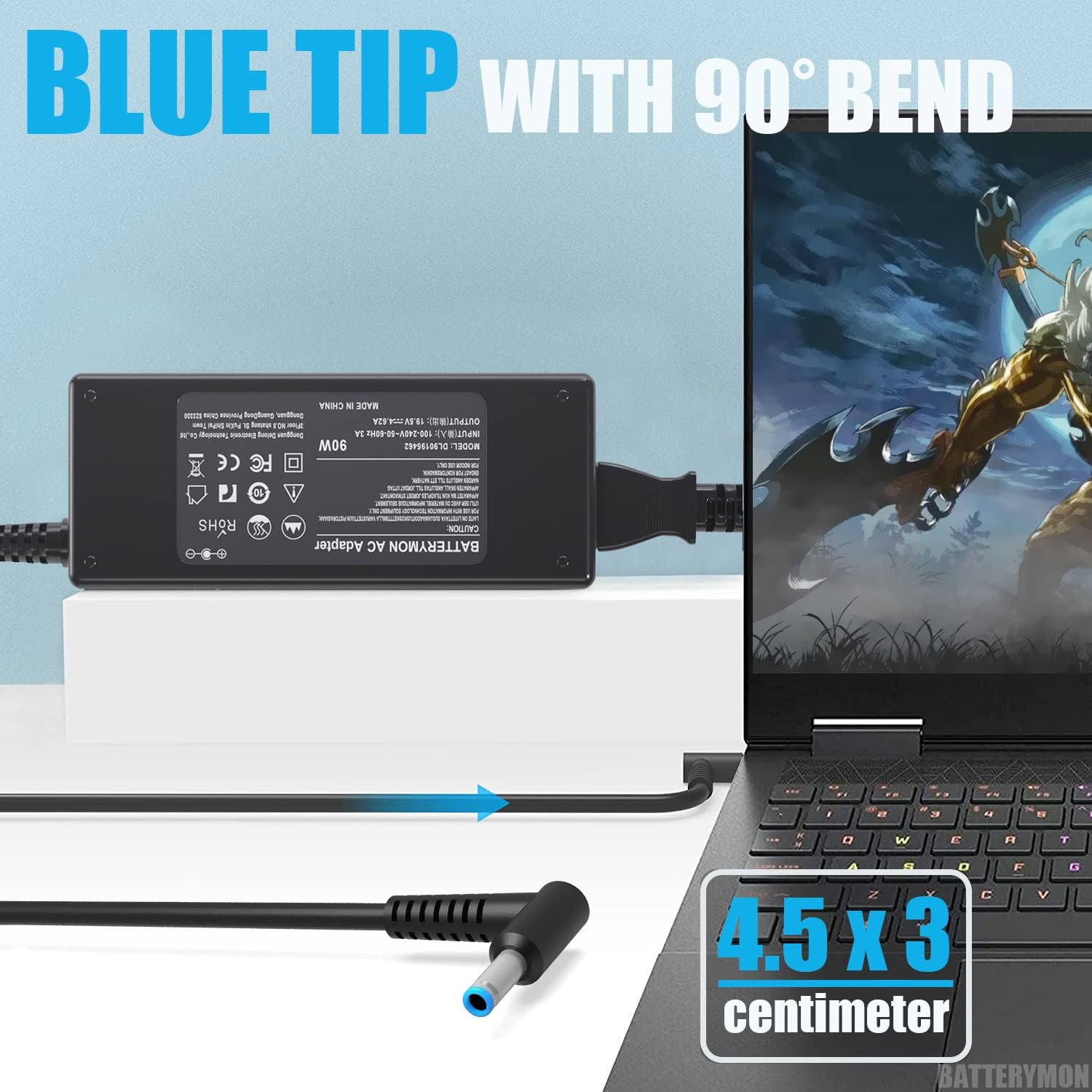
Image 3.2: A detailed view of the blue-tipped DC connector, highlighting its 4.5 x 3.0mm dimensions for proper fit.
4. Operating Instructions
Once connected, the charger will automatically begin supplying power to your laptop and charging its battery. The charger is designed for continuous use within its specified voltage and wattage limits.
Important Operating Notes:
- Ensure the charger is placed in a well-ventilated area to prevent overheating.
- Avoid covering the charger with cloths or other materials during operation.
- Disconnect the charger from the wall outlet and laptop when not in use for extended periods.
Video 4.1: An instructional video demonstrating the connection process of the 90W AC Adapter for HP EliteBook Folio 1040 G1 G2 Envy Laptops, showing how to plug in the power cord and connect it to the laptop.
5. Maintenance and Care
Proper maintenance ensures the longevity and optimal performance of your charger.
- Cleaning: Use a dry, soft cloth to clean the charger. Do not use liquid cleaners or solvents.
- Storage: Store the charger in a cool, dry place when not in use. Avoid extreme temperatures.
- Cable Care: Do not bend or crimp the cables excessively. Avoid placing heavy objects on the cables.
- Inspection: Periodically inspect the cables and connectors for any signs of damage. Discontinue use if damage is observed.

Image 5.1: Illustration of the cable's durability, having undergone extensive bend testing to ensure long-term reliability.
6. Troubleshooting
If you encounter issues with your charger, refer to the following common solutions:
- Charger Not Powering On:
- Ensure all cable connections are secure at both the wall outlet and the laptop.
- Verify the wall outlet is functional by testing it with another device.
- Check for any visible damage to the charger or cables.
- Laptop Not Charging:
- Confirm that the charger's output specifications (Voltage, Amperage, Wattage) match your laptop's requirements.
- Ensure the DC connector tip size (4.5 x 3.0mm) is correct for your laptop's power port.
- Restart your laptop.
- Overheating:
- Ensure the charger is in a well-ventilated area and not covered.
- If overheating persists, discontinue use and contact support.
How to Choose a Correct Charger:
To ensure compatibility and prevent issues, follow these steps when selecting a charger:
- Match Output Specifications: Verify that the DC output's Watts, Volts, and Amps are identical to your original equipment manufacturer (OEM) charger.
- Match Connector Size: Ensure the AC adapter's connector size is consistent with your laptop's power input port. For this model, the tip size is 4.5 x 3.0mm (blue tip).

Image 6.1: The charger's internal components, showcasing its built-in multi-protection features for safety and reliability.
7. Specifications
| Feature | Specification |
|---|---|
| Brand | BatteryMon |
| Model Number | DL90195462 |
| Input Voltage | 100-240V AC, 50/60Hz |
| Output Voltage | 19.5V DC |
| Output Amperage | 4.62A |
| Output Wattage | 90W |
| DC Connector Tip Size | 4.5 x 3.0mm (Blue Tip) |
| Color | Black |
| Item Weight | 13.1 ounces |
| Package Dimensions | 7.48 x 4.92 x 1.85 inches |

Image 7.1: The charger unit, clearly indicating its 90W power rating and output specifications of 19.5 Volts and 4.62 Amps.
8. Warranty and Support
BatteryMon is committed to providing high-quality products and customer satisfaction.
- Warranty: This product includes a 6-month replacement exchange warranty. If you are not satisfied for any reason, please contact us for a refund or replacement.
- Customer Support: We offer 24-hour email support to assist with any questions or issues you may have.
How to Get BatteryMon Service and Support:
- Locate Your Order: Access your account where the purchase was made.
- Contact Seller: Find the order and click the "Problem with this order?" button, then select "Contact Seller" to send us a message. We aim to resolve any problem within 24 hours.

Image 8.1: Information regarding the 6-month warranty and 24-hour email support provided for the BatteryMon charger.