
Introduction
This manual provides comprehensive instructions for the setup, operation, and maintenance of your PreSonus Studio 24c USB Audio Interface. The Studio 24c is designed to deliver high-quality audio recording and playback for musicians, podcasters, and content creators.
It features pristine XMAX-L mic preamps, high-headroom instrument preamps, professional input metering, and comes bundled with Studio One 6 Artist Edition software, offering a complete solution for your home recording studio needs.
What's in the Box
- (1) Studio 24c Interface
- (1) 1M USB-C to USB-C Cable
- (1) 1M USB-C to USB-A Cable
- (1) Quick Start Guide
- (1) PreSonus Health Safety and Compliance Guide
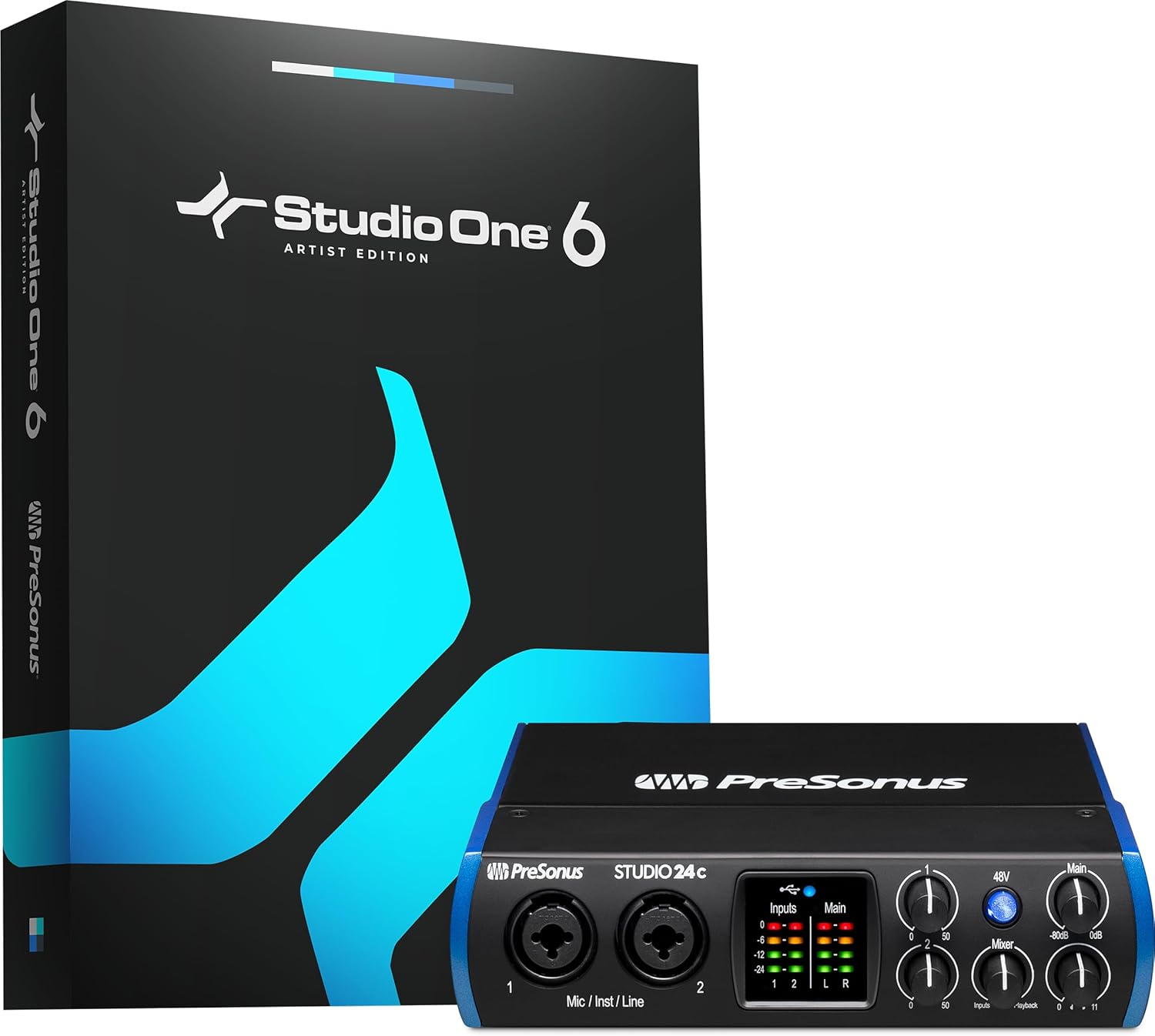
Figure 1: PreSonus Studio 24c interface and included Studio One 6 Artist Edition software packaging.
Setup
1. Connecting to Your Computer
The Studio 24c is bus-powered, meaning it draws power directly from your computer via the USB connection. Use the provided USB-C to USB-C cable for modern computers or the USB-C to USB-A cable for older systems.

Figure 2: Rear view of the Studio 24c, highlighting the USB-C port for computer connection.
Connect the USB-C end of the cable to the Studio 24c's USB-C port on the rear panel. Connect the other end of the cable (USB-C or USB-A) to an available USB port on your computer. The unit will power on automatically.
2. Software Installation and Registration
To fully utilize your Studio 24c, you must register your product and download the necessary drivers and software.
- Go online to my.presonus.com.
- Register your serial number. The serial number can be found on the Quick Start Guide included in the box.
- Once registered, you will be able to download your complimentary copy of Studio One Artist, as well as additional plugins and content.
- Download and install the appropriate drivers for your operating system (Windows or macOS).
Figure 3: The Studio 24c comes bundled with Studio One Artist software.
Operating the Studio 24c
Front Panel Controls and Inputs

Figure 4: Front view of the Studio 24c with labeled controls.
- Mic/Inst/Line Inputs (1 & 2): These combo jacks accept XLR connectors for microphones or 1/4-inch (TRS/TS) cables for instruments (guitars, basses) and line-level devices.
- 48V Phantom Power Button: Activates +48V phantom power for condenser microphones. Ensure this is off when connecting or disconnecting microphones.
- Input Gain Knobs (1 & 2): Adjust the input level for connected microphones or instruments.
- Input/Main Meters: LED ladder-style meters provide visual feedback on input and main output levels.
- Mixer Knob: Blends the direct input signal with the playback signal from your computer for low-latency monitoring. Turn towards "Inputs" to hear more of your live input, and towards "Playback" to hear more of your computer's audio.
- Main Output Knob: Controls the overall volume of the main outputs.
- Headphone Output Knob: Controls the volume of the headphone output.
Rear Panel Connections
Figure 5: Rear view of the Studio 24c with labeled connections.
- USB-C Port: Connects to your computer for data and power.
- MIDI In/Out: Standard 5-pin DIN connectors for connecting MIDI devices like keyboards or controllers.
- Main Out (1/L & 2/R): Balanced 1/4-inch TRS outputs for connecting to studio monitors or other audio playback systems.
- Phones Output: 1/4-inch TRS stereo output for headphones.
Features
- Simultaneous I/O up to 2 inputs/2 outputs.
- 2 mic/instrument/line inputs with XMAX-L mic preamps.
- 2 balanced 1/4-inch TRS main outputs to connect professional studio monitors.
- High-power headphone output.
- MIDI In/Out.
- Mixer knob for low-latency direct input monitoring.
- Front-panel level controls for main outputs.
- 4 ladder-style LED level meters (2 input, 2 main output).
- 24-bit resolution, 44.1, 48, 88.2, 96, 176.4 and 192 kHz sampling rates.
- USB-C to USB-C and USB-C to USB-A cables included for compatibility with most computers.
- Recording software included: Studio One 6 Artist Edition.

Figure 6: Key features and compact dimensions of the Studio 24c.
Specifications
| Attribute | Value |
|---|---|
| Item Weight | 1 pounds |
| Product Dimensions | 6.3 x 7.09 x 1.77 inches |
| Item Model Number | Studio 24c |
| Color Name | Black |
| Compatible Devices | Headphone, Instrument, MIDI Hardware, Microphone, Personal Computer, Smartphone, Studio Monitors, Tablet |
| Hardware Interface | Headphone, USB |
| Supported Software | Compatible with Studio One Pro, Ableton Live, FL Studio, Cubase, Pro Tools, Logic Pro, Reaper, and many more. |
| Output Wattage | 800 Watts |
| Size | 2 Mic Pres - 2 Line Outs |
| Operating System | Windows, macOS |
| Connectivity Technology | USB 2.0 (3.0 compatible) |
| Number of Channels | 2 |
Maintenance
To ensure the longevity and optimal performance of your PreSonus Studio 24c, follow these maintenance guidelines:
- Cleaning: Use a soft, dry cloth to clean the exterior of the unit. Avoid abrasive cleaners, solvents, or waxes.
- Environment: Operate the device in a clean, dry environment away from direct sunlight, heat sources, and excessive dust.
- Ventilation: Ensure proper ventilation around the unit to prevent overheating. Do not block any ventilation openings.
- Cable Care: Handle USB and audio cables carefully. Avoid sharp bends or kinks that could damage the internal wiring.
- Storage: When not in use for extended periods, store the Studio 24c in its original packaging or a protective case to prevent dust accumulation and physical damage.
Troubleshooting
No Power/No Connection
- Check USB Connection: Ensure the USB cable is securely connected to both the Studio 24c and your computer. Try a different USB port on your computer.
- Try a Different Cable: If available, test with another USB-C to USB-C or USB-C to USB-A cable to rule out a faulty cable.
- Computer Power: Ensure your computer is powered on and not in sleep mode.
No Audio Input/Output
- Driver Installation: Verify that the correct and latest drivers for the Studio 24c are installed on your computer. Reinstall if necessary from my.presonus.com.
- Software Settings: In your DAW (e.g., Studio One Artist) or audio settings, ensure the "PreSonus Studio 24c" is selected as both the input and output device.
- Gain Levels: Check the Input Gain knobs on the front panel and the Main Output/Headphone Output knobs. Ensure they are turned up sufficiently.
- 48V Phantom Power: If using a condenser microphone, ensure the 48V button is engaged.
- Cable Integrity: Test audio cables (XLR, 1/4-inch TRS) with other equipment to ensure they are not faulty.
- Mixer Knob: Adjust the Mixer knob on the front panel. If you only hear your input or only playback, adjust the knob to blend the signals as desired.
Latency Issues
- Buffer Size: In your DAW's audio setup preferences, try reducing the buffer size. A smaller buffer size reduces latency but requires more CPU power.
- Direct Monitoring: Utilize the Mixer knob on the Studio 24c for direct, hardware-based monitoring of your inputs, which provides zero-latency monitoring independent of your computer's buffer settings.
- Close Other Applications: Close any unnecessary applications running on your computer to free up CPU resources.
Warranty and Support
For detailed warranty information and technical support, please visit the official PreSonus website:
You can also find additional resources, FAQs, and user manuals on their support page.