
Samsung LC49RG90SSNXZA
Samsung 49-Inch Odyssey CRG Series Curved Gaming Monitor User Manual
Model: LC49RG90SSNXZA
1. Introduction
The Samsung 49-Inch Odyssey CRG Series Curved Gaming Monitor (LC49RG90SSNXZA) is a high-performance display designed for immersive gaming and efficient multitasking. Recognized with the 2019 CES Innovation Award, it features a super ultra-wide aspect ratio, QLED technology, HDR1000, and a 120Hz refresh rate for a superior visual experience.
Key Features:
- DUAL QHD RESOLUTION: The 5120 x 1440 super ultra-wide aspect ratio lets you view content in superfine detail.
- HDR1000 & QLED: Has a brightness rating of 1,000 nits and DCI-P3 95%, so colors are pure, bright, and true to life.
- IMMERSIVE CURVE: With a Super Ultra-Wide 32:9 ratio, the CRG9 curves around your field of view to immerse you in all the onscreen gaming action.
- AMD RADEON FREESYNC2: Effortlessly Smooth Gameplay; Supports HDR content, reduces input latency, and has low framerate compensation.
- BUILT FOR SPEED: The 120Hz settings minimize image lag and motion blur; The 60Hz settings let you optimize performance.
- OPTIMIZED FOR GAMING: Turn on Game Mode to instantly adjust contrast & color settings for virtually any game genre; Switch to Low Input Lag Mode for even faster response times and target your enemies more accurately w/ Virtual Aim Point onscreen crosshairs.
- MULTI-TASKER'S DREAM: With Picture-by-Picture you can connect and view multiple input sources without degrading the original image quality; For example, you can watch a movie and do a web search while playing your favorite game.
- PLAY ON...AND ON: Eye Saver Mode reduces fatigue-inducing blue light emissions and Flicker Free technology suppresses distracting screen flicker.
- ADJUSTS FOR COMFORT: The swivel/tilt and height-adjustable stand offers all the flexibility you need to position screen for maximum comfort; The panel’s VESA Standard mount also offers the option of mounting on VESA-compatible arms.
2. Setup
This section provides general guidance for setting up your Samsung Odyssey CRG9 monitor. For detailed, step-by-step instructions, please refer to the official Installation Manual PDF linked in the Support section.
2.1 Unpacking and Initial Placement
Carefully remove the monitor and all components from the packaging. Due to its size and weight (approximately 33 pounds), it is recommended to have assistance during unpacking and placement. Ensure your desk or mounting surface is sturdy enough to support the monitor's dimensions (5.94 x 18.65 x 8.14 inches) and weight.
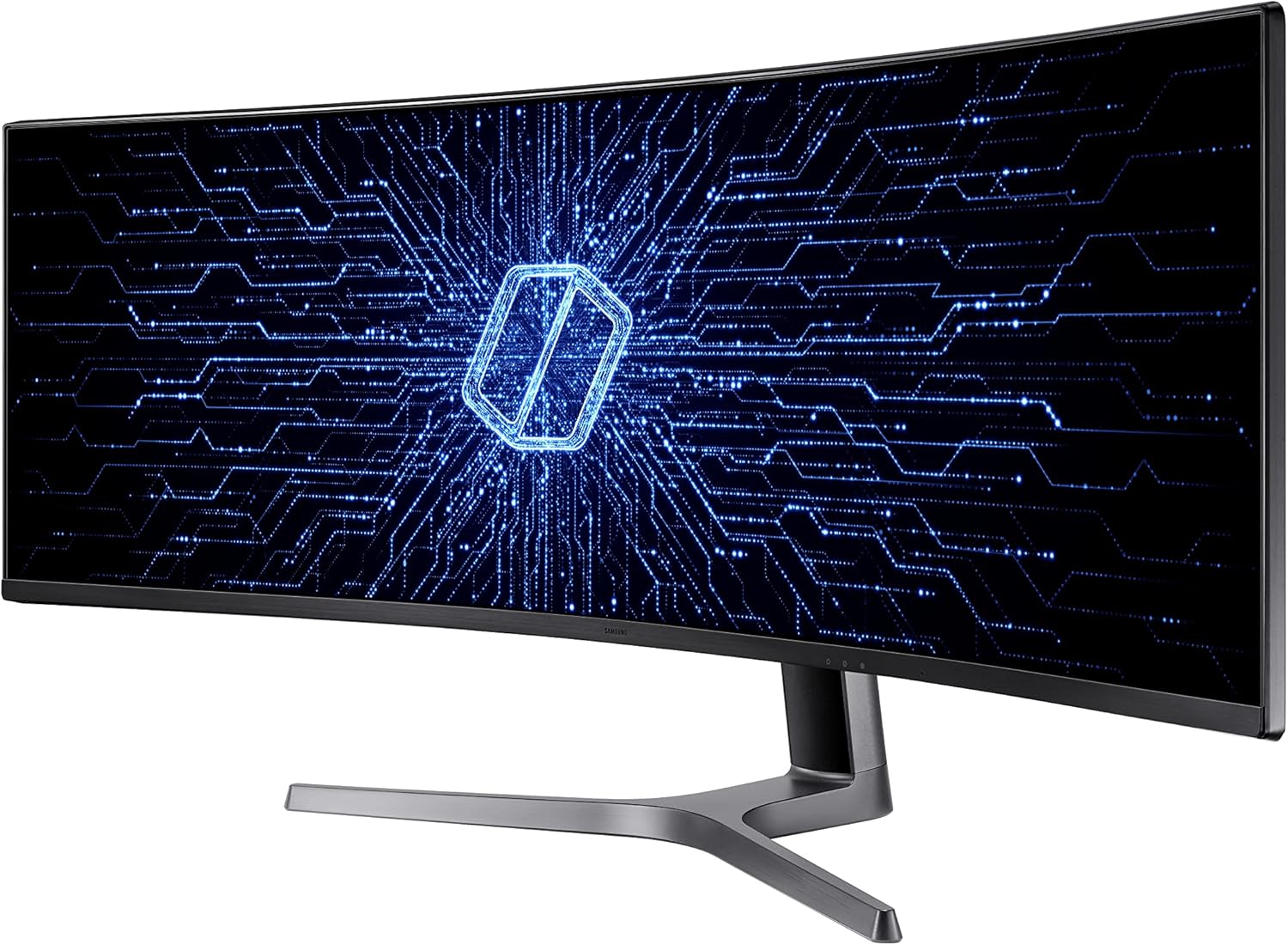
Front view of the Samsung 49-inch Odyssey CRG Series Curved Gaming Monitor.

Monitor dimensions: 47.2 inches wide, 13.8 inches high, 20.6 inches deep with stand.
2.2 Connecting Cables
The monitor supports various input sources. Connect your PC or other devices using the provided HDMI or DisplayPort cables. The monitor also features 4 USB ports for peripheral connectivity.

Rear view of the monitor displaying HDMI, DisplayPort, and USB connections.
Ensure all cables are securely connected to prevent signal loss or flickering. The monitor comes with HDMI and DisplayPort cables, along with a quick setup guide and power cable.
2.3 Adjusting the Stand
The monitor's stand offers swivel, tilt, and height adjustment for optimal viewing comfort. Adjust the screen to your preferred ergonomic position. The monitor is also VESA Standard mount compatible for alternative mounting solutions.

Adjustable stand features for ergonomic positioning.
3. Operating the Monitor
Your Samsung Odyssey CRG9 monitor offers various features to enhance your gaming and productivity experience.
3.1 Powering On/Off
Locate the power button, typically on the bottom center or right side of the monitor. Press it to power on or off the display.
3.2 On-Screen Display (OSD) Navigation
Use the joystick or buttons located on the monitor to navigate the On-Screen Display (OSD) menu. This allows you to adjust settings such as brightness, contrast, color, input source, and various gaming features.
3.3 Gaming Features
- Game Mode: Instantly adjusts contrast and color settings for various game genres.
- Low Input Lag Mode: Provides faster response times for competitive gaming.
- Virtual Aim Point: Onscreen crosshairs for improved targeting accuracy.
- 120Hz Refresh Rate: Minimizes image lag and motion blur for smoother gameplay. A 60Hz setting is also available for optimized performance in certain scenarios.
- AMD FreeSync 2 HDR: Ensures effortlessly smooth gameplay by supporting HDR content, reducing input latency, and providing low framerate compensation.

Optimized for Gaming features.
3.4 Multitasking with Picture-by-Picture (PBP)
The Picture-by-Picture (PBP) function allows you to connect and view multiple input sources simultaneously without degrading the original image quality. This is ideal for productivity, enabling you to work on different applications from various devices side-by-side.

Picture-by-Picture (PBP) functionality for multitasking.
4. Maintenance
Proper maintenance ensures the longevity and optimal performance of your monitor.
4.1 Cleaning the Monitor
- Always power off the monitor and unplug it before cleaning.
- Use a soft, lint-free cloth slightly dampened with water or a specialized screen cleaner.
- Do not spray liquid directly onto the screen or frame.
- Avoid using abrasive cleaners, solvents, or ammonia-based products.
4.2 Eye Care Features
The monitor includes features designed to reduce eye strain during prolonged use:
- Eye Saver Mode: Reduces blue light emissions.
- Flicker Free Technology: Suppresses distracting screen flicker.

Eye care features for extended use.
5. Troubleshooting
This section addresses common issues you might encounter with your monitor.
5.1 Common Display Issues
- No Display/Black Screen:
- Ensure the power cable is securely connected to both the monitor and the power outlet.
- Verify that the video input cable (HDMI/DisplayPort) is firmly connected to both the monitor and your computer/device.
- Check if the correct input source is selected in the monitor's OSD menu.
- Flickering or Distorted Image:
- Ensure video cables are properly connected and not damaged.
- Adjust the refresh rate in your computer's display settings to 120Hz or 60Hz.
- Enable Flicker Free technology in the monitor's OSD.
- If using AMD FreeSync, ensure your graphics card drivers are up to date.
- Blurry Image:
- Ensure the monitor's resolution is set to its native DUAL QHD (5120 x 1440) in your computer's display settings.
- Adjust sharpness settings in the monitor's OSD.
- HDR Issues (Hazy Look):
- Some users report a "hazy look" with HDR on Windows 10 when not viewing HDR content. This may be a software-related issue.
- Ensure HDR is properly configured in your operating system and application settings.
- Dead Pixels:
- A single dead pixel may appear over time. While often not covered by warranty unless multiple pixels are affected, it typically does not significantly impact overall viewing experience.
5.2 Performance Issues
- Gaming Performance:
- For optimal gaming performance at 5120x1440 resolution, a powerful graphics card is recommended.
- Adjust in-game settings (e.g., resolution scaling, ray tracing) to balance visual quality and frame rate.
- Heat Generation:
- The monitor may generate heat, especially in smaller rooms. Ensure adequate ventilation around the device.
6. Specifications
| Feature | Specification |
|---|---|
| Brand | Samsung |
| Model Number | LC49RG90SSNXZA |
| Screen Size | 49 Inches |
| Resolution | 5120x1440 Pixels (Dual QHD) |
| Aspect Ratio | 32:9 |
| Screen Surface Description | Curved |
| Image Brightness | 1000 cd/m² (HDR1000) |
| Refresh Rate | 120Hz |
| Total USB Ports | 4 |
| Item Weight | 33 pounds |
| Product Dimensions | 5.94 x 18.65 x 8.14 inches |
| First Available Date | May 20, 2019 |
7. Warranty and Support
For comprehensive support, including warranty information, detailed installation guides, and further troubleshooting, please refer to the official Samsung resources.
- Official Installation Manual (PDF): Download PDF
- Samsung Brand Store: Visit Samsung Store on Amazon
Related Documents - LC49RG90SSNXZA
 |
Samsung C49RG9* Gaming Monitor User Manual Comprehensive user manual for the Samsung C49RG9* Gaming Monitor, covering setup, operation, features, troubleshooting, and specifications. Learn how to optimize your gaming experience with detailed instructions on picture settings, connectivity, and software installation. |
 |
Samsung Odyssey Gaming Monitor User Manual - S27AG50, S28AG70, S49AG95 Comprehensive user manual for Samsung Odyssey gaming monitors, including models S27AG50*, S28AG70*, S49AG95*N, LS27AG500NU, LS28AG700NUXEN, and LS49AG950NUXEN. Covers setup, operation, safety, connectivity, OSD menus, troubleshooting, and specifications for optimal performance. |
 |
Samsung Odyssey Ark S55BG97* User Manual - Setup, Operation, and Specifications Comprehensive user manual for the Samsung Odyssey Ark S55BG97* gaming monitor. Covers safety precautions, installation, operation, connections, remote controls, technical specifications, FreeSync technology, and appendix information. |
 |
คู่มือผู้ใช้: จอภาพเกมมิ่ง Samsung Odyssey G5 (S27CG55, S32CG55, S27DG50, S32DG50) คู่มือผู้ใช้ฉบับสมบูรณ์สำหรับจอภาพเกมมิ่ง Samsung Odyssey G5 รุ่น S27CG55, S32CG55, S27DG50, S32DG50 ครอบคลุมการติดตั้ง การใช้งาน การตั้งค่า และการแก้ไขปัญหา พร้อมข้อมูลจำเพาะ QHD และอัตราการรีเฟรชสูง |
 |
Samsung 34" Odyssey OLED G8 (G85SD) Ultra-WQHD 175Hz 0.03ms Curved Gaming Monitor - Product Guide Discover the Samsung 34-inch Odyssey OLED G8 (G85SD) curved gaming monitor. This guide details its Ultra-WQHD resolution, 175Hz refresh rate, 0.03ms response time, and AMD FreeSync™ Premium Pro for unparalleled gaming performance. Explore its advanced OLED technology, glare-free display, versatile connectivity, smart features like Gaming Hub and SmartThings, and sleek design. |
 |
Samsung 40" Odyssey G7 G75F WUHD 180Hz Curved Gaming Monitor | Product Guide Explore the Samsung 40-inch Odyssey G7 G75F gaming monitor featuring WUHD resolution, 180Hz refresh rate, 1ms response time, VESA DisplayHDR 600, and AMD FreeSync Premium Pro for an immersive gaming experience. Includes product overview, features, specifications, and more. |
Ask a question about this manual
Ask about setup, troubleshooting, compatibility, parts, safety, or missing instructions. Manuals+ will review the question and use this page’s manual context to help answer it.