
1. Introduction
This manual provides essential information for the safe and efficient use of your Samsung UA32N4003ARXXL 32-inch LED TV. Please read these instructions thoroughly before operating the television and retain them for future reference.
2. Important Safety Information
Always follow basic safety precautions when using this television to reduce the risk of fire, electric shock, and injury.
- Do not expose this apparatus to rain or moisture.
- Do not block any ventilation openings. Install in accordance with the manufacturer's instructions.
- Do not install near any heat sources such as radiators, heat registers, stoves, or other apparatus (including amplifiers) that produce heat.
- Protect the power cord from being walked on or pinched, particularly at plugs, convenience receptacles, and the point where they exit from the apparatus.
- Only use attachments/accessories specified by the manufacturer.
- Refer all servicing to qualified service personnel.
3. What's in the Box
Upon unpacking, verify that all the following components are present:
- 1 x Samsung UA32N4003ARXXL LED TV
- 1 x Table Top Stand
- 1 x Remote Control (with batteries)
- 1 x User Manual (this document)
- 1 x Warranty Card

Figure 1: Front view of the Samsung UA32N4003ARXXL 32-inch LED TV. This image displays the television from the front, highlighting its screen and bezel design.
4. Setup
4.1 Stand Installation
To install the table-top stand:
- Carefully place the TV screen-down on a soft, flat surface to prevent damage.
- Align the stand components with the designated slots on the bottom of the TV.
- Secure the stand using the screws provided. Ensure all screws are tightened firmly.
- Carefully lift the TV and place it on a stable, level surface.
4.2 Wall Mounting
The TV supports wall mounting. For wall mounting, use a VESA-compatible wall mount kit (sold separately) that matches the TV's specifications. Consult a professional for wall mount installation to ensure safety and proper setup.
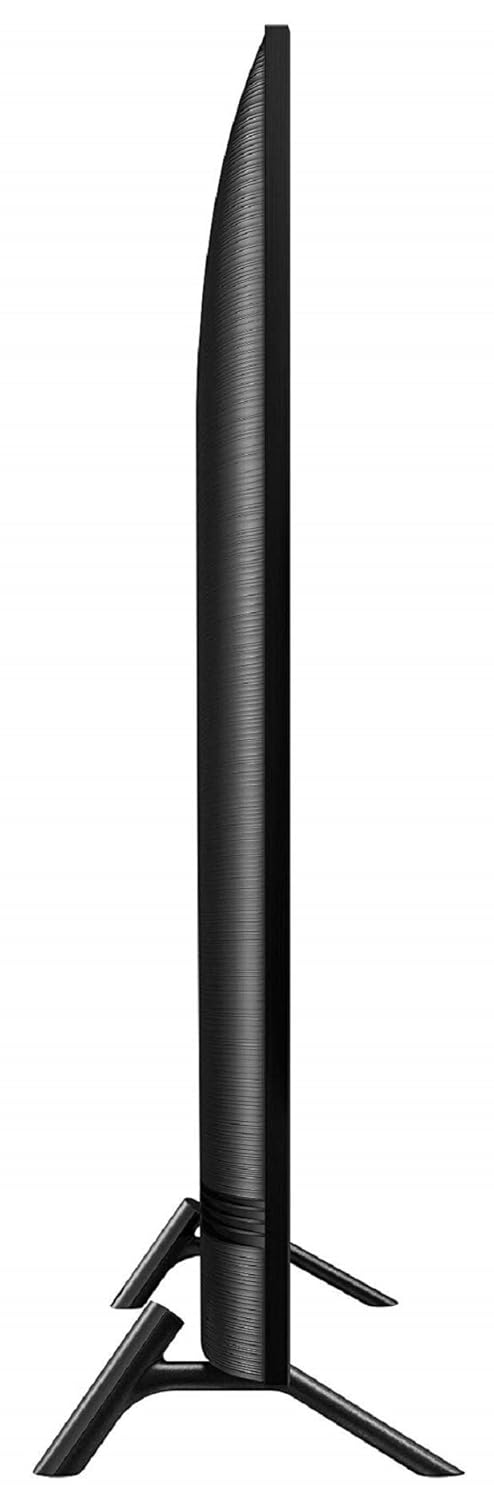
Figure 2: Side profile view of the Samsung UA32N4003ARXXL LED TV. This image illustrates the slim design of the television when viewed from the side.
4.3 Connecting Peripherals
Your TV is equipped with various ports for connecting external devices.
- HDMI Ports: Connect set-top boxes, Blu-ray players, gaming consoles, or other HDMI-enabled devices using an HDMI cable. The TV has 2 HDMI ports.
- USB Port: Connect USB storage devices (e.g., flash drives, external hard drives) to play media files. The TV has 1 USB port.
- Power: Connect the power cord to the TV's power input and then to a wall outlet.

Figure 3: Side view of the Samsung UA32N4003ARXXL LED TV, illustrating the location of connectivity ports such as HDMI and USB.
4.4 Initial Power On
After connecting all necessary cables, plug the TV into a power source. Press the power button on the remote control or on the TV itself to turn it on. Follow the on-screen instructions for initial setup, including language selection and channel scanning.
5. Operating the TV
5.1 Remote Control Functions
The included remote control allows you to access all TV functions. Familiarize yourself with the buttons:
- Power Button: Turns the TV on or off.
- Volume Up/Down: Adjusts the sound level.
- Channel Up/Down: Changes TV channels.
- Source Button: Selects input sources (HDMI1, HDMI2, USB, TV).
- Menu Button: Accesses the TV's main settings menu.
- Navigation Buttons (Up/Down/Left/Right) and Enter: Used to navigate menus and confirm selections.
- Back/Exit Button: Returns to the previous screen or exits the current menu.
5.2 Input Source Selection
To switch between connected devices (e.g., set-top box, USB drive):
- Press the Source button on your remote control.
- Use the navigation buttons to highlight the desired input (e.g., HDMI1, USB).
- Press the Enter button to confirm your selection.
5.3 Menu Navigation and Settings
The TV's menu allows you to adjust various settings:
- Press the Menu button on the remote.
- Use the navigation buttons to browse through categories like Picture, Sound, Channel, Network, and System.
- Select a category and press Enter to access its settings.
- Adjust settings as needed using the navigation buttons and Enter.
- Press the Exit or Back button to leave the menu.
5.4 Media Playback via USB
To play media files from a USB device:
- Insert your USB device into the TV's USB port.
- Select the USB input source using the Source button.
- The TV's media browser should appear. Navigate through your files (supported formats include AVI, MPEG, WAV, MP3, WMA, GIF, JPEG, PNG, PSD).
- Select a file and press Enter to play it.
5.5 Smart TV Features (Android OS)
This television operates on an Android operating system, providing access to various applications and internet services. Supported services include Netflix, Amazon Prime Video, and Hotstar. Ensure your TV is connected to the internet to utilize these features.
6. Maintenance
6.1 Cleaning the TV
- Screen: Gently wipe the screen with a soft, lint-free cloth. For stubborn marks, lightly dampen the cloth with water or a specialized screen cleaner. Do not spray liquid directly onto the screen.
- Frame and Stand: Wipe the TV frame and stand with a soft, dry cloth.
- Important: Always unplug the TV from the power outlet before cleaning. Avoid using abrasive cleaners, waxes, or solvents.
6.2 General Care
- Avoid placing heavy objects on top of the TV.
- Do not expose the TV to direct sunlight or extreme temperatures.
- Ensure adequate ventilation around the TV to prevent overheating.
7. Troubleshooting
Before contacting service personnel, try the following solutions for common issues:
| Problem | Possible Solution |
|---|---|
| No power | Check if the power cord is securely plugged into both the TV and the wall outlet. Ensure the wall outlet is functioning. |
| No picture, but sound is present | Verify the correct input source is selected. Check cable connections to external devices. |
| No sound, but picture is present | Increase the volume. Check audio settings in the TV menu. Ensure external audio devices are properly connected and powered on. |
| Remote control not working | Replace the batteries in the remote control. Ensure there are no obstructions between the remote and the TV's IR sensor. |
| Picture is distorted or unclear | Check antenna/cable connections. Adjust picture settings in the TV menu. If using an external device, check its output resolution. |
8. Specifications
| Feature | Detail |
|---|---|
| Model Number | UA32N4003ARXXL |
| Screen Size | 32 Inches (80 cm) |
| Display Technology | LED |
| Resolution | HD Ready (1366x768 pixels) |
| Refresh Rate | 60 Hz |
| Audio Output | 10 Watts (Dolby Digital Plus) |
| Connectivity | 2 x HDMI, 1 x USB |
| Operating System | Android |
| Product Dimensions (WxDxH) | 73.7 x 7.4 x 43.8 cm |
| Item Weight | 3.8 kg |
| Mounting Type | Wall Mount & Table Mount |
| Power Consumption (On-mode) | 48 watts |

Figure 4: Rear angled view of the Samsung UA32N4003ARXXL LED TV, showing the back panel and potential mounting points.
9. Warranty and Support
9.1 Warranty Information
Your Samsung UA32N4003ARXXL LED TV comes with a 1-year comprehensive warranty and an additional 1-year warranty on the panel, provided by the manufacturer from the date of purchase. Please refer to the included warranty card for detailed terms and conditions.
9.2 Customer Support
For installation, wall mounting, product demonstration, or any service-related queries, please contact Samsung support directly:
- Samsung Support Contact: 1800407267864 or 180057267864
When contacting support, please provide the product's model name (UA32N4003ARXXL) and the seller's details as mentioned on your invoice.