
DS ledsign P5 SMD
DS ledsign P5 39x14 inch Programmable LED Sign Instruction Manual
Model: P5 SMD
1. Introduction
This manual provides comprehensive instructions for the setup, operation, and maintenance of your DS ledsign P5 39x14 inch Programmable LED Sign. Please read this manual thoroughly before using the product to ensure proper functionality and longevity.
2. Product Overview
2.1 Key Features
- High-Resolution P5 LED Display: Features a 5mm pixel pitch for clear text and animations.
- Flexible Connectivity: Supports content updates via WiFi for remote management and USB for offline transfers.
- Durable Construction: IP45 waterproof rating and aluminum casing ensure resilience against various weather conditions and temperatures (-20°C to 45°C).
- Energy Efficiency: Designed with low-power LED modules for reduced operational costs and an extended lifespan of over 100,000 hours.
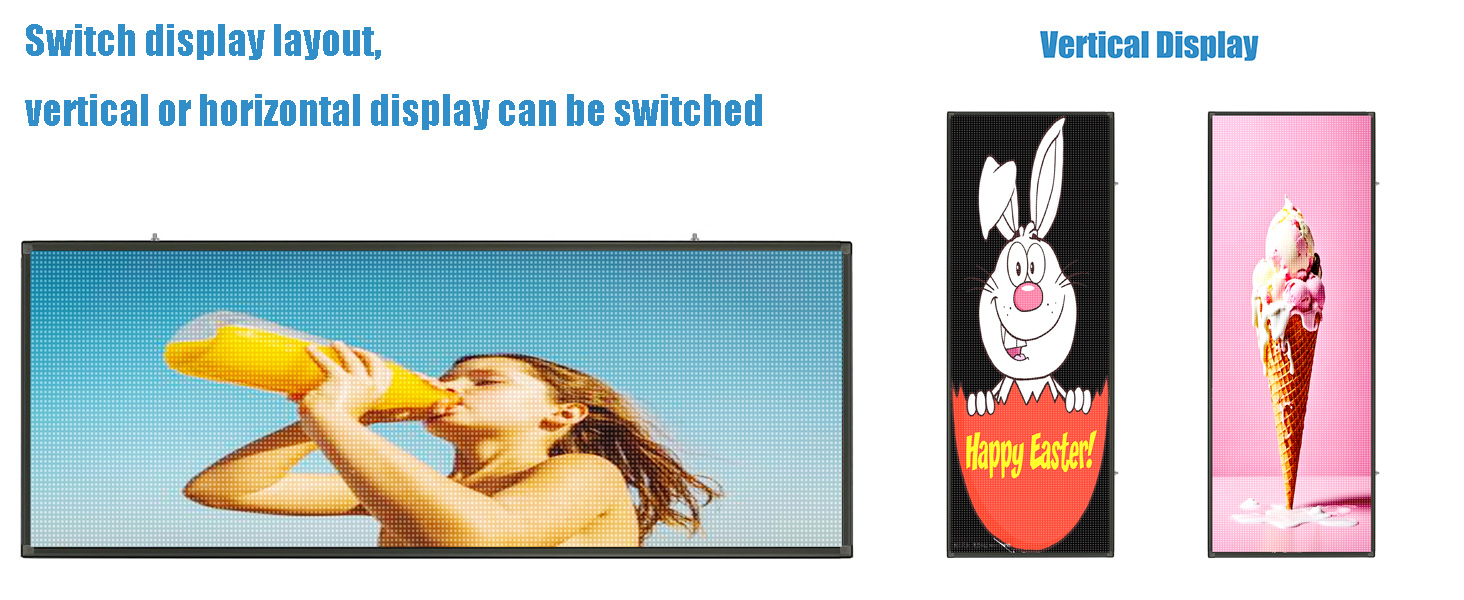
- Versatile Display Modes: Supports both horizontal and vertical content orientation.
2.2 Technical Specifications
| Specification | Detail |
|---|---|
| Model Number | P5 SMD |
| Dimensions (L x W x H) | 39 x 14 x 0.39 inches |
| Item Weight | 12.97 pounds |
| Material | Aluminum |
| Color | Black |
| Pixel Pitch | 5mm (P5) |
| Connectivity | WiFi, USB |
| Ingress Protection (IP) Rating | IP45 (Waterproof) |
| Operating Temperature | -20°C to 45°C |
| Lifespan | 100,000+ hours |
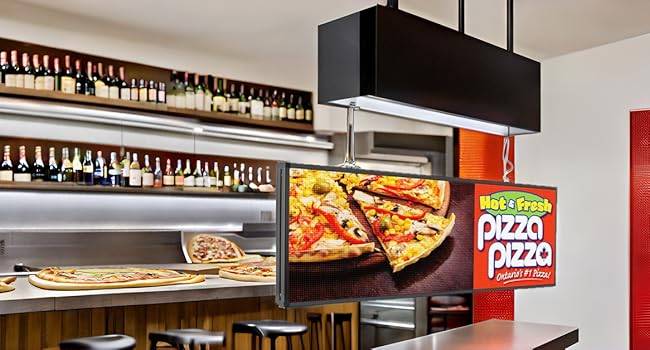
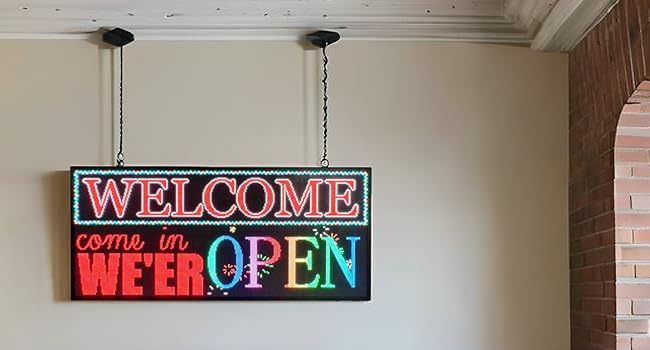
| Mounting Type | Door Mount, Wall Mount |
3. Setup Instructions
3.1 Unpacking and Physical Installation
- Carefully remove the LED sign from its packaging. Inspect for any visible damage.
- Identify the mounting points on the sign. The sign is designed for both wall and door mounting.
- Securely mount the sign in your desired location using appropriate hardware (not included). Ensure the mounting surface can support the sign's weight (approximately 12.97 lbs).
- Connect the power cable to the sign and then to a suitable power outlet.


3.2 Software Installation
To program your LED sign, you will need to install the control software. A USB flash drive with programming guides is typically included with your purchase. Alternatively, the software can be downloaded from the manufacturer's website.
- Insert the provided USB flash drive into your computer or navigate to the manufacturer's official website (e.g., hdwell.com).
- Locate the "Download" section, then select "Software" and find the latest version of the HDPlayer software.
- Download and install the HDPlayer software on your computer. Follow the on-screen prompts to complete the installation.

4. Operating Instructions
4.1 Initial Configuration with HDPlayer
- Launch the HDPlayer software.
- In the software, access the "Screen Parameters Setting" menu.
- Set the "Device Type" to "Dseries" and select "D16".
- Enter the correct width and height for your sign (e.g., 192 for width, 64 for height, corresponding to 39x14 inches). Refer to the product specifications for exact pixel dimensions.
- If necessary, adjust the display rotation (e.g., 90 degrees for vertical orientation).
- Confirm settings by clicking "OK".


4.2 Creating and Uploading Content
The HDPlayer software allows you to design various types of content, including text, images, and animations.
- Use the software's interface to create your desired message or display content. You can customize fonts, colors, effects, and display duration.
- Once your content is prepared, you can upload it to the sign using one of two methods:
- WiFi Connectivity: Connect your computer to the sign's WiFi network (if available and configured) and use the software to send content wirelessly.
- USB Transfer: Save your content to a USB flash drive. Insert the USB drive into the sign's USB port. The sign will automatically detect and copy the content.
- After successful transfer, the sign will display a "Copy complete!" message.

5. Maintenance
The DS ledsign P5 LED sign is designed for durability and long-term performance with minimal maintenance. Regular cleaning and proper handling will help ensure its longevity.
- Cleaning: Periodically wipe the display surface with a soft, dry, lint-free cloth to remove dust and dirt. For stubborn marks, a slightly damp cloth with a mild, non-abrasive cleaner can be used, ensuring no liquid enters the internal components.
- Environmental Conditions: While the sign is IP45 rated for outdoor use, avoid direct exposure to extreme weather conditions beyond its specified operating temperature range (-20°C to 45°C) to maximize lifespan.
- Power Management: Ensure the sign is connected to a stable power source. Avoid frequent power cycling if not necessary.
6. Troubleshooting
This section addresses common issues you might encounter with your LED sign.
6.1 Display Issues
- Sign is not powering on:
- Check if the power cable is securely connected to both the sign and the power outlet.
- Verify that the power outlet is functional.
- Display is blank or shows incorrect content:
- Ensure content has been successfully uploaded to the sign (check for "Copy complete!" message).
- Verify that the correct program is selected for display in the HDPlayer software.
- Check the screen parameters in HDPlayer (Device Type, Width, Height, Rotation) match your sign's configuration.
- Content appears distorted or rotated incorrectly:
- Review the "Screen Parameters Setting" in HDPlayer, specifically the rotation setting. Adjust as needed.
- Ensure the content resolution matches the sign's pixel dimensions.
6.2 Connectivity Issues
- Cannot connect via WiFi:
- Ensure the sign's WiFi module is active.
- Verify your computer is connected to the sign's specific WiFi network.
- Check for any firewall or network settings on your computer that might block the connection.
- USB transfer not working:
- Ensure the USB flash drive is properly formatted (FAT32 is commonly supported).
- Verify that the content file is correctly saved on the USB drive.
- Try a different USB port on the sign or a different USB drive.
7. Warranty and Support
Your DS ledsign P5 Programmable LED Sign comes with comprehensive support and warranty coverage.
- Warranty: A 2-year warranty covers manufacturing defects and ensures reliable performance.
- Technical Support: Lifetime technical support is available 24/7. For assistance with programming, troubleshooting, or any other inquiries, please contact DS ledsign customer service.
- Resources: Your purchase includes a detailed user manual (this document), video tutorials, and a USB flash drive containing programming guides to assist you with setup and operation.
Ask a question about this manual
Ask about setup, troubleshooting, compatibility, parts, safety, or missing instructions. Manuals+ will review the question and use this page’s manual context to help answer it.