
Introduction
This manual provides detailed instructions for the Ovegna MT10 Mini Wireless Backlit AZERTY Keyboard with Touchpad. Please read this manual carefully before use to ensure proper operation and to maximize your experience with the device. This keyboard is designed for use with various systems including Smart TVs, Mini PCs, HTPCs, game consoles, computers, Raspberry Pi devices, and Android TV boxes.
Package Contents
- Ovegna MT10 Mini Wireless Keyboard
- USB Wireless Receiver (2.4 GHz)
- USB Charging Cable
Product Features
- Wireless Connectivity: Utilizes 2.4 GHz RF wireless technology for a stable and reliable connection.
- Integrated Touchpad: Features a multi-touch touchpad with adjustable DPI sensitivity and page scrolling functionality.
- Backlight: Offers a 3-color adjustable backlight (red, blue, green) for enhanced visibility in low-light environments.
- Ergonomic Design: Compact and comfortable form factor suitable for handheld operation.
- Rechargeable Battery: Equipped with a built-in lithium battery, rechargeable via the included USB cable.
- Automatic Sleep Mode: Conserves battery life by automatically entering sleep mode after a period of inactivity.
- AZERTY Layout: Specifically designed with an AZERTY keyboard layout for French language input.
Setup
1. Charging the Keyboard
Before initial use, ensure the keyboard is fully charged. Connect the included USB charging cable to the keyboard's charging port and the other end to a standard USB power source (e.g., computer USB port, USB wall adapter). The charging indicator light will illuminate during the charging process.
2. Connecting the USB Receiver
Locate the USB wireless receiver, which is typically stored in a compartment within the keyboard itself. Insert the USB receiver into an available USB port on your target device (Smart TV, Mini PC, HTPC, Console, Computer, Raspberry Pi, Android TV Box). Your device should automatically detect and install the necessary drivers for the keyboard.

Image: The Ovegna MT10 Mini Wireless Keyboard demonstrating its 2.4 GHz wireless connection capability with a USB receiver.
3. Initial Use and AZERTY Configuration
Turn on the keyboard using the power switch (usually located on the side or back). The keyboard should now be ready for use.
Important AZERTY Note:
This keyboard is physically designed with an AZERTY layout. If you experience a QWERTY layout or incorrect character input, the issue typically lies with the connected device's operating system settings. Please navigate to your device's keyboard or language settings and ensure that the external keyboard input language is set to "French (AZERTY)" or a similar option. Refer to your device's user manual for specific instructions on changing keyboard layouts.
Operating Instructions
Basic Keyboard Functions
The keyboard features a standard AZERTY layout with additional function keys for various controls.
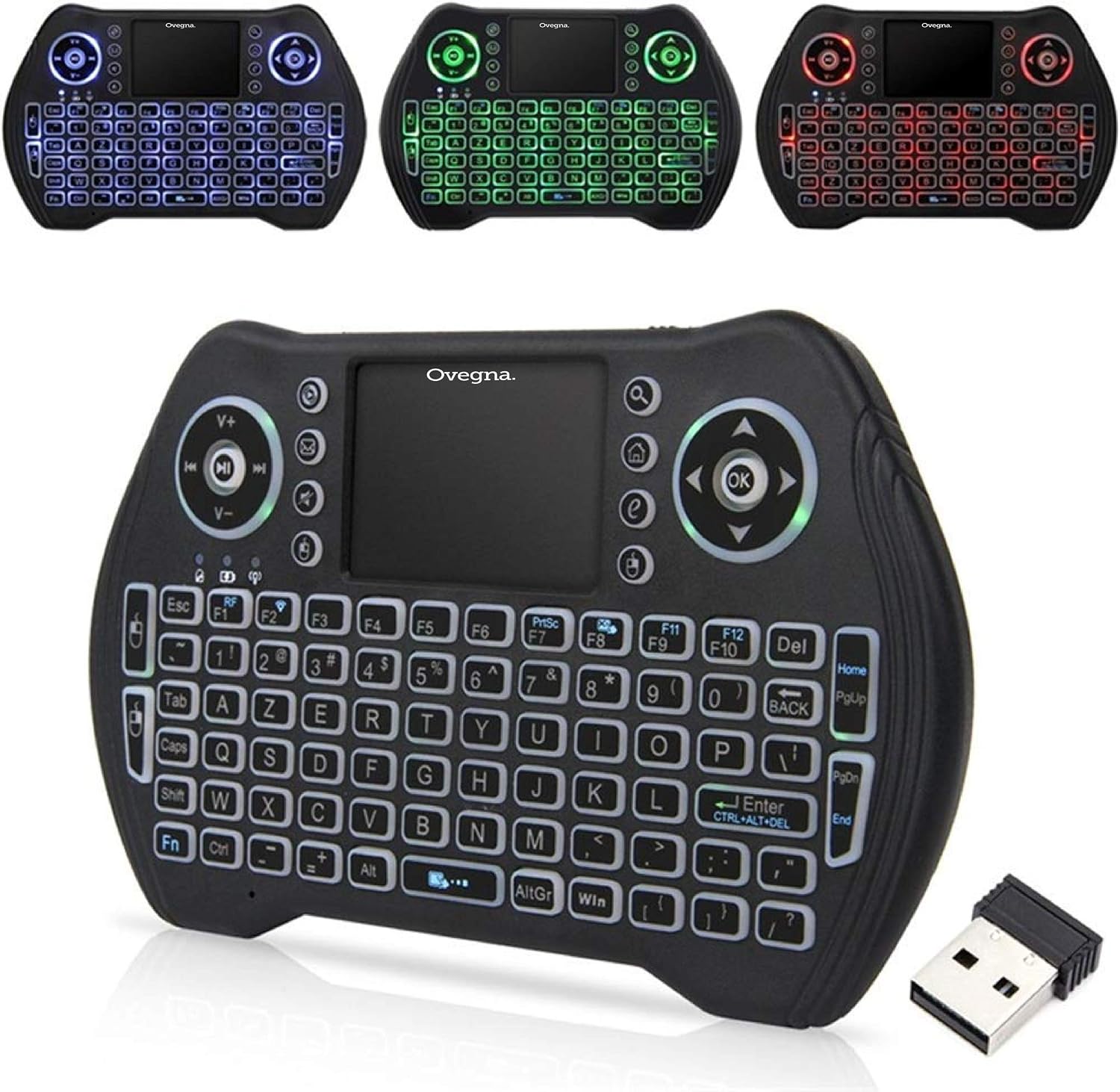
Image: The Ovegna MT10 Mini Wireless Backlit AZERTY Keyboard, showcasing its compact design and full key layout.
Touchpad Functions
The integrated multi-touch touchpad allows for precise mouse-like navigation.
- Single Finger Tap: Functions as a left mouse click.
- Two Finger Tap: Functions as a right mouse click.
- Two Finger Scroll: Drag two fingers up or down on the touchpad to scroll pages or content.
- DPI Adjustment: To adjust touchpad sensitivity (DPI), press the Fn key and the Spacebar simultaneously. Repeat this action to cycle through different sensitivity levels.

Image: A visual guide to the Ovegna MT10 Mini Wireless Keyboard's function keys, including touchpad controls and shortcuts.
Backlight Control
The keyboard features a 3-color backlight (red, blue, green) for improved visibility in dark environments.
- To activate or change the backlight color, press the Fn key and the F2 key simultaneously.
- Repeat this key combination to cycle through the available colors or to turn the backlight off.

Image: The Ovegna MT10 Mini Wireless Keyboard displayed with various compatible devices such as a Smart TV, projector, mini PC, laptop, and Android TV box.
Automatic Sleep Mode
To conserve battery power, the keyboard automatically enters sleep mode after a period of inactivity.
- In sleep mode, the keyboard's backlight will turn off, but the 2.4 GHz receiver and RF indicator light may continue to blink.
- To reactivate the keyboard, simply press any key. The keyboard will reconnect and resume normal operation.
Maintenance
- Cleaning: Use a soft, dry cloth to clean the keyboard surface. Avoid using liquid cleaners, solvents, or abrasive materials, as these can damage the device.
- Storage: Store the keyboard in a cool, dry place away from direct sunlight, high humidity, and extreme temperatures.
- Battery Care: To prolong the lifespan of the built-in lithium battery, avoid frequent full discharges. It is recommended to recharge the keyboard when the low battery indicator appears.
Troubleshooting
Keyboard Not Responding
- Check Battery: Ensure the keyboard is sufficiently charged. Connect it to a power source using the USB charging cable.
- Check Connection: Verify that the USB receiver is securely plugged into your device's USB port.
- Try Another USB Port: Test the receiver in a different USB port on your device to rule out a faulty port.
- Restart Device: Restart the connected device (Smart TV, PC, etc.) to refresh the USB connection.
Incorrect Character Input (QWERTY instead of AZERTY)
- This is a common issue where the physical AZERTY layout is interpreted as QWERTY by the connected device.
- Navigate to your device's keyboard or language settings.
- Change the external keyboard layout to "French (AZERTY)" or a similar option.
- Refer to your device's user manual for specific instructions on adjusting keyboard settings.
Touchpad Unresponsive or Inaccurate
- Clean Touchpad: Ensure the touchpad surface is clean and free of any debris or moisture.
- Adjust DPI: Use the Fn + Spacebar combination to adjust touchpad sensitivity.
- Restart Keyboard: Turn the keyboard off and then on again using the power switch.
Backlight Not Working
- Ensure the keyboard is powered on.
- Press Fn + F2 to cycle through backlight colors and activation.
- Check the battery level; a low battery might disable the backlight function to conserve power.
Specifications
| Feature | Detail |
|---|---|
| Brand | Ovegna |
| Model Number | MT10 |
| Connectivity Technology | 2.4 GHz Wireless (USB Receiver) |
| Keyboard Description | Wireless, Backlit, AZERTY |
| Special Features | Rechargeable, 3-Color Backlight, Multi-touch Touchpad, Adjustable DPI |
| Power Source | Battery Powered (Rechargeable Lithium) |
| Compatible Devices | Computer, Smart TV, Mini PC, HTPC, Console, Raspberry Pi, Android TV |
| Dimensions (L x W x H) | 19 x 10.6 x 2.5 cm |
| Hand Orientation | Ambidextrous |
Warranty and Support
Specific warranty information for the Ovegna MT10 keyboard is not provided within this manual. Please refer to the product packaging or the official Ovegna website for detailed warranty terms and conditions, as well as customer support contact information.
For further assistance or to explore other Ovegna products, you may visit the Ovegna brand store on Amazon: Ovegna Store.