
1. Introduction
Thank you for choosing the ShinePick Mini Hand-Controlled UFO Drone. This drone is designed for interactive play, featuring hand-controlled flight and obstacle avoidance. Please read this manual carefully before operation to ensure safe and correct use.
Package Contents:
- 1 x ShinePick Mini Hand-Controlled UFO Drone
- 1 x USB Charging Cable
- 1 x User Manual
- 1 x Lithium Ion Battery (pre-installed)

Image: The ShinePick Mini Hand-Controlled UFO Drone, blue in color, hovering above two hands, illustrating its hand-controlled flight capability.
2. Safety Information
- Age Recommendation: Suitable for children aged 5 years and above. Adult supervision is recommended.
- Indoor Use: This drone is primarily designed for indoor use. Avoid using it in strong winds or outdoors where it may be lost or damaged.
- Water Hazard: Do not use the drone in or near water bodies such as lakes or swimming pools. Avoid placing items on the flying drone.
- Obstacle Clearance: Ensure sufficient clear space for flight to prevent collisions. The drone features automatic obstacle avoidance, but clear surroundings enhance safety and performance.
- Battery Safety: Use only the provided USB charging cable. Do not attempt to modify or replace the battery with non-approved alternatives.
- Propeller Safety: Keep fingers, hair, and loose clothing away from the propellers during operation. The drone's protective cage helps prevent direct contact.
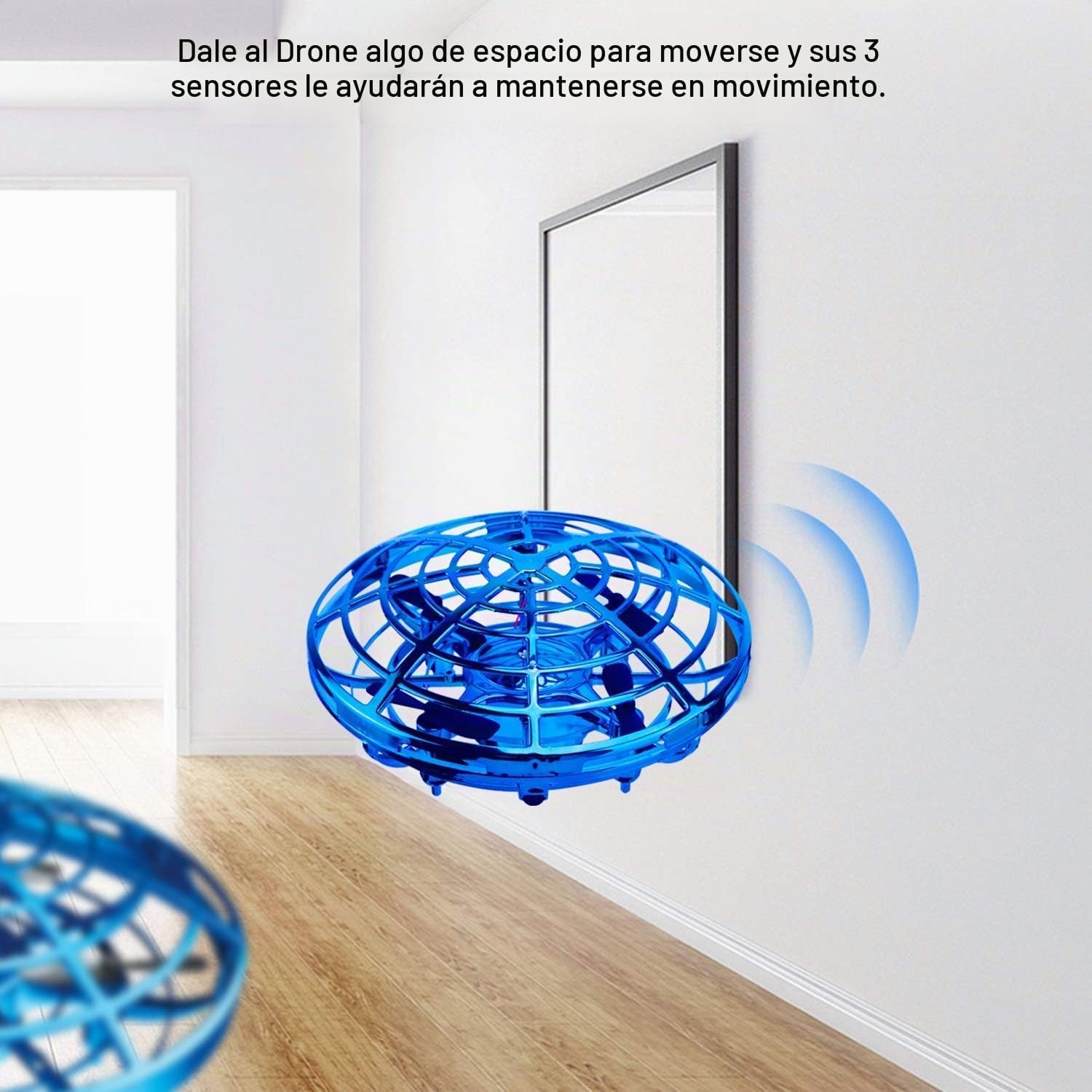
Image: The blue ShinePick Mini Hand-Controlled UFO Drone flying near a wall, demonstrating its ability to detect and avoid obstacles using its sensors.
3. Getting Started (Setup)
3.1 Charging the Drone
- Locate the charging port on the bottom of the drone.
- Connect the provided USB charging cable to the drone's charging port.
- Plug the other end of the USB cable into a standard USB power adapter (not included) or a computer's USB port.
- The indicator light on the drone will show charging status (specific light behavior may vary, refer to product for details).
- Ensure the drone is fully charged before its first use. A flashing red indicator light signifies a low battery during operation.
3.2 Powering On/Off
- To Power On: Locate the ON/OFF button on the bottom of the drone and press it. The LED lights will illuminate.
- To Power Off: Press the ON/OFF button again. The LED lights will turn off. Alternatively, gently grasp the drone and flip it over to stop flight and power down.

Image: A detailed view of the drone's bottom, highlighting the charging port, infrared sensors, and the ON/OFF power switch for easy identification.
4. Operating Instructions
4.1 Launching the Drone
After powering on, gently toss the drone upwards into the air. It will automatically detect the launch and begin to fly and hover.
4.2 Controlling Flight
- Hand Control: The drone uses infrared sensors to detect nearby objects, including your hands. Move your hand close to the drone to influence its direction and movement.
- Obstacle Avoidance: The drone is equipped with an obstacle avoidance design, allowing it to automatically detect and steer clear of walls and other objects.
- Speed Modes: The drone has two speed settings:
- Green LED Light: Indicates low speed.
- Blue LED Light: Indicates high speed.
4.3 Stopping Flight
To stop the drone, gently grasp it with your hand and flip it over. This action will disengage the propellers and power down the drone. Alternatively, press the ON/OFF button.

Image: A composite image demonstrating various operational aspects: launching the drone by tossing it up, controlling its direction with hand gestures, and stopping it by flipping it over or pressing the power button.
5. Maintenance
- Cleaning: Use a soft, dry cloth to clean the drone. Do not use water or cleaning solutions, as this can damage electronic components.
- Propeller Care: Periodically check the propellers for any hair, dust, or debris that may accumulate. Carefully remove any obstructions to ensure optimal flight performance.
- Battery Storage: If storing the drone for an extended period, ensure the battery is partially charged (around 50%) to prolong its lifespan. Avoid storing in extreme temperatures.
- Impact Damage: While durable, repeated hard impacts can cause damage. Inspect the drone after any significant crash for cracks or loose parts.
6. Troubleshooting
| Problem | Possible Cause | Solution |
|---|---|---|
| Drone does not fly or flies weakly. | Low battery. Obstructions in propellers. | Charge the drone fully. Check and clear any debris from propellers. |
| Drone flies erratically or crashes frequently. | Insufficient clear space. Sensors obstructed. | Ensure ample clear space for flight. Clean sensors if dirty. |
| Drone does not respond to hand gestures. | Hand too far from sensors. Sensors obstructed. | Move hand closer to the drone. Ensure sensors are clean and unobstructed. |
| Red indicator light is flashing. | Low battery. | Recharge the drone. |
7. Specifications
| Feature | Detail |
|---|---|
| Brand | ShinePick |
| Model Name | 003 |
| Product Dimensions | 14 x 13 x 12 cm |
| Product Weight | 70 g |
| Material | Plastic (Non-toxic PP) |
| Color | Blue |
| Battery Type | Lithium Ion |
| Battery Capacity | 500 mAh |
| Rechargeable Batteries | Yes (Included) |
| Flight Time | Approx. 5-8 minutes |
| Connectivity Technology | RF (Radio Frequency) |
| Control Type | Hand Control |
| Age Range | 5 years and above |
8. Warranty and Support
For warranty information or technical support, please contact ShinePick customer service directly. Refer to the product packaging or the official ShinePick website for contact details.
Please retain your proof of purchase for any warranty claims.