
1. Introduction
This manual provides detailed instructions for the installation, operation, and maintenance of your Yosoo AR5B22 Dual Band Wireless Mini PCI-E 802.11N WLAN Card. This card is designed to provide wireless network connectivity (Wi-Fi) and Bluetooth 4.0 capabilities to compatible devices. Please read this manual thoroughly before proceeding with installation or use.
2. Safety Information
- Always disconnect power from your computer before opening the chassis or installing any internal components.
- Handle the WLAN card by its edges to avoid touching the gold connectors or electronic components, which can be damaged by static electricity.
- Use appropriate anti-static precautions, such as an anti-static wrist strap, when handling the card.
- Ensure proper ventilation for your computer to prevent overheating.
- Keep the card away from moisture and extreme temperatures.
3. Package Contents
Verify that your package contains the following items:
- Yosoo AR5B22 Dual Band Wireless Mini PCI-E 802.11N WLAN Card
Note: Antennas are typically sold separately and are required for optimal performance.
4. Product Overview
The Yosoo AR5B22 is a half-mini PCI-E card designed for laptops, desktops, all-in-one PCs, and other devices with a compatible interface. It offers enhanced wireless connectivity and Bluetooth capabilities.
- Dual Band Support: Operates on both 2.4GHz and 5GHz frequencies for versatile network access.
- High Wireless Rate: Achieves wireless transmission rates up to 300Mbps (802.11N standard).
- Bluetooth 4.0: Integrated Bluetooth 4.0 for connecting wireless peripherals.
- Interface: Half Mini PCI-E.
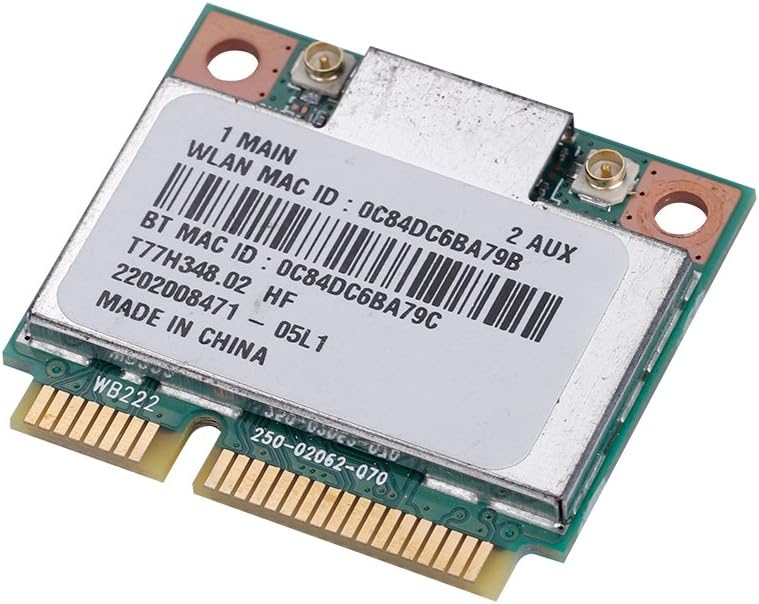
Figure 1: Yosoo AR5B22 Dual Band Wireless Mini PCI-E WLAN Card. This image displays the top view of the network card, highlighting its compact form factor and the two antenna connectors labeled '1 MAIN' and '2 AUX'.

Figure 2: Yosoo AR5B22 WLAN Card supporting Bluetooth 4.0. The image shows the card with a graphic indicating Bluetooth 4.0 High Speed (HS) capability.

Figure 3: Yosoo AR5B22 WLAN Card highlighting its 300Mbps wireless transmission rate. A graphic of a running figure symbolizes high-speed data transfer.

Figure 4: Yosoo AR5B22 WLAN Card compatible with Mini Card Slots. The image emphasizes its design for Mini PCI-E interfaces.
5. Setup and Installation
5.1 Pre-installation Checklist
- Ensure your computer has a compatible Half Mini PCI-E slot.
- Gather necessary tools: small Phillips head screwdriver, anti-static wrist strap (recommended).
- Backup important data before beginning installation.
5.2 Physical Installation
- Power off your computer and disconnect all cables, including the power cord.
- Open your computer's chassis or access panel to expose the Mini PCI-E slot. Refer to your computer's service manual for specific instructions.
- If an existing WLAN card is present, carefully disconnect its antenna cables and remove the retaining screw, then gently slide it out of the slot.
- Align the Yosoo AR5B22 card with the Mini PCI-E slot. Gently push the card into the slot until it is fully seated.
- Secure the card with the retaining screw.
- Connect your Wi-Fi antenna cables to the card. The '1 MAIN' connector is typically for the primary antenna, and '2 AUX' for the auxiliary. For Bluetooth functionality, ensure at least one antenna is connected to the '1 MAIN' connector.
- Close your computer's chassis or access panel.
- Reconnect all cables and power on your computer.
5.3 Driver Installation
Upon first boot after installation, your operating system (e.g., Windows 10) may automatically detect and install the necessary drivers. If not, follow these steps:
- Access Device Manager (e.g., right-click on 'This PC' or 'My Computer', select 'Manage', then 'Device Manager').
- Look for any unknown devices or devices with a yellow exclamation mark under 'Network adapters' or 'Bluetooth'.
- Right-click on the device and select 'Update driver'.
- Choose 'Search automatically for updated driver software' or 'Browse my computer for driver software' if you have downloaded drivers from the manufacturer's website.
- Follow the on-screen prompts to complete the driver installation.
Note: Some users may need to manually search for Atheros AR5B22 drivers online if automatic installation fails.
6. Operating Instructions
6.1 Connecting to Wi-Fi Networks
- Once drivers are installed, click on the Wi-Fi icon in your system tray (usually bottom-right of the screen).
- A list of available Wi-Fi networks will appear. Select your desired network.
- Enter the network security key (password) if prompted.
- Click 'Connect'. Your computer should now be connected to the Wi-Fi network.
6.2 Pairing Bluetooth Devices
- Ensure Bluetooth is enabled on your computer (check system settings or action center).
- Put your Bluetooth device (e.g., headphones, mouse) into pairing mode. Refer to your device's manual for specific instructions.
- On your computer, go to 'Settings' > 'Devices' > 'Bluetooth & other devices'.
- Click 'Add Bluetooth or other device' and select 'Bluetooth'.
- Select your device from the list and follow any on-screen prompts to complete the pairing process.
7. Maintenance
- Driver Updates: Periodically check for updated drivers from the operating system manufacturer or the chipset manufacturer (Atheros) to ensure optimal performance and compatibility.
- Physical Cleaning: If your computer is opened for other maintenance, gently clean any dust accumulation on the WLAN card using compressed air. Ensure the computer is powered off and unplugged before cleaning.
8. Troubleshooting
If you encounter issues with your Yosoo AR5B22 WLAN card, refer to the following common troubleshooting steps:
- Wi-Fi Not Detected / No Networks:
- Ensure the card is properly seated in the Mini PCI-E slot.
- Verify that antenna cables are securely connected to both the card and the antennas.
- Check Device Manager to confirm the card is recognized and drivers are installed correctly. Reinstall drivers if necessary.
- Ensure Wi-Fi is enabled in your operating system settings.
- Bluetooth Not Working:
- Confirm that Bluetooth is enabled in your operating system settings.
- Crucially, ensure an antenna is connected to the '1 MAIN' connector on the card, as Bluetooth functionality often relies on this connection.
- Check Device Manager for Bluetooth device status and reinstall drivers if needed.
- Try restarting your computer.
- Slow Wi-Fi Speeds:
- Ensure you are connected to a 5GHz network if available and your router supports it, for potentially faster speeds.
- Check for driver updates.
- Ensure your router's firmware is up to date.
- Minimize interference from other electronic devices.
- Intermittent Connection:
- Check antenna connections for looseness.
- Ensure the card is not overheating.
- Consider moving closer to your wireless router or access point.
9. Specifications
| Feature | Specification |
|---|---|
| Brand | Yosoo |
| Model Number | AR5B22 (Yosooua3bgqyfgo) |
| Hardware Interface | Mini PCI-E |
| Wireless Standard | 802.11N |
| Data Transfer Rate | Up to 300 Megabits Per Second |
| Frequency Bands | 2.4GHz, 5GHz (Dual Band) |
| Bluetooth Version | Bluetooth 4.0 |
| Compatible Devices | Desktop, Laptop (with Half Mini PCI-E slot) |
| Product Dimensions | 2.6 x 1.2 x 1.02 inches (6.6 x 3.0 x 2.6 cm) |
| Item Weight | 0.704 ounces (0.02 Kilograms) |
| Color | Green |

Figure 5: Yosoo AR5B22 WLAN Card displaying various regulatory compliance labels and certifications.
10. Warranty and Support
For warranty information and technical support, please refer to the documentation provided with your purchase or contact your retailer. Keep your proof of purchase for warranty claims.