
1. Product Overview
The TSL LTCMIP7863W-SZ is a 6MP high-definition Platinum Varifocal Motorized Dome IP Camera designed for advanced surveillance applications. It features a 2.8-12mm varifocal motorized lens with smart focus, providing clear images up to 3072x2048 resolution at 20 frames per second. Equipped with Matrix IR 2.0 technology, it offers an infrared range of up to 100 feet for effective night vision. The camera supports H.265, H.265+, H.264, and H.264+ compression standards, True WDR 120dB, and is rated IP67 for weather resistance and IK10 for vandal resistance. It includes a MicroSD slot for local storage up to 128GB, audio I/O, alarm I/O, and can be powered by DC 12V or Power over Ethernet (PoE). A built-in junction box simplifies installation.
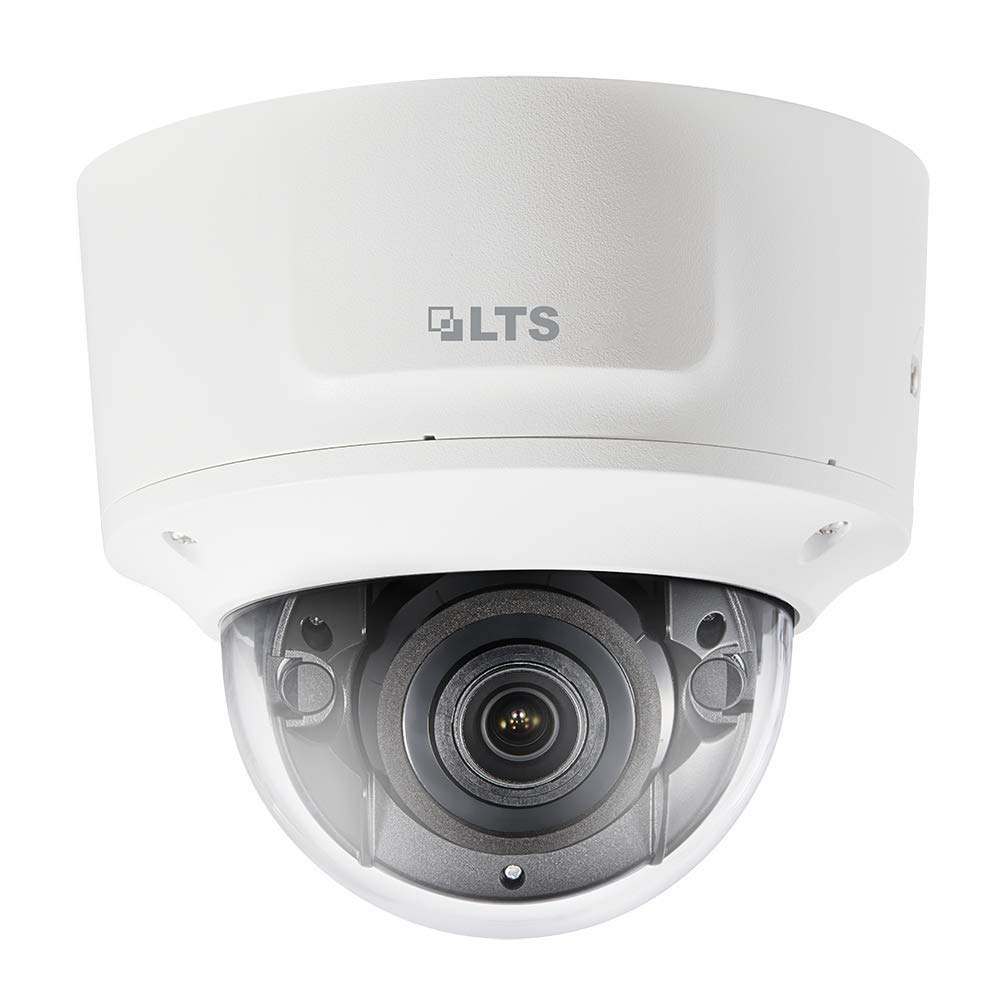
Figure 1: Front view of the TSL LTCMIP7863W-SZ Dome IP Camera. This image illustrates the compact dome design and the lens area.
2. Setup and Installation
2.1 Package Contents
Before installation, verify that all components are present:
- TSL LTCMIP7863W-SZ Dome IP Camera
- Mounting Template
- Mounting Screws and Wall Plugs
- Waterproof Connector Kit
- Quick Start Guide
2.2 Mounting the Camera
The camera is designed for wall or ceiling mount. Ensure the mounting surface can support the camera's weight.
- Prepare the Mounting Surface: Use the provided mounting template to mark the drill holes for the camera base.
- Drill Holes: Drill pilot holes according to the template. Insert wall plugs if mounting on drywall or masonry.
- Secure the Base: Attach the camera base to the mounting surface using the provided screws.
- Cable Connection: Route the necessary cables (Ethernet, power if not using PoE, alarm I/O, audio I/O) through the cable entry point in the base. Utilize the built-in junction box for organized wiring.
- Attach Camera Body: Secure the camera body to the mounted base. Ensure all connections are firm and waterproofed using the provided kit.
2.3 Power and Network Connection
The camera supports Power over Ethernet (PoE) or a 12V DC power supply.
- PoE Connection: Connect an Ethernet cable from a PoE-enabled switch or NVR to the camera's RJ45 port. This provides both power and data.
- DC 12V Connection: If PoE is not available, connect a 12V DC power adapter (sold separately) to the camera's power input port. Then, connect an Ethernet cable for data transmission.
- Network Configuration: After physical connection, the camera will obtain an IP address via DHCP by default. Use the manufacturer's IP search tool to locate the camera on your network and configure its IP address if needed.
3. Operating Instructions
3.1 Initial Access and Login
Access the camera's web interface using a web browser (e.g., Chrome, Firefox).
- Open a web browser and enter the camera's IP address in the address bar.
- Enter the default username (e.g., "admin") and password (refer to the Quick Start Guide or manufacturer's documentation for default credentials). It is highly recommended to change the default password immediately after the first login for security purposes.
3.2 Live View and Playback
Once logged in, you can view the live feed and access recorded footage.
- Live View: The main interface typically displays the live video stream.
- Playback: Navigate to the "Playback" section to review recordings stored on the MicroSD card or connected NVR.
3.3 Varifocal Motorized Lens Adjustment
The camera features a motorized varifocal lens for remote adjustment of zoom and focus.
- Access the camera's web interface or client software.
- Locate the "Lens" or "Image Adjustment" settings.
- Use the zoom controls to adjust the focal length (2.8-12mm) and the focus controls to achieve a clear image. The "Smart Focus" feature assists in optimizing clarity.
3.4 Recording and Storage
The camera supports local storage via a MicroSD card (up to 128GB) and network storage (NVR).
- MicroSD Card Installation: Power off the camera. Open the dome cover carefully. Insert a compatible MicroSD card into the slot. Close the cover securely.
- Recording Schedule: Configure recording schedules (continuous, motion-triggered, alarm-triggered) in the camera's settings.
- Storage Management: Format the MicroSD card through the web interface before first use. Configure overwrite settings for continuous recording.
3.5 Motion Detection and Alerts
Configure motion detection zones and sensitivity to trigger recordings or alarms.
- Navigate to "Event" or "Alarm" settings in the web interface.
- Define motion detection areas and adjust sensitivity levels.
- Configure alarm actions, such as sending email notifications, uploading images to an FTP server, or triggering external alarm devices via the alarm I/O.
4. Maintenance
4.1 Cleaning the Camera
Regular cleaning ensures optimal image quality.
- Lens: Gently wipe the lens with a soft, clean, lint-free cloth. For stubborn dirt, use a lens cleaning solution specifically designed for optical surfaces. Avoid abrasive materials.
- Dome Cover: Clean the transparent dome cover with a soft cloth and mild soap solution if necessary. Rinse with clean water and dry thoroughly. Do not use strong chemical cleaners.
- Camera Body: Wipe the exterior of the camera body with a damp cloth.
4.2 Firmware Updates
Periodically check the manufacturer's website for firmware updates. Firmware updates can provide new features, improve performance, and enhance security.
- Download the latest firmware file from the official TSL support website.
- Access the camera's web interface and navigate to the "System" or "Maintenance" section.
- Follow the on-screen instructions to upload and install the firmware. Do not power off the camera during the update process.
4.3 Storage Management
Ensure the MicroSD card has sufficient space and is functioning correctly.
- Regularly check the status of the MicroSD card through the camera's web interface.
- If configured for overwrite, older recordings will be automatically deleted. If not, manually delete old footage to free up space.
- Consider backing up important footage to an NVR or other storage device.
5. Troubleshooting
| Problem | Possible Cause | Solution |
|---|---|---|
| No power to camera |
|
|
| No video feed |
|
|
| Poor image quality |
|
|
| Cannot access web interface |
|
|
6. Technical Specifications
| Feature | Detail |
|---|---|
| Model | LTCMIP7863W-SZ |
| Video Capture Resolution | 6 MP (3072x2048) |
| Frame Rate | 20 fps @ 3072x2048 |
| Lens | 2.8-12mm Varifocal Motorized Lens with Smart Focus |
| Night Vision Range | Up to 100 Feet (Matrix IR 2.0) |
| Low Light Technology | 0.018 Lux @ F1.6 (Day/Night) |
| Wide Dynamic Range (WDR) | True WDR 120dB |
| Video Compression | H.265, H.265+, H.264, H.264+ |
| Storage | MicroSD Slot (up to 128GB) |
| Audio I/O | Yes |
| Alarm I/O | Yes |
| Power Supply | DC 12V, PoE (802.3af) |
| Ingress Protection Rating | IP67 |
| Vandal Resistance Rating | IK10 |
| Form Factor | Dome |
| Connectivity Protocol | Wi-Fi |
| Manufacturer | LTS |
| UPC | 745558709424 |
7. Warranty and Support
7.1 Limited Warranty
TSL products are covered by a limited warranty from the date of purchase. The specific terms and duration of the warranty may vary by region and product. Please refer to the official TSL website or your purchase documentation for detailed warranty information. This warranty typically covers defects in materials and workmanship under normal use.
Note: The warranty does not cover damage caused by improper installation, misuse, unauthorized modification, natural disasters, or power surges.
7.2 Technical Support
For technical assistance, product inquiries, or troubleshooting beyond the scope of this manual, please contact TSL customer support.
- Website: Visit the official TSL support website for FAQs, downloads, and contact information.
- Email: Refer to the support section of the TSL website for email contact details.
- Phone: Contact numbers for technical support are usually available on the TSL website.
When contacting support, please have your product model number (LTCMIP7863W-SZ) and purchase information readily available.