
NEDIS WIFIRC10CBK
NEDIS Intelligent WiFi Universal Remote Control User Manual
Model: WIFIRC10CBK
Brand: NEDIS
Introduction
The NEDIS WIFIRC10CBK Intelligent WiFi Universal Remote Control allows you to control your infrared-controlled devices, such as TVs and air conditioners, from anywhere using the Nedis SmartLife app. This device eliminates the need for multiple remote controls and offers convenient scheduling and remote operation capabilities.
Safety Information
- Ensure the device is placed on a stable, flat surface.
- Do not expose the device to direct sunlight, extreme temperatures, or high humidity.
- Keep the device away from water or other liquids.
- Do not attempt to open or repair the device yourself. Refer all servicing to qualified personnel.
- Use only the provided power adapter and cable.
- This device operates on a 2.4 GHz Wi-Fi network. Ensure your router supports this frequency.
Package Contents
Verify that all items are present and in good condition:
- NEDIS Intelligent WiFi Universal Remote Control (WIFIRC10CBK)
- USB Power Cable
- USB Power Adapter
- User Manual (this document)

Image: The package contents including the black universal remote, a black USB cable, and a black power adapter.
Product Overview
The NEDIS WIFIRC10CBK is a compact, black, disc-shaped device designed to blend seamlessly into your home environment. It features an infrared emitter for controlling various appliances and a status indicator light.

Image: A close-up view of the black, glossy, disc-shaped universal remote control, showing a small blue LED indicator light on its front edge.

Image: A top-down view of the black, glossy, circular universal remote control, highlighting its sleek design.
Setup
- Power On: Connect the universal remote control to a power source using the provided USB cable and power adapter. The indicator light will illuminate.
- Download the App: Download the "Nedis SmartLife" app from your smartphone's app store (available for iOS and Android).
- Register/Log In: Open the app and register for a new account or log in if you already have one.
- Add Device:
- In the app, tap the "+" icon to add a new device.
- Select "Universal Remote Control" or "IR Remote Control" from the device list.
- Follow the on-screen instructions to connect the device to your 2.4 GHz Wi-Fi network. Ensure your phone is connected to the same 2.4 GHz network during setup.
- The indicator light on the remote control will change to confirm successful connection.
- Positioning: Place the universal remote control in a central location within the room, ensuring it has a clear line of sight to the infrared-controlled devices you wish to operate. The maximum effective range is approximately 5 meters.
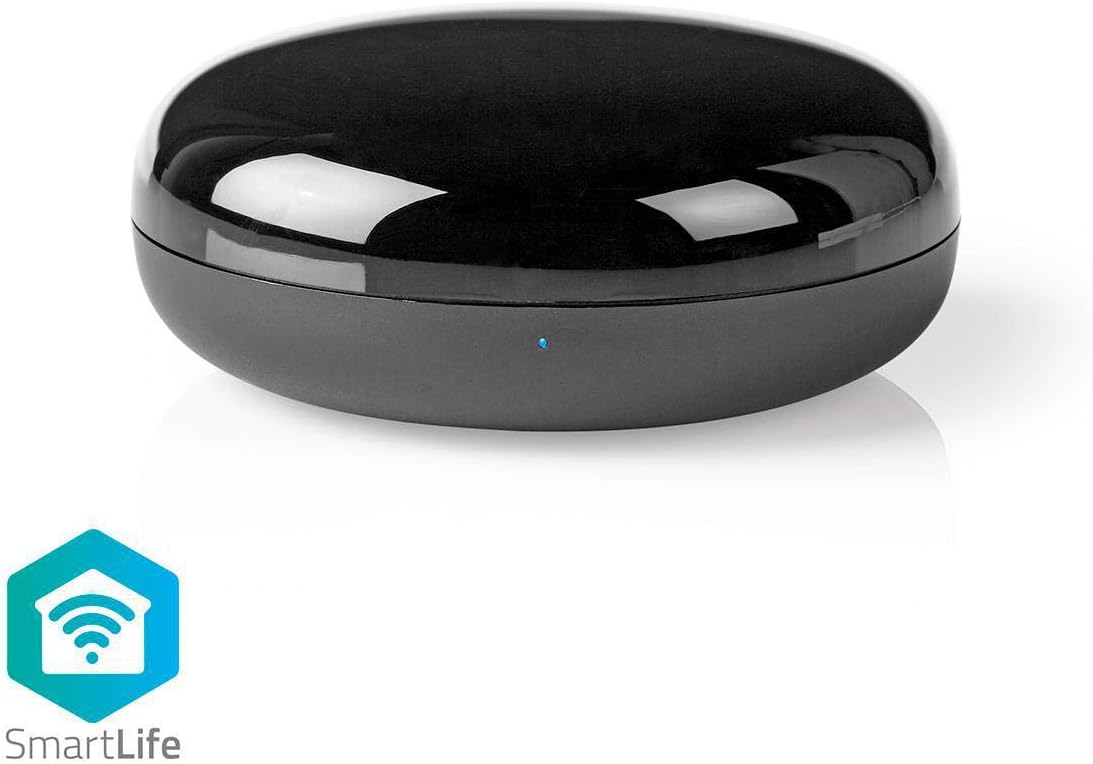
Image: The black universal remote control positioned next to the "SmartLife" app logo, indicating its compatibility and integration with the smart home ecosystem.
Operating
Once the universal remote control is set up and connected to the Nedis SmartLife app, you can begin adding and controlling your infrared devices.
- Add Infrared Device:
- In the Nedis SmartLife app, select your universal remote control device.
- Tap "Add Remote" or a similar option to add a new infrared device (e.g., TV, Air Conditioner, Fan, Set Top Box).
- The app provides a large database of brands and models. Select your device's brand and model.
- Test the pre-programmed remote codes. If a code works, save it. If not, try the next one or use the learning function.
- Learning Function (for unsupported devices):
- If your device's brand/model is not in the database, you can use the learning function.
- Point your original remote control at the universal remote control and press the desired button (e.g., Power On).
- The universal remote will learn the infrared signal. Repeat for all necessary buttons.
- Controlling Devices:
- From the app, select the device you wish to control.
- Use the virtual remote interface to send commands (e.g., change channel, adjust volume, turn on/off).
- Scheduling and Automation:
- The app allows you to create schedules to automatically turn devices on or off at specific times.
- You can also set up automation rules based on conditions (e.g., turn on AC when temperature reaches a certain level, if integrated with other smart sensors).

Image: A smartphone screen displaying the Nedis SmartLife app interface, showing options to select device types such as STB, TV, Air Conditioner, Fan, DVD, Light, and Projector for control.

Image: The black universal remote control placed on a table in a modern living room, with a smartphone displaying the Nedis SmartLife app interface in the background, demonstrating its use in a home environment.
Maintenance
- Cleaning: Wipe the device with a soft, dry cloth. Do not use abrasive cleaners or solvents.
- Storage: Store the device in a cool, dry place when not in use for extended periods.
Troubleshooting
| Problem | Possible Cause / Solution |
|---|---|
| Device not connecting to Wi-Fi. |
|
| Infrared device not responding. |
|
| App shows device offline. |
|
Specifications
- Model: WIFIRC10CBK
- Brand: NEDIS
- Connectivity Technology: Infrared, Wi-Fi (2.4 GHz)
- Max Number of Supported Devices: 1 (refers to the universal remote itself, not the number of IR devices it can control)
- Compatible Devices: Television, Set Top Box, Air Conditioner, Fan, DVD, Projector, Light (infrared controlled)
- Maximum Range: 5 Meters (infrared)
- Product Dimensions: 6.8 x 6.8 x 2.8 cm
- Weight: 114 g
- Color: Black
- Power Input: USB (adapter included)
Warranty and Support
For warranty information and technical support, please refer to the official NEDIS website or contact their customer service. Keep your purchase receipt as proof of purchase.
Website: www.nedis.com