
Introduction
The GTDaudio 733HL wireless microphone system offers superior sound quality and professional features for a wide range of applications. This system includes 800 selectable channels, automatic frequency scanning, true diversity operation, and automatic transmitter setup for reliable performance. This manual provides detailed instructions for setting up, operating, and maintaining your GTDaudio 733HL system.
Package Contents
Please check the package carefully to ensure all items are present:
- 1x GTDaudio 733HL Receiver
- 1x Handheld Wireless Microphone
- 1x Bodypack Transmitter
- 1x Lavalier Microphone (connects to bodypack)
- 1x Headset Microphone (connects to bodypack)
- 2x Antennas
- 1x AC Power Adapter
- 1x 1/4" Audio Cable
- User Manual (this document)

Image: Main components of the GTDaudio 733HL system, including the receiver, handheld microphone, bodypack transmitter, and lavalier microphone.

Image: Included accessories: AC power adapter and 1/4 inch audio cable for connecting the receiver to an audio mixer or amplifier.
Product Features
The GTDaudio 733HL system incorporates advanced features for optimal performance:
- 800 Selectable Frequencies: Each channel offers 800 selectable frequencies, allowing up to 20 sets to be used simultaneously without interference.
- True Diversity Operation: Enhances range and reliability while significantly reducing signal dropouts.
- Automatic Frequency Scanning: Automatically scans and identifies the most interference-free channel available in your environment.
- Automatic Transmitter Setup: Simplifies synchronization between the transmitter and receiver channels.
- Extended Range: Operates effectively up to 450 feet (150 meters).
- Frequency Range: 550MHz - 590MHz (FCC Compliant).

Image: Visual representation of key professional features, including selectable frequencies, true diversity, and automatic scanning.
Setup Guide
1. Receiver Placement and Connections
- Position the Receiver: Place the receiver in a central location, away from large metal objects or other electronic devices that may cause interference. Ensure a clear line of sight to the intended area of use for the microphones.
- Attach Antennas: Screw the two included antennas onto the antenna connectors at the rear of the receiver. Position them vertically for optimal signal reception.
- Connect Power: Connect the AC power adapter to the "POWER" input on the rear of the receiver and plug it into a standard electrical outlet.
- Connect Audio Output:
- For mixed output: Connect one end of the 1/4" audio cable to the "MIX OUT" jack on the receiver and the other end to an input on your audio mixer or amplifier.
- For individual outputs: Use XLR cables (not included) to connect the "OUTPUT A" and "OUTPUT B" XLR jacks to separate inputs on your audio mixer for independent control of each microphone channel.
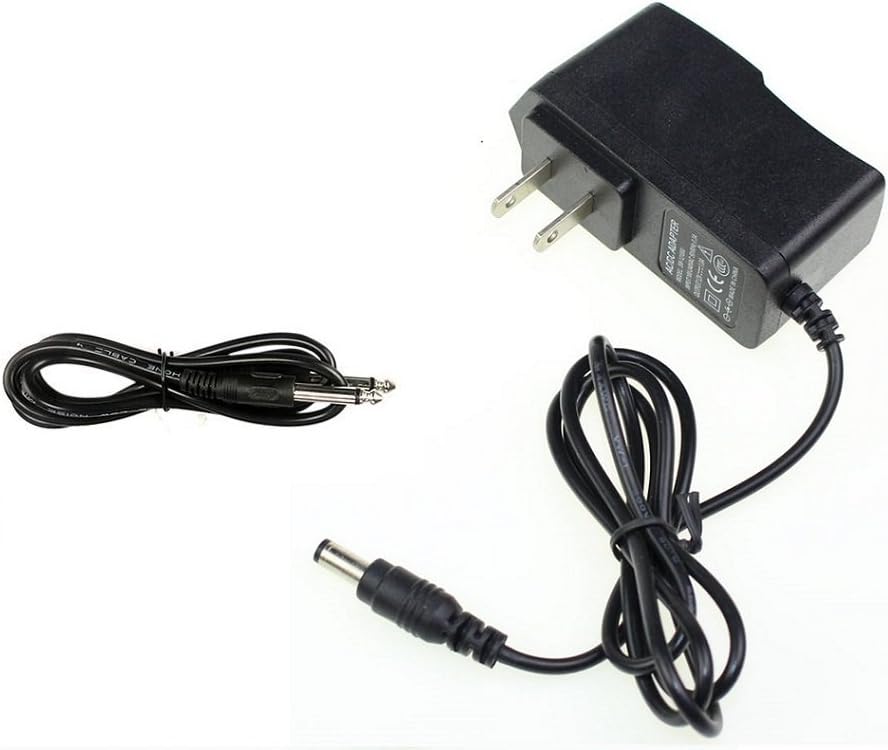
Image: Rear view of the receiver, highlighting the power input, mixed 1/4" output, individual XLR outputs, and antenna ports.
2. Microphone Setup
- Install Batteries:
- Handheld Microphone: Unscrew the bottom part of the microphone handle to reveal the battery compartment. Insert two AA batteries, observing polarity.
- Bodypack Transmitter: Open the battery compartment cover on the bodypack. Insert two AA batteries, observing polarity.
- Connect Lavalier/Headset Mic (for Bodypack): Plug the lavalier or headset microphone connector into the input jack on the bodypack transmitter.
3. Power On and Frequency Synchronization
- Power On Receiver: Press the power button on the receiver. The display should illuminate.
- Power On Transmitters: Turn on the handheld microphone and the bodypack transmitter.
- Automatic Frequency Scan: The receiver features automatic frequency scanning. Press the "SCAN" button on the receiver (if available, or refer to the receiver's display for instructions) to find the clearest available frequency.
- Synchronize Transmitters: Once a clear frequency is found, use the IR sync function (typically by aligning the IR window on the transmitter with the IR window on the receiver and pressing a "SYNC" button) to automatically set the transmitter's frequency to match the receiver's. Repeat for both transmitters.
- Adjust Volume: Set the volume controls on the receiver to an appropriate level.
Operating Instructions
Using the Microphones
- Handheld Microphone: Hold the microphone approximately 2-6 inches from your mouth for optimal sound pickup. Avoid covering the grille with your hand.
- Lavalier Microphone: Clip the lavalier microphone to your clothing, ideally about 6-8 inches below your chin, ensuring it is not rubbing against fabric.
- Headset Microphone: Position the headset microphone boom so the microphone element is near the corner of your mouth, about 1-2 inches away.
Mute Function
Most transmitters include a mute button. Pressing this button will temporarily silence the microphone output without turning off the unit. Press it again to unmute. Be aware that a slight click sound may be audible when pressing the mute button; for critical applications, mute the channel on your audio mixer instead.
Power Off
When finished, turn off both the transmitters and the receiver to conserve battery life and prevent unintended audio transmission.
Maintenance
- Cleaning: Wipe the receiver and microphones with a soft, dry cloth. Do not use liquid cleaners or solvents.
- Battery Replacement: Replace batteries in the handheld microphone and bodypack transmitter when the low battery indicator appears on the transmitter or receiver display, or when audio quality degrades. Always use fresh, high-quality AA batteries. Remove batteries if the system will not be used for an extended period.
- Storage: Store the system in a cool, dry place, away from direct sunlight and extreme temperatures.
Troubleshooting
| Problem | Possible Cause | Solution |
|---|---|---|
| No sound from microphone |
|
|
| Intermittent sound or dropouts |
|
|
| Poor sound quality (hiss, distortion) |
|
|
Specifications
| Feature | Detail |
|---|---|
| Model Number | 733HL |
| Brand | GTDaudio |
| Frequency Range | 550MHz - 590MHz (Adjustable) |
| Number of Channels | 800 selectable per channel |
| Operating Range | Up to 450 feet (150 meters) |
| Signal-to-Noise Ratio | 80 dB |
| Microphone Form Factor | Handheld, Lavaliere, Headset |
| Connectivity Technology | UHF Wireless, XLR |
| Power Source | Battery Powered (AA for transmitters), AC Adapter (for receiver) |
| Item Dimensions (Receiver) | 17 x 7 x 2 inches |
| Item Weight | 7.54 pounds (total package) |
| UPC | 854318007394 |
Warranty and Support
For warranty information and technical support, please refer to the official GTDaudio website or contact their customer service directly. Keep your purchase receipt as proof of purchase for any warranty claims.
You can visit the GTDaudio store for more information: GTDaudio Official Store