
Introduction
This manual provides detailed instructions for the setup, operation, maintenance, and troubleshooting of your Mobility Lab ML311449 Wireless Rechargeable USB-C Mouse. Please read this guide thoroughly to ensure optimal performance and longevity of your device. This mouse is designed for compatibility with both Mac OS and Windows operating systems.
Package Contents
Verify that all items are present in your product package:
- Mobility Lab Wireless Rechargeable Mouse
- USB-C Nano Receiver (2.4 GHz)
- USB-A Nano Receiver (2.4 GHz)
- Charging Cable (Micro-USB to USB-A)
- User Manual (this document)

Image: The Mobility Lab wireless mouse shown alongside its USB-A and USB-C receivers, highlighting the dual connectivity options.
Setup Instructions
- Locate the Receiver: The wireless receiver is typically stored within the mouse's battery compartment or packaged separately. Choose the appropriate receiver (USB-A or USB-C) for your computer.
- Connect the Receiver: Insert the selected USB receiver into an available USB port on your computer. The system should automatically detect and install the necessary drivers (Plug and Play).
- Power On the Mouse: Locate the power switch on the underside of the mouse and slide it to the 'ON' position.
- Verify Connection: The mouse should now be operational. Move the mouse to check if the cursor responds on your screen. If not, refer to the Troubleshooting section.

Image: The Mobility Lab wireless mouse in use, with its USB-C receiver plugged into a laptop's USB-C port.
Operating Instructions
Basic Functions
- Left Click: Primary selection and activation.
- Right Click: Accesses contextual menus.
- Scroll Wheel: Scrolls content vertically. The scroll wheel also functions as a middle click button.
DPI Adjustment
The mouse features adjustable DPI (Dots Per Inch) settings, allowing you to change cursor sensitivity. The available DPI range is 800 to 1600 DPI. To adjust the DPI, press the button located behind the scroll wheel. Each press cycles through the available DPI settings.
Silent Clicks
This mouse is equipped with silent click technology, reducing audible click noise for a quieter working environment.
Wireless Range
The mouse operates wirelessly with a range of up to 10 meters (approximately 33 feet) from the receiver, providing flexibility in your workspace.

Image: A diagram highlighting key features of the mouse, including silent clicks, 800-1600 DPI, Micro-USB port, optical sensor, and ergonomic design.
Charging the Mouse
The Mobility Lab ML311449 mouse features a built-in rechargeable Lithium-ion battery. When the battery level is low, the mouse may exhibit erratic behavior or stop functioning. To charge the mouse:
- Locate the Micro-USB charging port on the front of the mouse.
- Connect the provided charging cable (Micro-USB end) to the mouse's charging port.
- Connect the USB-A end of the charging cable to an available USB port on your computer or a USB wall adapter.
- Allow the mouse to charge until fully replenished. There may be an indicator light (not specified in product details) that changes color or turns off when charging is complete.
It is recommended to charge the mouse before its first use to ensure a full battery.

Image: The Mobility Lab wireless mouse connected to a charging cable via its Micro-USB port.
Maintenance
Cleaning
- To clean the mouse, use a soft, dry, lint-free cloth.
- For stubborn dirt, slightly dampen the cloth with water or a mild cleaning solution. Avoid excessive moisture.
- Do not use harsh chemicals, abrasive cleaners, or solvents, as these can damage the mouse's surface.
- Regularly clean the optical sensor on the underside of the mouse to ensure accurate tracking.
Storage
- When not in use for extended periods, turn off the mouse to conserve battery life.
- Store the mouse and receiver in a cool, dry place, away from direct sunlight and extreme temperatures.
- Keep the mouse away from liquids and dust.
Troubleshooting
| Problem | Possible Cause | Solution |
|---|---|---|
| Mouse not responding | Mouse is off; Low battery; Receiver not connected; Driver issue | Ensure mouse is on; Charge the mouse; Re-insert USB receiver; Try a different USB port; Restart computer. |
| Erratic cursor movement | Dirty optical sensor; Uneven surface; Interference | Clean the optical sensor; Use on a smooth, opaque surface (mouse pad recommended); Move mouse closer to receiver; Remove other 2.4GHz devices. |
| Mouse not charging | Cable not connected properly; Faulty cable/port | Ensure charging cable is securely connected to both mouse and power source; Try a different USB port or charging cable. |
| Short battery life | Frequent use; Old battery | Ensure mouse is fully charged; Turn off mouse when not in use. |
Specifications
| Feature | Detail |
|---|---|
| Model Number | ML311449 |
| Brand | Mobility Lab |
| Color | Black |
| Connectivity Technology | 2.4 GHz Wireless (via USB-A or USB-C receiver) |
| Movement Detection | Optical |
| DPI Resolution | Adjustable 800-1600 DPI |
| Number of Buttons | 3 (Left, Right, Scroll Wheel/Middle Click) |
| Hand Orientation | Ambidextrous |
| Wireless Range | Up to 10 meters |
| Battery Type | Rechargeable Lithium-ion |
| Compatible Operating Systems | Mac OS, Windows |
| Dimensions (L x W x H) | 105mm x 67.5mm x 36mm (4.13in x 2.66in x 1.42in) |
| Weight | 72g |
| Recommended Use | Office |
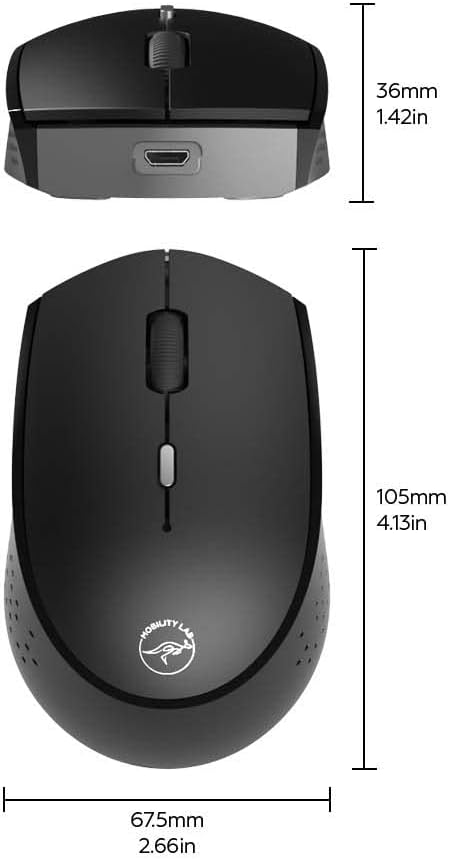
Image: Technical drawing illustrating the length, width, and height of the Mobility Lab wireless mouse.
Warranty and Support
Manufacturer's Warranty
This product is covered by a 1-month manufacturer's warranty from the date of purchase. This warranty covers defects in materials and workmanship under normal use. It does not cover damage caused by misuse, accidents, unauthorized modifications, or external causes.
Customer Support
For technical assistance, warranty claims, or further inquiries, please contact Mobility Lab customer support through their official website or the retailer where the product was purchased. Please have your model number (ML311449) and proof of purchase available when contacting support.

