
1. Introduction
This manual provides essential information for the safe and efficient operation of your DFI-ITOX 750-KS2110-000G Touch Panel PC. Please read this manual thoroughly before using the device and retain it for future reference. This device is designed for industrial and scientific applications, offering a robust touch interface with a Freescale Imx535 Cortex-A8 processor and Android 2.3 operating system.
2. Safety Information
Observe the following safety precautions to prevent damage to the device or injury to yourself:
- Do not expose the device to extreme temperatures, humidity, or direct sunlight.
- Avoid dropping or subjecting the device to strong impacts.
- Use only the power adapter specified for this device.
- Do not attempt to disassemble or repair the device yourself. Refer all servicing to qualified personnel.
- Keep the device away from liquids and corrosive substances.
3. Package Contents
Verify that all items are present in the package:
- DFI-ITOX 750-KS2110-000G Touch Panel PC
- Power Adapter
- Mounting Hardware (if applicable)
- Quick Start Guide
4. Setup
4.1 Unpacking and Inspection
Carefully remove the Touch Panel PC from its packaging. Inspect the device for any signs of damage during transit. If any damage is found, contact your supplier immediately.
4.2 Connecting Power
- Connect the power adapter cable to the DC input port on the rear of the Touch Panel PC.
- Plug the power adapter into a suitable electrical outlet.
- The device will typically power on automatically or can be powered on using the power button.
4.3 Initial Boot-up
Upon first power-on, the device will boot into the Android 2.3 operating system. Follow any on-screen prompts for initial setup, such as language selection and network configuration.
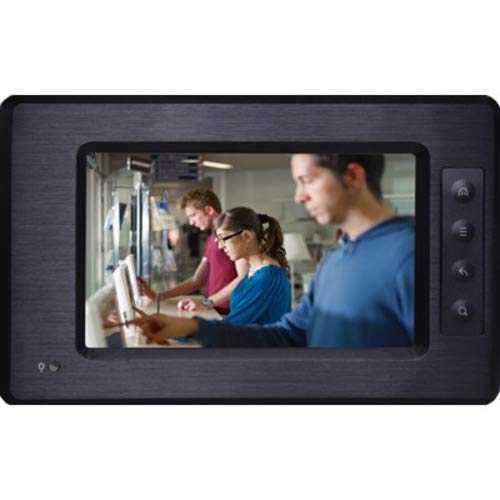
Image: Front view of the DFI-ITOX 750-KS2110-000G Touch Panel PC, showing the display and bezel.
5. Operating Instructions
5.1 Touch Screen Operation
The device features a capacitive touch screen. Use your finger or a compatible stylus for navigation and input:
- Tap: To select an item or open an application.
- Tap and Hold: To access contextual menus or move icons.
- Swipe: To scroll through lists or switch between screens.
- Pinch-to-Zoom: To zoom in or out on images and web pages.
5.2 Android 2.3 Interface
Familiarize yourself with the standard Android 2.3 interface:
- Home Screen: Displays application shortcuts and widgets.
- Notification Bar: Located at the top, shows system status and notifications.
- Application Drawer: Access all installed applications.
- Settings Menu: Configure Wi-Fi, display, sound, and other system options.
5.3 Connecting Peripherals
The device supports various peripherals via its available ports (e.g., USB). Connect keyboards, mice, or other compatible devices as needed. The system should automatically detect most standard USB devices.
6. Maintenance
6.1 Cleaning the Device
To clean the screen and casing:
- Power off the device and disconnect the power adapter.
- Use a soft, lint-free cloth slightly dampened with water or a non-abrasive screen cleaner.
- Do not spray cleaners directly onto the screen or into any openings.
6.2 Software Updates
Regularly check for and install any available software updates to ensure optimal performance and security. Refer to the system settings for update options.
7. Troubleshooting
If you encounter issues with your Touch Panel PC, refer to the following common solutions:
| Problem | Possible Solution |
|---|---|
| Device does not power on | Ensure the power adapter is securely connected to both the device and a working electrical outlet. Try a different outlet. |
| Touch screen is unresponsive | Restart the device. Ensure the screen is clean and free of debris. |
| Wi-Fi connection issues | Check Wi-Fi settings. Restart your router. Ensure the device is within range of the Wi-Fi signal. |
| Applications are slow or crashing | Close unnecessary applications. Clear application cache. Restart the device. |
8. Specifications
| Feature | Specification |
|---|---|
| Model | 750-KS2110-000G (or KS211-104R) |
| Processor | Freescale Imx535 Cortex-A8 |
| Operating System | Android 2.3 |
| Memory Slots | 1 |
| Brand | DFI-ITOX |
| UPC | 734038851548 |
9. Warranty and Support
This product comes with a standard manufacturer's warranty. For specific warranty terms and conditions, please refer to the documentation included with your purchase or contact DFI-ITOX customer support. For technical assistance or service inquiries, please visit the official DFI-ITOX website or contact your local distributor.