
1. Introduction
This manual provides comprehensive instructions for the installation, operation, and maintenance of your Eyemax EMNT 5028-8P-4K Network Video Recorder (NVR). This NVR is designed for high-definition surveillance systems, supporting up to 8MP resolution and featuring 8 Power over Ethernet (PoE) ports for simplified camera connectivity.
Please read this manual thoroughly before operating the device to ensure proper usage and to prevent damage.
2. Safety Information
Important Safety Instructions:
- Read these instructions carefully.
- Keep these instructions for future reference.
- Heed all warnings.
- Follow all instructions.
- Do not use this apparatus near water.
- Clean only with a dry cloth.
- Do not block any ventilation openings. Install in accordance with the manufacturer's instructions.
- Do not install near any heat sources such as radiators, heat registers, stoves, or other apparatus (including amplifiers) that produce heat.
- Protect the power cord from being walked on or pinched, particularly at plugs, convenience receptacles, and the point where they exit from the apparatus.
- Only use attachments/accessories specified by the manufacturer.
- Refer all servicing to qualified service personnel. Servicing is required when the apparatus has been damaged in any way.
3. Package Contents
Verify that all items listed below are included in your package. If any items are missing or damaged, please contact your retailer.
- Eyemax EMNT 5028-8P-4K NVR Unit
- Power Adapter
- USB Mouse
- SATA Cables (for HDD installation)
- Mounting Screws (for HDD)
- Quick Start Guide
4. Product Overview
The Eyemax EMNT 5028-8P-4K NVR is a robust recording solution for your surveillance needs. Below is an overview of its key components and interfaces.
4.1 Front Panel
The front panel typically includes status indicators and a USB port for mouse or backup devices.
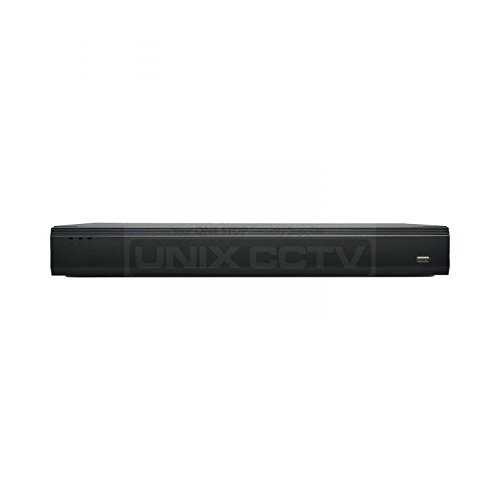
Figure 4.1: Front view of the Eyemax EMNT 5028-8P-4K NVR, showing the main chassis and potential indicator lights.
4.2 Rear Panel
The rear panel houses all essential connectivity ports for cameras, display, network, and power.
- PoE Ports (8x): RJ-45 ports for connecting IP cameras, providing both data and power (IEEE802.3at/af).
- LAN Port (1x): RJ-45 10/100/1000Mbps Ethernet port for network connection.
- HDMI Output (1x): For connecting to a monitor or TV, supporting up to 4K resolution.
- VGA Output (1x): For connecting to a monitor or TV, supporting various resolutions.
- USB Ports (2x): For mouse, USB backup devices, or external storage.
- Audio In/Out: For connecting external audio devices (if applicable).
- Alarm In/Out: For connecting external alarm sensors or triggers.
- Power Input: DC power input for the NVR.
5. Setup
5.1 Hardware Installation
5.1.1 Hard Disk Drive (HDD) Installation (if not pre-installed):
- Unscrew and remove the top cover of the NVR chassis.
- Connect the SATA data cable and power cable to the HDD.
- Align the HDD with the mounting holes inside the NVR and secure it with the provided screws.
- Connect the other end of the SATA data cable to the SATA port on the NVR motherboard.
- Replace the top cover and secure it with screws.
Note: The NVR supports up to two SATA III HDDs, with a maximum capacity of 6 TB per HDD.
5.2 Connecting Peripherals
- Connect Monitor: Connect a monitor to the NVR's HDMI or VGA output port.
- Connect Mouse: Plug the USB mouse into any USB port on the NVR.
- Connect Network: Connect an Ethernet cable from your router/switch to the NVR's LAN port.
- Connect IP Cameras: Connect your PoE IP cameras directly to the NVR's PoE ports using Ethernet cables. The NVR will provide power and data.
- Connect Power: Plug the power adapter into the NVR's power input and then into a power outlet. The NVR will power on automatically.
5.3 Initial Setup Wizard
Upon first boot, the NVR will guide you through an initial setup wizard. Follow the on-screen prompts to:
- Set up administrator password.
- Configure date and time.
- Configure network settings (DHCP recommended for most users).
- Initialize HDD (if newly installed).
- Search and add IP cameras.
6. Operating Instructions
6.1 Live View
After initial setup, the NVR will display the live view of connected cameras. You can switch between single-camera view, multi-camera grid view (1/4/8/9 split), and customize display settings.
- Mouse Control: Right-click on the live view screen to access the main menu. Left-click to select options or drag to pan PTZ cameras.
- Channel Switching: Use the on-screen controls or menu options to switch between camera channels.
6.2 Recording Configuration
The NVR supports various recording modes:
- Continuous Recording: Records 24/7.
- Motion Detection Recording: Records only when motion is detected in specified areas.
- Alarm Recording: Records when an external alarm input is triggered.
- Schedule Recording: Records based on a predefined schedule.
Access the "Record" menu from the main interface to configure recording schedules, motion detection zones (396 zones, 22x18), and other parameters for each camera.
6.3 Playback
To review recorded footage:
- From the main menu, select "Playback".
- Choose the desired date and time using the calendar and timeline.
- Select the camera(s) you wish to view.
- Use the playback controls (Play, Pause, Stop, Rewind, Fast Play, Slow Play) to navigate through the footage.
- The NVR supports various search modes including Time/Date, Alarm, Motion Detection, and Exact Search.
6.4 Remote Access
The NVR can be accessed remotely via a web browser or a mobile application.
- Web Interface: Open a web browser on a computer connected to the same network as the NVR. Enter the NVR's IP address in the address bar. Log in with your credentials to access live view, playback, and system settings.
- Mobile App: Download the official mobile application (e.g., Easy4ip or compatible app) from your smartphone's app store. Follow the app's instructions to add your NVR using its serial number or QR code for remote viewing and control. The NVR supports iPhone, iPad, and Android devices.
7. Maintenance
7.1 Firmware Updates
Regularly check for and install firmware updates to ensure optimal performance, security, and access to new features. Firmware updates can typically be downloaded from the manufacturer's website and installed via USB or the NVR's web interface.
7.2 System Backup
It is recommended to regularly back up important recorded footage. You can back up files to a USB device connected to the NVR or to network storage.
7.3 Cleaning
Keep the NVR unit clean and free from dust. Use a dry, soft cloth for cleaning. Do not use liquid cleaners or aerosols. Ensure ventilation openings are not blocked to prevent overheating.
8. Troubleshooting
| Problem | Possible Cause | Solution |
|---|---|---|
| No video output on monitor. | Loose cable connection, incorrect resolution, monitor off. | Check HDMI/VGA cable connections. Ensure monitor is on and set to correct input. Try a different resolution if possible. |
| Cameras not displaying. | Camera not powered, network issue, incorrect IP address. | Check PoE cable connections. Verify camera power. Ensure cameras are added correctly in NVR settings. Check network connectivity. |
| Cannot access NVR remotely. | Network configuration, firewall, port forwarding. | Ensure NVR has internet access. Check router settings for port forwarding (if not using P2P/cloud service). Disable firewall temporarily for testing. |
| No recording. | HDD not installed/initialized, recording schedule not set, HDD full. | Verify HDD installation and initialization. Check recording schedule settings. Ensure HDD has free space or is set to overwrite old footage. |
9. Specifications
| System | |
|---|---|
| Main Processor | Quad-core embedded processor |
| Operating System | Embedded LINUX |
| Display | |
| Interface | 1 HDMI, 1 VGA |
| Resolution | 3840 × 2160, 1920 × 1080, 1280 × 1024, 1280 × 720, 1024 × 768 |
| Multi-screen Display | 1/4/8/9 |
| Video Detection and Alarm | |
| Trigger Events | Recording, PTZ, Tour, Alarm out, Video Push, Email, FTP, Snapshot, Buzzer & Screen tips |
| Video Detection | Motion Detection, MD Zones: 396 (22 × 18), Video Loss & Tampering |
| Alarm Input | 4 Channel, Low Level Effective, Green Terminal Interface |
| Relay Output | 2 Channel, NO/NC Programmable, Green Terminal Interface |
| Playback and Backup | |
| Playback | 1/4/8 |
| Search Mode | Time/Date, Alarm, MD & Exact search (accurate to second), Smart search |
| Backup Mode | USB Device/Network Storage |
| Storage | |
| Internal HDD | 2 SATA III Port, Up to 6 TB capacity for each HDD |
| HDD Mode | Single |
| Memory Storage Capacity | 6 TB |
| Hard Disk Size | 6 TB |
| Network | |
| Network Interface | 1 RJ-45 Port (10/100/1000Mbps) |
| Ethernet Port | 1 Independent 1000Mbps Ethernet Port |
| PoE | 8 ports (IEEE802.3at/af) |
| Network Function | HTTP, HTTPS, TCP/IP, IPv4/IPv6, UPnP, RTSP, UDP, SMTP, NTP, DHCP, DNS, IP Filter, PPPoE, DDNS, FTP, IP Search (Support Dahua IP camera, DVR, NVS, etc.), Easy4ip |
| Max. User Access | 128 users |
| Smart Phone | iPhone, iPad, Android |
| Interoperability | ONVIF 2.4, CGI Conformant |
| General | |
| Brand | Unix |
| Model Number | EMNT 5028 |
| ASIN | B07K91VVGG |
| Connectivity Technology | Wired |
| Compatible Devices | Smartphone, Tablet |
| Manufacturer | Unix |
| Date First Available | November 7, 2018 |
10. Warranty and Support
For warranty information and technical support, please refer to the documentation provided with your purchase or visit the manufacturer's official website. Keep your purchase receipt as proof of purchase for warranty claims.
For further assistance, please contact your retailer or the manufacturer's customer support.