
Introduction
Thank you for purchasing the BESTISAN S6520 Soundbar. This user manual provides detailed instructions for setting up, operating, and maintaining your soundbar to ensure optimal performance and an enhanced audio experience for your television and other compatible devices. Please read this manual thoroughly before using the product and retain it for future reference.

Image: The BESTISAN S6520 Soundbar, a sleek black bar speaker, accompanied by its compact remote control. This image displays the primary components of the product.
What's in the Box
Please check the contents of your package to ensure all items are present:

Image: A visual representation of all items included in the BESTISAN S6520 Soundbar package. This includes the soundbar itself, remote control, quick start guide, mount screws and wall mount brackets, power adapter, 3.5mm audio cable, digital optical cable, and a wall mount template.
- BESTISAN S6520 Soundbar (28 inches / 71.12 cm long)
- Remote Control
- Quick Start Guide
- Mount Screws and Wall Mount Brackets
- Power Adapter
- 3.5mm Audio Cable
- Digital Optical Cable
- Wall Mount Template
Setup
1. Placement Options
The BESTISAN S6520 Soundbar offers versatile placement options to suit your home entertainment setup.

Image: Two diagrams illustrating soundbar placement. The top diagram shows the soundbar placed flat on a TV stand directly below a television. The bottom diagram shows the soundbar mounted on the wall below a wall-mounted television, demonstrating the wall mounting capability.
- Tabletop Placement: Place the soundbar on a flat, stable surface directly in front of your TV. Ensure it does not block the TV's remote sensor.
- Wall Mounting: Use the included wall mount brackets, screws, and template to securely mount the soundbar on the wall below your TV. Follow the instructions on the wall mount template for proper installation.
2. Connecting Your Soundbar
The S6520 Soundbar supports multiple connection types for compatibility with various devices.
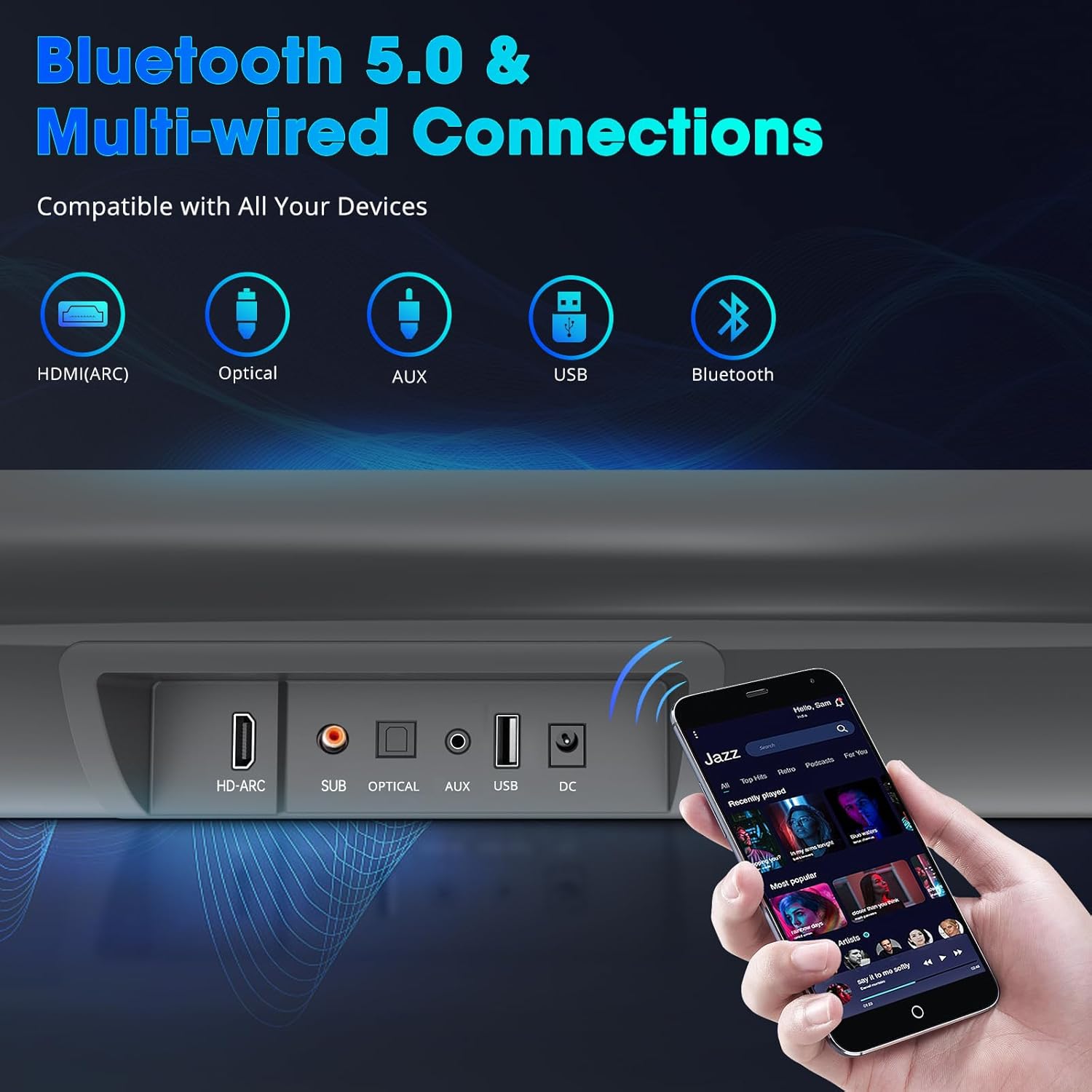
Image: A close-up view of the rear panel of the soundbar, highlighting its various input ports. These include HDMI (ARC), SUB (for subwoofer, though not included with this model), Optical, AUX, USB, and DC power input. A hand holding a smartphone is shown nearby, indicating Bluetooth connectivity.
- HDMI (ARC) Connection:
Connect an HDMI cable (not included) from the HDMI (ARC) port on your soundbar to the HDMI (ARC) port on your TV. This allows audio to be sent from your TV to the soundbar and enables control of the soundbar with your TV remote (if supported by your TV).
- Optical Connection:
Connect the included Digital Optical Cable from the OPTICAL port on your soundbar to the Optical Digital Audio Out port on your TV or other audio source. Ensure your TV's audio output is set to "PCM" if you experience no sound.
- AUX Connection:
Use the included 3.5mm Audio Cable to connect the AUX port on your soundbar to the headphone jack or AUX output on your TV, smartphone, or other audio device.
- USB Connection:
Insert a USB flash drive (FAT32 format) into the USB port to play audio files directly from the drive.
- Bluetooth Connection:
See the "Operating" section for detailed Bluetooth pairing instructions.
- Power Connection:
Connect the power adapter to the DC input on the soundbar, then plug the adapter into a wall outlet.
Operating Your Soundbar
1. Power On/Off
- Press the Power button on the soundbar or remote control to turn the unit on or off.
2. Input Selection
- Press the Input button on the remote control repeatedly to cycle through the available input sources: HDMI (ARC), OPTICAL, AUX, USB, and Bluetooth. The LED indicator on the soundbar will change color or display the selected input.
3. Volume Control
- Use the Volume Up (+) and Volume Down (-) buttons on the remote control to adjust the volume.
- Press the Mute button to temporarily silence the sound. Press again to restore sound.
4. Equalizer Modes
The soundbar features three distinct equalizer modes to optimize your listening experience for different content types.

Image: A graphic illustrating the three equalizer modes available on the soundbar. The soundbar is positioned below a TV screen, with three distinct icons above it representing Music (musical note), Movie (film reel), and Dialogue (speech bubble) modes, suggesting optimized audio settings for each content type.
- Press the EQ button on the remote control to cycle through the modes:
- Music Mode: Optimized for music playback, providing balanced sound with enhanced bass and treble.
- Movie Mode: Designed for movies, offering a wider soundstage and clearer dialogue with impactful bass.
- Dialogue Mode: Enhances vocal clarity, making speech easier to understand, ideal for news or talk shows.
5. Bluetooth Pairing
To connect your smartphone or other Bluetooth-enabled device:
- Turn on the soundbar and select Bluetooth input mode by pressing the Input button until the Bluetooth indicator lights up.
- Enable Bluetooth on your device (e.g., smartphone, tablet).
- Search for "BESTISAN S6520" in your device's Bluetooth settings and select it to pair.
- Once paired, the soundbar will indicate a successful connection, and you can play audio from your device through the soundbar.
Maintenance
Proper maintenance ensures the longevity and performance of your soundbar.
- Cleaning: Use a soft, dry cloth to wipe the surface of the soundbar. Do not use liquid cleaners or abrasive materials, as they may damage the finish.
- Dust Removal: Regularly dust the speaker grilles and vents to prevent accumulation, which can affect sound quality and airflow.
- Storage: If storing the soundbar for an extended period, disconnect it from power and store it in a cool, dry place away from direct sunlight and extreme temperatures.
- Cable Care: Ensure all cables are connected securely and are not bent or pinched, which can lead to damage.
Troubleshooting
If you encounter issues with your BESTISAN S6520 Soundbar, refer to the following common problems and solutions:
| Problem | Possible Cause | Solution |
|---|---|---|
| No power | Power cable not connected; Power outlet not working | Ensure the power adapter is securely connected to the soundbar and a working wall outlet. Try a different outlet. |
| No sound | Incorrect input selected; Cables not connected properly; TV audio settings incorrect; Soundbar muted or volume too low |
|
| Bluetooth connection fails | Soundbar not in pairing mode; Device too far; Interference; Device already connected to another Bluetooth speaker |
|
| Remote control not working | Batteries are dead or incorrectly inserted; Obstruction between remote and soundbar; Remote sensor blocked |
|
| Distorted sound | Volume too high; Poor audio source quality; Incorrect EQ mode |
|
Specifications
Key technical specifications for the BESTISAN S6520 Soundbar:
| Feature | Specification |
|---|---|
| Brand | BESTISAN |
| Model Number | S6520 |
| Speaker Type | Bluetooth Soundbar |
| Connectivity Technology | Bluetooth, Wired (HDMI ARC, Optical, AUX, USB) |
| Audio Output Mode | Surround (2.0 Channel Configuration) |
| Maximum Speaker Output Power | 60 Watts |
| Dimensions (L x W x H) | 71.12 x 10.41 x 10.16 cm (28 x 4.1 x 4 inches) |
| Weight | 2.06 kilograms (4.54 lbs) |
| Material | ABS Acrylonitrile Butadiene Styrene |
| Recommended Uses | For music player, Home Theater, Television |
| Compatible Devices | Television, Smartphones, Tablets, USB drives |
| Controller Type | Remote Control |
Warranty and Support
Specific warranty information for the BESTISAN S6520 Soundbar is not provided in this manual. For details regarding warranty coverage, technical support, or service inquiries, please refer to the warranty card included with your product or visit the official BESTISAN website. You may also contact the retailer from whom you purchased the product for assistance.


