
1. Introduction
This manual provides essential information for setting up, operating, maintaining, and troubleshooting your HP LaserJet 600 M603N M603 monochrome laser printer. Please read this manual thoroughly before using the printer to ensure proper operation and to prevent damage.
The HP LaserJet M603n is designed for high-volume monochrome printing in office environments, offering fast print speeds and professional-quality output.
2. Safety Information
- Always connect the printer to a grounded power outlet.
- Do not block ventilation openings.
- Keep the printer away from water or excessive humidity.
- Use only the specified power cord and toner cartridges.
- Avoid touching the fuser area, as it can be hot.
- Unplug the printer before cleaning or servicing.
3. Package Contents
Verify that all items are present in the package:
- HP LaserJet 600 M603N M603 Printer
- Toner Cartridge (CE390A compatible)
- Power Cable
- Network/USB Cable (where applicable)

Image 1: Front view of the HP LaserJet 600 M603N M603 printer, showing the control panel on the right side and the HP logo on the front panel.
4. Setup Instructions
4.1 Unpacking the Printer
- Carefully remove the printer from its packaging.
- Remove all packing materials, tapes, and protective films from the printer's exterior and interior.
- Place the printer on a stable, level surface with adequate ventilation.
4.2 Connecting Power
- Connect the power cable to the printer's power input.
- Plug the other end of the power cable into a grounded electrical outlet.
- Press the power button to turn on the printer.
4.3 Connecting to a Computer or Network
- USB Connection: Connect one end of a USB 2.0 cable to the printer's USB port and the other end to your computer.
- Network Connection (Ethernet): Connect an Ethernet cable to the printer's Gigabit Ethernet port and the other end to your network router or switch.
4.4 Installing the Toner Cartridge
- Open the front access door of the printer.
- Remove the new toner cartridge from its packaging and gently shake it to distribute the toner.
- Insert the toner cartridge into the designated slot until it clicks into place.
- Close the front access door.
4.5 Loading Paper
- Pull out the paper tray (Tray 2 is standard).
- Adjust the paper guides to the correct paper size.
- Load the paper stack into the tray, ensuring it is flat and below the maximum fill line.
- Push the paper tray back into the printer.
- Confirm paper type and size on the printer's control panel if prompted.
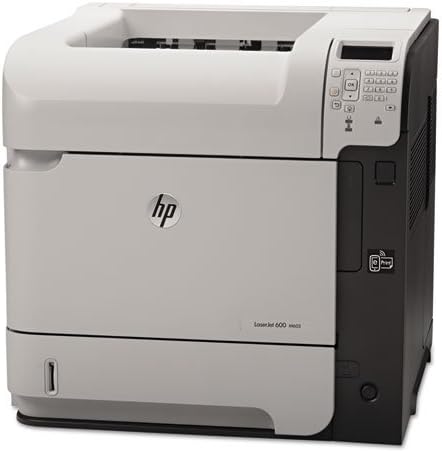
Image 2: Angled view of the HP LaserJet 600 M603N M603 printer, highlighting its compact design and connectivity ports on the side.
5. Operating Instructions
5.1 Basic Printing
- Ensure the printer is powered on and connected to your computer or network.
- Open the document you wish to print on your computer.
- Select Print from the application's menu (e.g., File > Print).
- Choose the "HP LaserJet 600 M603N" from the list of available printers.
- Adjust print settings (e.g., number of copies, paper source) as needed.
- Click Print.
5.2 Printer Control Panel
The control panel on the printer allows you to monitor printer status, configure settings, and perform various tasks. Refer to the on-screen menus for navigation and options such as:
- Viewing printer status and error messages.
- Configuring network settings.
- Managing paper trays.
- Accessing maintenance options.
5.3 Driver Installation
For optimal performance, install the latest printer drivers. Drivers can typically be downloaded from the official HP support website by searching for your specific printer model (HP LaserJet 600 M603N).
6. Maintenance
6.1 Replacing the Toner Cartridge
When the toner level is low or the print quality degrades, replace the toner cartridge:
- Open the front access door.
- Remove the old toner cartridge by pulling it straight out.
- Unpack the new CE390A compatible toner cartridge and shake it gently.
- Insert the new cartridge until it locks into place.
- Close the front access door.
6.2 Cleaning the Printer
- Exterior: Wipe the exterior surfaces with a soft, lint-free cloth dampened with water. Do not use abrasive cleaners.
- Interior: Periodically open the front access door and gently remove any loose paper dust or debris using a dry, lint-free cloth. Avoid touching sensitive components.
7. Troubleshooting
| Problem | Possible Cause | Solution |
|---|---|---|
| Printer not turning on | Power cable disconnected, power outlet issue | Check power cable connections, try a different outlet. |
| No print output | Printer offline, incorrect driver, empty toner, paper jam | Ensure printer is online, check toner level, clear paper path, reinstall drivers. |
| Poor print quality | Low toner, fuser issue, dirty printer components | Replace toner, clean printer, contact support if fuser issue suspected. |
| Paper jams | Incorrect paper loading, damaged paper, foreign objects | Remove jammed paper carefully, ensure paper is loaded correctly, check for obstructions. |
8. Specifications
| Feature | Detail |
|---|---|
| Model Name | HP LaserJet Enterprise 600 M603n |
| Printer Type | Monochrome Laser Printer |
| Print Speed (Monochrome) | Up to 62 pages per minute (ppm) |
| Print Resolution | Up to 1200 x 1200 dpi |
| Connectivity | USB 2.0, Gigabit Ethernet |
| Duplex Printing | Simplex (No automatic dual-sided printing) |
| Max Input Sheet Capacity | 600 sheets (standard) |
| Compatible Cartridge | CE390A |
| Item Weight | Approximately 80 pounds (36.3 kg) |
| Product Dimensions (W x D x H) | 19.65 x 21.26 x 23.15 inches (49.9 x 54 x 58.8 cm) |
| Power Consumption | (Typical values, refer to HP documentation for specifics) |
9. Warranty and Support
This HP LaserJet 600 M603N M603 printer comes with a 90-day limited warranty. Please retain your proof of purchase for warranty claims.
For technical support, driver downloads, or further assistance, please visit the official HP support website and search for your specific printer model.
HP Support Website: www.hp.com/support


