
Introduction
This manual provides essential instructions for the safe and effective use of your Canon PowerShot SX520 digital camera. Please read this manual thoroughly before using the camera and retain it for future reference. The Canon PowerShot SX520 is a 16.0 Megapixel digital camera featuring a 42x optical zoom lens, optical image stabilization, and Full HD video recording capabilities.
1. Setup
1.1 Unpacking and Checking Contents
Carefully unpack your camera and ensure all components are present. The standard package includes:
- Canon PowerShot SX520 Digital Camera Body
- Battery Pack
- Battery Charger
- Lens Cap
- Neck Strap

Figure 1.1: Camera and included accessories.
1.2 Charging the Battery
- Insert the battery pack into the battery charger. Ensure correct orientation.
- Plug the battery charger into a power outlet.
- The charging indicator light will illuminate. It will change or turn off when charging is complete.
- Remove the charged battery from the charger.
1.3 Inserting the Battery and Memory Card
- Open the battery/card compartment cover on the bottom of the camera.
- Insert the charged battery pack firmly until it clicks into place.
- Insert an SD/SDHC/SDXC memory card into the card slot with the label facing the correct direction until it clicks.
- Close the compartment cover securely.
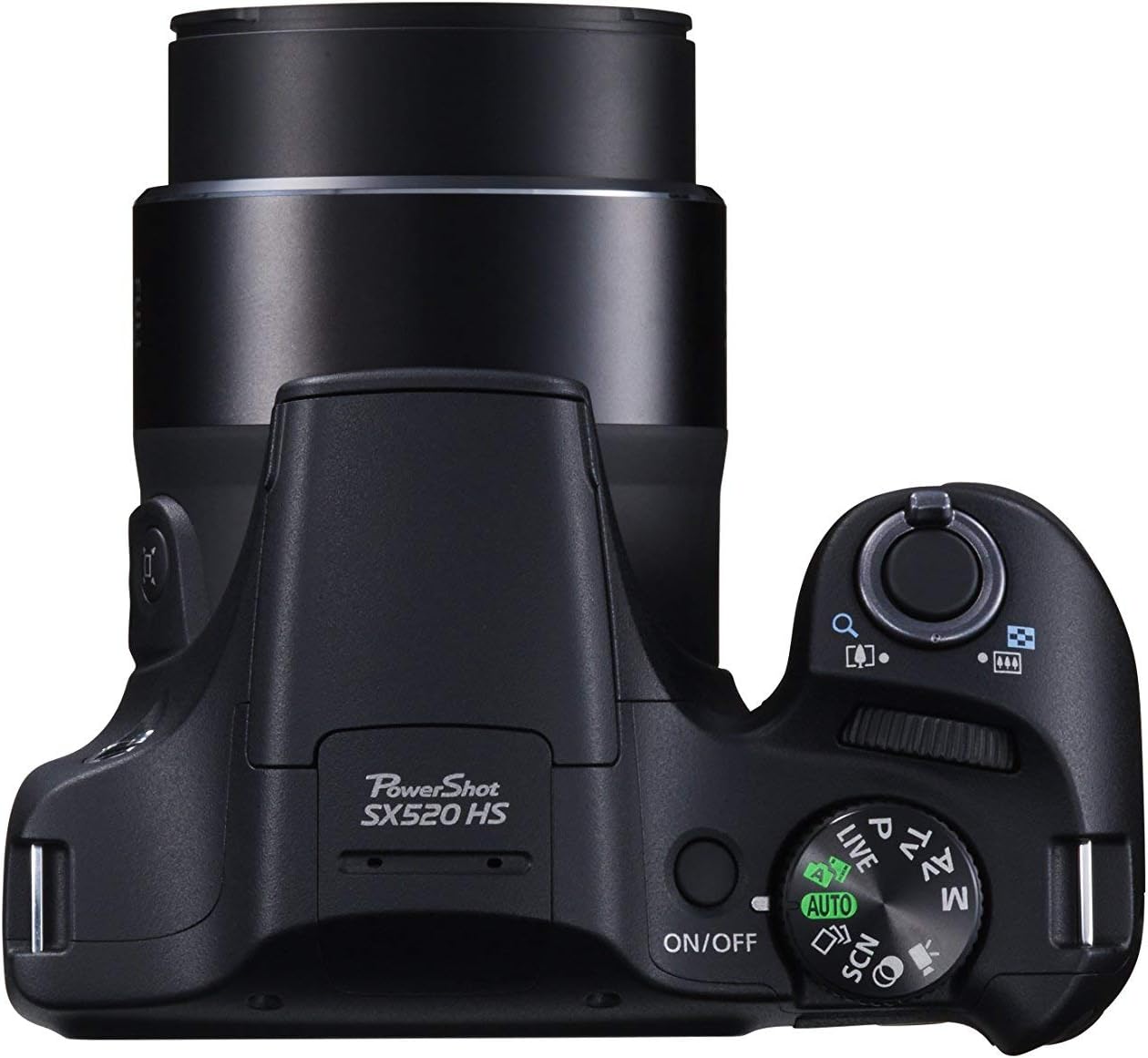
Figure 1.2: Battery and memory card compartment.
2. Operating the Camera
2.1 Powering On/Off
Press the ON/OFF button located on the top of the camera to power it on or off.

Figure 2.1: Top controls including ON/OFF button and mode dial.
2.2 Selecting a Shooting Mode
Rotate the mode dial on the top of the camera to select your desired shooting mode. Common modes include:
- AUTO: Fully automatic shooting for ease of use.
- P (Program AE): Camera sets aperture and shutter speed, but you can adjust other settings.
- Tv (Shutter-priority AE): You set the shutter speed, camera sets aperture.
- Av (Aperture-priority AE): You set the aperture, camera sets shutter speed.
- M (Manual): You control both aperture and shutter speed.
- Movie: For recording videos.
2.3 Taking Photos
- Point the camera at your subject.
- Use the zoom lever around the shutter button to adjust the 42x optical zoom.
- Press the shutter button halfway down to focus. The focus frame will illuminate.
- Press the shutter button fully to take the picture.

Figure 2.2: Front view of the camera.
2.4 Using the Flash
The camera features a built-in flash. In certain modes (e.g., AUTO), the flash may pop up automatically. You can manually raise the flash by pressing the flash button (if available) or by selecting a flash mode from the menu.
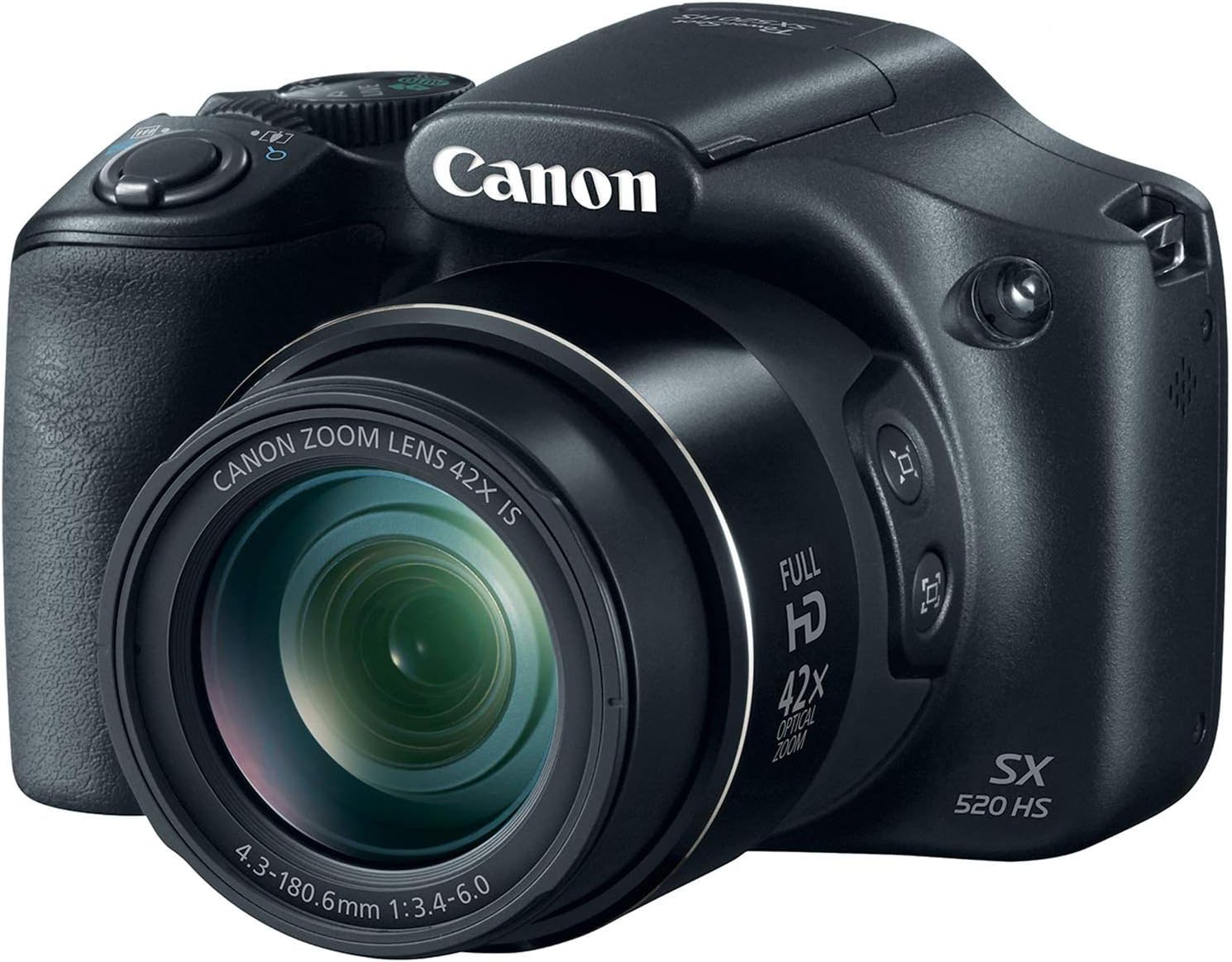
Figure 2.3: Camera with flash activated.
2.5 Recording Videos
To record Full HD 1080p video, rotate the mode dial to the Movie mode or press the dedicated movie button (if present) to start/stop recording. You can use the optical zoom during video recording.
3. Maintenance
3.1 Cleaning the Camera
- Use a soft, lint-free cloth to clean the camera body.
- For the lens, use a lens brush or a blower to remove dust, then gently wipe with a lens cleaning cloth. Avoid touching the lens surface with your fingers.
- Do not use organic solvents or strong cleaning agents.
3.2 Battery Care
- Store batteries in a cool, dry place when not in use.
- Avoid fully discharging the battery frequently.
- If the camera will not be used for an extended period, remove the battery.
3.3 Memory Card Handling
- Always format new memory cards in the camera before first use.
- Do not remove the memory card while the camera is writing or reading data.
- Keep memory cards away from strong magnetic fields.
4. Troubleshooting
| Problem | Possible Cause / Solution |
|---|---|
| Camera does not power on. |
|
| Cannot take pictures. |
|
| Images are blurry. |
|
| Flash does not fire. |
|
5. Specifications
| Feature | Detail |
|---|---|
| Model Name | SX520 |
| Photo Sensor Resolution | 16 MP |
| Optical Zoom | 42x |
| Image Stabilization | Optical |
| Screen Size | 3 Inches |
| Video Resolution | FHD 1080p |
| Sensor Type | BSI CMOS |
| Minimum Focal Length | 24 Millimeters |
| Maximum Focal Length | 1008 Millimeters |
| Maximum Aperture | 3.5 Millimeters |
| Supported File Format | JPEG, RAW |
| Flash Memory Type | SD/SDHC/SDXC |
| Connectivity Technology | HDMI, USB |
| Item Weight | 15.52 ounces |
6. Warranty Information
This Canon PowerShot SX520 camera comes with a 90-day limited warranty. Please refer to the warranty documentation provided with your purchase for full terms and conditions. This warranty covers manufacturing defects and issues arising from normal use within the specified period.
7. Customer Support
For further assistance, technical support, or service inquiries, please visit the official Canon support website or contact their customer service department. Keep your product model number (SX520) and serial number ready when contacting support.
You can find more information and support resources at: Canon USA Support