
1. Introduction
Thank you for choosing the Generic Tronsmart Element Pixie Wireless Bluetooth Speaker. This manual provides essential information for setting up, operating, and maintaining your speaker. Please read it carefully before use to ensure optimal performance and longevity of your device.
2. Safety Information
- Do not expose the speaker to extreme temperatures, humidity, or direct sunlight.
- Avoid dropping or subjecting the speaker to strong impacts.
- Do not disassemble, repair, or modify the speaker yourself. Contact qualified service personnel if needed.
- Keep the speaker away from water and other liquids. This product is not waterproof.
- Use only the specified charging cable and adapter.
- Dispose of the product and its battery responsibly according to local regulations.
3. Package Contents
Please check the package for the following items:
- Generic Tronsmart Element Pixie Wireless Bluetooth Speaker
- USB Charging Cable
- User Manual (this document)
Note: Contents may vary slightly depending on region.
4. Product Overview
Familiarize yourself with the components of your speaker.
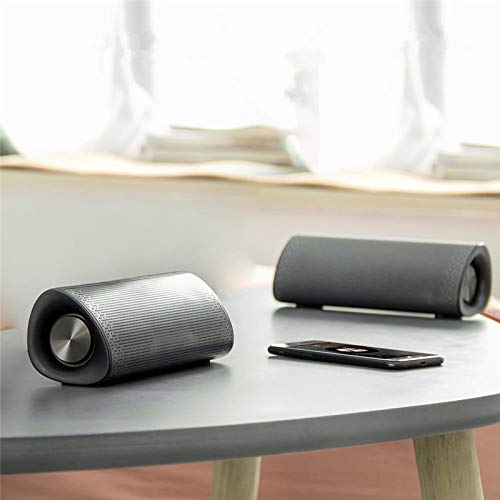
Figure 4.1: Front view of the Tronsmart Element Pixie speaker, showing the speaker grille and control panel.

Figure 4.2: Side view of the Tronsmart Element Pixie speaker, highlighting its compact design and portability.
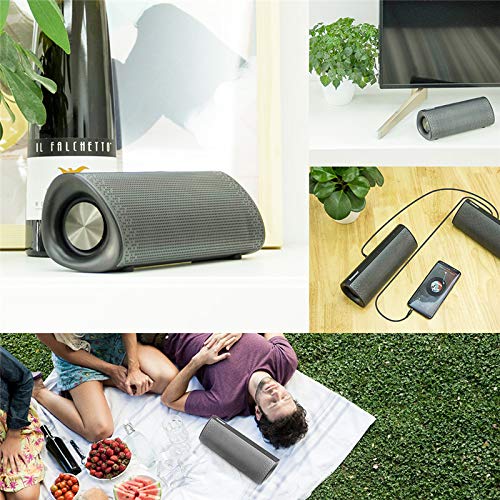
Figure 4.3: Overview of the speaker's versatility, including a demonstration of two speakers connected for True Wireless Stereo (TWS) audio.
The speaker features a compact design with intuitive controls, typically located on the top or side panel. These controls usually include power, volume, and playback buttons.
5. Setup
5.1. Charging the Speaker
- Connect the small end of the USB charging cable to the charging port on your speaker.
- Connect the large end of the USB charging cable to a USB power adapter (not included) or a computer's USB port.
- The charging indicator light will illuminate, typically red, to show that the speaker is charging.
- Once fully charged, the indicator light will change color (e.g., turn off or turn blue/green). Disconnect the speaker from the power source.
Note: For best results, fully charge the speaker before its first use.
5.2. Bluetooth Pairing
- Ensure the speaker is fully charged.
- Press and hold the Power button (Ⓘ) for a few seconds to turn on the speaker. A sound prompt or LED indicator will confirm it's on and in pairing mode (often a blinking blue light).
- On your smartphone, tablet, or other Bluetooth-enabled device, go to the Bluetooth settings.
- Enable Bluetooth and search for available devices.
- Select "Tronsmart Element Pixie" (or similar name) from the list of devices.
- Once paired, the speaker will emit a confirmation sound, and the LED indicator will typically stop blinking and remain solid blue.
Note: If prompted for a password, enter "0000". The speaker will automatically reconnect to the last paired device when turned on, if it's within range.
5.3. True Wireless Stereo (TWS) Pairing (Optional)
To enjoy enhanced stereo sound, you can pair two Tronsmart Element Pixie speakers together:
- Ensure both speakers are turned off and fully charged.
- Turn on both speakers. Do not connect them to any Bluetooth device yet.
- On one of the speakers (this will be the primary speaker), press and hold the TWS pairing button (if available, otherwise refer to specific product instructions for TWS pairing, often a dedicated button or a combination of volume buttons).
- The speakers will attempt to connect to each other. A confirmation sound will indicate successful TWS pairing.
- Once paired, the primary speaker's LED will blink, indicating it's ready to connect to your device. The secondary speaker's LED will remain solid.
- Now, connect your Bluetooth device to the primary speaker as described in Section 5.2.
Note: TWS functionality may vary. Refer to specific product details for exact button combinations if a dedicated TWS button is not present.
6. Operating Instructions
6.1. Power On/Off
- Power On: Press and hold the Power button (Ⓘ) for approximately 3 seconds.
- Power Off: Press and hold the Power button (Ⓘ) for approximately 3 seconds.
6.2. Music Playback
- Play/Pause: Press the Play/Pause button (⏸ / ⏵) once.
- Next Track: Press and hold the Volume Up button (+) or a dedicated Next Track button.
- Previous Track: Press and hold the Volume Down button (-) or a dedicated Previous Track button.
6.3. Volume Control
- Volume Up: Short press the Volume Up button (+).
- Volume Down: Short press the Volume Down button (-).
6.4. Hands-Free Calling
- Answer Call: Press the Play/Pause button (⏸ / ⏵) once when a call comes in.
- End Call: Press the Play/Pause button (⏸ / ⏵) once during a call.
- Reject Call: Press and hold the Play/Pause button (⏸ / ⏵) for 2 seconds.
7. Maintenance
- Cleaning: Use a soft, dry cloth to clean the speaker. Do not use abrasive cleaners or solvents.
- Storage: When not in use for extended periods, store the speaker in a cool, dry place, away from direct sunlight and extreme temperatures.
- Battery Care: To prolong battery life, avoid fully discharging the speaker frequently. Charge it regularly, even if not in use.
8. Troubleshooting
| Problem | Possible Cause | Solution |
|---|---|---|
| Speaker does not turn on. | Low battery. | Charge the speaker fully. |
| Cannot pair with Bluetooth device. | Bluetooth is off on your device; speaker is not in pairing mode; too far from device. | Ensure Bluetooth is enabled on your device. Put the speaker in pairing mode. Move the speaker closer to your device (within 10 meters). Forget previous pairings on your device and try again. |
| No sound or low volume. | Volume too low on speaker or device; speaker not connected; audio source issue. | Increase volume on both the speaker and your connected device. Ensure the speaker is properly paired. Check the audio source on your device. |
| TWS pairing fails. | Speakers not in TWS pairing mode; one speaker already connected to a device. | Ensure both speakers are disconnected from any Bluetooth devices. Follow TWS pairing instructions carefully. |
9. Specifications
| Brand | Generic |
| Model | Tronsmart Element Pixie |
| Connectivity Technology | Bluetooth, Wireless |
| Speaker Type | Subwoofer |
| Special Feature | Subwoofer |
| Subwoofer Speaker Diameter | 5 Inches |
| Tweeter Driver Diameter | 1 Inches |
| Control Method | Touch |
| Power Source | Battery Powered |
| Compatible Devices | Smartphone, Tablet |
| Is Waterproof | False |
10. Warranty and Support
This product comes with a standard manufacturer's warranty. Please refer to the warranty card included in your package for specific terms and conditions. For technical support or warranty claims, please contact your retailer or the manufacturer's customer service.
Keep your purchase receipt as proof of purchase for warranty purposes.