
SANWA GMAERGW17
SANWA 2.4G Wireless Ergonomic Mouse Instruction Manual
Model: GMAERGW17
Introduction
Thank you for choosing the SANWA 2.4G Wireless Ergonomic Mouse. This manual provides detailed instructions for setting up, operating, and maintaining your new mouse. Designed to reduce wrist strain and enhance comfort, this vertical mouse offers a natural handshake grip for extended use. Please read this manual thoroughly before use to ensure proper functionality and longevity of your device.

Image: The SANWA 2.4G Wireless Ergonomic Mouse in black, shown with its compact USB receiver.
Safety Information
- Do not expose the mouse to extreme temperatures or humidity.
- Avoid dropping or subjecting the mouse to strong impacts.
- Keep out of reach of children.
- Dispose of batteries according to local regulations.
- Do not attempt to disassemble or repair the mouse yourself. This will void the warranty.
Package Contents
Please check the package for the following items:
- SANWA 2.4G Wireless Ergonomic Mouse (Black)
- USB Receiver
- Instruction Manual (this document)
Note: 2 AA batteries are required and not included in the package.
Product Overview
The SANWA 2.4G Wireless Ergonomic Mouse is designed for comfort and efficiency. Its vertical orientation promotes a natural handshake grip, reducing wrist and arm tension during prolonged use.

Image: Illustration showing the natural vertical position of the hand on the mouse with a 54-degree tilt angle, designed to alleviate wrist, elbow, and neck discomfort.

Image: A visual comparison demonstrating how the ergonomic design prevents wrist fatigue and alleviates shoulder and neck stiffness compared to a traditional mouse grip.
Mouse Components:
- Left Click Button: Standard left-click functionality.
- Right Click Button: Standard right-click functionality.
- Scroll Wheel: For vertical scrolling.
- DPI Switch Button: Adjusts cursor sensitivity.
- Forward/Backward Buttons: For convenient web page navigation (not functional on Mac systems).
- Power On/Off Switch: Located on the bottom of the mouse.
- Blue LED Sensor: Optical tracking sensor.
- USB Receiver Slot: Storage for the USB receiver.
- Battery Slot: For inserting AA batteries.

Image: An overhead view of the mouse highlighting the Left Click, Right Click, Scroll Wheel, and DPI Switch, along with side and bottom views showing dimensions and weight.
Setup
- Insert Batteries: Open the battery compartment on the bottom of the mouse. Insert two AA batteries, ensuring correct polarity.
- Retrieve USB Receiver: The USB receiver is stored in a dedicated slot next to the battery compartment. Gently pull it out.
- Connect USB Receiver: Plug the USB receiver into an available USB port on your computer (laptop, PC, etc.).
- Power On: Flip the Power On/Off switch on the bottom of the mouse to the "ON" position. The blue LED sensor will illuminate.
- Automatic Connection: The mouse should automatically connect to your computer. No additional drivers are typically required for most operating systems.
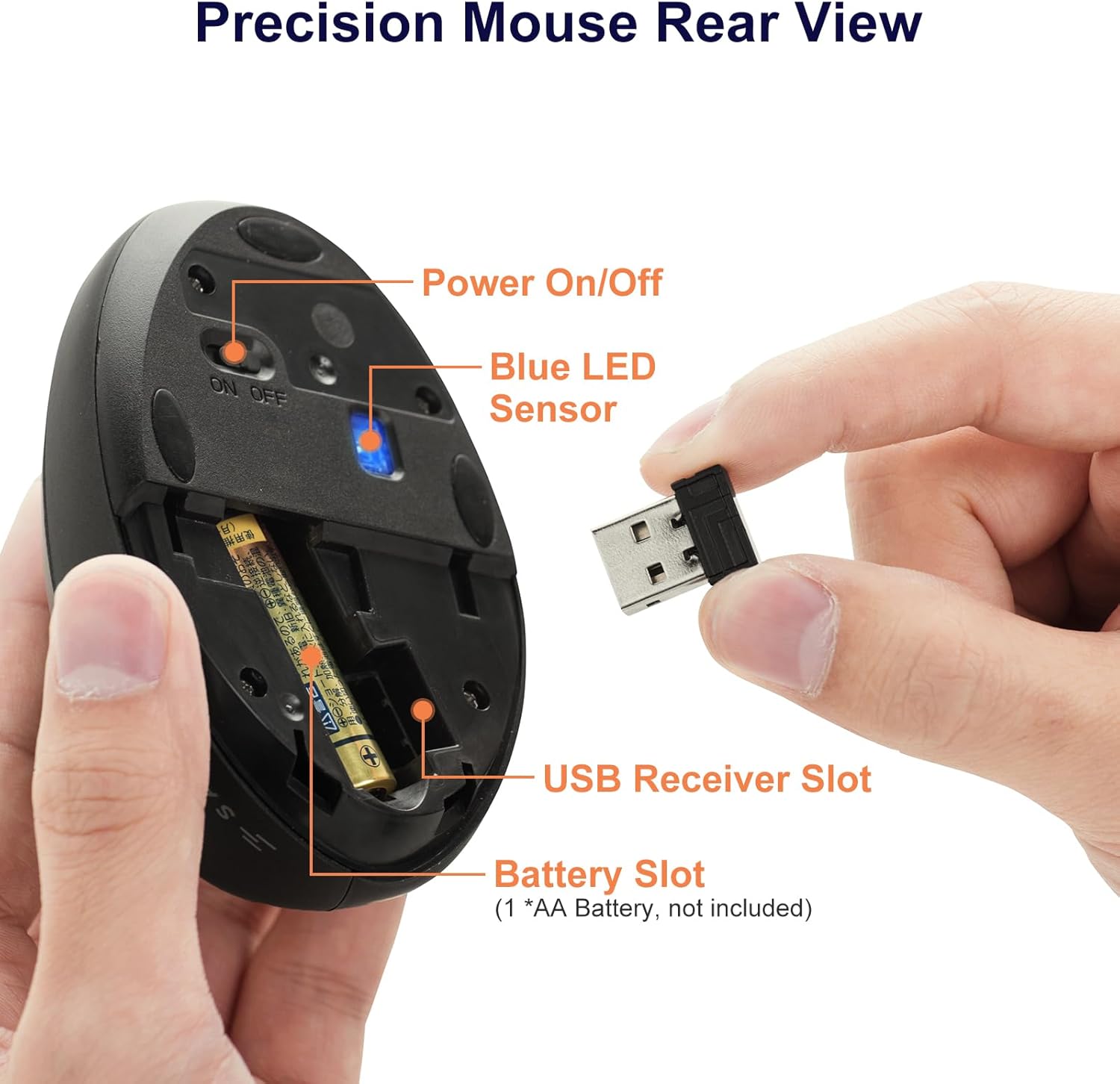
Image: A detailed view of the mouse's underside, indicating the Power On/Off switch, Blue LED Sensor, USB Receiver Slot, and Battery Slot (for 1 AA battery, not included).

Image: A hand demonstrating the removal or insertion of the USB receiver from its storage slot on the mouse's underside.

Image: The USB receiver plugged into a laptop's USB port, with the wireless mouse positioned next to it, indicating a successful connection.
Operating Instructions
DPI Adjustment:
The mouse features adjustable DPI (Dots Per Inch) settings, allowing you to change cursor sensitivity to suit your needs for different tasks like general browsing, precise design work, or gaming. Press the DPI Switch Button located on the top of the mouse, behind the scroll wheel, to cycle through the available DPI levels: 800, 1200, and 1600 DPI.

Image: The mouse with the DPI Switch highlighted, showing the three adjustable DPI levels: 800, 1200, and 1600, suitable for various tasks.

Image: A close-up view of the DPI switch button on the mouse, illustrating its function in adjusting cursor speed.
Forward/Backward Buttons:
Utilize the conveniently placed "Back" and "Forward" buttons near the thumb area for quick navigation while browsing web pages or folders. Please note that these buttons are not functional on Mac operating systems.
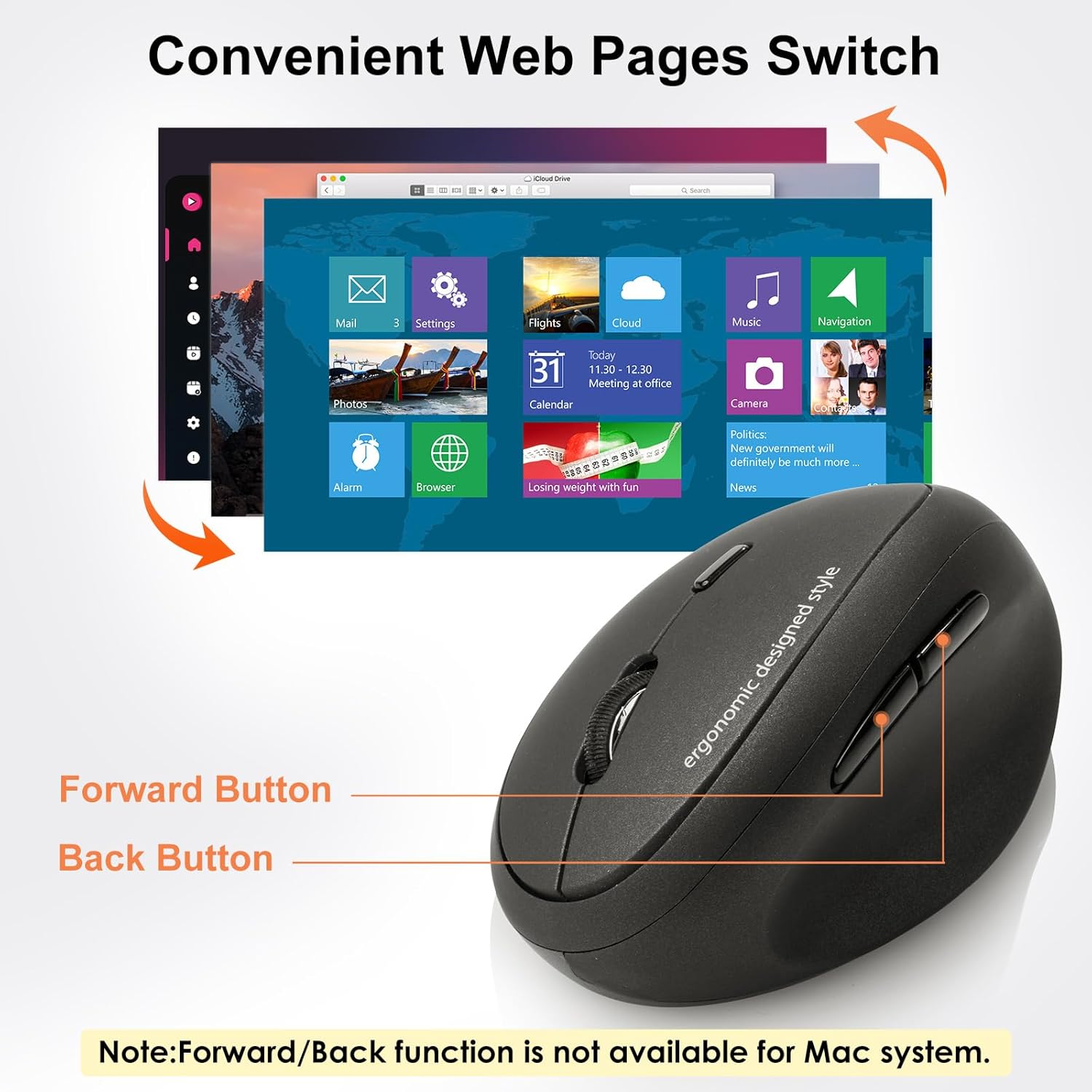
Image: The mouse with its Forward and Back buttons highlighted, demonstrating their use for convenient web page switching. A note indicates these functions are not available for Mac systems.

Image: A visual representation of the Forward and Back buttons on the mouse, showing their placement and function for navigating through applications or web pages.
Ergonomic Grip:
The vertical design of the mouse naturally positions your hand in a comfortable "handshake" posture, reducing pronation of the forearm and minimizing muscle tension and wrist strain. This design is particularly beneficial for users with small to medium-sized hands.

Image: A hand resting comfortably on the ergonomic mouse next to a laptop, illustrating how the design reduces wrist fatigue during use.

Image: A chart recommending mouse size based on hand length, classifying hands as Small (<6.9"), Medium (6.9"-7.5"), and Large (>7.5").
Compatibility:
The SANWA 2.4G Wireless Ergonomic Mouse is compatible with a wide range of operating systems, including Windows 10 / 8.1 / 8 / 7, XP, Vista, and macOS 10.12–10.14, Mac OS X 10.3–10.11. It is suitable for use with notebooks, PCs, laptops, and other devices. Note: It is not fully compatible with Apple products, specifically the Forward/Backward buttons will not work on Mac series.

Image: A graphic illustrating multi-OS system compatibility, showing icons for Windows, Mac, and Chrome OS, and devices like laptops, desktops, and tablets.
Product Video:
Video: An official product video from SANWA demonstrating the ergonomic design, button functions (scroll wheel, left/right click, forward/backward), DPI switch, and blue LED sensor of the vertical mouse.
Maintenance
- Cleaning: Use a soft, dry cloth to clean the surface of the mouse. For stubborn dirt, slightly dampen the cloth with water. Avoid using harsh chemicals or abrasive cleaners.
- Sensor Care: Periodically check the optical sensor on the bottom of the mouse for dust or debris and clean gently if necessary to ensure accurate tracking.
- Battery Replacement: Replace batteries when the mouse responsiveness decreases or it stops functioning. Ensure to use new AA batteries and dispose of old ones responsibly.
Troubleshooting
| Problem | Solution |
|---|---|
| Mouse not responding. |
|
| Cursor movement is erratic or jumpy. |
|
| Forward/Backward buttons not working on Mac. | This is a known compatibility limitation. These buttons are not supported on Mac operating systems. |
| Wireless connection is unstable. |
|
Specifications
| Feature | Detail |
|---|---|
| Product Dimensions | 4.29 x 3.35 x 1.57 inches |
| Item Weight | 2.88 ounces |
| Model Number | GMAERGW17 |
| Batteries Required | 2 AA batteries |
| Brand | SANWA |
| Color | Black |
| Connectivity Technology | 2.4GHz Wireless (Wi-Fi) |
| Special Features | Ergonomic Design, Lightweight, Portable, Wireless |
| Movement Detection Technology | Optical (Blue LED Sensor) |
| DPI Levels | 800 / 1200 / 1600 |
| Compatibility | Windows 10/8.1/8/7, XP, Vista & macOS 10.12–10.14, Mac OS X 10.3–10.11 |
Warranty and Support
All SANWA products come with a 1-Year Worry-Free Manufacturer Warranty, ensuring peace of mind regarding your purchase. Additionally, SANWA provides free lifetime technical support for this product.
For technical assistance, troubleshooting, or warranty claims, please contact SANWA customer support through the official SANWA website or your retailer's support channels. Please have your product model number (GMAERGW17) and purchase information ready when contacting support.
For more information, visit the SANWA Store.