
KYOCERA ECOSYS M3550idn
Kyocera ECOSYS M3550idn Multifunctional Printer User Manual
Model: ECOSYS M3550idn (1102NM2US0)
1. Product Overview
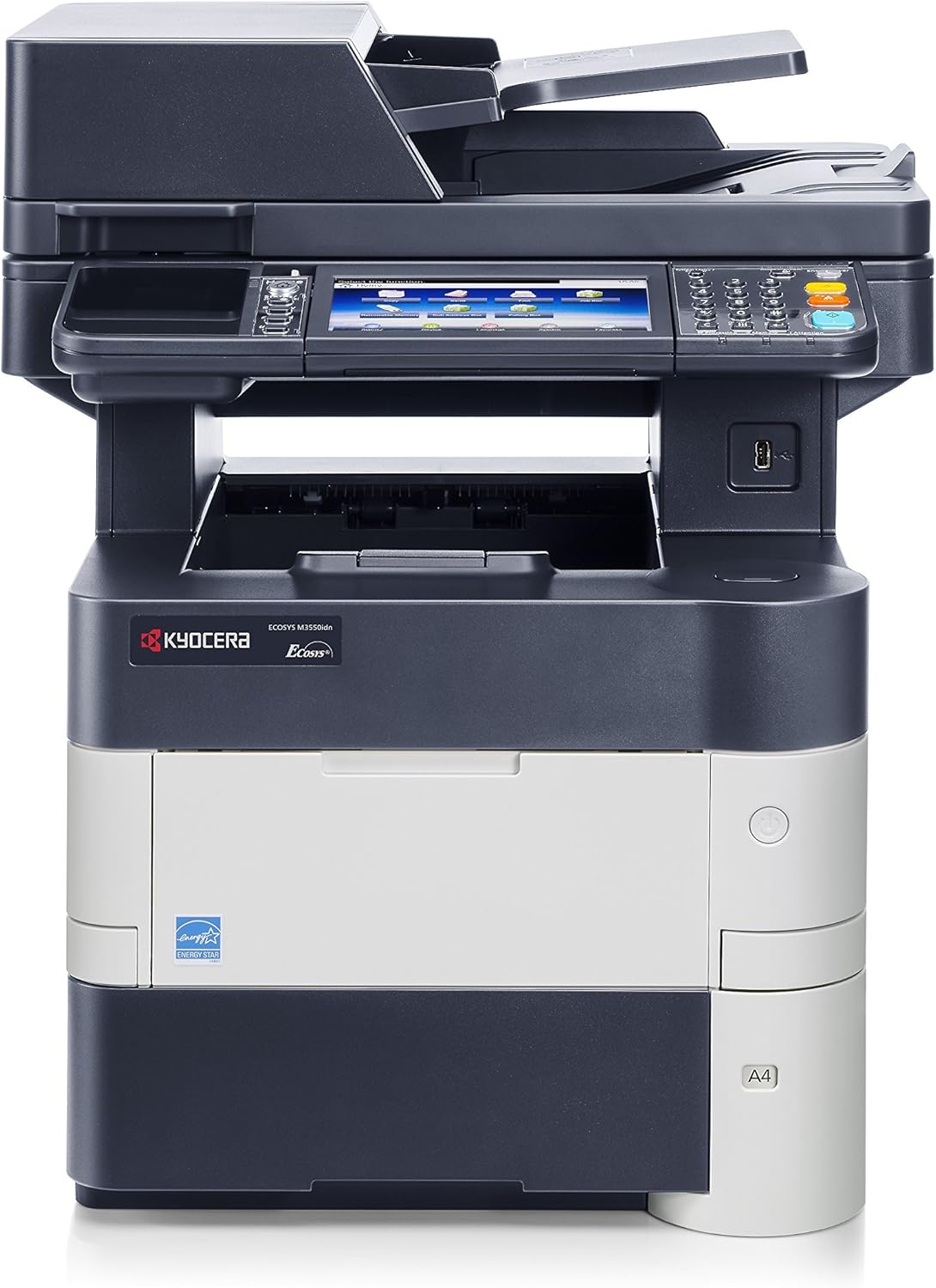
The Kyocera ECOSYS M3550idn is a versatile black and white multifunctional printer designed for corporate workgroups. It integrates printing, copying, color scanning, and fax functionalities into a single device, offering efficient document management. This model is equipped with a responsive 7-inch color touch screen for intuitive operation and supports various connectivity options.
Key Features:
- Fast Output Speed: Up to 52 pages per minute (ppm) for black and white documents.
- Multifunctionality: Standard print, copy, color scan, and fax capabilities.
- Document Processor: Features a standard 75-sheet document processor for efficient scanning and copying of multi-page documents.
- Intuitive Control Panel: Equipped with a 7-inch color touch screen with a tablet-like home screen for easy navigation and task management.
- Long-Life Consumables: Utilizes ECOSYS long-life consumables designed for durability and reduced waste.
- Flexible Connectivity: Includes standard USB host interface for direct printing and scanning, Ethernet connectivity, and wireless printing capabilities, including Apple AirPrint support.
2. Setup Guide
2.1 Unpacking and Placement
- Carefully remove the printer from its packaging. Retain all packing materials for future transport if needed.
- Place the printer on a stable, level surface with adequate space around it for ventilation and access to trays and connections.
2.2 Connecting the Power Cable
- Locate the power input on the rear of the printer.
- Connect the provided power cable to the printer and then to a grounded electrical outlet.
2.3 Initial Power On and Configuration
- Press the power button, typically located on the front or side of the device.
- Follow the on-screen prompts on the 7-inch color touch screen to complete the initial setup, including language selection, date/time, and network settings.
2.4 Driver Installation
For full functionality, install the necessary drivers on your computer. Drivers can typically be found on the manufacturer's website or on an included installation CD (if applicable). For network connectivity, ensure the printer is connected to your network via Ethernet or Wi-Fi before installing network drivers.
3. Operating Instructions
3.1 Loading Paper
The printer supports various paper sizes, including A4. The standard input capacity is 600 sheets, expandable up to 2,600 sheets with optional trays.
- Open the paper tray.
- Adjust the paper guides to fit the size of the paper you are loading.
- Load the paper stack, ensuring it is not overfilled and fits snugly within the guides.
- Close the paper tray.

3.2 Printing
To print, select the Kyocera ECOSYS M3550idn from your application's print dialog. You can configure settings such as duplex printing (automatic), resolution (up to Fine 1200 dpi), and paper source.
3.3 Copying
Place your document on the scanner glass or in the automatic document feeder (ADF). Use the touch screen to select the 'Copy' function and adjust settings like quantity, zoom, and quality (up to 600 dpi for black and white copies).

3.4 Scanning
The printer supports color scanning. Place your document as described for copying. From the touch screen, select 'Scan' and choose your desired destination (e.g., USB host interface for on-the-go scanning, network folder, or email).
3.5 Faxing
Utilize the fax function via the control panel. Enter the recipient's fax number and place your document in the ADF or on the scanner glass.
3.6 Using the 7" Color Touch Screen
The touch screen provides access to all printer functions and settings. Its tablet-like interface allows for easy navigation and customization, including the ability to store routine tasks and access business applications.

4. Maintenance
4.1 Consumables
The ECOSYS M3550idn is designed with long-life consumables, reducing the frequency of replacements and minimizing environmental impact. Monitor the toner level through the control panel and replace the toner cartridge when prompted.
4.2 Cleaning
Regularly clean the exterior of the printer with a soft, dry, lint-free cloth. For the scanner glass and ADF rollers, use a mild, non-abrasive cleaner applied to a cloth, then wipe the surfaces. Ensure the printer is powered off and unplugged before cleaning.
5. Troubleshooting
5.1 Common Issues and Solutions
- Printer Not Responding: Check power connections, ensure the printer is turned on, and verify network or USB cable connections. Restart both the printer and the computer.
- Paper Jams: Follow the instructions displayed on the touch screen to locate and clear any jammed paper. Ensure paper is loaded correctly and not creased or damaged.
- Poor Print Quality: Check toner levels. Perform a print head cleaning or calibration from the printer's maintenance menu if available. Ensure you are using appropriate paper for your print settings.
- Network Connectivity Issues: Verify network cable connection (for Ethernet) or Wi-Fi settings. Ensure the printer has a valid IP address. Consult your network administrator if necessary.
5.2 Error Messages
The 7-inch color touch screen will display specific error messages and often provide guidance for resolving the issue. Refer to the on-screen instructions for detailed troubleshooting steps.
6. Specifications
| Feature | Specification |
|---|---|
| Product Category | A4 B&W MFP |
| Output Speed (B&W) | 52 Pages per Minute |
| Functions | Print, Copy, Color Scan, Fax |
| Control Panel Type | 7" Color TSI (Touch Screen Interface) |
| Warm-up Time | 21 Seconds |
| First Page Out Time (Print/Copy) | 8 Seconds B&W |
| Resolution | 600 x 600 dpi, Up To Fine 1200 dpi |
| Memory (Std/Max) | 1 GB RAM / 2 GB RAM |
| Electrical Requirements | 120V: 60Hz, 8.4A; 220-240V: 50/60Hz, 4.4A |
| Dimensions (WxDxH) | 47.5 x 45.4 x 58.9 cm (18.7 x 17.91 x 23.23 inches) |
| Mainframe Weight | 51.4 lbs |
| Maximum Monthly Duty Cycle | 250,000 Pages Per Month |
| Input Capacity (Std/Max) | 600 Sheets / 2,600 Sheets |
| Output Capacity (Std/Max) | 250 Sheets / 250 Sheets |
| Duplex Printing | Automatic |
| Connectivity | Ethernet, USB Host Interface, Wireless (Apple AirPrint Enabled) |
| Included Components | Power Cable, User Manual |
7. Warranty and Support
7.1 Warranty Information
This Kyocera ECOSYS M3550idn (Renewed) product comes with a minimum 90-day warranty. Please refer to your purchase documentation for specific terms and conditions of the warranty.
7.2 Customer Support
For technical assistance, service, or further inquiries, please contact Kyocera customer support or your authorized dealer. Have your product model number (ECOSYS M3550idn) and serial number ready when contacting support.