Introduction
The Sigma MC-11 Mount Converter/Lens Adapter is designed to allow the use of Sigma and Canon EF-mount interchangeable lenses on Sony E-mount mirrorless camera bodies. This adapter facilitates electronic communication between the lens and the camera, maintaining essential functions such as autofocus, auto-exposure, and optical stabilization.
Key Features
- Broad Compatibility: Designed for Sony E-mount mirrorless cameras (including a6000 series, a5000 series, NEX series, and Full Frame A7/A9 series) and Sigma/Canon EF-mount lenses.
- Full Electronic Communication: Maintains continuity of camera functions like brightness and distortion correction, and retains EXIF data from the lens.
- Enhanced Optical Stabilization: When combined with the optical stabilization features of both the lens and camera, it improves correction for camera shake and other stability issues.

Image: The Sigma MC-11 Mount Converter/Lens Adapter shown with a 32GB SDHC memory card, a small neoprene lens pouch, and a lens cleaning brush tool.
Setup
Proper installation of the MC-11 adapter is crucial for optimal performance. Follow these steps to attach the adapter to your lens and camera.
Attaching the Adapter to a Lens
- Ensure both the lens and the MC-11 adapter are clean and free of dust.
- Align the white index mark on the MC-11 adapter with the corresponding white index mark on your Canon EF-mount lens.
- Gently twist the lens clockwise until it clicks into place, securing it to the adapter.
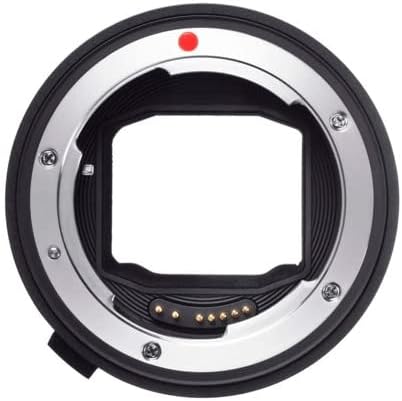
Image: A detailed view of the Sigma MC-11 Mount Converter, showing both the lens-facing and camera-facing sides with their respective mounting points.
Attaching the Lens and Adapter to the Camera Body
- Align the red index mark on the MC-11 adapter (now attached to your lens) with the red index mark on your Sony E-mount camera body.
- Gently twist the lens and adapter assembly clockwise until it clicks into place, securing it to the camera body.
- Verify that the lens and adapter are firmly attached and there is no wobble.
Video: This video demonstrates the process of attaching a Canon EF-mount lens to the Sigma MC-11 adapter, and then mounting the combined unit onto a Sony E-mount camera body. It also shows the autofocus functionality for still photography.
Operating the MC-11 Adapter
Once installed, the MC-11 adapter allows your Canon EF-mount lenses to function with your Sony E-mount camera, leveraging many of the camera's features.
Autofocus Functionality
- The MC-11 adapter supports autofocus with compatible Canon EF-mount lenses on Sony E-mount cameras.
- Autofocus performance may vary depending on the specific lens and camera model. Some users report slower autofocus speeds compared to native Sony lenses.
- Note that autofocus may not be fully supported or perform optimally in video mode with certain lens combinations.
Optical Stabilization
The adapter works in conjunction with the optical stabilization systems present in both the lens and the camera body to provide improved image stability, reducing the effects of camera shake.
Firmware Updates
Sigma periodically releases firmware updates for the MC-11 adapter to improve compatibility and performance with new lenses and camera models. The adapter features a micro USB port for easy firmware updates.

Image: A close-up of the Sigma MC-11 adapter, highlighting the micro USB port used for firmware updates.
Video: This video provides a demonstration of how to use the Sigma MC-11 adapter, including a clear view of the micro USB port for firmware updates and the process of attaching it to a lens and camera.
Maintenance
To ensure the longevity and optimal performance of your Sigma MC-11 adapter, regular maintenance is recommended.
Cleaning the Adapter
- Use a soft, lint-free cloth to wipe the exterior of the adapter.
- For the electronic contacts, use a clean, dry microfiber cloth or a specialized lens cleaning solution applied to a cloth, not directly to the contacts.
- Avoid touching the electronic contacts with your fingers to prevent oil and dirt transfer.
- A lens cleaning brush or air blower can be used to remove dust from the mounting surfaces.

Image: Essential lens cleaning tools, including a dust blower and a lens cleaning pen, which are useful for maintaining the adapter and lenses.
Storage
When not in use, store the MC-11 adapter with its front and rear caps attached in a dry, dust-free environment. Avoid extreme temperatures and humidity.
Troubleshooting
If you encounter issues with your Sigma MC-11 adapter, consider the following common solutions:
- Autofocus is Slow or Inconsistent: This can occur with certain non-Sigma lenses. Ensure your adapter has the latest firmware. For video, autofocus may be limited or unavailable depending on the lens.
- Lens Not Recognized / No Electronic Communication: Check that the adapter and lens are securely mounted and that the electronic contacts are clean. Update the adapter's firmware to ensure compatibility with your specific lens and camera model.
- Incompatibility with EF-S Lenses: The MC-11 adapter is primarily designed for Canon EF-mount lenses. Canon EF-S lenses may not be physically compatible or function correctly due to their design.
- Vignetting: If you experience vignetting (darkening at the corners of the image), ensure the lens is fully compatible and consider adjusting camera settings or using a different lens.
Specifications
| Feature | Detail |
|---|---|
| Product Dimensions | 8.2 x 6.2 x 4.7 inches |
| Item Weight | 1 pounds |
| ASIN | B07JKCSJTL |
| Item Model Number | ASIG89E965K2 |
| Brand | Sigma |
| Lens Type | Converter |
| Compatible Mountings | Canon EF (to Sony E) |
Warranty and Support
For specific warranty information and technical support, please refer to the official Sigma website or contact Sigma customer service directly. Keep your proof of purchase for any warranty claims.


