
Introduction
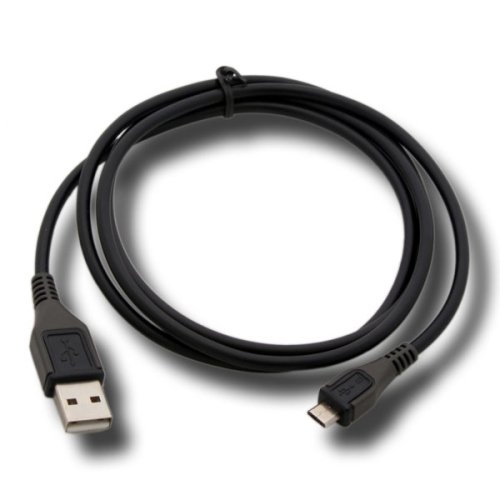
This manual provides instructions for the acce2s Micro USB Sync & Charge Cable, Model 78088. This cable is designed to facilitate data connection, synchronization, and charging for compatible devices. Please read this manual carefully before use to ensure proper operation and longevity of your cable.
Setup
Follow these steps to connect your acce2s Micro USB cable to your device and a power source or computer.
- Identify Ports: Locate the Micro USB port on your compatible device (e.g., ALTICE S33, S23, etc.) and an available standard USB port on a power adapter or computer.
- Connect to Device: Gently insert the Micro USB connector end of the cable into your device's Micro USB port. Ensure it is oriented correctly to avoid damage.
- Connect to Power/Data Source: Insert the standard USB connector end of the cable into a USB wall charger, car charger, power bank, or a USB port on your computer.
Operating Instructions
Once connected, the cable performs two primary functions: charging and data synchronization.
Charging Your Device
- When the cable is connected to a power source (e.g., wall adapter, computer USB port) and your device, your device's battery indicator should show that it is charging.
- Charging speed may vary depending on the power source's output and your device's charging capabilities.
Data Transfer and Synchronization
- When the cable is connected between your device and a computer, your device may prompt you to select a connection mode. Common modes include "File Transfer" (MTP), "Photo Transfer" (PTP), or "USB Mass Storage."
- Select the appropriate mode for your intended action (e.g., transferring photos, videos, or documents).
- Your computer should recognize the device, allowing you to access its storage for data management.
Maintenance
Proper care will extend the life of your cable.
- Storage: Store the cable in a cool, dry place away from direct sunlight and extreme temperatures.
- Handling: Avoid sharp bends, twists, or excessive pulling on the cable, especially near the connectors, as this can damage internal wires.
- Cleaning: If necessary, gently wipe the cable with a soft, dry cloth. Do not use harsh chemicals or abrasive cleaners. Ensure connectors are free of dust and debris.
- Protection: Do not expose the cable to liquids or moisture.
Troubleshooting
If you encounter issues with your cable, try the following solutions:
- Device Not Charging:
- Ensure both the Micro USB and standard USB ends are securely plugged into their respective ports.
- Try using a different USB power adapter or a different USB port on your computer.
- Check your device's charging port for any debris or damage that might prevent a proper connection.
- Data Transfer Issues:
- Verify that your device is connected to a computer, not just a power adapter.
- On your device, ensure the correct USB connection mode (e.g., File Transfer, MTP) is selected.
- Try connecting the cable to a different USB port on your computer.
- Restart both your device and computer.
- Cable Damage: Visually inspect the cable for any signs of fraying, cuts, or bent connectors. If damaged, discontinue use and replace the cable.
Specifications
| Feature | Detail |
|---|---|
| Model Number | 78088 |
| Cable Type | USB to Micro USB |
| Connector Type | Micro USB, USB |
| Cable Length | 1 meter |
| Weight | 12 grams |
| Color | Black |
| Compatibility | ALTICE S33, S23, X2, SX41, S51, S41, S11, S10, K2, F2, C11 |
| Certification | CE |
Warranty Information
This acce2s Micro USB Sync & Charge Cable comes with a 1-year warranty from the date of purchase. This warranty covers manufacturing defects. It does not cover damage caused by misuse, accidents, unauthorized modifications, or normal wear and tear. Please retain your proof of purchase for warranty claims.
Support
For further assistance or if you have questions not covered in this manual, please refer to the user manual of your compatible device or contact the device manufacturer's customer support. For product-specific inquiries regarding the acce2s cable, please contact your retailer.