1. Introduction
This manual provides essential information for the safe and efficient use of your Philips 139 cm (55 inches) 6100 Series 4K LED Smart TV, model 55PUT6103S/94. Please read this manual thoroughly before operating the device and retain it for future reference.
2. Safety Information
Observe the following safety precautions to prevent electric shock, fire, or damage to the television.
- Power Supply: Ensure the TV is connected to an AC power source within the specified voltage range.
- Ventilation: Do not block ventilation openings. Allow adequate space around the TV for proper airflow.
- Liquid Exposure: Do not expose the TV to rain or moisture. Avoid placing objects filled with liquids, such as vases, on the TV.
- Cleaning: Unplug the TV before cleaning. Use a soft, dry cloth. Avoid liquid or aerosol cleaners.
- Servicing: Do not attempt to service the TV yourself. Refer all servicing to qualified service personnel.
- Placement: Place the TV on a stable, level surface or mount it securely to a wall.
3. What's in the Box
Upon unpacking, verify that all the following items are included:
- 1 x Philips 55-inch 4K LED Smart TV
- 1 x Table Top Stand (set of 2 legs)
- 1 x User Manual (this document)
- 1 x Warranty Card
- 1 x Remote Control
- 2 x AAA Batteries
- 1 x Power Cable/Power Supply Adapter

Image: Contents of the Philips 55PUT6103S/94 TV package.
4. Product Overview
The Philips 6100 Series 4K LED Smart TV offers a stunning visual experience with its 4K Ultra HD resolution and smart features powered by SAPHI OS.

Image: Front view of the Philips Smart TV with its user interface.

Image: Angled view highlighting the TV's slim profile and vibrant display.
Key Features
- Display: 4K (3840x2160) Resolution, 60 Hz Refresh Rate, HDR Plus, Micro Dimming.
- Picture Engine: Philips Pixel Precise Ultra HD engine for enhanced picture quality.
- Audio: 20 W output with Incredible Surround, Clear Sound, Auto Volume Leveller, Smart Sound.
- Smart TV: SAPHI Operating System with built-in Wi-Fi, offering access to apps like Netflix, Amazon Prime, YouTube, and an Internet browser.
- Connectivity: 3 HDMI ports (one with ARC), 2 USB ports, Network (Ethernet), TV Antenna input, Digital Audio Out, CVBS/YPbPr component video inputs.

Image: TV dimensions and highlighted features.
Physical Overview
The TV features a sleek design with various ports located on the side and rear for easy access.

Image: Side view of the TV.

Image: Rear view of the TV, showing the back panel and port areas.
Connectivity Ports
The TV is equipped with multiple input and output ports to connect various external devices.

Image: Close-up of the main rear connectivity panel.
- HDMI Ports: 3 HDMI inputs (HDMI 1 with ARC support, HDMI 3 with MHL support).
- USB Ports: 2 USB ports (USB 1: 5.0V===900mA, USB 2: 5.0V===500mA).
- Network: Ethernet port for wired internet connection.
- TV Antenna: 75 Ω input for TV antenna.
- Digital Audio Out: Optical digital audio output.
- Analog Inputs: CVBS/YPbPr component video inputs and L/R audio inputs.
- Headphone Out: 3.5mm headphone jack (shared with HDMI 3 MHL).

Image: Detailed view of bottom-facing rear ports.

Image: Detailed view of analog component video and audio inputs.
5. Setup
5.1. Stand Installation
- Carefully place the TV face down on a soft, flat surface to prevent screen damage.
- Identify the left and right stand legs.
- Align each stand leg with the corresponding slots on the bottom of the TV.
- Secure the stand legs using the provided screws. Ensure they are firmly attached.
5.2. Wall Mounting
This TV supports wall mounting. For wall mounting, use a VESA-compatible wall mount kit (not included) that matches the TV's specifications. Follow the instructions provided with your wall mount kit. Professional installation is recommended for wall mounting.
5.3. Connecting Peripherals
- HDMI Devices: Connect Blu-ray players, gaming consoles, or set-top boxes to the HDMI ports. For devices supporting Audio Return Channel (ARC), use HDMI 1.
- USB Devices: Insert USB drives for media playback into the USB ports.
- Network: Connect an Ethernet cable to the NETWORK port for a wired internet connection, or use the built-in Wi-Fi.
- TV Antenna: Connect your TV antenna cable to the TV ANTENNA input.
- Analog Devices: Use the CVBS/YPbPr and L/R audio inputs for older analog devices.
5.4. Initial Power On
- Connect the power cable to the TV and then to a power outlet.
- Press the power button on the remote control or on the TV.
- Follow the on-screen instructions to complete the initial setup, including language selection, network connection, and channel scanning.
6. Operating the TV
6.1. Remote Control
The provided remote control allows you to access all TV functions. It features navigation keys for better control.
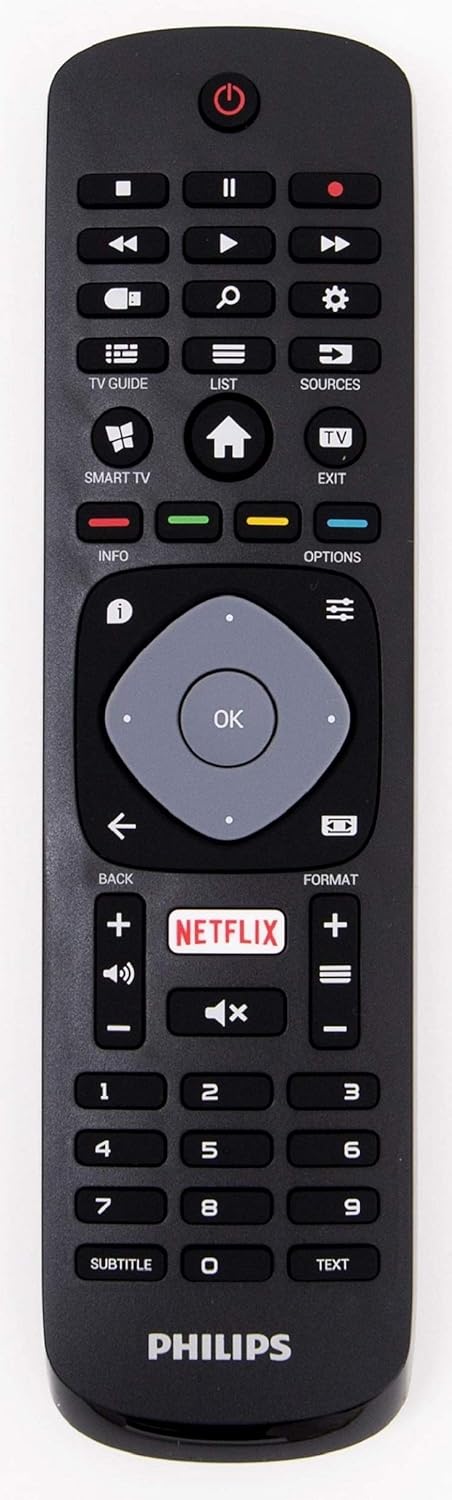
Image: Philips Smart TV remote control.
- Power Button: Turns the TV on or off.
- Navigation Keys (Up/Down/Left/Right/OK): Navigate menus and confirm selections.
- Volume +/-: Adjusts the volume level.
- Channel +/-: Changes TV channels.
- Source: Selects input sources (HDMI, USB, TV, etc.).
- SMART TV: Accesses the SAPHI Smart TV home screen.
- Netflix: Dedicated button for direct access to Netflix.
- Info: Displays information about the current program or input.
- Options: Accesses context-sensitive options.
6.2. Smart TV Features (SAPHI OS)
Your Philips Smart TV runs on the SAPHI operating system, providing a user-friendly interface for accessing various applications and online content.
- App Access: Easily launch pre-installed applications such as Netflix, Amazon Prime Video, YouTube, and an internet browser.
- Connectivity: Connect to your home network via built-in Wi-Fi or Ethernet for seamless streaming and browsing.
- Content Browsing: Explore various supported internet services including Aaj Tak Astro, Ayurved Samadhan, BIJNOR ABHITAK, BRS MEDIA EDUCATIONAL SERIES, BeingIndian, ChuChu TV Nursery Rhymes, ChuChuTV Surprise, DD News, Decathlon Sports India, Delhi Vaibhav BhartiTV, Diganta Tourism, YuppTV.
6.3. Picture and Sound Settings
Customize your viewing and listening experience through the TV's settings menu.
- Picture Modes: Select from various preset picture modes (e.g., Standard, Vivid, Movie, Game) or customize settings like brightness, contrast, color, and sharpness.
- HDR Plus: Enjoy enhanced contrast and color with HDR Plus content.
- Micro Dimming: This feature optimizes contrast on your TV by analyzing the picture in 6400 different zones and adjusting the backlight accordingly.
- Sound Modes: Choose from sound presets (e.g., Standard, Movie, Music) or adjust bass, treble, and balance.
- Auto Volume Leveller: Maintains consistent volume levels across different channels and inputs.
7. Maintenance
7.1. Cleaning the TV
- Always unplug the TV before cleaning.
- Use a soft, lint-free cloth to gently wipe the screen and cabinet.
- For stubborn marks, lightly dampen the cloth with water or a mild, non-abrasive screen cleaner. Do not spray cleaner directly onto the screen.
- Avoid using alcohol, solvents, or ammonia-based cleaners, as they can damage the TV's finish.
7.2. General Care
- Keep the TV away from direct sunlight and heat sources.
- Ensure proper ventilation to prevent overheating.
- Protect the TV from dust by regularly cleaning its surfaces.
8. Troubleshooting
If you encounter issues with your TV, refer to the following common problems and solutions:
| Problem | Possible Solution |
|---|---|
| No power | Check if the power cable is securely connected to the TV and the power outlet. Ensure the power outlet is functional. |
| No picture, but sound is present | Verify the correct input source is selected. Check cable connections to external devices. |
| No sound, but picture is present | Check the volume level and ensure the TV is not muted. Verify audio cable connections. |
| Remote control not working | Replace the batteries in the remote control. Ensure there are no obstructions between the remote and the TV's IR sensor. |
| Smart TV apps not loading/slow | Check your internet connection (Wi-Fi or Ethernet). Restart the TV and your router. Clear app cache if possible. |
| Picture quality issues (e.g., blurry, distorted) | Adjust picture settings. Check the quality of the input signal or source content. |
9. Specifications
| Feature | Detail |
|---|---|
| Brand | PHILIPS |
| Model | 55PUT6103S/94 |
| Screen Size | 55 Inches (139 cm) |
| Display Technology | LED, A+ Display Type |
| Resolution | 4K (3840 x 2160 Pixels) |
| Refresh Rate | 60 Hz |
| Aspect Ratio | 16:9 |
| Viewing Angle | 178 Degrees |
| Image Brightness | Standard 300 nits |
| Image Contrast Ratio | 1400:1 |
| Operating System | SAPHI |
| Memory Storage Capacity | 4 GB |
| RAM Memory Installed Size | 2 GB |
| Graphics Coprocessor | Quad core CA53 / Mali-450 MP4 |
| Connectivity | HDMI (3), USB (2), Wi-Fi, Ethernet |
| Audio Output | 20 Watts, Surround Sound (Incredible Surround, Clear Sound, Auto Volume Leveller, Smart Sound) |
| Remote Control Technology | IR, Bluetooth |
| Mounting Type | Wall Mount & Table Mount |
| Product Dimensions (LxWxH) | 124.3 x 8.6 x 72.9 cm (without stand) |
| Item Weight | 13.3 kg |
| Power Source | AC |
| On-mode Power Consumption | 200 watts |
| Country of Origin | China |
10. Warranty and Support
10.1. Warranty Information
This product comes with a 2-year warranty provided by the manufacturer from the date of purchase. Please refer to the included Warranty Card for detailed terms and conditions.
10.2. Customer Support
For installation, wall mounting, demo requests, or any other product support, please contact Philips support directly:
- Philips Support Helpline: 18004256396
- When contacting support, please provide the product's model name (55PUT6103S/94) and seller's details as mentioned on your invoice.
Manufacturer: TPV Display Technology (Xiamen) Company Limited, No. 1 Xianghai Road, Xiamen Torch Hi-Tech Industrial Development Zone, China
Importer: TPV Technology India Pvt. Ltd. 501-508, 5th floor, Bestech Chambers, Block B, Sushant Lok 1, Sector 27, Gurugram - 122001 Haryana


