
1. Introduction
Thank you for choosing the XGIMI H3S DLP 3D Home 4K Projector. This manual provides essential information for setting up, operating, and maintaining your projector. Please read this manual thoroughly before using the product to ensure proper and safe operation. Keep this manual for future reference.
2. Safety Information
Always observe the following safety precautions to avoid damage to the projector or injury to yourself.
- Do not look directly into the projector lens when the lamp is on. The bright light can cause eye damage.
- Do not block the ventilation openings. Ensure adequate airflow around the projector to prevent overheating.
- Do not expose the projector to rain, moisture, or extreme temperatures.
- Use only the power adapter supplied with the projector.
- Do not attempt to disassemble or repair the projector yourself. Refer all servicing to qualified personnel.
- Keep the projector away from water and other liquids.
- Place the projector on a stable, level surface.
3. Package Contents
Verify that all items are present in your package:
- XGIMI H3S Projector
- Power Adapter (x1)
- Remote Control (x1)
- AAA Batteries (x2)
- User Manual / Warranty Card (x1)

Figure 3.1: XGIMI H3S Projector and its standard accessories as listed in the specifications table.
4. Setup
4.1 Projector Placement
Place the projector on a flat, stable surface or mount it according to the desired projection method (front, rear, ceiling front, ceiling rear). Ensure there is sufficient space around the projector for ventilation.

Figure 4.1: Front view of the XGIMI H3S Projector, showing the lens and Harman/Kardon speaker grille.
4.2 Power Connection
- Connect the power adapter to the DC input port on the projector.
- Plug the power adapter into a wall outlet.
- The power indicator light will illuminate.
4.3 Connecting Devices
The XGIMI H3S offers various connectivity options:
- HDMI: Connect Blu-ray players, game consoles, or other HDMI-enabled devices to the HDMI 2.0 ports. HDMI 1 supports ARC for audio return.
- USB: Connect USB drives for media playback or external peripherals to the USB 2.0 ports.
- LAN: Connect an Ethernet cable for wired network access.
- Audio Output: Use the 3.5mm AUDIO or OPTICAL port to connect external speakers or sound systems.
- Wi-Fi: Connect to your wireless network for internet access and streaming.
- Bluetooth: Pair with Bluetooth audio devices like headphones or speakers.
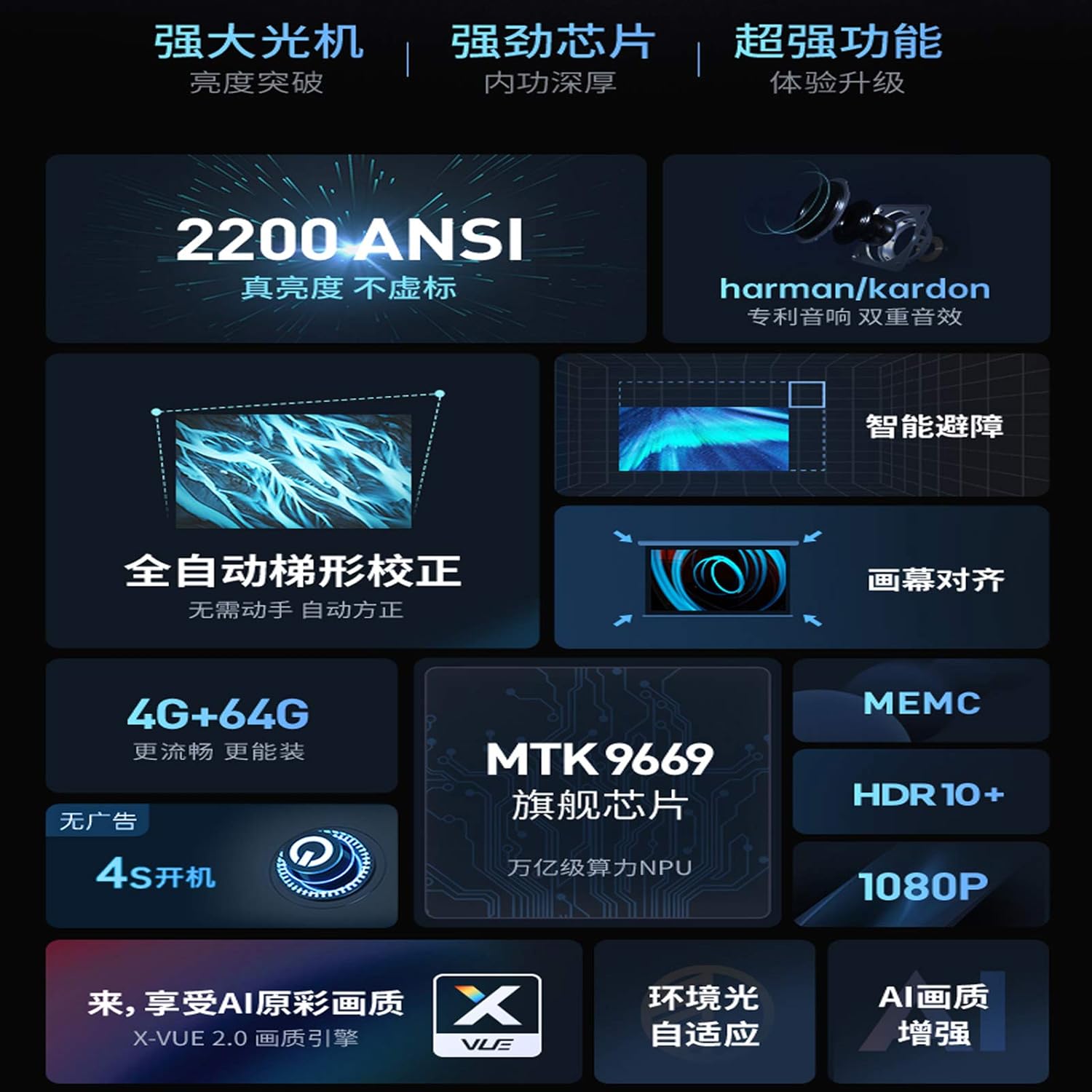
Figure 4.2: Rear view of the XGIMI H3S Projector, highlighting the various input and output ports for connectivity.
4.4 Initial Setup and Adjustment
Upon first power-on, the projector will guide you through initial setup steps, including network connection and language selection. The XGIMI H3S features advanced automatic adjustments:
- Full Automatic Keystone Correction: The projector automatically corrects trapezoidal distortion to ensure a rectangular image.
- Automatic Focus: The image will automatically adjust for optimal sharpness.
- Intelligent Obstacle Avoidance: The projector can detect and avoid obstacles in the projection path.
- Automatic Screen Alignment: The projector can automatically align the image to a detected screen.
Manual adjustments for focus and keystone are also available in the settings menu if needed.

Figure 4.3: Visual representation of the XGIMI H3S's automatic keystone correction and focus capabilities, ensuring a perfectly rectangular and sharp image.
5. Operating the Projector
5.1 Power On/Off
- Power On: Press the power button on the remote control or on the projector.
- Power Off: Press the power button again. A confirmation prompt may appear.
5.2 Remote Control Navigation
Use the supplied remote control to navigate the INUI operating system. The directional pad, OK button, back button, and home button are essential for menu navigation and selection.
5.3 Input Source Selection
To switch between connected devices (HDMI, USB) or internal apps, access the input source menu from the home screen or by pressing the dedicated input button on the remote.
5.4 Picture Settings
Access the picture settings menu to adjust image quality:
- Brightness/Contrast: Adjust for optimal viewing conditions.
- Color/Tint: Fine-tune color reproduction.
- Resolution: The native resolution is 1920x1080, with support for 2K/4K input.
- X-VUE 2.0 Image Engine: This technology enhances clarity, color, and reduces noise for a superior visual experience.
- MEMC (Motion Estimation, Motion Compensation): Improves fluidity of fast-moving scenes, reducing motion blur.
- HDR10+: Provides enhanced contrast and color depth for compatible content.

Figure 5.1: The X-VUE 2.0 Image Engine enhances clarity, color accuracy, and noise reduction for an improved viewing experience.

Figure 5.2: MEMC technology in action, demonstrating smoother motion compared to content without motion compensation.
5.5 Audio Settings
The XGIMI H3S features integrated Harman/Kardon DTS HD Hi-Fi Stereo Speakers. Adjust volume and sound modes through the audio settings menu. You can also connect external audio systems via the 3.5mm audio jack or optical output.

Figure 5.3: The Harman/Kardon audio system provides high-fidelity stereo sound, enhanced by DTS Studio Sound virtual surround effects.
5.6 Smart Features (Android 9.0 INUI)
The projector runs on Android 9.0 with XGIMI's INUI interface, providing access to a wide range of apps and streaming services. Connect to Wi-Fi to utilize these features. Multi-screen interaction is supported via AirPlay, DLNA, and XGIMI APP.
6. Maintenance
- Cleaning the Lens: Use a soft, lint-free cloth specifically designed for optical lenses. Do not use abrasive cleaners or solvents.
- Cleaning the Casing: Wipe the projector's exterior with a soft, dry cloth. For stubborn marks, use a slightly damp cloth and then dry thoroughly.
- Ventilation: Regularly check that the ventilation openings are clear of dust and debris to ensure proper airflow and prevent overheating.
- Storage: When not in use for extended periods, store the projector in a cool, dry place, protected from dust.
7. Troubleshooting
| Problem | Possible Cause | Solution |
|---|---|---|
| No power | Power cable not connected; Power outlet faulty | Ensure power cable is securely connected; Try a different power outlet. |
| No image | Incorrect input source; Device not connected properly | Select the correct input source; Check HDMI/USB cable connections. |
| Blurred image | Out of focus; Projector too close/far from screen | Allow auto-focus to complete or manually adjust focus; Adjust projector distance. |
| Distorted image (trapezoid) | Projector not perpendicular to screen | Allow auto-keystone correction to complete or manually adjust keystone in settings. |
| No sound | Volume too low; Muted; Incorrect audio output selected | Increase volume; Unmute; Check audio output settings. |
| Remote control not working | Batteries low/dead; Obstruction; Not paired | Replace batteries; Remove obstructions; Re-pair remote if necessary. |
8. Specifications
| General | |
|---|---|
| Brand | XGIMI |
| Model | H3S (CACACOL-H3S) |
| Product Dimensions | 25.3 x 24.2 x 23 cm |
| Product Weight | 2.85 kg |
| Form Factor | Desktop |
| Mounting Type | Tabletop Mount |
| Optical Parameters | |
| Display Technology | DLP |
| Display Chip | 0.47" DMD |
| Brightness | 2200 ANSI Lumens |
| Native Resolution | 1920 x 1080 (1080p) |
| Compatible Resolution | 2K / 4K |
| Throw Ratio | 1.2:1 |
| Keystone Correction | Full Automatic Trapezoidal Correction ±40 degrees |
| Projection Method | Front, Rear, Ceiling Front, Ceiling Rear |
| System Parameters | |
| CPU | MT9669 |
| GPU | Mali-G52 |
| RAM | 4GB DDR3 SDRAM |
| Storage | 64GB |
| Operating System | INUI (based on Android 9.0) |
| Multi-screen Interaction | AirPlay, DLNA, XGIMI APP, Wired Screen Mirroring |
| Connectivity | |
| Input Ports | DC x1, HDMI 2.0 x2 (HDMI 1 supports ARC), USB 2.0 x2, LAN x1 |
| Output Ports | 3.5mm AUDIO x1, OPTICAL x1 |
| Wi-Fi | Dual-band 2.4G/5G, 802.11a/b/g/n/ac |
| Bluetooth | Bluetooth 4.2/BLE |
| Electrical & Audio | |
| Noise Level | <28dB (Standard mode, 1m) |
| Power Consumption | <220W |
| Power Source | AC200-240V, 50Hz |
| Audio System | Harman/Kardon DTS HD Hi-Fi Stereo Speaker |
9. Warranty and Support
XGIMI products come with a standard manufacturer's warranty. Please refer to the warranty card included in your package for specific terms and conditions. For technical support, troubleshooting assistance, or service inquiries, please visit the official XGIMI website or contact their customer service.
Official XGIMI Website: www.xgimi.com