
PHILIPS Xenium E168
Philips Xenium E168 Dual SIM Mobile Phone User Manual
Model: Xenium E168 | Brand: PHILIPS
Introduction
This user manual provides essential information for the safe and efficient operation of your Philips Xenium E168 Dual SIM Mobile Phone. Please read this manual carefully before using your device to ensure optimal performance and longevity. The Philips Xenium E168 is designed for reliable communication with features such as dual SIM support, a clear display, and extended battery life.
What's in the Box
Upon unboxing your Philips Xenium E168, please verify that all the following items are included:
- Handset
- Battery
- Charger
- User Manual
- Warranty Card
Note: Earphones are not included with this product.
Setup
1. Inserting the SIM Card(s) and Battery
Your Philips Xenium E168 supports dual SIM functionality. Follow these steps to insert your SIM cards and the battery:
- Carefully remove the back cover of the phone.
- Locate the SIM card slots. Insert your SIM card(s) into the designated slots, ensuring the gold contacts face downwards and the card is correctly oriented as indicated on the phone.
- Insert the battery into its compartment, aligning the contacts.
- Replace the back cover until it clicks securely into place.

Image: Front and back view of the Philips Xenium E168, illustrating the areas for SIM card and battery insertion.
2. Inserting a Micro SD Card (Optional)
To expand storage for photos, videos, and other files, you can insert a Micro SD card (up to 16GB):
- With the back cover removed, locate the Micro SD card slot, usually adjacent to the SIM card slots.
- Gently push the Micro SD card into the slot until it locks into place.
- Replace the back cover.
3. Charging the Battery
Before first use, fully charge the phone's battery:
- Connect the charger to the charging port on the phone.
- Plug the charger into a power outlet.
- The battery indicator on the screen will show charging progress. Disconnect the charger once the battery is full.
Operating Instructions
1. Power On/Off
- To Power On: Press and hold the Power/End Call button until the screen lights up.
- To Power Off: Press and hold the Power/End Call button until the power off options appear, then select 'Power off'.
2. Keypad Layout and Navigation
The Philips Xenium E168 features a clear alphanumeric keypad and navigation buttons:
- Navigation Keys: Use the directional keys (Up, Down, Left, Right) and the central 'OK' button to navigate menus and select options.
- Call/Send Key: Initiates calls and confirms selections.
- End Call/Power Key: Ends calls, returns to the home screen, and powers the device on/off.
- Soft Keys: Context-sensitive keys located directly below the screen, their function changes based on the current menu.
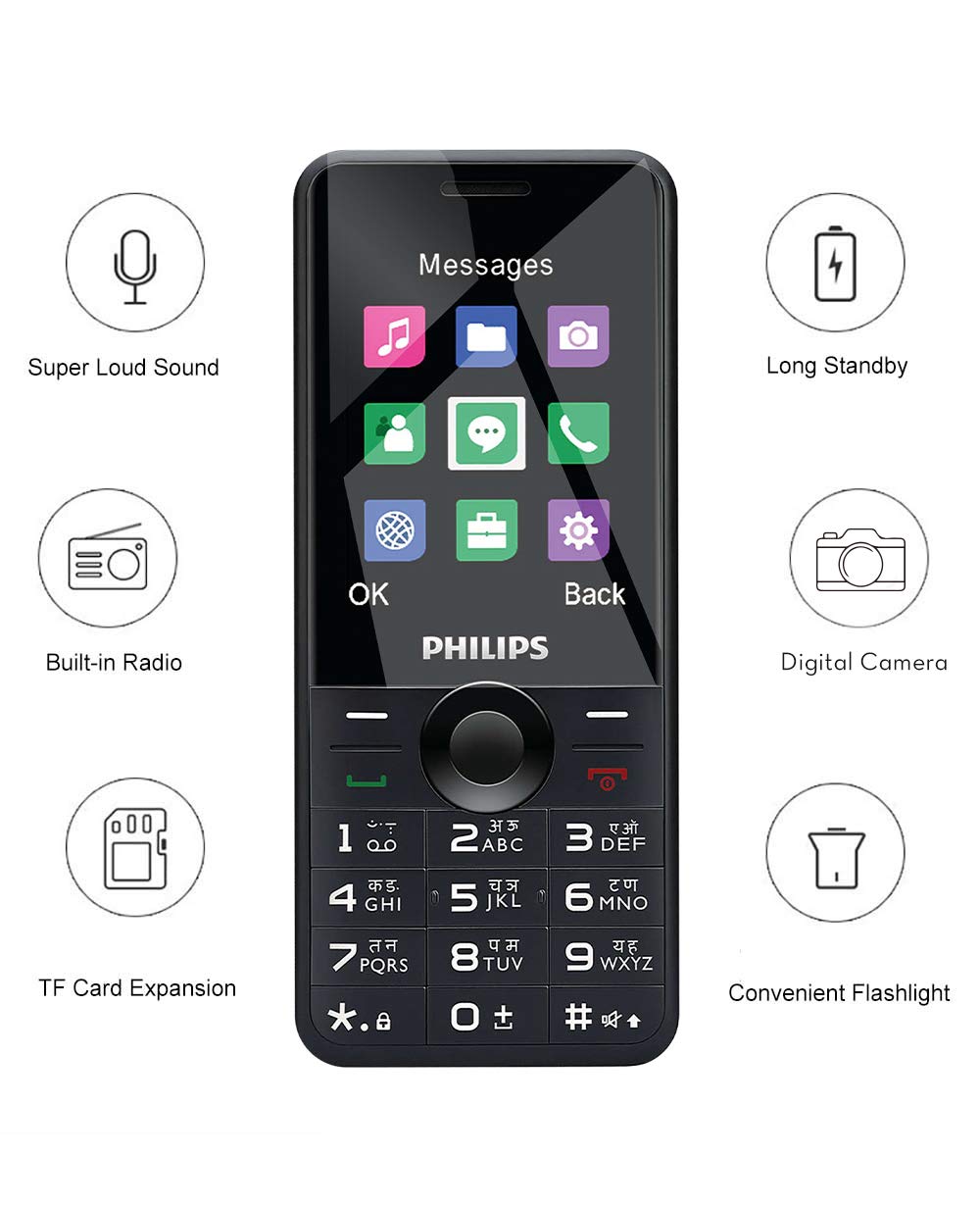
Image: Front view of the Philips Xenium E168, highlighting the display and keypad layout.
3. Making and Receiving Calls
- Making a Call: Enter the phone number using the keypad and press the Call/Send key.
- Receiving a Call: When a call comes in, press the Call/Send key to answer.
- Ending a Call: Press the End Call/Power key.
4. Messaging
To send and receive text messages (SMS):
- From the main menu, navigate to 'Messages'.
- Select 'Write message' or 'New SMS'.
- Enter your message using the keypad.
- Enter the recipient's number or select from contacts, then send.
5. Camera Functionality
The phone is equipped with a VGA camera for basic photo capture:
- Access the camera from the main menu.
- Frame your shot using the screen as a viewfinder.
- Press the 'OK' button or a designated camera key to capture the image.
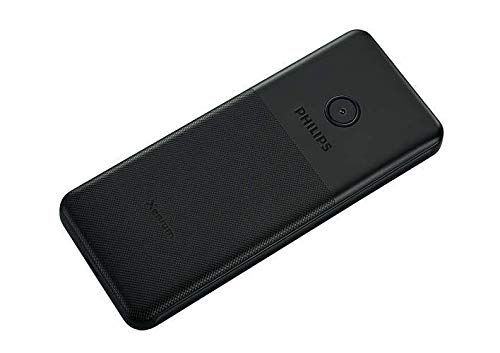
Image: Rear view of the Philips Xenium E168, showing the integrated camera lens.
6. FM Radio
Enjoy built-in FM radio on your device:
- Plug in a wired earphone (not included) to act as an antenna.
- Navigate to 'FM Radio' from the main menu.
- Use the navigation keys to tune to stations or perform an auto-scan.
7. Flashlight
The phone includes a convenient flashlight feature:
- Typically, the flashlight can be activated by long-pressing a specific key (e.g., '0' or a dedicated side button) or through the tools menu. Refer to your phone's on-screen prompts for exact activation.
Maintenance
Proper care ensures the longevity of your device:
- Cleaning: Use a soft, dry cloth to clean the phone's surface. Avoid liquid cleaners or abrasive materials.
- Battery Care: Avoid exposing the battery to extreme temperatures. Do not puncture or disassemble the battery. Charge the battery regularly, but avoid overcharging for extended periods.
- Storage: Store the phone in a cool, dry place away from direct sunlight and excessive dust.
- Water Resistance: This phone is not water-resistant. Avoid contact with liquids.
Troubleshooting
If you encounter issues with your Philips Xenium E168, refer to the following common problems and solutions:
| Problem | Possible Solution |
|---|---|
| Phone does not power on. | Ensure the battery is correctly inserted and fully charged. Try charging the phone for at least 30 minutes before attempting to power on again. |
| Poor call sound quality (muffled/unclear). | Check the call volume settings. Ensure you are in an area with good network coverage. Clean the earpiece/speaker grille if it appears obstructed. |
| Phone freezes or becomes unresponsive. | Remove the battery, wait a few seconds, and then reinsert it to perform a hard reset. If the issue persists, ensure the phone's software is up to date (if applicable). |
| Battery drains quickly. | Reduce screen brightness. Close unused applications. Limit background data usage. Ensure the battery is not old or damaged. |
| Cannot send/receive SMS. | Check your network signal. Verify the SMS service center number in your phone's messaging settings (contact your network provider for this number). Ensure you have sufficient balance/credit. |
If the problem persists after trying these solutions, please contact customer support.
Specifications
Key technical specifications for the Philips Xenium E168:
| Feature | Detail |
|---|---|
| Model Number | Xenium E168 |
| Dimensions (LxWxH) | 122.5mm x 51.5mm x 13.9mm |
| Weight | 100 g |
| Display | 2.4 inch LCD, 240 x 320 pixel resolution |
| RAM | 32 MB |
| Memory Card Support | Micro SD (Upto 16GB) |
| Camera | VGA, 640x480 |
| Battery Capacity | 1600 mAh Lithium Ion |
| Talk Time | Up to 18 Hours |
| Standby Time | Up to 1403 Hours |
| Connectivity | Dual SIM (GSM 850/900/1800/1900 MHz), Bluetooth |
Warranty Information
Your Philips Xenium E168 comes with a manufacturer's warranty. Please refer to the Warranty Card included in the product box for detailed terms, conditions, and duration of the warranty. Keep your purchase receipt as proof of purchase for warranty claims.
Support
For any technical assistance, service inquiries, or support related to your Philips Xenium E168, please contact the customer care team:
- Customer Care Number: +91-9643314331
Please have your product model number (Xenium E168) and purchase details ready when contacting support.
Related Documents - Xenium E168
 |
老人功能机专用锂电池使用说明书 (Philips AB1000EWMT) Philips AB1000EWMT 锂离子电池用户手册,包含老人功能机安装、充电、保养、安全警示及常见问题解答,确保安全使用。 |
 |
Philips Xenium E209 GSM Mobile Phone Quick Start Guide A quick start guide for the Philips Xenium E209 GSM mobile phone, covering setup, basic functions, safety precautions, and warranty information. |
 |
Philips Xenium E125 GSM Mobile Phone Quick Start Guide: Setup, Usage, and Safety Get started with your Philips Xenium E125 GSM mobile phone. This guide covers setup, basic call and message functions, safety precautions, and warranty information from Philips and TPV Audio and Visual Technology. |
 |
Philips SpeechExec Basic Transcribe 11.5 User Manual Comprehensive user manual for Philips SpeechExec Basic Transcribe 11.5 software, covering installation, features, hardware compatibility, and troubleshooting for dictation and transcription workflows. |
 |
Philips M20 Corded Phone User Manual A concise guide to setting up and using the Philips M20 corded phone, including features like making calls, managing call logs, and adjusting settings. |
 |
Philips Ozeo User Manual - Guide and Instructions Get started with your Philips Ozeo mobile phone using this detailed user manual. Learn about setup, making calls, sending SMS, navigating menus, and essential features for optimal use. |