
FLEXISPOT EF1W-UK
FLEXISPOT Electric Standing Desk EF1 User Manual
Model: EF1W-UK
Product Overview
The FLEXISPOT Electric Standing Desk EF1 is a versatile, height-adjustable desk frame designed to enhance your workspace ergonomics. This robust frame allows users to easily switch between sitting and standing positions, promoting a healthier work routine. It is constructed from heavy-duty steel, ensuring stability and durability, and features an intuitive control panel for seamless operation.
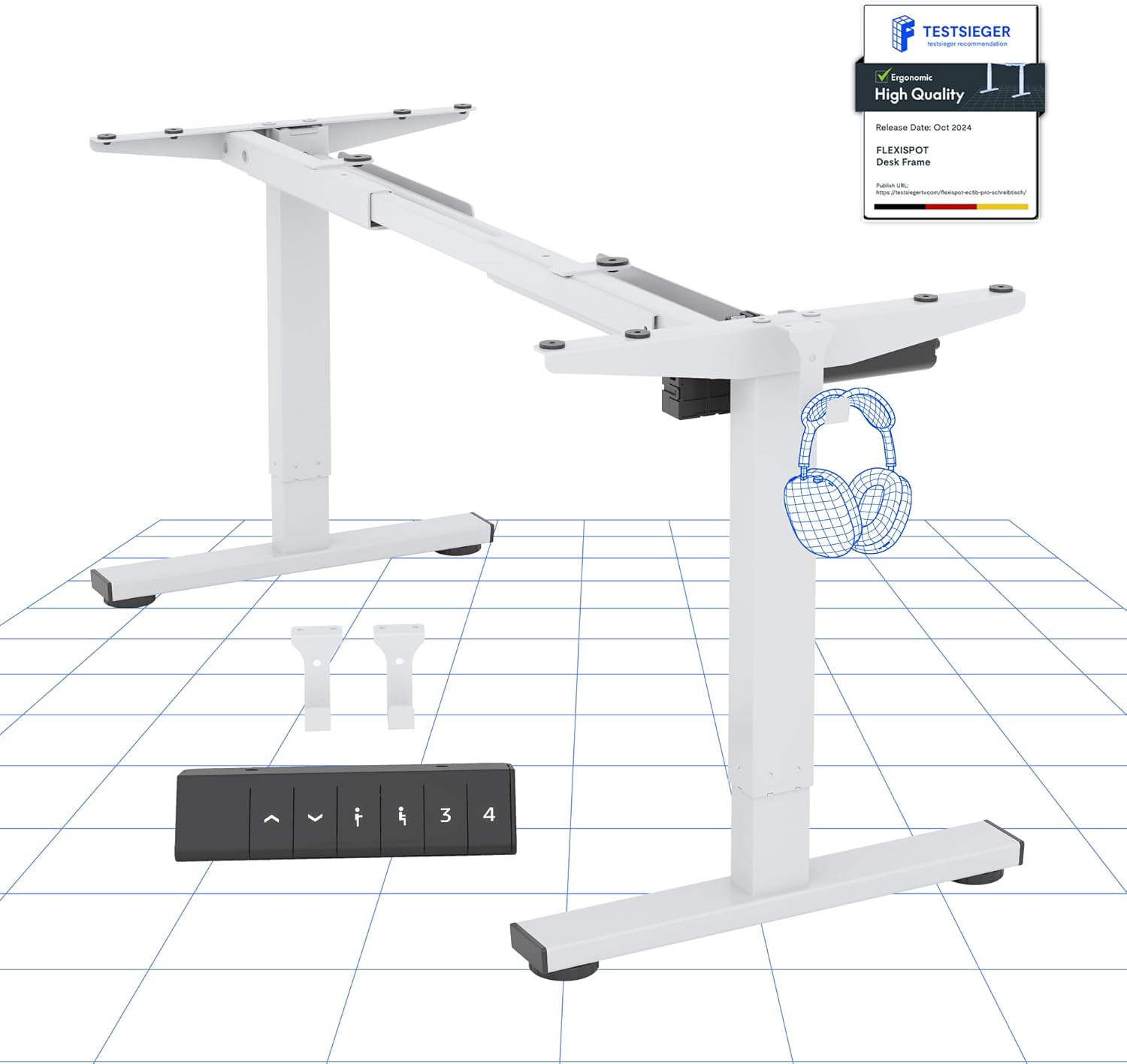
Figure 1: FLEXISPOT Electric Standing Desk EF1 Frame (White)
This image displays the main components of the FLEXISPOT EF1 electric standing desk frame in white, including the adjustable legs, crossbar, and the control panel. It provides a clear view of the frame's structure before a desktop is attached.
Setup and Assembly
Careful assembly is crucial for the proper function and stability of your FLEXISPOT Electric Standing Desk EF1. While the frame comes with necessary tools and screws, a drill is recommended for securely attaching your chosen desktop.
Required Tools (Not Included):
- Electric Drill (for desktop attachment)
- Measuring Tape (for precise desktop positioning)
Assembly Steps:
- Unpack Components: Carefully remove all parts from the packaging and verify against the included parts list.
- Assemble Frame Base: Connect the leg columns to the feet and the crossbar, ensuring all connections are secure. Pay attention to the orientation of parts as indicated in the detailed assembly diagrams provided with your product.
- Attach Desktop: Position your desktop (not included) onto the assembled frame. Use a measuring tape to ensure the desktop is centered and aligned. Secure the desktop to the frame using the provided screws and an electric drill. Ensure screws do not penetrate through the desktop surface.
- Connect Electronics: Connect the motor cables and control panel cable to the main control box. Route cables neatly to prevent interference with the desk's movement.
- Initial Power-Up: Plug the desk into a power outlet. The desk may perform an initial calibration cycle.
- Leveling: Adjust the leveling feet at the bottom of each leg to ensure the desk is stable and does not wobble on uneven surfaces.
Warning: Do not exceed the weight limit of 70kg. Be cautious when assembling and using the electric height adjustment feature. Ensure the desk is properly anchored for stability. Take precautions when children are present.
Operating Instructions
The FLEXISPOT EF1 desk features a user-friendly control panel for effortless height adjustments and memory presets.
Control Panel Functions:
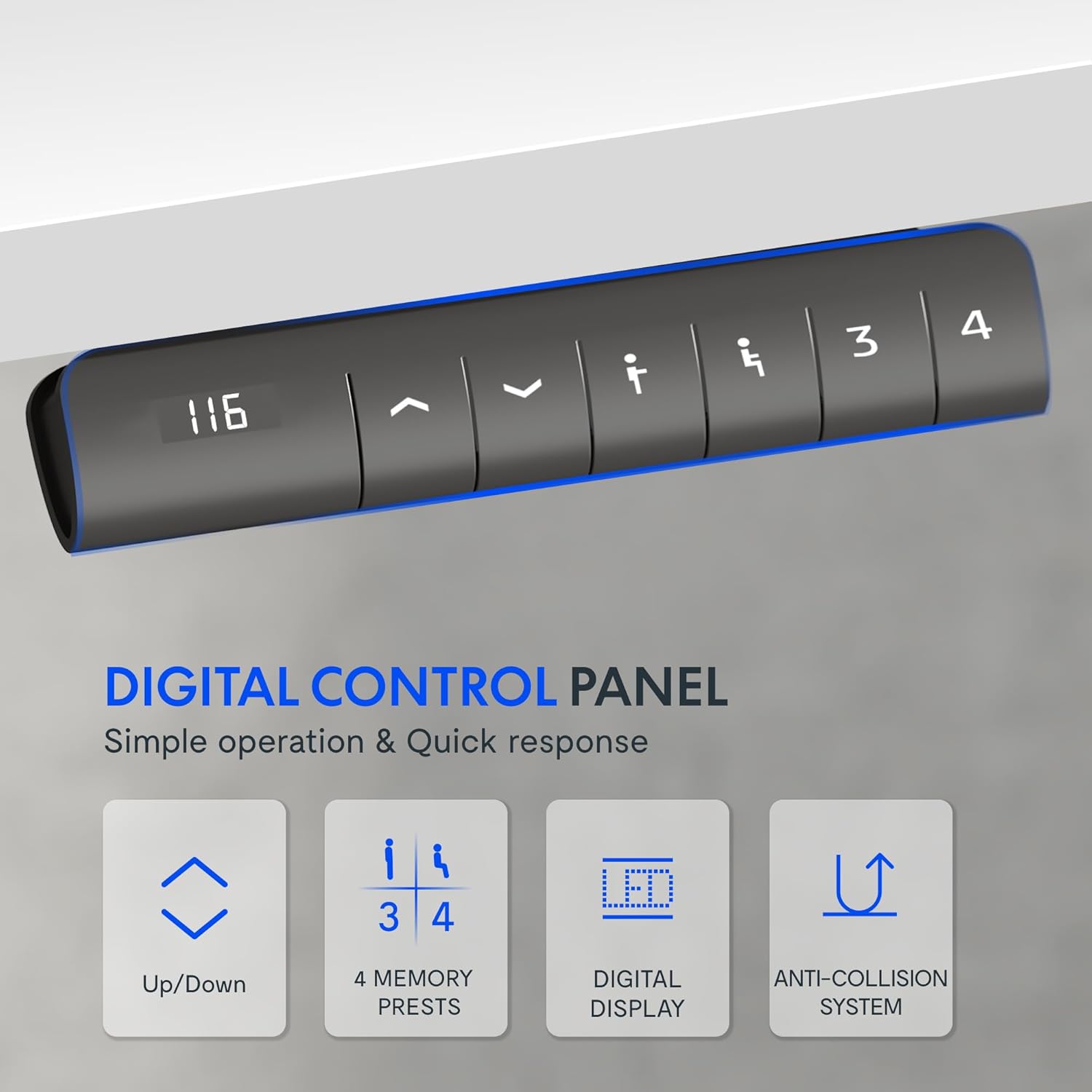
Figure 2: Digital Control Panel
This image shows a close-up of the digital control panel with an LED display and buttons for up/down adjustment, memory presets (1, 2, 3, 4), and a memory set button.
- Up/Down Buttons (^ / v): Press and hold to manually adjust the desk height. Release to stop at the desired height.
- LED Display: Shows the current height of the desk in centimeters.
- Memory Presets (1, 2, 3, 4): Store and recall up to four preferred height settings.
- To save a height: Adjust the desk to your desired height, then press the 'M' or 'Set' button (often indicated by an 'i' or 'S' icon) followed by the desired number button (1, 2, 3, or 4). The display may flash to confirm.
- To recall a height: Simply press the corresponding number button (1, 2, 3, or 4). The desk will automatically move to the saved position.
Height Adjustment Range:
The desk offers a wide adjustment range from 71.5 cm (minimum) to 116 cm (maximum), accommodating various user heights and preferences.

Figure 3: Wide Adjustment Range
This diagram illustrates the minimum (71.5 cm) and maximum (116 cm) height capabilities of the FLEXISPOT EF1 desk frame, showing its suitability for various user heights.
Anti-Collision Technology:
For enhanced safety, the desk is equipped with an anti-collision system. If the lifting column encounters an obstacle during movement (up or down), it will automatically reverse slightly and stop to prevent damage or injury.

Figure 4: Anti-Collision System in action
This image demonstrates the anti-collision feature, showing the desk reversing its movement upon detecting an obstacle, such as a filing cabinet, ensuring safety and preventing damage.
Motor Performance:
The desk's motor operates quietly (under 50 dB) and provides smooth, stable adjustments at a speed of 25 mm/s. It supports a significant load capacity, ensuring reliable performance even with heavy equipment.

Figure 5: Powerful and Quiet Motor
This diagram highlights the internal motor mechanism of the FLEXISPOT desk, emphasizing its powerful yet quiet operation, energy efficiency, and speed.
Maintenance
To ensure the longevity and optimal performance of your FLEXISPOT Electric Standing Desk EF1, follow these simple maintenance guidelines:
- Regular Cleaning: Wipe down the desk frame with a soft, damp cloth. Avoid abrasive cleaners or solvents that could damage the finish.
- Check Connections: Periodically inspect all screws and bolts to ensure they remain tight. Re-tighten if necessary. Check power cables and motor connections for any signs of wear or damage.
- Clear Obstructions: Ensure the area around the desk legs is clear of any obstructions that could impede movement or activate the anti-collision system unnecessarily.
- Weight Distribution: Distribute weight evenly across the desktop to prevent undue stress on the motor and frame.
Troubleshooting
If you encounter issues with your FLEXISPOT Electric Standing Desk EF1, refer to the following common troubleshooting steps:
| Problem | Possible Cause | Solution |
|---|---|---|
| Desk does not move or respond to controls. |
|
|
| Desk stops moving unexpectedly. |
|
|
| Desk height display shows an error code. | Specific error condition. | Refer to the specific error code in the full product manual (if available) or contact customer support. A power cycle (unplugging for 10 minutes) may resolve temporary errors. |
| Desk wobbles at higher settings. | Uneven floor or loose connections. |
|
Specifications
| Feature | Detail |
|---|---|
| Brand | FLEXISPOT |
| Model Number | EF1W-UK |
| Colour | Desk Frame|white |
| Product Dimensions (Frame) | 60D x 120W x 85H cm (adjustable width 91-146 cm, height 71.5-116 cm) |
| Material | Alloy Steel |
| Item Weight | 21 kg |
| Load Capacity | 80 kg (movable) / 100 kg (fixed) |
| Motor Noise Level | Under 50 dB |
| Adjustment Speed | 25 mm/s |
| Special Features | Electric height adjustment, 4 memory presets, LED display, Anti-Collision Technology |
Warranty and Support
FLEXISPOT products are designed for durability and performance. While specific warranty details are typically provided with your purchase documentation, FLEXISPOT generally offers support for their products.
For any questions, technical assistance, or warranty claims, please contact FLEXISPOT customer support directly. You can usually find contact information on the official FLEXISPOT website or through your original point of purchase.
Visit the official FLEXISPOT Store for more information: FLEXISPOT Store
Related documentsEF1W-UK


Ask a question about this manual
Ask about setup, troubleshooting, compatibility, parts, safety, or missing instructions. Manuals+ will review the question and use this page’s manual context to help answer it.