
Introduction
This manual provides comprehensive instructions for the setup, operation, maintenance, and troubleshooting of your HP LaserJet 2430n Q5964A Laser Printer. Please read this manual thoroughly before using the printer to ensure optimal performance and longevity.

Figure 1: Front view of the HP LaserJet 2430n Q5964A Laser Printer, showing the main paper tray and control panel.
Package Contents
Verify that all components are present in the package:
- HP LaserJet 2430n Q5964A Laser Printer unit
- Power Cord
- Toner Cartridge (pre-installed or separate)
- Setup Guide (this manual)
If any items are missing or damaged, please contact your vendor or HP support.
Setup
1. Unpacking and Placement
- Carefully remove the printer from its packaging. Retain all packaging materials for future transport.
- Place the printer on a stable, level surface with adequate ventilation. Ensure there is enough space around the printer for paper trays and cable connections.
- Remove all protective tapes and packing materials from the exterior and interior of the printer. Open all covers and check for any internal packing.
2. Connecting the Printer
- Power Connection: Connect the power cord to the printer's power input and then to a grounded electrical outlet.
- Network Connection: For network printing, connect an Ethernet cable from your network router or switch to the printer's Ethernet port.
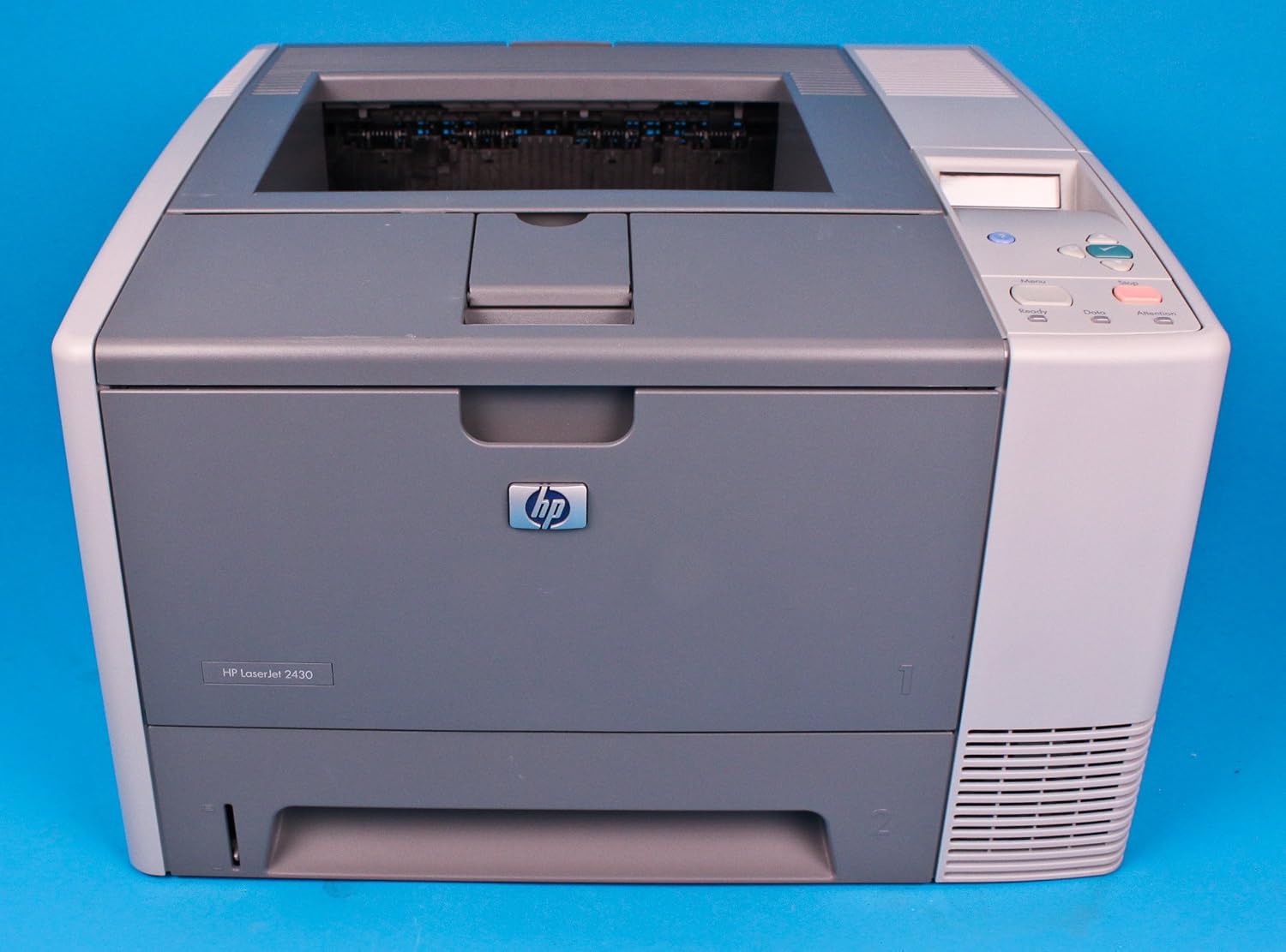
Figure 2: Rear view of the HP LaserJet 2430n, highlighting the power and Ethernet ports.
3. Loading Paper
- Pull out the main paper tray (Tray 2) located at the bottom front of the printer.
- Adjust the paper guides to the size of the paper you are loading.
- Load a stack of plain Letter-sized paper into the tray, ensuring it is flat and not exceeding the maximum fill line.
- Gently push the paper tray back into the printer until it clicks into place.
4. Installing Drivers
After connecting the printer to your network, install the appropriate printer drivers on your computer. Drivers can typically be found on the HP support website by searching for "HP LaserJet 2430n Q5964A drivers". Follow the on-screen instructions provided by the driver installer.
Operating the Printer
Control Panel Overview
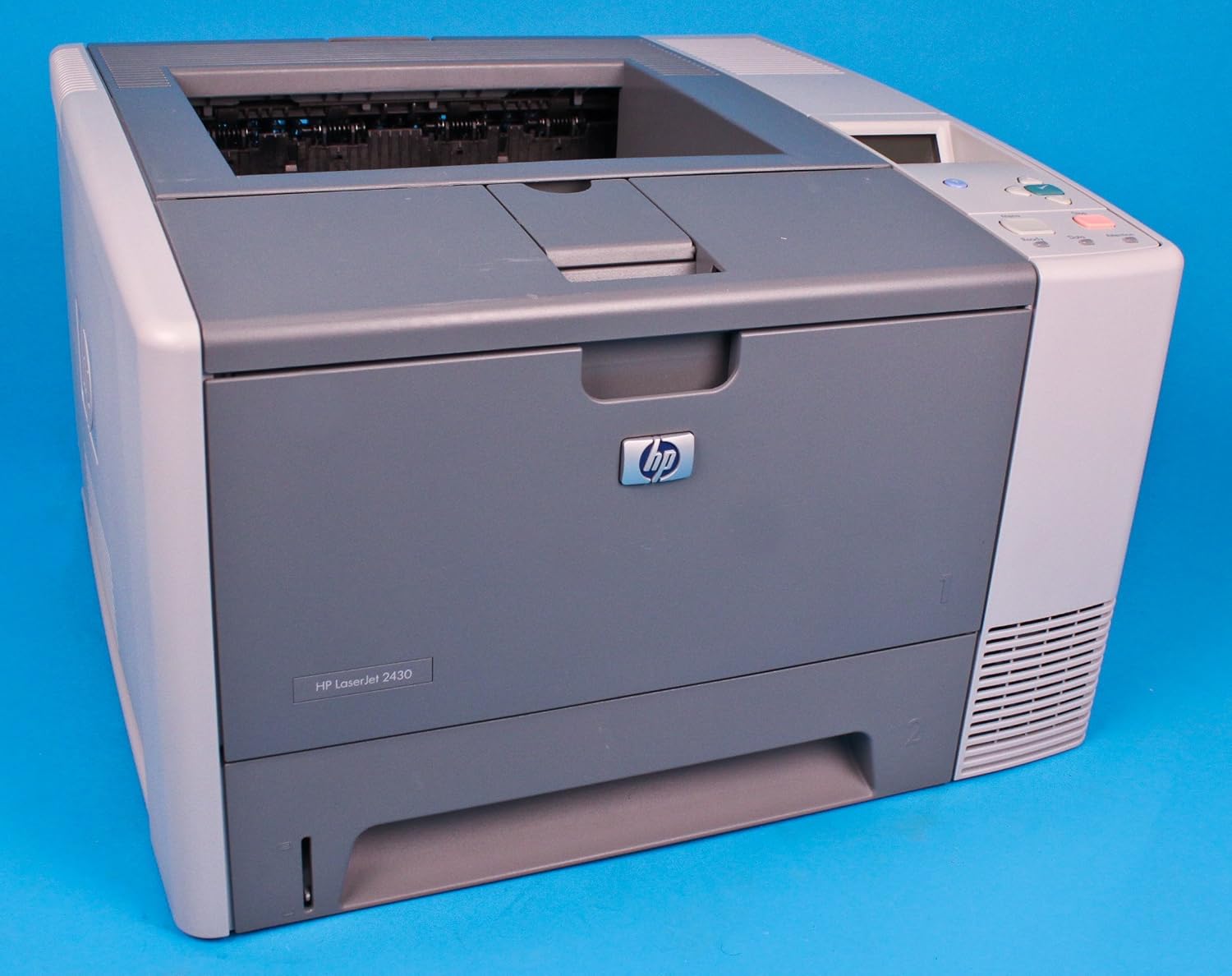
Figure 3: The control panel of the HP LaserJet 2430n, featuring an LCD display and navigation buttons.
The control panel allows you to monitor printer status, configure settings, and perform various functions. It typically includes an LCD display, navigation buttons (up, down, select), and dedicated function buttons (e.g., Menu, Cancel, Go).
Basic Printing
- Ensure the printer is powered on and connected to the network.
- From your computer, open the document or image you wish to print.
- Select File > Print (or the equivalent command in your application).
- Choose the "HP LaserJet 2430n" from the list of available printers.
- Adjust print settings as needed (e.g., number of copies, paper size, duplex printing if supported).
- Click Print. The printer will begin processing and printing the job.
Duplex Printing (Automatic Two-Sided)
The HP LaserJet 2430n supports automatic duplex printing. To enable this feature:
- When printing from your application, access the printer properties or preferences.
- Look for an option related to "Print on both sides," "Duplex," or "Two-sided printing."
- Select the desired binding option (e.g., Long-edge binding for standard book format, Short-edge binding for calendar format).
- Confirm your settings and proceed with printing.
Maintenance
Replacing the Toner Cartridge
When the toner level is low, the printer's control panel will display a message. Replace the toner cartridge to ensure continued print quality.
- Ensure the printer is powered on.
- Open the front cover of the printer.

Figure 4: The HP LaserJet 2430n with its front cover open, providing access to the toner cartridge.
- Grasp the handle of the old toner cartridge and pull it straight out of the printer.
- Unpack the new HP Q5964A toner cartridge. Gently shake it side-to-side to distribute the toner evenly.
- Remove any protective tapes or seals from the new cartridge.
- Align the new cartridge with the tracks inside the printer and push it firmly until it clicks into place.
- Close the front cover. The printer will calibrate the new cartridge.
Cleaning the Printer
Regular cleaning helps maintain print quality and extends the printer's lifespan.
- Exterior: Wipe the exterior surfaces with a soft, damp, lint-free cloth. Do not use abrasive cleaners or solvents.
- Paper Path: Occasionally, dust and paper fibers can accumulate in the paper path. Refer to the printer's internal cleaning instructions (often accessible via the control panel or driver software) for specific steps.
Troubleshooting
This section addresses common issues you might encounter with your HP LaserJet 2430n printer.
Printer Not Responding
- Check Power: Ensure the printer is plugged in and powered on. Verify the power light is illuminated.
- Check Connections: Confirm that the Ethernet cable is securely connected to both the printer and the network device.
- Restart Devices: Power off the printer, your computer, and your network router/switch. Wait 30 seconds, then power them back on in the following order: router/switch, printer, computer.
- Driver Issue: Reinstall or update the printer drivers on your computer.
Paper Jams
If a paper jam occurs, the control panel will display an error message indicating the location of the jam.
- Turn off the printer and unplug the power cord.
- Open the indicated access covers (e.g., front cover, rear cover, or paper tray).
- Carefully remove any jammed paper, pulling it gently in the direction of the paper path. Avoid tearing the paper.
- Check for any small pieces of torn paper.
- Close all covers, plug in the power cord, and turn on the printer.
Poor Print Quality
- Toner Level: Check the toner cartridge level. Replace if low.
- Toner Cartridge: Ensure the toner cartridge is properly installed. Try removing and reinserting it.
- Paper Type: Ensure you are using appropriate paper for laser printing.
- Printer Settings: Verify print quality settings in your printer driver.
Specifications
| Feature | Specification |
|---|---|
| Model Name | HP LaserJet 2430n (Q5964A) |
| Printing Technology | Monochrome Laser |
| Print Speed (Monochrome) | Up to 35 pages per minute (ppm) |
| First Page Out Time | As fast as 3 seconds |
| Print Resolution | Up to 1200 x 1200 dpi (effective output) |
| Duplex Printing | Automatic (Built-in) |
| Connectivity | Ethernet (Network Ready) |
| Paper Input Capacity | Tray 2: 250 sheets (standard) |
| Supported Media Sizes | Letter, Legal, Executive, A4, A5, B5, Envelopes, Custom sizes |
| Dimensions (W x D x H) | Approximately 24 x 20 x 21 inches |
| Compatible Toner | HP Q5964A Black LaserJet Toner Cartridge |
Warranty and Support
Warranty Information
This HP LaserJet 2430n Q5964A printer, being a renewed product, typically comes with a 90-day limited warranty. This warranty covers defects in materials and workmanship under normal use. Please refer to your purchase documentation for specific terms and conditions.
Customer Support
For technical assistance, driver downloads, or further information, please visit the official HP support website or contact HP customer service. When contacting support, have your printer's model number (Q5964A) and serial number ready.
- HP Support Website: www.hp.com/support