
Canon PIXMA G3411
CANON IJ MFP PIXMA G3411 EB1 User Manual
Model: PIXMA G3411 | Brand: Canon
1. Introduction
The Canon PIXMA G3411 is an all-in-one inkjet printer designed for home and office use, offering print, copy, and scan functionalities. This device features refillable ink tanks for high-volume printing and supports Wi-Fi and cloud connectivity for seamless integration with smart devices. This manual provides essential information for setting up, operating, maintaining, and troubleshooting your PIXMA G3411 printer.

Figure 1.1: The Canon PIXMA G3411 printer, showcasing its compact design and front paper output tray.
2. Safety Information
Please read all safety instructions before using the printer to ensure safe and proper operation. Keep this manual for future reference.
- Do not place the printer in unstable locations or where it may be exposed to excessive vibration.
- Avoid exposing the printer to direct sunlight, high temperatures, or high humidity.
- Use only the power cord supplied with the printer.
- Do not attempt to disassemble or modify the printer. Refer all servicing to qualified service personnel.
- Keep ink bottles and other small components out of reach of children.
3. Package Contents
Verify that all items listed below are included in your package:
- Canon PIXMA G3411 Printer
- High Yield Ink Bottles (Black, Cyan, Magenta, Yellow)
- Power Cord
- Setup CD-ROM
- Manuals and other documents (including this user manual)
4. Setup Guide
4.1 Unpacking and Placement
Carefully remove the printer from its packaging. Remove all protective tapes and packing materials from the exterior and interior of the printer. Place the printer on a stable, flat surface with adequate space around it for ventilation and operation.

Figure 4.1: Angled view of the Canon PIXMA G3411, illustrating its compact form factor.
4.2 Connecting Power
Connect the supplied power cord to the printer's power input and then to a wall outlet. Do not connect to a surge protector or extension cord during initial setup.
4.3 Filling Ink Tanks
The PIXMA G3411 features integrated refillable ink tanks. Follow these steps to fill the ink tanks:
- Open the ink tank cover on the printer.
- Open the cap of the ink tank you wish to fill (Black, Cyan, Magenta, or Yellow).
- Take the corresponding ink bottle and remove its cap.
- Carefully insert the nozzle of the ink bottle into the ink tank's inlet. The bottle is designed to prevent overfilling.
- Allow the ink to drain into the tank. Do not squeeze the bottle.
- Once the tank is full, remove the bottle and securely close the ink tank cap.
- Repeat for all other ink colors.
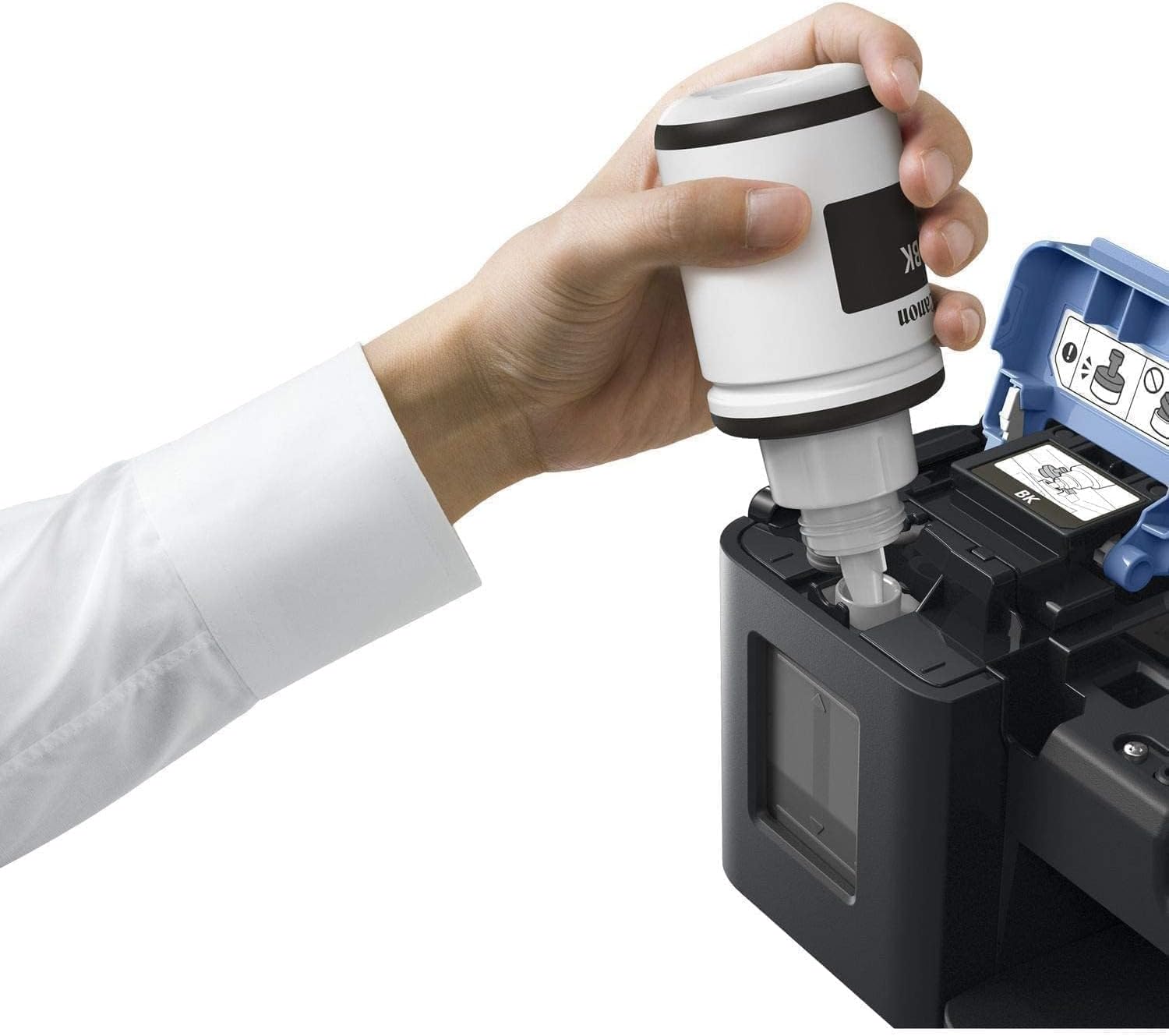
Figure 4.2: Demonstrating the process of refilling the ink tanks with the provided high-yield ink bottles.
4.4 Software Installation
Insert the Setup CD-ROM into your computer's CD/DVD drive and follow the on-screen instructions to install the printer drivers and software. If your computer does not have a CD/DVD drive, you can download the necessary software from the official Canon support website.
Note: Mac OS is not supported by this printer model.
4.5 Network Connection (Wi-Fi)
To connect your printer to a Wi-Fi network:
- Ensure your wireless router is on and functioning.
- On the printer's control panel, navigate to the Wi-Fi setup option.
- Select your network name (SSID) from the list of available networks.
- Enter your Wi-Fi password (network key) using the printer's control panel.
- Confirm the settings. The Wi-Fi indicator on the printer should light up steadily once connected.
5. Operating the Printer
5.1 Loading Paper
The PIXMA G3411 supports various paper sizes and types. To load paper:
- Open the paper support and pull out the paper output tray.
- Gently slide the paper guides to match the width of your paper.
- Load the paper stack into the rear tray with the print side facing up. Ensure the stack does not exceed the maximum paper capacity (100 sheets of plain paper).
- Adjust the paper guides firmly against the edges of the paper.
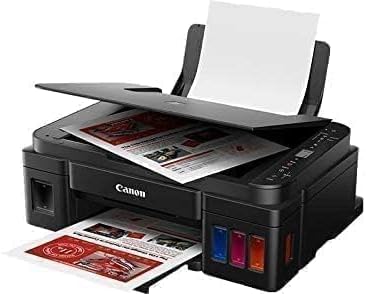
Figure 5.1: The printer with its rear paper tray open, ready for paper loading.
5.2 Using the Control Panel
The control panel provides access to various printer functions. Key buttons include:
- Power Button: Turns the printer on or off.
- Wi-Fi Button: Initiates or checks Wi-Fi connection status.
- Black/Color Start Buttons: Initiates black and white or color copying/scanning.
- Stop Button: Cancels current operations.
- Number Buttons (+/-): Adjusts copy quantity or other settings.
- Display Screen: Shows status, error codes, and menu options.

Figure 5.2: Detailed view of the printer's control panel, highlighting the buttons and display for operation.
5.3 Printing from a Computer
After installing the drivers, select the Canon PIXMA G3411 as your printer in your application's print dialog. Adjust print settings such as paper size, print quality, and number of copies as needed, then click "Print".
5.4 Copying Documents
Place the document face-down on the scanner glass. Use the control panel to select the number of copies and press the Black or Color Start button to begin copying.
5.5 Scanning Documents
Place the document face-down on the scanner glass. You can initiate a scan from your computer using the installed Canon software or directly from the printer's control panel, sending the scan to a connected device.
5.6 Mobile and Cloud Printing
The PIXMA G3411 supports printing directly from smartphones and tablets via Wi-Fi. Download the Canon PRINT Inkjet/SELPHY app for iOS or Android devices to print photos and documents, scan directly to your device, and access cloud services.

Figure 5.3: Illustrating mobile printing capabilities, where a smartphone is used to send a print job to the printer.
6. Maintenance
6.1 Checking Ink Levels
Visually inspect the ink tanks on the front of the printer to monitor ink levels. Refill tanks before they run completely empty to prevent air from entering the ink system.

Figure 6.1: The printer alongside its high-yield ink bottles, demonstrating the refillable ink tank system.
6.2 Cleaning the Printer
- Exterior: Wipe the exterior of the printer with a soft, damp, lint-free cloth.
- Scanner Glass: Clean the scanner glass with a soft, dry cloth. For stubborn marks, use a small amount of glass cleaner applied to the cloth, not directly to the glass.
- Print Head Cleaning: If print quality degrades (e.g., streaks, missing colors), perform a print head cleaning from the printer's maintenance menu or through the printer driver on your computer.
7. Troubleshooting
This section addresses common issues you might encounter with your PIXMA G3411 printer.
7.1 Common Error Messages and Solutions
| Problem | Possible Cause | Solution |
|---|---|---|
| Printer not turning on | Power cord disconnected, power outlet issue | Check power cord connection, try a different outlet. |
| No print output | No paper, low ink, incorrect driver, printer offline | Load paper, refill ink, reinstall driver, check printer status. |
| Poor print quality (streaks, faded colors) | Clogged print head, low ink, incorrect paper type | Perform print head cleaning, refill ink, use recommended paper. |
| Wi-Fi connection issues | Incorrect password, router too far, network interference | Re-enter password, move printer closer to router, check router settings. |
| Paper jam | Improper paper loading, foreign object | Remove jammed paper carefully, ensure paper is loaded correctly. |
For more detailed troubleshooting, refer to the comprehensive manual on the Setup CD-ROM or visit the Canon support website.
8. Specifications
| Feature | Detail |
|---|---|
| Model Name | PIXMA G3411 |
| Functions | Print, Copy, Scan |
| Printer Technology | Inkjet (Refillable Ink Tanks) |
| Connectivity | Wi-Fi, USB |
| Maximum Print Resolution (Black) | 4800 x 1200 dpi |
| Maximum Print Resolution (Color) | At least 4800 dpi |
| Print Speed (Black) | Approx. 8.8 ipm |
| Print Speed (Color) | Approx. 5.0 ipm |
| Scanner Type | Flatbed |
| Maximum Scan Resolution | 600 x 1200 dpi (Optical) |
| Maximum Copy Speed (Black) | Approx. 8.8 ppm |
| Maximum Sheet Capacity | 100 sheets (plain paper) |
| Supported Paper Sizes | A4, A5, B5, Letter, Legal, 4x6", 5x7", 8x10", Envelopes (DL, COM10), Custom sizes |
| Item Dimensions (D x W x H) | 33D x 44.5W x 16.3H centimeters |
| Item Weight | 5.8 Kilograms |

Figure 8.1: Dimensions of the Canon PIXMA G3411 printer.
9. Warranty and Support
Your Canon PIXMA G3411 printer comes with a standard manufacturer's warranty. Please refer to the warranty card included in your package for specific terms and conditions, including warranty period and coverage details.
For technical support, driver downloads, or further assistance, please visit the official Canon support website or contact Canon customer service in your region. Ensure you have your printer's model number and serial number ready when seeking support.
Disclaimer: Specifications and features are subject to change without notice. Always refer to the latest information available from Canon.
Related Documents - PIXMA G3411
 |
Canon PIXMA MG2500 Series Online User Manual Your official online user manual for the Canon PIXMA MG2500 series. This guide provides detailed instructions on setup, printing, copying, scanning, maintenance, and troubleshooting for your Canon inkjet multifunction printer. Get the most out of your device with easy-to-follow steps and helpful tips. |
 |
Canon PIXMA MG3600 Series Online Manual: Setup, Printing, Scanning, and Troubleshooting Comprehensive online manual for the Canon PIXMA MG3600 series all-in-one inkjet printers, covering setup, wireless connectivity, printing, scanning, maintenance, and troubleshooting. |
 |
Canon G7000 Series Online Manual: Setup, Operation, and Troubleshooting Guide Comprehensive online manual for the Canon G7000 series multifunction printer. Find detailed instructions on setup, basic operation, network connectivity, paper handling, ink refilling, maintenance, safety, and troubleshooting. |
 |
Canon PIXMA MX490 Series Online Manual Comprehensive online manual for the Canon PIXMA MX490 series printer, covering setup, printing, copying, scanning, faxing, wireless connectivity, maintenance, and troubleshooting. |
 |
Canon TR7600 Series: Getting Started Guide This guide provides essential steps to quickly set up and begin using your Canon TR7600 Series printer. Learn how to install ink, load paper, connect devices, and perform initial configurations. |
 |
Canon G3000 Series Online Manual: Printing, Scanning, and Maintenance Guide Comprehensive online manual for the Canon G3000 series printers, covering setup, printing, scanning, cloud services like PIXMA/MAXIFY Cloud Link, maintenance, and troubleshooting. |