
1. Introduction
This manual provides detailed instructions for the proper setup, operation, and maintenance of your SUNLUX XL5500 CCD USB Barcode Reader. Please read this manual thoroughly before using the device to ensure optimal performance and longevity.
2. Safety Information
Observe the following safety precautions to prevent damage to the device or injury to yourself:
- Do not expose the device to extreme temperatures, humidity, or direct sunlight.
- Avoid dropping the device or subjecting it to strong impacts.
- Do not attempt to disassemble or modify the barcode reader. This will void the warranty.
- Keep the scanning window clean to ensure accurate barcode reading.
- Use only the provided USB cable for connection.
3. Package Contents
Verify that all items are present in the package:
- SUNLUX XL5500 CCD USB Barcode Reader
- USB Connection Cable
- User Manual (this document)
4. Product Overview
The SUNLUX XL5500 is a handheld CCD barcode reader designed for efficient and reliable scanning of various 1D barcodes. Its ergonomic design ensures comfortable use during extended periods.
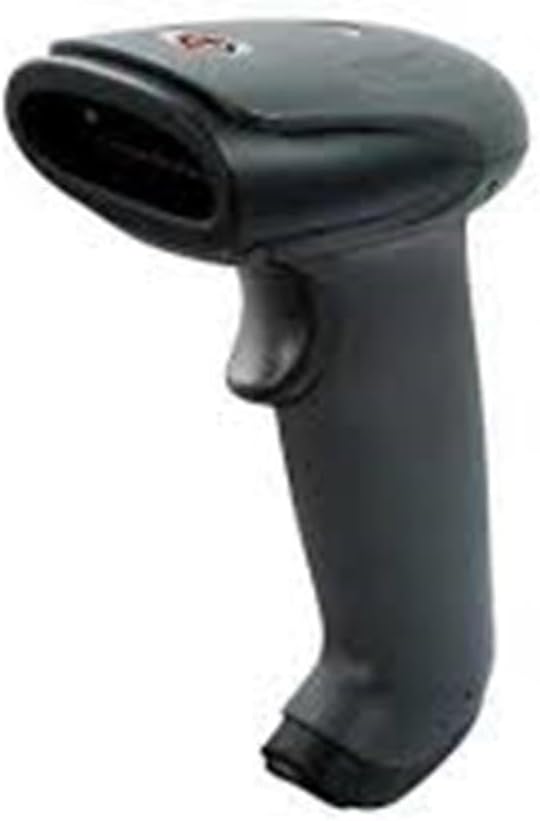
An image showing the SUNLUX XL5500 handheld barcode reader. It features a dark gray ergonomic handle, a trigger button on the top, and a scanning window at the front.
5. Setup
Follow these steps to set up your barcode reader:
- Connect the USB Cable: Insert the smaller end of the USB cable into the port at the base of the barcode reader.
- Connect to Computer: Plug the larger end of the USB cable into an available USB port on your computer.
- Driver Installation: The barcode reader is typically plug-and-play. Your operating system should automatically detect and install the necessary drivers. Wait for the installation to complete (usually indicated by a notification).
- Test Connection: Open a text editor (e.g., Notepad, Word) or any application that accepts keyboard input. The device is ready for use when it is recognized by the system.
6. Operating Instructions
To operate the SUNLUX XL5500 barcode reader:
- Power On: The device powers on automatically when connected to a USB port.
- Aim and Scan: Point the scanning window of the reader at the barcode you wish to scan. Ensure the entire barcode is within the scanning area.
- Press Trigger: Press the trigger button located on the handle. A red scanning line will emit from the window.
- Confirmation: A successful scan is typically indicated by an audible beep and/or a visual LED indicator. The scanned data will appear in the active application on your computer.
Supported Barcode Types:
- EAN-8, EAN-13, UPC-A, UPC-E
- Code 39, Code 93, Code 128
- Codabar, Interleaved 2 of 5, Industrial 2 of 5
- Matrix 2 of 5, MSI, China Post
7. Maintenance
Proper maintenance ensures the longevity and performance of your barcode reader:
- Cleaning the Scanning Window: Use a soft, lint-free cloth, slightly dampened with water or a mild, non-abrasive cleaner, to gently wipe the scanning window. Do not use harsh chemicals or abrasive materials.
- Cleaning the Exterior: Wipe the exterior of the device with a soft, dry cloth.
- Storage: When not in use, store the barcode reader in a clean, dry environment, away from direct sunlight and extreme temperatures.
8. Troubleshooting
If you encounter issues with your barcode reader, refer to the following table:
| Problem | Possible Cause | Solution |
|---|---|---|
| Reader does not power on. | USB cable not properly connected or faulty USB port. | Ensure the USB cable is securely connected to both the reader and the computer. Try a different USB port. |
| Barcode not scanning. | Barcode damaged, scanning window dirty, or incorrect aiming. | Clean the scanning window. Ensure the barcode is not damaged. Aim the scanning line directly across the entire barcode. |
| Scanned data appears incorrectly. | Keyboard language settings mismatch or corrupted data. | Verify your computer's keyboard language settings. Rescan the barcode. |
| No beep sound after scanning. | Beeper disabled or faulty. | Refer to advanced configuration options (if available) to enable the beeper. If not, the scan may still be successful if data appears. |
9. Technical Specifications
| Feature | Specification |
|---|---|
| Model | XL5500 |
| Category | CCD Reader |
| Brand | Sunlux |
| Connectivity Technology | USB Cable |
| Power Source | Wired Electric |
| Product Dimensions | 20 x 15 x 10 cm |
| Weight | 500 grams |
| Part Number | 2053871 |
10. Warranty and Support
Warranty Information:
The SUNLUX XL5500 CCD USB Barcode Reader comes with a standard manufacturer's warranty. Please refer to your purchase documentation or contact your retailer for specific warranty terms and conditions.
Customer Support:
For technical assistance, troubleshooting beyond this manual, or warranty claims, please contact your point of purchase or the official SUNLUX customer support channels. Have your product model and serial number ready when contacting support.


