
1. Introduction
This manual provides comprehensive instructions for the setup, operation, and maintenance of your UNIDEEPLY MJ2290 Wired USB Laser Barcode Scanner. Please read this manual thoroughly before using the device to ensure proper functionality and to prevent damage.

Image 1.1: The UNIDEEPLY MJ2290 Wired USB Laser Barcode Scanner with its attached USB cable.
2. Product Features
- High-Speed Decoding: Equipped with an ARM-32bit Cortex High Speed Processor, capable of up to 200 scans per second.
- Extensive Barcode Compatibility: Supports a wide range of 1D barcodes including Code39, Code93, Code32, Code128, UPC-A, UPC-E, EAN-8, EAN-13, JAN.EAN/UPC GS1 2-digit add-on, GS1 5-digit add-on, MSI/Plessey, Telepen, Post Code, Interleaved 2 of 5, Industrial 2 of 5, and Matrix 2 of 5.
- High Resolution Scanning: 3.3mil resolution allows for easy reading of high-density and long barcodes (up to 90 characters).
- Plug-and-Play USB Connectivity: Simple installation via any USB port, requiring no additional drivers for basic operation.
- Operating Modes: Supports both manual trigger scan and auto-continuous scan modes.
- Broad System Compatibility: Works with Windows 7/8/10/XP, Mac, Chromebook, and Linux operating systems, integrating seamlessly with common software like Word, Excel, Novell, and QuickBooks.
- Durable Construction: Features a rugged design capable of withstanding drops from 5.0 ft (1.5m) onto concrete. It is also IP54 rated for dust and water resistance.
- Ergonomic Design: Comfortable handheld design for extended use.
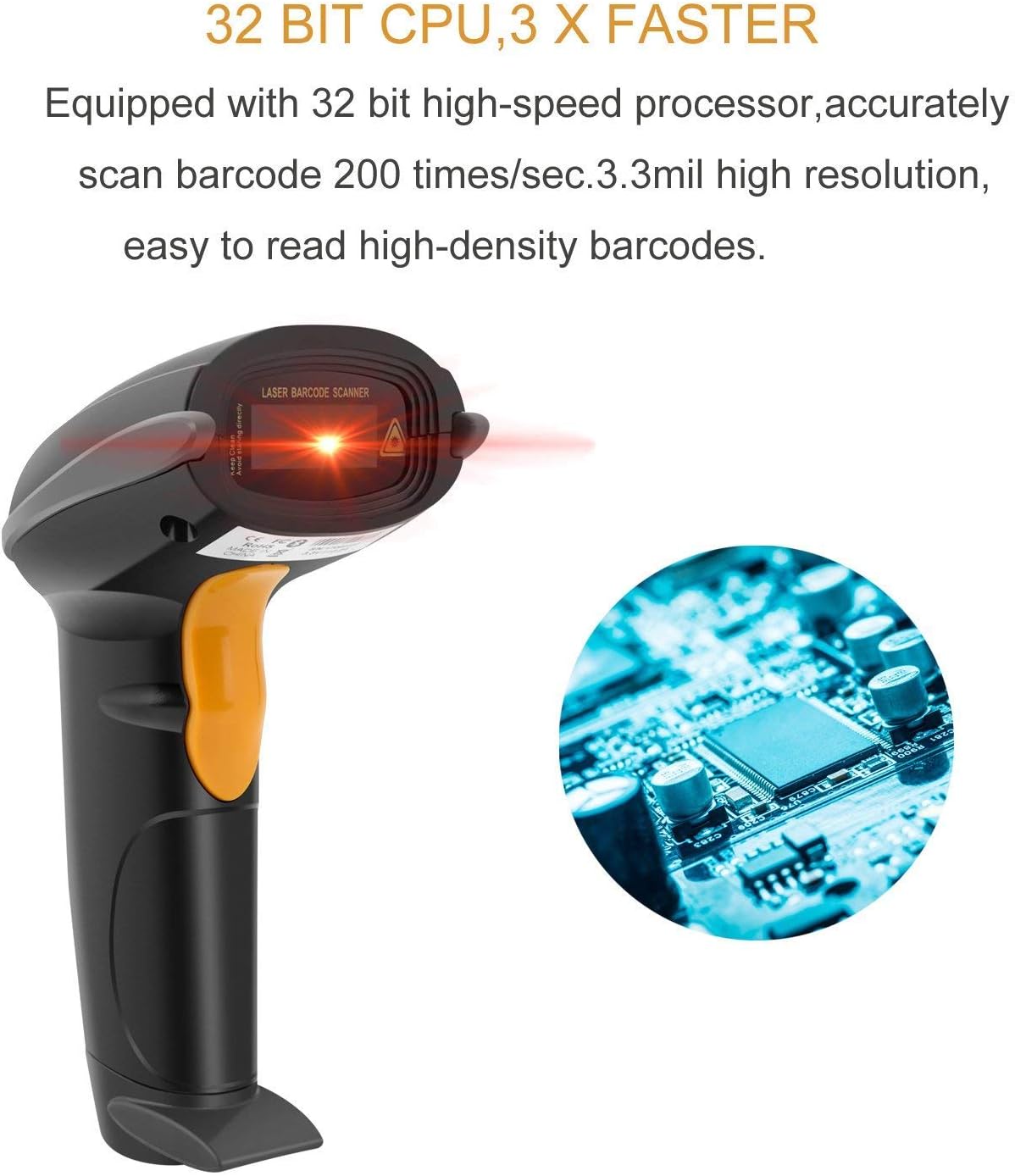
Image 2.1: The scanner's internal 32-bit high-speed processor enables fast and accurate barcode decoding.

Image 2.2: Illustrates the scanner's plug-and-play functionality and compatibility with various operating systems.
3. Safety Information
Please observe the following safety guidelines to ensure safe operation and prolong the life of your scanner:
- Laser Safety: This device uses a laser. Do not stare directly into the laser beam or point it at others' eyes.
- Environmental Conditions: Avoid exposing the scanner to extreme temperatures, direct sunlight, or highly corrosive environments.
- Handling: While the scanner is designed to be rugged, avoid unnecessary drops or impacts.
- Cleaning: Use a soft, dry cloth to clean the device. Do not use abrasive cleaners or solvents.
4. Setup Guide
The UNIDEEPLY MJ2290 scanner is designed for simple plug-and-play installation.
- Connect the USB Cable: Insert the RJ45 end of the provided USB cable into the USB port at the base of the scanner.
- Connect to Computer: Plug the USB-A end of the cable into an available USB port on your computer (PC, Mac, Chromebook, or Linux device).
- Driver Installation: Your operating system should automatically detect the scanner and install the necessary drivers. This process typically takes a few seconds.
- Ready for Use: Once the drivers are installed, the scanner is ready for immediate use. Open any application that accepts keyboard input (e.g., Notepad, Word, Excel) and test by scanning a barcode.

Image 4.1: Contents of the UNIDEEPLY MJ2290 package, including the scanner, USB cable, and user manual.
5. Operating Instructions
5.1 Scanning a Barcode
- Power On: Connect the scanner to your computer via USB. The scanner will power on automatically.
- Aim: Point the scanner's scan window at the barcode you wish to read. Ensure the laser line covers the entire barcode.
- Scan: Press and hold the trigger button. The laser will activate.
- Confirmation: Upon a successful scan, the scanner will emit a beep sound and/or the indicator light will flash. The barcode data will then be transmitted to your computer as if typed via a keyboard.
5.2 Operating Modes
The scanner supports two primary operating modes:
- Manual Trigger Mode: This is the default mode. Press the trigger button to initiate each scan. Release the button after a successful scan.
- Auto-Continuous Scan Mode: In this mode, the scanner continuously emits a laser beam, scanning barcodes automatically when they are presented within its field of view, without needing to press the trigger for each scan. To enable or disable this mode, please refer to the detailed configuration barcodes provided in the full product manual.

Image 5.1: Key components of the scanner, including the scan window, trigger, USB port, buzzer, and indicator light.
6. Maintenance
Regular maintenance helps ensure optimal performance and longevity of your scanner.
- Cleaning the Scan Window: The scan window should be kept clean for accurate scanning. Use a soft, lint-free cloth, slightly dampened with water or a mild, non-abrasive cleaner, to gently wipe the window. Avoid scratching the surface. The built-in silicone pillar helps protect the lens.
- General Cleaning: Wipe the exterior of the scanner with a soft, dry cloth. Do not use harsh chemicals or solvents.
- Cable Care: Avoid bending or twisting the USB cable excessively, as this can damage the internal wires.
- Storage: When not in use, store the scanner in a clean, dry environment away from direct sunlight and extreme temperatures.

Image 6.1: The silicone pillar designed to protect the scanning window lens from damage.
7. Troubleshooting
If you encounter issues with your UNIDEEPLY MJ2290 scanner, refer to the following common problems and solutions:
| Problem | Possible Cause | Solution |
|---|---|---|
| Scanner not recognized by computer. | Loose USB connection, faulty USB port, driver issue. |
|
| Scanner does not read barcodes. | Barcode type not supported, dirty scan window, incorrect scanning technique, damaged barcode. |
|
| No beep or indicator light upon successful scan. | Buzzer/indicator settings configured off, hardware malfunction. |
|
| Incorrect data transmitted. | Barcode reading error, incorrect keyboard layout setting. |
|
For advanced configurations, such as changing operating modes, adjusting beep volume, or customizing data output, please refer to the comprehensive user manual that came with your product or contact UNIDEEPLY customer support.
8. Specifications
| Feature | Detail |
|---|---|
| Model | MJ2290 |
| Dimensions (L x W x H) | 6.4 x 2.7 x 3.9 inches (16.26 x 6.86 x 9.91 cm) |
| Weight | 7.8 ounces (221 grams) |
| Decoding Speed | Up to 200 scans/second |
| Processor | ARM-32bit Cortex High Speed |
| Resolution | 3.3mil |
| Drop Resistance | Withstands 5.0 ft (1.5m) drop to concrete |
| Environmental Protection | IP54 (Dustproof and Water Resistant) |
| Connectivity | USB Cable (6 feet / 2 meters) |
| Compatible Operating Systems | Windows 7/8/10/XP, Mac, Chromebook, Linux |
| Supported 1D Barcodes | Code39, Code93, Code32, Code128, UPC-A, UPC-E, EAN-8, EAN-13, JAN.EAN/UPC GS1 2-digit add-on, GS1 5-digit add-on, MSI/Plessey, Telepen, Post Code, Interleaved 2 of 5, Industrial 2 of 5, Matrix 2 of 5 |
| Laser Lifetime | 10,000 hours |
| Trigger Life | 500,000 presses |
9. Warranty and Support
9.1 Warranty Information
Specific warranty details for the UNIDEEPLY MJ2290 barcode scanner may vary by region and retailer. Please retain your proof of purchase and refer to the warranty card included with your product, or contact your point of purchase for detailed warranty terms and conditions.
9.2 Customer Support
For technical assistance, troubleshooting beyond this manual, or inquiries regarding product functionality, please contact UNIDEEPLY customer support or visit the official UNIDEEPLY website for the most up-to-date information and resources.
You may also refer to the seller's support channels for assistance.