
1. Introduction
The rockspace AC1200 WiFi Extender is designed to expand your existing wireless network coverage, eliminating dead zones and providing a stable internet connection throughout your home or office. This dual-band amplifier supports both 2.4GHz and 5GHz frequencies, offering versatile connectivity options for various devices. Equipped with an Ethernet port, it also supports a Gigabit Wired Mode for stable data transmission.
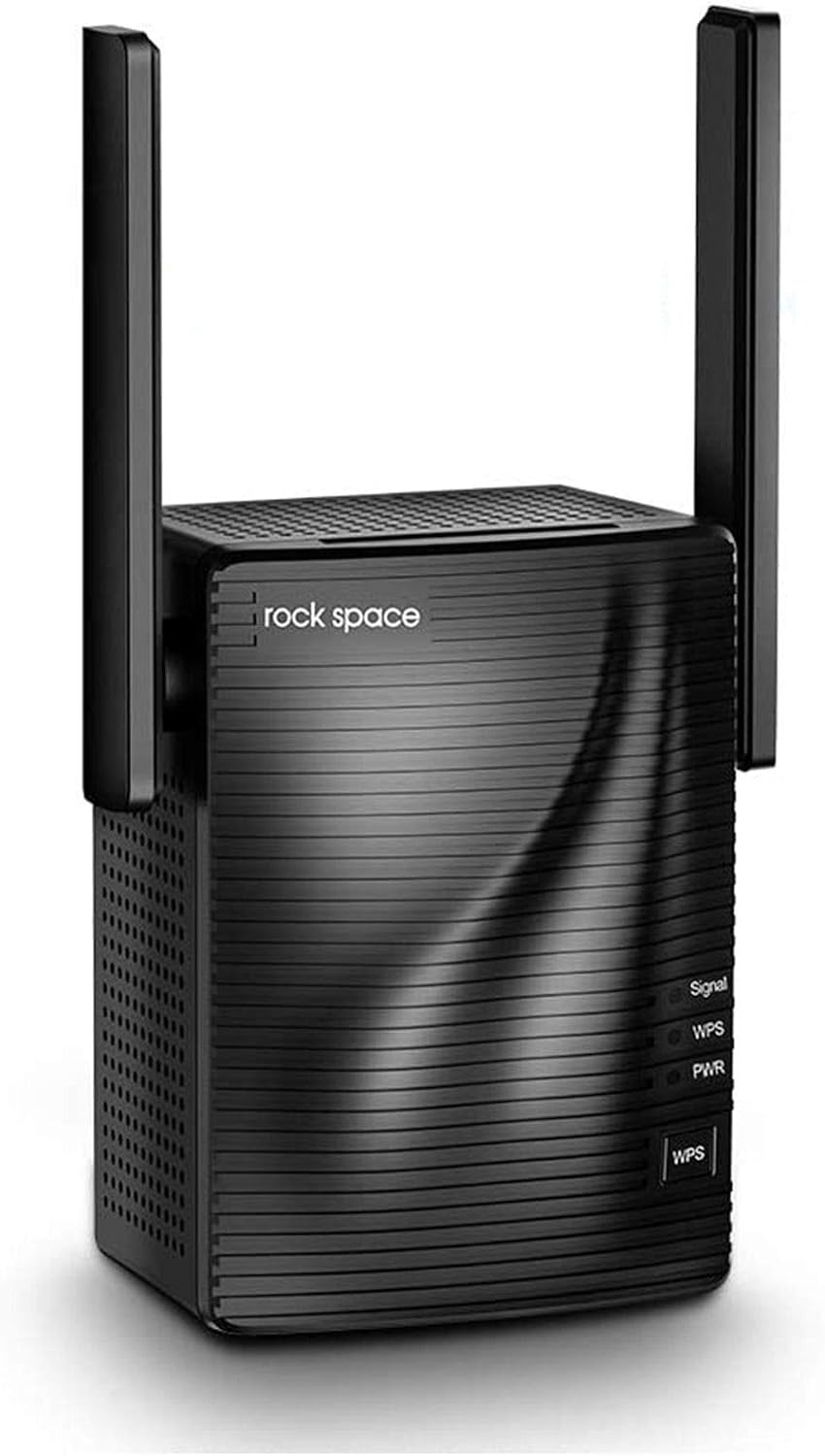
Figure 1: rockspace AC1200 WiFi Extender
2. Setup
Setting up your rockspace AC1200 WiFi Extender is a quick and straightforward process, often achievable in under a minute using the WPS button or a web-based interface.
2.1. Quick Setup via WPS Button
- Plug the rockspace extender into a power outlet near your main router.
- Wait for the Power LED on the extender to turn solid blue.
- Press the WPS button on your main router.
- Within two minutes, press the WPS button on your rockspace extender.
- The Signal LED on the extender will turn solid blue, indicating a successful connection.
2.2. Web-Based Setup
- Plug the rockspace extender into a power outlet.
- On your computer or mobile device, connect to the extender's default Wi-Fi network (e.g., "rockspace_EXT").
- Open a web browser and enter the default IP address or domain provided in the quick start guide (usually 192.168.0.254 or re.rockspace.local).
- Follow the on-screen instructions to select your main Wi-Fi network(s) and enter the password.
- Once configured, the extender will reboot and connect to your main network.
For optimal performance, relocate the extender to a location roughly halfway between your router and the Wi-Fi dead zone. Ensure the Signal LED remains solid blue for a strong connection.
Video 1: rockspace WiFi Extender Overview and Setup
3. Operating Modes
The rockspace AC1200 WiFi Extender offers flexible operating modes to suit your networking needs:
3.1. Repeater Mode (Wireless Extension)
In Repeater Mode, the extender wirelessly connects to your existing router and rebroadcasts the signal, extending Wi-Fi coverage to areas with weak or no signal. This mode is ideal for eliminating dead zones and providing seamless connectivity for mobile devices, smart home gadgets, and other wireless clients.

Figure 2: Wi-Fi coverage extended by the rockspace AC1200 Extender
3.2. Access Point Mode (Wired Connection)
Utilize the Gigabit Ethernet port to connect the extender to your router via an Ethernet cable. In Access Point Mode, the extender creates a new wireless network, converting a wired connection into a wireless hotspot. This provides a stable and high-speed Wi-Fi connection, especially beneficial for devices requiring consistent bandwidth like gaming consoles, smart TVs, or desktop computers.

Figure 3: Gigabit Wired Mode for stable network performance
3.3. Dual-Band Operation (2.4GHz & 5GHz)
The AC1200 supports simultaneous dual-band operation:
- 2.4GHz Band: Offers wider coverage and better penetration through walls and obstacles, suitable for general internet use, browsing, and connecting devices like security cameras and doorbells. (Up to 300Mbps)
- 5GHz Band: Provides faster speeds and lower latency, ideal for bandwidth-intensive activities such as online gaming, 4K video streaming, and video conferencing. (Up to 867Mbps)

Figure 4: Dual-Band Technology for diverse connectivity needs
Video 2: AC1200 WiFi Extender Features
4. Maintenance
To ensure the longevity and optimal performance of your rockspace AC1200 WiFi Extender, consider the following maintenance tips:
- Placement: Avoid placing the extender near large metal objects, concrete walls, or appliances that emit electromagnetic interference (e.g., microwaves, cordless phones).
- Firmware Updates: Regularly check for and install firmware updates through the Tether app or web interface to benefit from improved performance, security patches, and new features.
- Cleaning: Keep the device clean and free from dust accumulation, especially around ventilation areas, to prevent overheating.
- Rebooting: Periodically reboot the extender (and your main router) to refresh network connections and resolve minor performance issues.
5. Troubleshooting
If you encounter issues with your rockspace AC1200 WiFi Extender, refer to the following common troubleshooting steps:
- No Power/LEDs Off: Ensure the extender is securely plugged into a working power outlet. Try a different outlet.
- Weak Signal (Signal LED not solid blue): Relocate the extender closer to your main router. Ensure there are minimal obstructions between the extender and the router.
- No Internet Access: Verify that your main router has an active internet connection. Reboot both your router and the extender.
- WPS Connection Failure: Ensure you press the WPS button on both the router and extender within the specified time frame (usually 2 minutes). If it fails, try the web-based setup.
- Slow Speeds: While extenders improve coverage, they do not directly increase your internet speed. Ensure your extender is placed optimally to receive a strong signal from the router. Consider using the 5GHz band for faster speeds if your devices support it.
- Factory Reset: If all else fails, perform a factory reset. Locate the reset button (usually a small pinhole) on the extender, press and hold it for about 5-10 seconds until the LEDs flash, then release. This will restore the extender to its default settings, requiring re-setup.
Frequently Asked Questions (FAQ)
- Does a Wi-Fi extender increase Wi-Fi speed?
A Wi-Fi extender primarily extends Wi-Fi coverage and does not boost the speed of your original router. Improving signal reliability can sometimes affect overall throughput positively. - Would the WPS light turn off after successful installation?
The WPS indicator will turn off after a successful quick installation using the WPS button. The signal and power lights should be solid blue. A blinking or yellow signal light indicates a weak connection between the extender and the router.
6. Specifications
| Feature | Detail |
|---|---|
| Brand | rockspace |
| Model Number | AC1200 |
| Wireless Type | 802.11a, 802.11b, 802.11g, 802.11n |
| Data Transfer Rate | 1200 Megabits Per Second (300Mbps on 2.4GHz, 867Mbps on 5GHz) |
| Frequency Band Class | Dual-Band (2.4GHz & 5GHz) |
| Ethernet Port | Gigabit Ethernet Port |
| Coverage | Up to 1292 square feet |
| Dimensions (LxWxH) | 2.95 x 2.95 x 3.15 inches |
| Item Weight | 6.1 ounces |
7. Warranty and Support
For warranty information, technical support, or further assistance, please refer to the official rockspace website or contact their customer service directly. Details are typically provided in the product packaging or on the manufacturer's website.


