
Decdeal XGJ3167046817164KD
Decdeal Wi-Fi Smart Programmable Thermostat User Manual
Model: XGJ3167046817164KD
Brand: Decdeal
1. Introduction
This manual provides detailed instructions for the installation, operation, and maintenance of your Decdeal Wi-Fi Smart Programmable Thermostat. Designed for gas boiler heating systems, this thermostat offers precise temperature control and smart connectivity for enhanced comfort and energy efficiency.
The thermostat features an LCD display with backlight for clear data visibility and touch-sensitive buttons for easy interaction. Its Wi-Fi capabilities allow for remote control via a mobile application, and it is compatible with popular smart home platforms like Amazon Alexa and Google Home.

Image 1.1: Front view of the Decdeal Wi-Fi Smart Programmable Thermostat.
2. Safety Information
Please read all safety warnings and instructions carefully before installing or operating this device. Failure to follow these instructions may result in electric shock, fire, or other hazards.
- Installation should be performed by a qualified electrician in accordance with local electrical codes and regulations.
- Ensure the power supply to the heating system is turned off at the circuit breaker before any installation or wiring work.
- The thermostat is designed for 95~240 VAC, 50~60Hz power supply. Do not connect to other voltage sources.
- This thermostat model (GC) is specifically designed for gas boiler heating systems. Verify compatibility with your heating system before purchase and installation.
- Do not expose the thermostat to water or excessive humidity.
- Keep out of reach of children.
3. Package Contents
Verify that all items are present in the package:
- 1 x Decdeal Wi-Fi Smart Programmable Thermostat
- 2 x Mounting Screws
- 1 x User Manual (English)
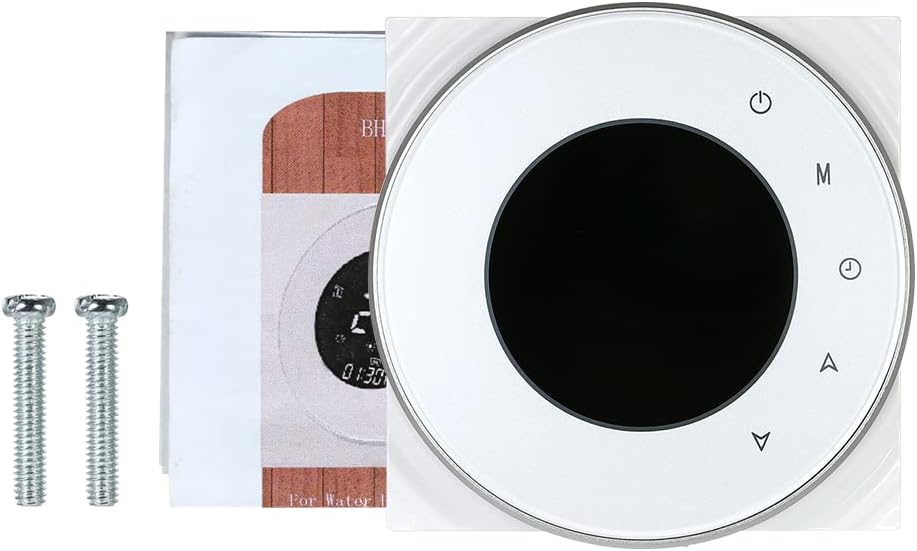
Image 3.1: Contents of the product package.
4. Specifications
| Feature | Description |
|---|---|
| Model | XGJ3167046817164KD |
| Color | White |
| Shell Material | PC + ABS (Flame Retardant) |
| Display | LCD with Backlight |
| Sensor | NTC 10K 3950 |
| Power Supply | 95 ~ 240 VAC, 50 ~ 60Hz |
| Power Consumption | <1.5W |
| Accuracy | ± 0.5 ° C |
| Timing Error | <1% |
| Set Temperature Range | 5 ~ 35 ° C |
| Display Temperature Range | 5 ~ 99 ° C |
| Support System | iOS 8.0 and above or Android 4.1 and above |
| Ambient Temperature | 0 ~ 45 ° C |
| Ambient Humidity | 5 ~ 95% RH (Non-condensing) |
| Storage Temperature | -5 ~ 45 ° C |
| Installation Hole Distance | 60mm |
| Protection Class | IP20 |
| Item Size | 90 x 90 x 38mm |
| Item Weight | 135g |
| Compatibility | Amazon Echo, Alexa, Google Home, IFTTT |

Image 4.1: Dimensions of the thermostat, showing front and side measurements.
5. Installation
Proper installation is crucial for the thermostat's functionality and safety. It is highly recommended that installation be carried out by a qualified professional.
5.1 Pre-installation Checklist
- Ensure the main power supply to your heating system is turned off.
- Confirm your heating system is a gas boiler type, compatible with this thermostat (GC model).
- Prepare an installation box: either an 86x86mm square box or a 60mm European round box (not included).
- Ensure you have appropriate wiring: 2*1.5mm² or 1*2.5mm² wire terminals are required.
5.2 Wiring and Mounting
- Carefully remove the front panel of the thermostat to access the wiring terminals.
- Connect the power and heating system wires to the corresponding terminals on the thermostat's back panel. Refer to the detailed wiring diagram provided in the physical user manual for specific connections.
- Mount the thermostat's back plate securely into the installation box using the provided mounting screws.
- Carefully reattach the front panel to the back plate, ensuring it clicks into place.
- Restore power to the heating system at the circuit breaker.

Image 5.1: Rear view of the thermostat with wiring terminals visible.

Image 5.2: The thermostat seamlessly installed on a wall.
6. Operating Instructions
The thermostat features an intuitive LCD display and touch buttons for easy operation.

Image 6.1: Labeled diagram of the thermostat's display and control buttons.
6.1 Button Functions
- Power Button (Top Right): Turns the thermostat on or off.
- Mode Button (M): Cycles through different operating modes (e.g., Manual, Program).
- Clock Button (Timer Icon): Used for setting time and programming schedules.
- Up Arrow (Triangle Up): Increases temperature, navigates menus upwards, or adjusts settings.
- Down Arrow (Triangle Down): Decreases temperature, navigates menus downwards, or adjusts settings.
6.2 Display Elements
- Week (Top Left 'i' icon): Indicates the current day of the week.
- Period (House Icon): Shows the current programming period.
- Temperature Display: Shows the current room temperature or set temperature.
- Manual (Flame Icon): Indicates manual heating mode is active.
- Time: Displays the current time.
6.3 Programming Schedules
The thermostat supports weekly programming with 5+2 (weekday/weekend) six programmable periods. This allows you to set different temperatures for various times of the day to maximize comfort and energy savings. Refer to the detailed programming instructions in your physical user manual for step-by-step guidance on setting schedules.
7. App Control and Smart Home Integration
Control your thermostat conveniently from anywhere using the dedicated mobile application. The thermostat is compatible with Tuya and Smart Life apps, and integrates with leading smart home platforms.

Image 7.1: Remote control of the thermostat via a mobile application.
7.1 Connecting to the Mobile App
- Download the Tuya Smart or Smart Life app from your mobile device's app store (iOS 8.0+ or Android 4.1+).
- Register or log in to your account.
- Ensure your thermostat is powered on and in pairing mode (refer to the physical manual for specific pairing instructions, often involving holding a button until a Wi-Fi symbol blinks).
- In the app, select 'Add Device' and choose 'Thermostat' or 'Heater'.
- Follow the on-screen prompts to connect the thermostat to your Wi-Fi network. Note: For dual-band routers, temporarily disable the 5GHz band during the initial connection if you encounter issues.
7.2 Voice Control Integration
The thermostat is compatible with Amazon Echo (Alexa) and Google Home, allowing for convenient voice control of your heating system.
- For Amazon Alexa: Enable the 'Smart Life' or 'Tuya Smart' skill in the Alexa app. Discover devices, and your thermostat will appear. You can then use commands like "Alexa, turn on the thermostat" or "Alexa, set the thermostat to 22 degrees."
- For Google Home: Link your 'Smart Life' or 'Tuya Smart' account in the Google Home app. Once linked, you can use commands like "Hey Google, turn on the thermostat" or "Hey Google, what's the temperature?"
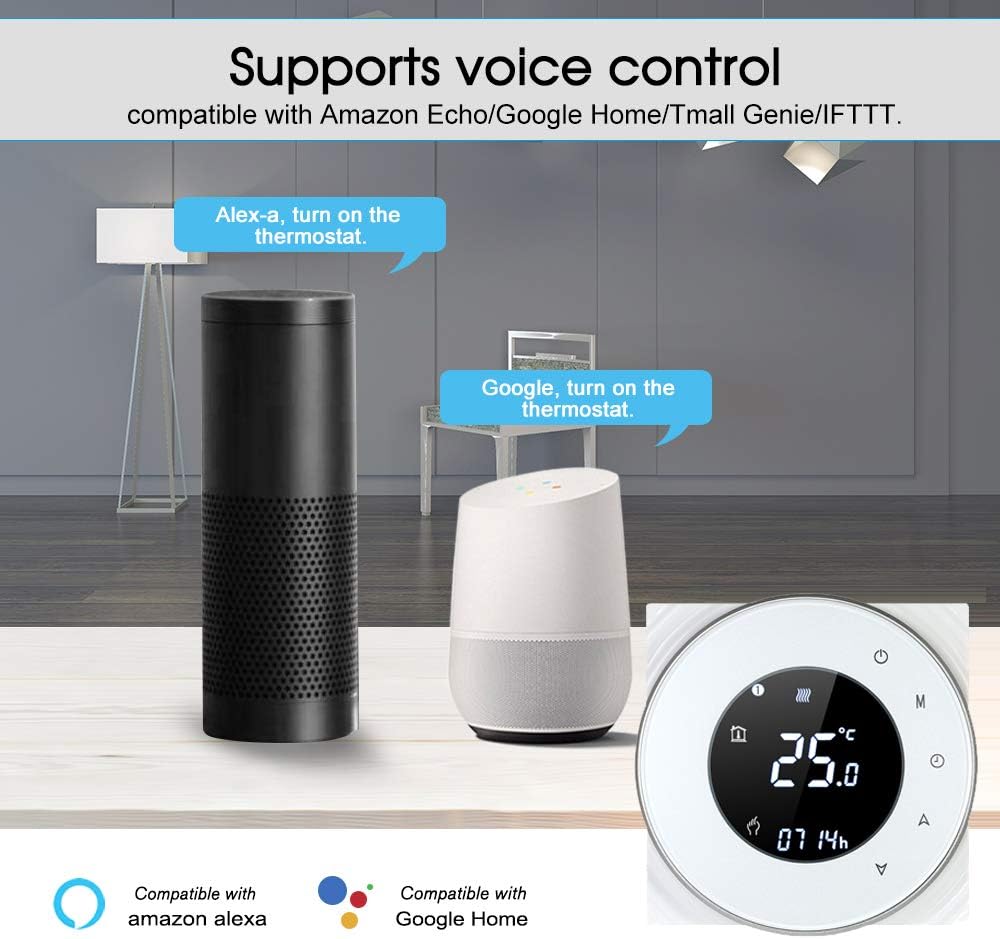
Image 7.2: The thermostat supports voice control via Amazon Alexa and Google Home.
8. Maintenance
To ensure optimal performance and longevity of your thermostat, follow these simple maintenance guidelines:
- Cleaning: Regularly wipe the thermostat's screen and body with a soft, dry cloth. Avoid using abrasive cleaners, solvents, or chemical sprays, as these can damage the surface or internal components.
- Dust Accumulation: Ensure the thermostat's vents (if any) are free from dust and debris to allow for proper air circulation and temperature sensing.
- Power Cycle: If the thermostat becomes unresponsive, try turning off the power at the circuit breaker for a few minutes, then restoring it.
No user-serviceable parts are inside. Do not attempt to open or repair the thermostat yourself.
9. Troubleshooting
If you encounter issues with your Decdeal Wi-Fi Smart Programmable Thermostat, refer to the following common problems and solutions:
| Problem | Possible Cause | Solution |
|---|---|---|
| Thermostat not powering on | No power supply; incorrect wiring; circuit breaker tripped. | Check circuit breaker. Verify wiring connections (consult a professional if unsure). Ensure 95-240V AC power is supplied. |
| Cannot connect to Wi-Fi / App | Incorrect Wi-Fi password; 5GHz Wi-Fi band interference; thermostat not in pairing mode; weak Wi-Fi signal. | Ensure correct Wi-Fi password. Temporarily disable 5GHz band on your router during setup. Put thermostat into pairing mode (refer to manual). Move router closer or use a Wi-Fi extender. |
| Thermostat not controlling heating | Incorrect wiring to boiler; thermostat in wrong mode; temperature setting too low. | Verify wiring to the gas boiler (consult a professional). Ensure thermostat is in heating mode (e.g., Manual or Program). Increase the set temperature above the current room temperature. |
| Inaccurate temperature reading | Thermostat located near heat source/draft; sensor obstruction. | Relocate thermostat away from direct sunlight, drafts, or heat-emitting appliances. Ensure no objects are blocking the sensor. |
| Voice control not working | App account not linked; incorrect voice commands; internet connectivity issues. | Ensure your Smart Life/Tuya Smart account is correctly linked in the Alexa/Google Home app. Use precise commands. Check your internet connection. |
If the problem persists after trying these solutions, please contact customer support.
10. Warranty and Support
For detailed warranty information, please refer to the warranty card included with your product or visit the official Decdeal website. The warranty typically covers manufacturing defects for a specified period from the date of purchase.
If you require technical assistance, troubleshooting beyond this manual, or have questions regarding your product, please contact Decdeal customer support through their official website or the contact information provided in your product packaging.
Please have your product model number (XGJ3167046817164KD) and purchase details ready when contacting support.
Related Documents - XGJ3167046817164KD
 |
User Manual: Solar Power Panel Exhaust Fan 3W User manual and instructions for the 3W solar-powered exhaust fan, suitable for pet houses, RVs, greenhouses, and more. Includes manufacturer and compliance information. |
Ask a question about this manual
Ask about setup, troubleshooting, compatibility, parts, safety, or missing instructions. Manuals+ will review the question and use this page’s manual context to help answer it.