
1. Introduction
This user manual provides detailed instructions for the installation, configuration, and operation of the Tenda TEG1124P-24-250W Unmanaged Gigabit PoE Ethernet Switch. Please read this manual thoroughly before using the device to ensure proper setup and optimal performance. Keep this manual for future reference.
2. Product Overview
2.1 Key Features
- 24 Gigabit Ethernet Ports (10/100/1000 Mbps)
- Power over Ethernet (PoE) support on all 24 ports
- Unmanaged switch for plug-and-play simplicity
- Total PoE power budget of 250 Watts
- Durable metal casing for robust performance
- Compatible with various PoE-powered devices such as IP cameras
2.2 Package Contents
- Tenda TEG1124P-24-250W Unmanaged Gigabit PoE Ethernet Switch
- Rack Mount Kit
- 4 Foot Pads
- Power Cord
- Quick Installation Guide
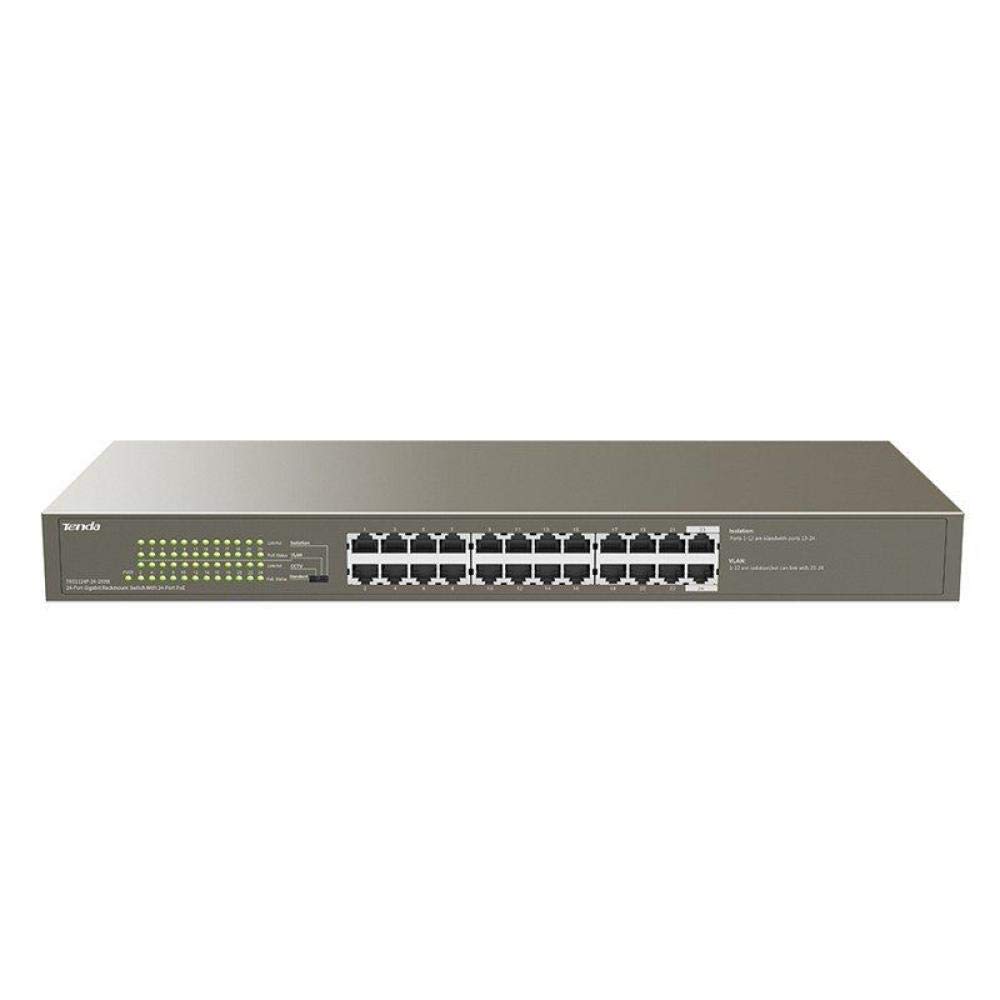
Figure 1: Front view of the Tenda TEG1124P-24-250W Unmanaged Gigabit PoE Ethernet Switch, showing 24 RJ45 ports and LED indicators.
3. Setup
3.1 Physical Installation
The Tenda TEG1124P-24-250W switch can be installed on a desktop or mounted in a standard 19-inch equipment rack.
- Desktop Placement: Attach the included rubber foot pads to the bottom of the switch. Place the switch on a flat, stable surface with adequate ventilation.
- Rack Mounting: Use the provided rack mount brackets and screws to secure the switch into a standard 19-inch equipment rack. Ensure proper airflow around the device.

Figure 2: Diagram illustrating the dimensions of the Tenda TEG1124P-24-250W switch: approximately 24.64 cm length, 16.51 cm width, and 2.79 cm height.
3.2 Connecting Devices
- Power Connection: Connect the provided power cord to the power inlet on the rear panel of the switch and then to a suitable power outlet.
- Network Devices: Connect your network devices (e.g., computers, servers, NVRs) to any of the 24 RJ45 ports using standard Ethernet cables.
- PoE Devices: For Power over Ethernet (PoE) compatible devices (e.g., IP cameras, VoIP phones, wireless access points), connect them to any of the 24 RJ45 ports. The switch will automatically detect and provide power to these devices if they are PoE compliant and within the switch's power budget.
4. Operating Instructions
4.1 Powering On
After connecting the power cord, the switch will automatically power on. The Power LED indicator on the front panel should illuminate, indicating that the device is receiving power.
4.2 LED Indicators
The front panel of the switch features LED indicators to provide status information:
- Power LED: Illuminates when the switch is powered on.
- Link/Act LEDs (per port):
- Solid Green: A stable network link is established.
- Flashing Green: Data is being transmitted or received through the port.
- Off: No network link is detected.
- PoE Status LEDs (per port):
- Solid Yellow: PoE power is being supplied to the connected device.
- Flashing Yellow: PoE power fault or overload detected.
- Off: No PoE device connected or no power being supplied.
4.3 PoE Functionality
The TEG1124P-24-250W switch automatically detects and supplies power to IEEE 802.3af/at compliant Powered Devices (PDs) connected to its ports. It is an unmanaged switch, meaning no configuration is required for basic network and PoE operation. The total power budget for PoE is 250W. Ensure that the total power consumption of all connected PoE devices does not exceed this limit.
5. Maintenance
To ensure the longevity and reliable operation of your Tenda switch, follow these maintenance guidelines:
- Cleaning: Regularly clean the exterior of the switch with a soft, dry cloth. Do not use liquid or aerosol cleaners. Ensure ventilation openings are free from dust and obstructions.
- Ventilation: Ensure the switch is placed in a well-ventilated area to prevent overheating. Do not block the ventilation holes.
- Environmental Conditions: Operate the switch within the recommended temperature and humidity ranges specified in the product specifications.
- Cable Management: Keep network cables organized and properly secured to prevent accidental disconnections or damage.
6. Troubleshooting
If you encounter issues with your Tenda TEG1124P-24-250W switch, refer to the following common problems and solutions:
- No Power:
- Ensure the power cord is securely connected to the switch and a working power outlet.
- Verify the power outlet is functional by plugging in another device.
- Check the Power LED on the front panel. If it is off, contact technical support.
- No Network Connectivity:
- Check the Link/Act LED for the connected port. If it is off, ensure the Ethernet cable is properly connected at both ends.
- Try a different Ethernet cable or port.
- Verify that the connected device (e.g., computer, router) is powered on and functioning correctly.
- PoE Device Not Powering On:
- Check the PoE Status LED for the connected port. If it is off, ensure the device is PoE compliant (IEEE 802.3af/at).
- If the PoE LED is flashing yellow, there might be a power fault or overload. Disconnect other PoE devices to reduce the total power load.
- Ensure the connected PoE device is not drawing more power than the switch can provide per port or exceeding the total 250W budget.
- Try connecting the PoE device to a different port.
7. Specifications
| Feature | Description |
|---|---|
| Brand Name | Tenda |
| Model Number | TEG1124P-24-250W |
| Product Type Name | Network Switch |
| Number of Ports | 24 |
| Switch Type | Unmanaged PoE |
| Data Transfer Rate | 1000 Mbps (Gigabit) |
| User Interface | RJ45, PoE |
| Maximum PoE Power | 250 Watts |
| Case Material Type | Metal |
| Color | Gray |
| Compatible Devices | Camera |
| Product Dimensions (L x W x H) | 24.6 cm x 16.5 cm x 2.8 cm |
| Item Weight | 3434 grams |
8. Warranty and Support
For warranty information and technical support, please refer to the warranty card included with your product or visit the official Tenda website. You may also contact your local distributor or reseller for assistance.