
1. Introduction
The FIYAPOO 4K Wireless Miracast Dongle is designed to wirelessly mirror content from your smartphone, tablet, or laptop to a larger display such as a TV or projector. This device supports multiple screen interaction protocols including AirPlay, DLNA, Miracast, and Chromecast, offering a versatile solution for both personal entertainment and professional presentations. This manual provides essential information for setup, operation, and maintenance of your device.
2. Product Overview
The FIYAPOO 4K Wireless Miracast Dongle features a compact and portable design, making it easy to carry. It is equipped with a dual-core processor for efficient performance and supports 4K HDR resolution for a crisp and detailed picture quality.

Dual Core Processor: The dongle features a dual-core CPU, designed for faster processing and to minimize issues like splash screens or freezing during operation.
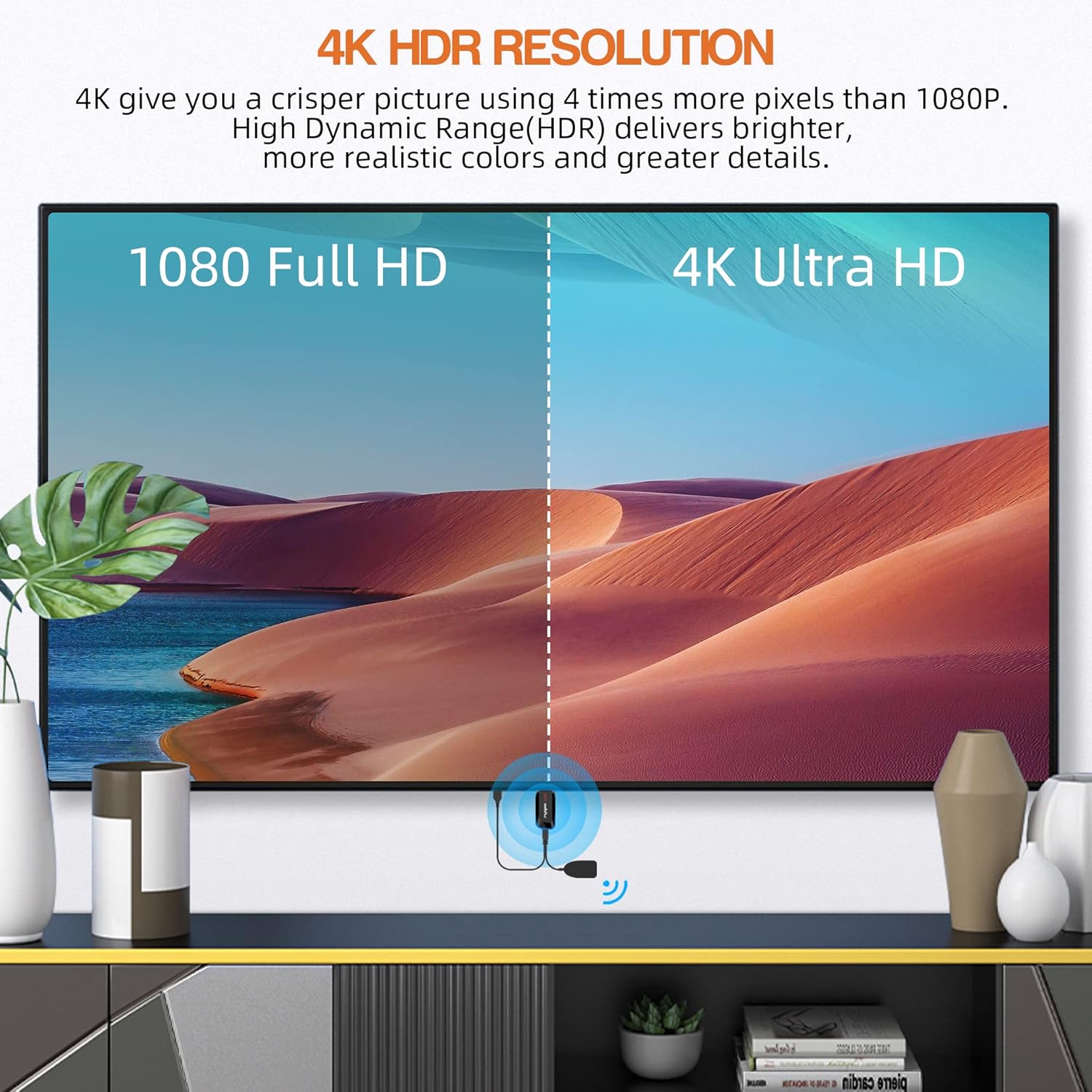
4K HDR Resolution: Experience a crisper picture with four times more pixels than 1080p. High Dynamic Range (HDR) delivers brighter, more realistic colors and greater detail.

Low Latency: Connect your mobile phone to the TV with minimal delay, ensuring a smooth and enjoyable experience for gaming and video playback on a large screen.
3. Package Contents
Please verify that all items are present in the package:
- 1 x WiFi Display Receiver (Miracast Dongle)
- 1 x Micro USB WiFi Cable
- 1 x User Manual
- 1 x HDMI Cable
4. Specifications
| Brand | FIYAPOO |
| Model Number | 9.0 |
| Color | Black |
| Product Type | TV Stick |
| Connectivity Technology | HDMI, USB, Wi-Fi |
| Connector Type | HDMI |
| Special Feature | Wireless |
| Resolution | 4K |
| Supported Internet Services | Amazon Instant Video, Netflix (Android only) |
| Compatible Devices | Android smartphones (6.0+), iOS devices (9.0+), iPhone, iPad, MacBook, Microsoft Surface Series, Miracast-compatible devices |
| Item Weight | 10 Grams |
5. Setup Instructions
Follow these steps to connect your FIYAPOO Miracast Dongle to your display:
- Connect the Dongle: Plug the Miracast dongle into an available HDMI port on your TV or projector.
- Provide Power: Connect the Micro USB WiFi cable to the dongle and then to a 5V/1A (minimum) USB power adapter or a USB port on your TV that provides sufficient power.
- Select Input: Switch your TV or projector's input source to the corresponding HDMI port where the dongle is connected. You should see the dongle's setup screen.
- Connect to Dongle WiFi: On your mobile device (phone/tablet), go to your WiFi settings and connect to the dongle's WiFi network. The SSID and password will be displayed on your TV screen (e.g., SSID: Fiyapoo-xxxxxx, Password: 12345678).
- Access Setup Page: Open a web browser on your mobile device and navigate to the IP address displayed on the TV screen (e.g., http://192.168.203.1). This page allows you to connect the dongle to your home WiFi network for internet access and firmware updates.
- Start Mirroring: Once connected, activate the screen mirroring function on your device (e.g., AirPlay for iOS, Smart View/Miracast for Android) and select the dongle from the list of available devices.

Easy Connection: The dongle is designed for simple plug-and-play setup, making it easy to connect to wall-mounted TVs or displays.
6. Operating Instructions
The dongle supports various screen projection modes:
6.1 Screen Mirroring Modes

Dual Mode Functionality: The dongle supports both 'Same Screen Mode' for synchronized display and 'Extended Mode' for displaying different content on your device and the large screen (requires specific settings on your device).
- Same Screen Mode: The content on your mobile device is synchronized and displayed identically on the large screen. This is ideal for watching videos, playing games, or sharing photos directly.
- Extended Mode: (Requires device support and specific settings) In this mode, your mobile device can display different content than the large screen, allowing for multitasking. For example, you can watch a video on the TV while browsing on your phone.
6.2 Casting Content
Once connected, you can cast various types of content:
- Video Playback: Stream videos from your device. For encrypted content like Netflix and Amazon Prime Video, only Android smartphones are supported. iOS devices do not support mirroring these services due to copyright protection.
- Gaming: Play mobile games on a larger screen with low latency.
- Presentations: Display PowerPoint, Excel, Word, PDF files, and images from your smartphone or tablet for business meetings or educational purposes.
- Audio: Stream audio content to your connected display.

Wide Content Support: The dongle supports a variety of third-party video playback software and content platforms. Note that Netflix and Hulu support is primarily for Android devices, and some video apps may not be supported due to copyright restrictions.
7. Maintenance
To ensure the longevity and optimal performance of your Miracast dongle, follow these maintenance guidelines:
- Keep Clean: Regularly wipe the dongle with a soft, dry cloth to remove dust and debris. Avoid using liquid cleaners.
- Storage: Store the dongle in a cool, dry place away from direct sunlight and extreme temperatures.
- Handle with Care: Avoid dropping or subjecting the dongle to strong impacts.
- Power Supply: Always use a stable 5V/1A power supply to prevent damage.
8. Troubleshooting
If you encounter issues with your FIYAPOO Miracast Dongle, refer to the following common solutions:
- No Display on TV:
- Ensure the dongle is securely plugged into the HDMI port.
- Verify that the TV input source is set to the correct HDMI port.
- Check if the dongle is receiving adequate power (5V/1A minimum).
- Cannot Connect to Dongle WiFi:
- Confirm the SSID and password displayed on the TV screen are entered correctly.
- Move your mobile device closer to the dongle.
- Lag or Choppy Playback:
- Ensure your home WiFi network is stable and has good signal strength.
- Reduce the distance between your mobile device, the dongle, and your WiFi router.
- Close unnecessary applications on your mobile device to free up resources.
- Netflix/Amazon Prime Video Not Working on iOS:
- This is a known limitation due to copyright protection. Encrypted video services like Netflix and Amazon Prime Video are generally only supported for mirroring from Android devices.
- Factory Reset: If the dongle does not function correctly or you experience persistent issues, you can press the Fn button on the side of the dongle to restore factory settings. This will erase all custom configurations.
9. Warranty and Support
FIYAPOO is committed to providing quality products and customer satisfaction.
- 30-Day Return Policy: You may return the product within 30 days without justification.
- 365-Day Replacement: In case of any quality issues, a replacement will be provided within 365 days of purchase.
- Customer Support: For technical assistance, warranty claims, or any other inquiries, please contact FIYAPOO customer service through the platform where you purchased the product. Please have your purchase details and model number ready for faster service.