
Introduction
Thank you for choosing the MASO 1080P HD Car DVR Dash Cam. This device is designed to record your driving journey in high definition, providing crucial evidence in case of incidents and enhancing your overall road safety. Please read this manual carefully before operating the device to ensure proper use and optimal performance.
This dash cam features 1080P Full HD recording, a 2.5-inch TFT LCD screen, G-Sensor functionality for automatic incident detection, loop recording, and night vision capabilities. It supports up to a 32GB TF card (not included).
What's in the Box
Upon opening the package, please verify that all the following items are included:
- 1 x MASO Car DVR (High Definition Version)
- 1 x USB Cable
- 1 x Suction Mount
- 1 x User Manual
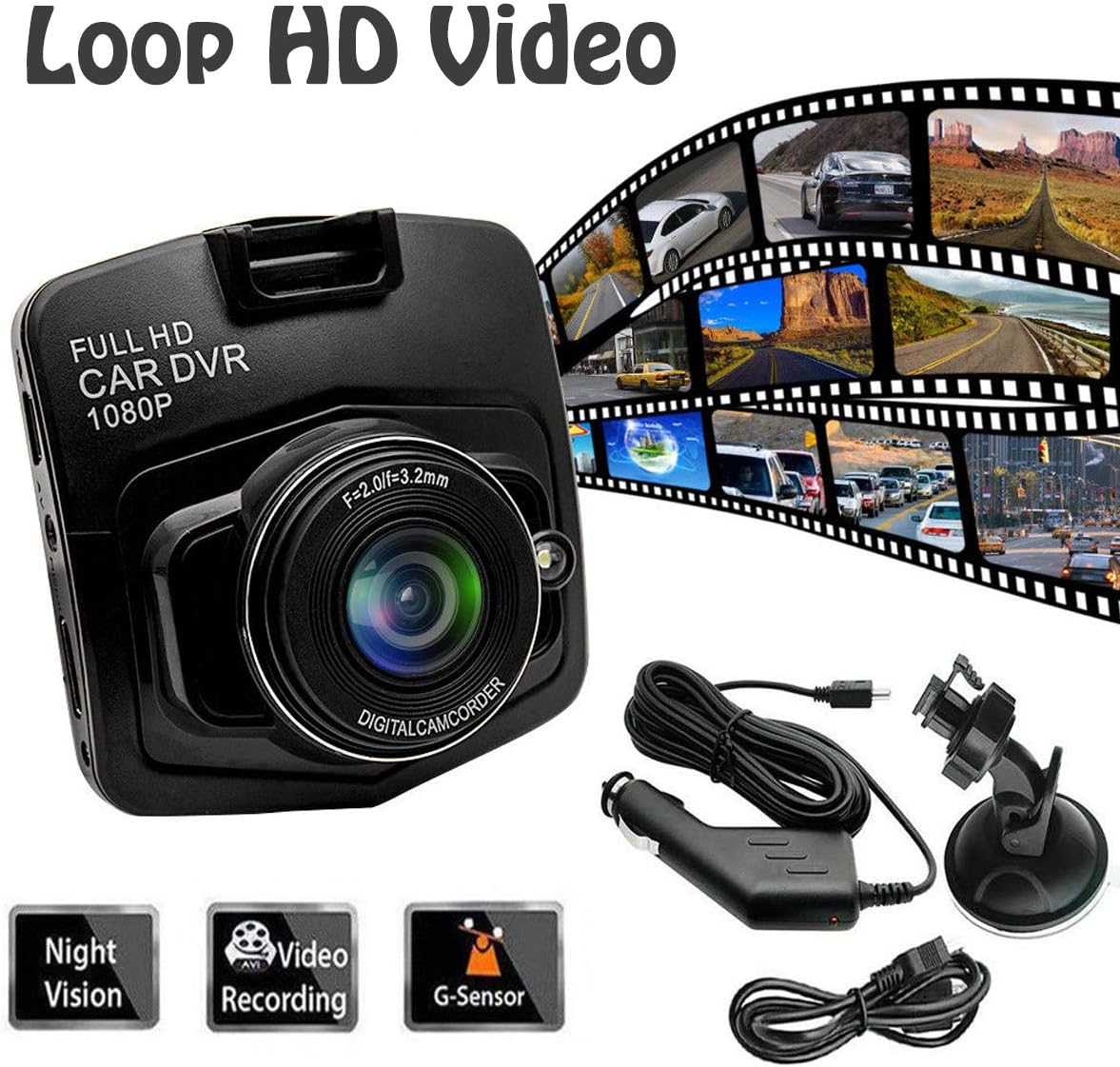
Figure 1: Package Contents. This image displays the MASO Car DVR, USB cable, suction mount, and user manual, which are included in the product package.
Specifications
| Product Name | 1080P Full High Definition Dash Cam |
| Material | Plastic |
| Color | Black |
| Current | 0.5 A |
| Voltage | DC 5 V |
| Power | 2.5 W |
| Product Size | 9 x 7 x 4 cm (approximately 3.54 x 2.76 x 1.57 inches) |
| Display | 2.5-inch TFT LCD Screen |
| Video Capture Resolution | 1080p |
| Field of View | 170 Degrees |
| Special Features | G-Sensor, Night Vision, Loop Recording, Motion Detection |
| Connectivity | USB |
| Storage | Supports up to 32GB TF card (not included) |

Figure 2: Product Dimensions. This image shows the MASO Dash Cam with its approximate dimensions of 60mm x 60mm.
Setup Instructions
Follow these steps to properly install your MASO Dash Cam in your vehicle:
- Prepare the MicroSD Card: Insert a compatible MicroSD card (up to 32GB, Class 10 or higher recommended) into the dash cam's card slot. Ensure the card is formatted before first use (refer to the "Operating Instructions" section for formatting).
- Attach Suction Mount: Securely attach the suction mount to the dash cam.
- Mount the Dash Cam: Adhere the dash cam with the suction mount to the front windshield, ideally behind the rearview mirror, ensuring it does not obstruct your view.
- Route the Power Cable: Carefully route the USB power cable along the front upper edge of the windshield and down the A-pillar.
- Connect to Power: Insert the cigarette lighter adapter into your vehicle's 12V power outlet and connect the USB cable to the adapter and the dash cam.
- Adjust Camera Angle: Power on the vehicle and adjust the camera lens to capture the desired view of the road ahead.
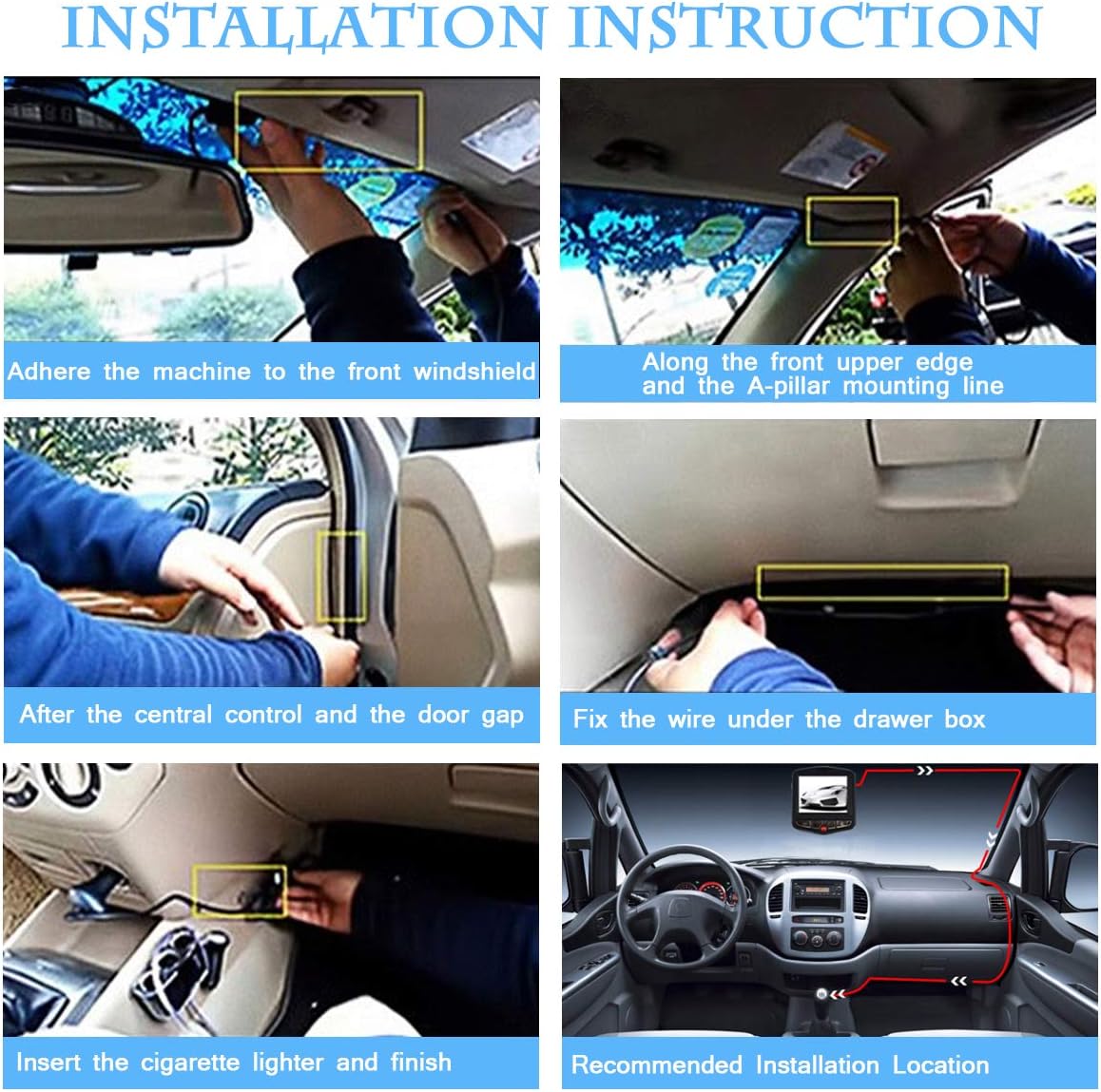
Figure 3: Installation Steps. This image illustrates the recommended installation process, including mounting the device, routing the cable, and connecting to the power source.
Operating Instructions
Power On/Off
- The dash cam will automatically power on and begin recording when your vehicle's ignition is turned on (if connected to a switched power source).
- It will automatically power off shortly after the ignition is turned off.
- To manually power on/off, press and hold the power button.
Recording Modes
- Loop Recording: The dash cam continuously records video in segments (e.g., 1, 3, or 5 minutes). When the memory card is full, it automatically overwrites the oldest unlocked footage.
- G-Sensor (Emergency Recording): In the event of a sudden impact or collision, the built-in G-Sensor will detect the event and automatically lock the current video segment, preventing it from being overwritten by loop recording. This footage is saved in a separate "Event" folder.
- Motion Detection: When enabled, the dash cam will automatically start recording if it detects motion in front of the vehicle while parked. This feature requires a continuous power supply (e.g., hardwiring kit, not included) to function when the vehicle is off.
- Night Vision: The dash cam is equipped with night vision technology to enhance video clarity in low-light conditions.

Figure 4: G-Sensor Function. This image highlights the G-Sensor's ability to lock and save important video footage with a single button press during an event.

Figure 5: Day and Night Vision. This image demonstrates the dash cam's performance in both bright daylight and low-light night conditions.
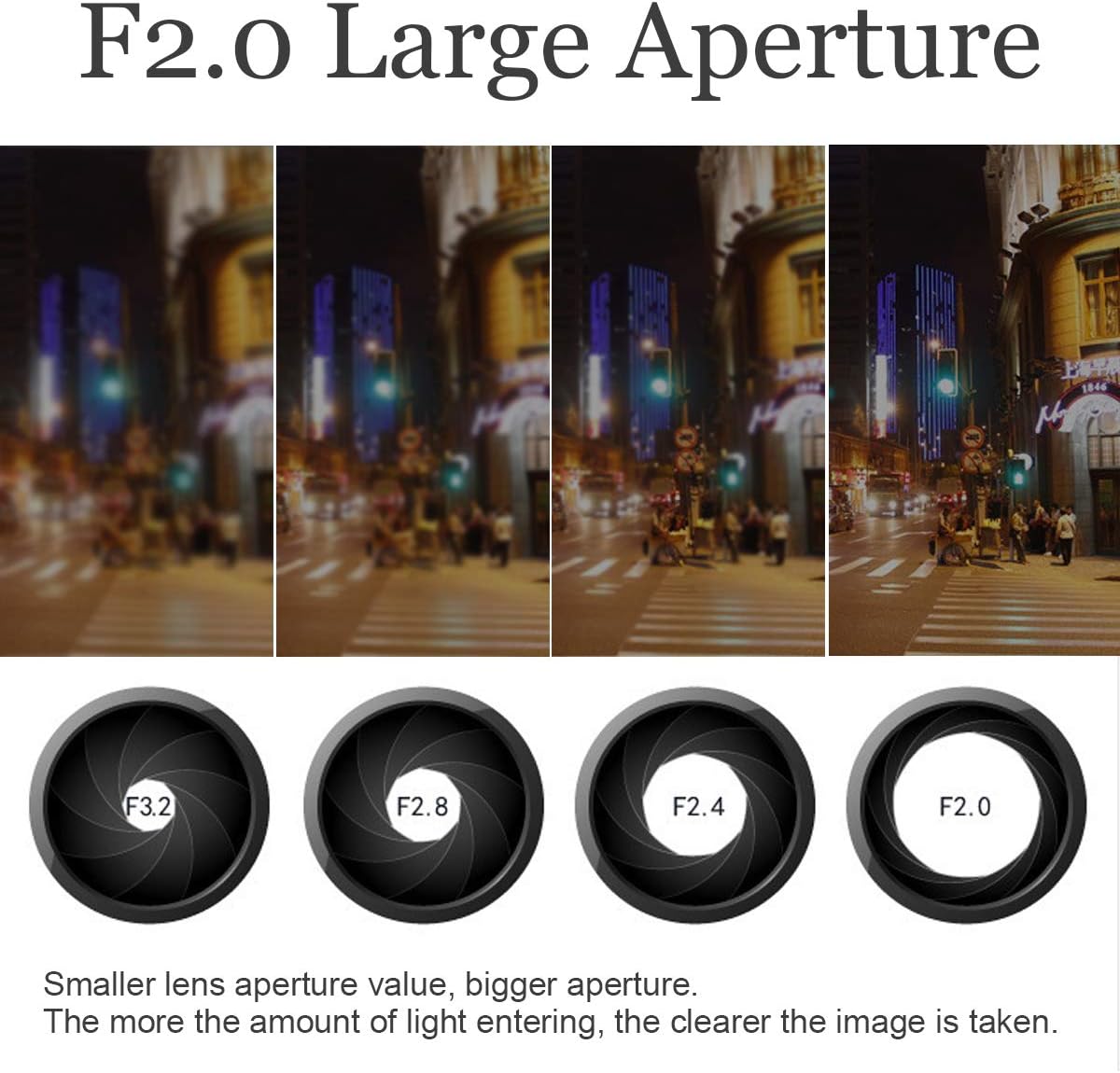
Figure 6: F2.0 Large Aperture. This image explains how a larger aperture (F2.0) allows more light to enter the lens, resulting in clearer images, especially in low light.
Menu Navigation
Use the buttons on the dash cam to navigate through the menu options. Common settings include:
- Resolution: Set video recording quality (e.g., 1080P, 720P).
- Loop Recording: Adjust segment length (e.g., Off, 1 min, 3 min, 5 min).
- G-Sensor Sensitivity: Adjust the sensitivity of the G-Sensor (Low, Medium, High, Off). Higher sensitivity means it will trigger more easily.
- Motion Detection: Enable or disable this feature.
- Date/Time Stamp: Enable or disable the display of date and time on recorded videos.
- Format SD Card: Erase all data on the MicroSD card. This is recommended periodically.
Maintenance
- Clean the Lens: Regularly clean the camera lens with a soft, lint-free cloth to ensure clear video quality. Avoid abrasive materials.
- Format MicroSD Card: It is recommended to format the MicroSD card every 2-4 weeks to maintain optimal recording performance and prevent data corruption. Back up any important files before formatting.
- Check Mount: Periodically check that the suction mount is securely attached to the windshield.
- Temperature: Avoid exposing the dash cam to extreme temperatures for extended periods, as this can affect battery life and device performance.
Troubleshooting
| Problem | Possible Solution |
|---|---|
| Dash cam does not power on. |
|
| Dash cam stops recording or shows "Card Full" error. |
|
| Video footage is blurry or unclear. |
|
| Dash cam does not save date and time. |
|
| G-Sensor is too sensitive or not sensitive enough. |
|
Warranty Information
MASO products typically come with a standard manufacturer's warranty. Please refer to the warranty card included in your package or contact MASO customer support for specific warranty terms and conditions. Keep your purchase receipt as proof of purchase for warranty claims.
Customer Support
If you encounter any issues or have questions not covered in this manual, please contact MASO customer support. You can usually find contact information on the product packaging, the official MASO website, or through your retailer.
For online resources, you may visit the MASO Store on Amazon for additional product information.