
1. Introduction
Thank you for purchasing the YSD DY28 Night Light with Bluetooth Speaker and Alarm Clock. This versatile device combines a touch-sensitive bedside lamp with warm white and color-changing light modes, a Bluetooth speaker for audio playback, and a digital calendar alarm clock. Please read this manual carefully to ensure proper use and maintenance of your device.
2. Safety Instructions
- Do not expose the device to water or excessive moisture.
- Avoid dropping or subjecting the device to strong impacts.
- Do not attempt to disassemble or repair the device yourself. Contact qualified service personnel.
- Keep the device away from heat sources and direct sunlight.
- Use only the provided charging cable and a compatible power adapter (not included) to charge the device.
- Keep out of reach of children.
3. Package Contents
Please check the package for the following items:
- YSD DY28 Night Light with Bluetooth Speaker and Alarm Clock
- USB Charging Cable
- User Manual
- 1 AAA Battery (pre-installed or included separately)
4. Product Overview
Familiarize yourself with the various parts of your YSD DY28 device.
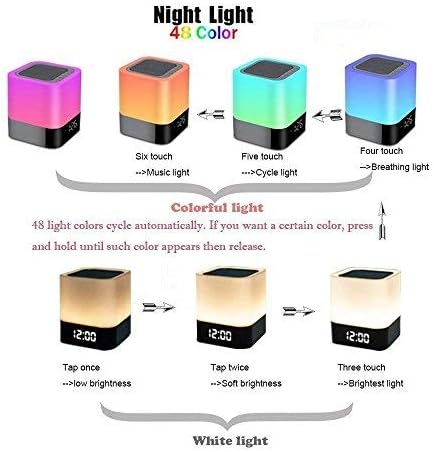
Image: Front view of the YSD DY28 Night Light, showing the digital clock display and the touch-sensitive light panel.

Image: Rear view of the YSD DY28 Night Light, highlighting the Micro SD card slot, USB Host port, USB DC charging port, and AUX-in jack.
- Top Mesh Area: Speaker output and touch sensor for light control.
- Front Display: Digital clock and calendar.
- Rear Ports: Micro SD card slot, USB Host port, USB DC charging port, AUX-in jack.
- Buttons (Top Panel, under mesh): Power/Mode, Volume Up/Next Track, Volume Down/Previous Track, Set/Alarm.
5. Charging the Device
The YSD DY28 has a built-in 4000mAh rechargeable battery. Before first use, fully charge the device.
- Connect the small end of the provided USB charging cable to the USB DC port on the back of the device.
- Connect the larger end of the USB cable to a USB power adapter (e.g., phone charger, computer USB port) or a power bank.
- The charging indicator (if available, usually a small LED) will illuminate during charging and turn off or change color when fully charged.
- A full charge typically takes several hours. The device can provide up to 10 hours of light in high mode.

Image: Visual representation of battery capacity (4000mAh), standby time (7 days), and light duration (10 hours in high mode).
6. Initial Setup (Time and Date)
To set the correct time and date:
- Power On: Press and hold the Power/Mode button (usually marked with a power symbol) on the top panel to turn on the device.
- Enter Time Setting Mode: Press and hold the "Set" button (often labeled with a clock or gear icon) until the hour display starts flashing.
- Adjust Hour: Use the Volume Up (+) and Volume Down (-) buttons to adjust the hour. Press "Set" to confirm and move to minutes.
- Adjust Minutes: Use the Volume Up (+) and Volume Down (-) buttons to adjust the minutes. Press "Set" to confirm and move to year.
- Adjust Year, Month, Day: Repeat the process for year, month, and day, pressing "Set" after each adjustment.
- 12/24 Hour Format: After setting the date, you may be prompted to select 12-hour or 24-hour format. Use the Volume Up/Down buttons to choose and "Set" to confirm.
- Exit Setting Mode: The device will automatically exit setting mode after a few seconds of inactivity, or you can press the "Set" button repeatedly until the display stops flashing.
7. Operating Instructions
7.1 Light Functions
The top mesh area of the device functions as a touch sensor for light control.
Image: Diagram illustrating touch controls for warm white and colorful light modes.
- Turn On/Off Light: Tap the top mesh area once to turn the light on or off.
- Warm White Light Modes: When the light is on, tap the top mesh area repeatedly to cycle through three brightness levels of warm white light (low, medium, high).
- Color Changing Light Modes: After the high brightness warm white mode, tap again to enter color-changing modes. These typically include:
- Automatic color cycle (48 colors).
- Single color selection (tap and hold until desired color appears, then release).
- Music light mode (light changes with music rhythm).
- Breathing light mode (colors fade in and out).
- Selecting a Specific Color: In color-changing mode, press and hold the top mesh area. The light will cycle through colors. Release your finger when the desired color is displayed to lock it.
7.2 Bluetooth Speaker Pairing
Connect your mobile device to the YSD DY28 via Bluetooth to play audio.
Image: Illustration of connecting a smartphone to the YSD DY28 via Bluetooth for music playback and hands-free calls.
- Enter Bluetooth Mode: Press the Power/Mode button repeatedly until you hear an audible prompt indicating "Bluetooth Mode" or see a Bluetooth icon on the display. The device will enter pairing mode, indicated by a flashing Bluetooth icon.
- Enable Bluetooth on Your Device: On your smartphone, tablet, or computer, go to Bluetooth settings and enable Bluetooth.
- Select "YSD DY28": Search for available devices and select "YSD DY28" from the list.
- Confirm Pairing: Once paired, you will hear a confirmation sound, and the Bluetooth icon on the device's display will stop flashing.
- Play Music: You can now play music from your connected device through the YSD DY28 speaker.
7.3 Alarm Clock Settings
Set and manage alarms on your device.
- Enter Alarm Setting Mode: Press the "Set" button once to display the current alarm time. Press and hold the "Set" button until the alarm hour display starts flashing.
- Adjust Alarm Hour: Use the Volume Up (+) and Volume Down (-) buttons to adjust the alarm hour. Press "Set" to confirm and move to minutes.
- Adjust Alarm Minutes: Use the Volume Up (+) and Volume Down (-) buttons to adjust the alarm minutes. Press "Set" to confirm.
- Turn Alarm On/Off: After setting the time, you may be prompted to turn the alarm ON or OFF. Use the Volume Up/Down buttons to select and "Set" to confirm.
- Snooze Function: When the alarm sounds, tap the top mesh area to activate snooze. The alarm will sound again after a few minutes.
- Stop Alarm: To stop the alarm completely, press any button on the top panel (except the touch sensor for snooze).
7.4 Hands-free Call Function
When connected via Bluetooth, the device supports hands-free calling.
- Answer Call: When an incoming call rings, press the Power/Mode button once to answer.
- End Call: During a call, press the Power/Mode button once to end the call.
- Reject Call: Press and hold the Power/Mode button to reject an incoming call.
- Redial Last Number: In Bluetooth mode, double-press the Power/Mode button to redial the last number.
7.5 AUX-in and Micro SD Card Playback
The YSD DY28 supports audio playback from external sources and Micro SD cards.

Image: The YSD DY28 Night Light in a yoga setting, highlighting wireless speaker, hands-free talk, memory card, and AUX line-in features.
- AUX-in Mode:
- Connect a 3.5mm audio cable (not included) from your external audio device (e.g., MP3 player, computer) to the AUX-in port on the back of the YSD DY28.
- Press the Power/Mode button repeatedly until you hear "AUX Mode" or see "AUX" on the display.
- Control playback from your external device.
- Micro SD Card Playback:
- Insert a Micro SD card (up to 32GB, not included) with MP3 audio files into the Micro SD card slot on the back of the device.
- Press the Power/Mode button repeatedly until you hear "SD Card Mode" or see "SD" on the display.
- The device will automatically start playing music from the card. Use the Volume Up (+) and Volume Down (-) buttons to skip tracks.
- USB Host Playback:
- Insert a USB flash drive (not included) with MP3 audio files into the USB Host port on the back of the device.
- Press the Power/Mode button repeatedly until you hear "USB Mode" or see "USB" on the display.
- The device will automatically start playing music from the USB drive. Use the Volume Up (+) and Volume Down (-) buttons to skip tracks.
Note: The USB Host port is primarily for playing music from a USB drive, not for charging external devices.
8. Maintenance
- Cleaning: Wipe the device with a soft, dry cloth. Do not use abrasive cleaners or solvents.
- Storage: Store the device in a cool, dry place when not in use for extended periods.
- Battery Care: To prolong battery life, charge the device regularly, even if not in frequent use. Avoid fully discharging the battery for long periods.
9. Troubleshooting
| Problem | Possible Cause | Solution |
|---|---|---|
| Device does not turn on. | Battery is depleted. | Charge the device using the provided USB cable. |
| Bluetooth pairing fails. | Bluetooth not enabled on device; device too far; incorrect pairing mode. | Ensure Bluetooth is enabled on your phone/tablet. Place devices closer. Ensure the YSD DY28 is in Bluetooth pairing mode (flashing icon). |
| No sound from speaker. | Volume too low; incorrect mode; device not paired. | Increase volume on both the YSD DY28 and your connected device. Ensure correct mode (Bluetooth, AUX, SD). Re-pair Bluetooth if necessary. |
| Light does not respond to touch. | Device is off; touch sensor malfunction. | Ensure the device is powered on. If problem persists, contact support. |
| Cannot set time/alarm. | Not in setting mode; incorrect button presses. | Refer to Section 6 and 7.3 for detailed instructions on entering and navigating setting modes. |
10. Specifications
| Model Number | DY28 |
| Brand | YSD |
| Power Source | Battery Powered |
| Battery Capacity | 4000mAh |
| Connectivity | Bluetooth, USB, AUX-in, Micro SD Card |
| Light Modes | Warm White (3 levels), 48 Color Changing (Auto Cycle, Single Color, Music Light, Breathing Light) |
| Features | Touch Sensor Light, Bluetooth Speaker, Digital Calendar, Alarm Clock, Hands-free Calls |
| Material | Plastic |
| Item Weight | 16 ounces |
| Dimensions (Approx.) | 3.9" x 3.9" x 4.4" (based on image) |
| Included Components | Battery, USB Cable |

Image: Dimensions of the YSD DY28 Night Light.
11. Warranty and Support
YSD products are manufactured to high-quality standards. For warranty information, technical support, or customer service inquiries, please refer to the contact information provided at the point of purchase or visit the official YSD website. Please retain your proof of purchase for warranty claims.