
Introduction
The Alilo M7 Explorer is an interactive and intelligent robotic toy designed to introduce children to STEM concepts through engaging play. It supports visual programming using a Scratch Blocky-based editor, developed by MIT and Google, and offers multiple operation modes both with and without a companion application. This manual provides essential information for setting up, operating, maintaining, and troubleshooting your Alilo M7 Explorer robot.
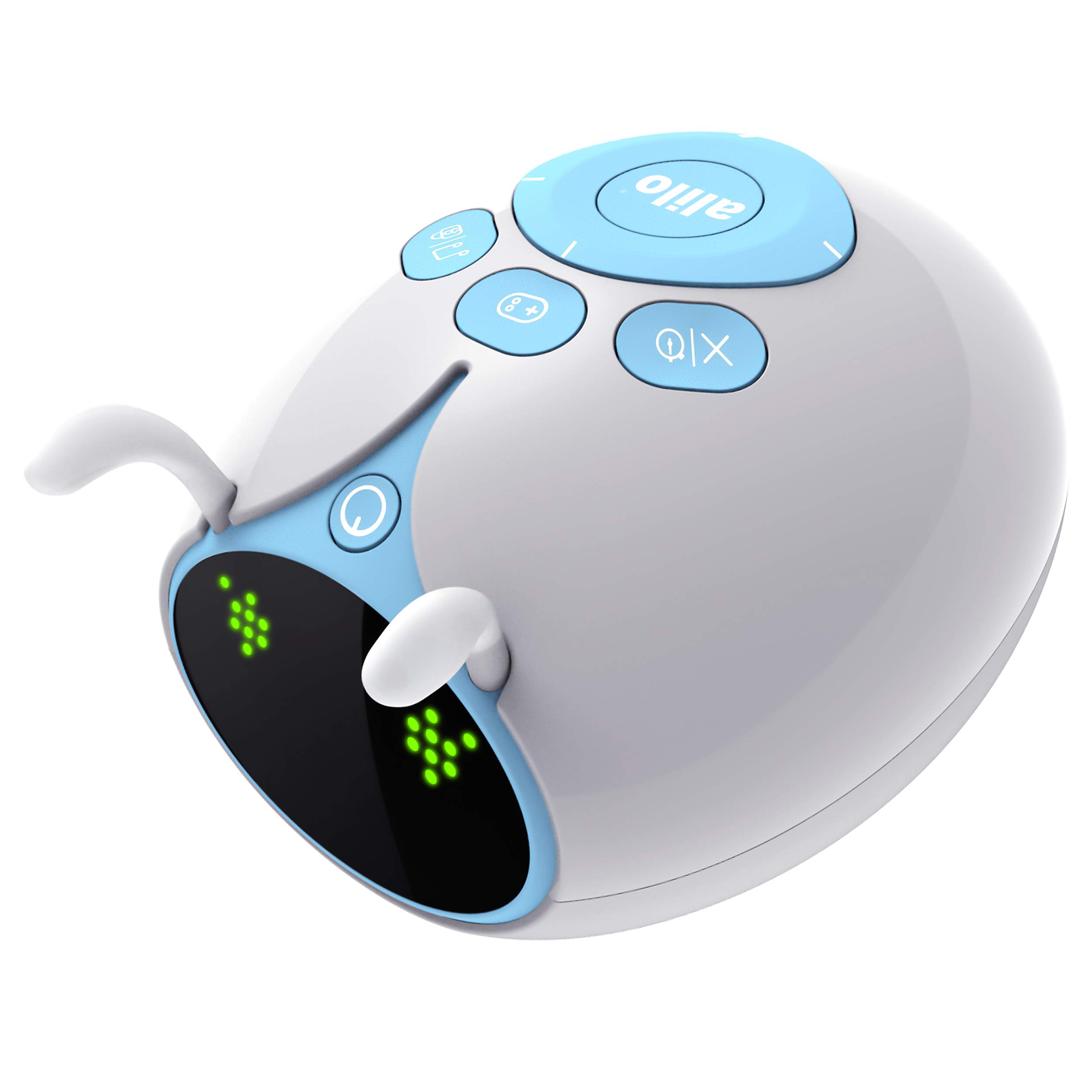
Image: Front view of the Alilo M7 Explorer Robot, showcasing its friendly design and control buttons.
Safety Information
- The Alilo M7 Explorer is suitable for children aged 36 months and above.
- Ensure the robot is used under adult supervision, especially during initial setup and programming.
- Keep the robot away from water and excessive moisture.
- Do not attempt to disassemble or modify the robot, as this may void the warranty and pose safety risks.
- Use only the provided charging cable for recharging the built-in battery.
- The product is made from BPA-free, Phthalates-free, and Lead-free materials, ensuring child safety.
Package Contents
Verify that all items are present in the package:
- 1 x Alilo M7 Programming Robot
- 25 x Interchangeable Programming Cards
- 1 x USB Charging Cable
- 1 x User Guide (this document)
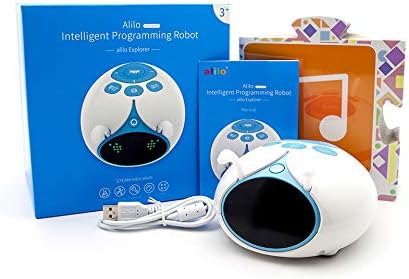
Image: The Alilo M7 Explorer Robot, its packaging, charging cable, and programming cards.
Setup
1. Charging the Robot
The Alilo M7 Explorer has a built-in rechargeable Lithium Ion battery. Before first use, fully charge the robot.
- Connect the small end of the USB charging cable to the charging port on the robot.
- Connect the larger end of the USB charging cable to a standard USB power adapter (not included) or a computer's USB port.
- The robot's indicator light will show charging status (refer to the robot's specific light indicators for details, usually red for charging, off/green for full).
- Once fully charged, disconnect the charging cable.
2. Powering On/Off
- To power on: Press and hold the power button located on the robot until it activates.
- To power off: Press and hold the power button until the robot shuts down.
- The robot features a 30-minute sleep power-saving mode to conserve battery when inactive.
Operating the Alilo M7 Explorer
The Alilo M7 Explorer offers various modes of operation, both independently and with a companion application.
Modes Without the App
These modes allow for direct interaction with the robot without requiring a smartphone or tablet.
- Programming Card Mode:
Utilize the 25 interchangeable programming graphic cards to create command sequences.- Lay a combination of programming cards on a flat surface, forming a path or sequence of actions.
- Place the Alilo M7 Explorer at the start of the card sequence.
- The robot will read the embedded codes in the graphics and execute the corresponding commands (e.g., move forward, turn, play sound).
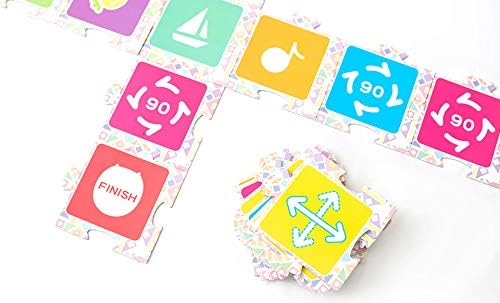
Image: A selection of colorful programming cards laid out, demonstrating how they can be arranged to create a sequence of commands for the robot.
- Press Mode:
Manually program a route using the robot's physical buttons.- Press the forward, backward, left, and/or right buttons on the robot to input a desired movement sequence.
- The robot will memorize this sequence.
- Press the 'Start' button to initiate the robot's movement along the programmed route.
Modes With the App
Download the official Alilo M7 Explorer app from your device's app store to unlock advanced functionalities. The app connects via Bluetooth wireless connectivity.
- Remote Control Mode:
Control the robot's movements directly using your smartphone or tablet as a remote.- Open the app and connect to your Alilo M7 Explorer via Bluetooth.
- Use the on-screen controls to navigate the robot.
- Path Drawing Mode:
Draw a custom path on your device's screen for the robot to follow.- Within the app, select the path drawing feature.
- Draw a desired route on the screen. The robot will then attempt to follow this path.
- Blocky Programming Mode:
Engage in visual programming using the Scratch Blocky editor.- Access the programming interface within the app.
- Drag and drop visual code blocks to create complex sequences and behaviors for the robot. This mode promotes logical thinking and problem-solving skills.
- Voice Control Mode:
Command the robot using voice recognition powered by AI.- Enable voice control in the app.
- Speak commands to the robot, and it will respond accordingly.

Image: Two Alilo M7 Explorer Robots (blue and pink) positioned next to a tablet displaying the Alilo control application interface.

Image: A child interacting with the Alilo M7 Explorer Robot on a carpeted floor, using a smartphone to control or program the robot.
Maintenance
Cleaning
To clean your Alilo M7 Explorer:
- Wipe the robot's surface with a soft, dry cloth.
- Do not use harsh chemicals or abrasive cleaners.
- Avoid getting moisture into any openings.
Battery Care
- Recharge the battery regularly, even if the robot is not in use for extended periods, to maintain battery health.
- Avoid completely draining the battery before recharging.
- Store the robot in a cool, dry place when not in use.
Troubleshooting
- Robot not turning on: Ensure the battery is charged. Connect the charging cable and try again after a few minutes.
- Robot not responding to commands: Check if the robot is powered on. If using programming cards, ensure they are laid flat and clearly visible to the robot's sensors. If using the app, verify Bluetooth connection.
- App connectivity issues: Ensure Bluetooth is enabled on your device and the robot. Try restarting both the robot and your device. Make sure the app is updated to the latest version.
- Robot not following path accurately: Ensure the surface is flat and clear of obstructions. For programming cards, ensure they are correctly aligned.
- Short battery life: Ensure the robot is fully charged before use. Reduce continuous heavy usage. The robot enters a sleep mode after 30 minutes of inactivity to save power.
Specifications
| Model | Alilo M7 Explorer |
| Connectivity | Bluetooth Wireless |
| Battery Type | Built-in Rechargeable Lithium Ion (1 included) |
| Power Saving | 30 min sleep mode |
| Materials | Plastic (BPA-free, Phthalates-free, Lead-free) |
| Target Gender | Unisex |
| Manufacturer Minimum Age | 36 Months |
| Dimensions (Package) | 18.1 x 18 x 14.1 cm |
| Weight (Package) | 1.59 kg |
Warranty and Support
For detailed warranty information, please refer to the product packaging or visit the official Alilo website. For further assistance, technical support, or inquiries, please contact Alilo customer service through their official channels.
Official Alilo Website: www.alilo.com (Note: This is a placeholder URL. Please refer to your product's documentation for the correct website.)


