
VSTARCAM CS66Q-X1812
VSTARCAM PTZ Camera Outdoor User Manual
Model: CS66Q-X1812
Introduction
The VSTARCAM PTZ Camera Outdoor is a high-performance security solution designed for comprehensive outdoor surveillance. Featuring 4MP resolution, 18X optical zoom, and advanced AI Humanoid Detection, this camera provides clear, detailed footage day and night. Its robust IP65 waterproof design ensures reliable operation in various weather conditions, while two-way audio allows for interactive communication. This manual will guide you through the installation, operation, and maintenance of your VSTARCAM PTZ camera.

Image: The VSTARCAM PTZ Camera Outdoor, a white dome camera with a black lens housing, mounted on a wall bracket. A smartphone screen next to it displays a live view of a building, demonstrating the camera's remote monitoring capability.
Setup
Follow these steps to set up your VSTARCAM PTZ Camera:
- Power Connection and Network Setup: Plug in the camera's power cable. For initial setup, connect your smartphone to the same Wi-Fi network that the camera will use, or connect the camera directly via Ethernet cable.
- Download and Register Eye4 APP: Download the "Eye4" application from your smartphone's app store or by visiting WWW.Eye4.cn/AppDown.html. Register for an account within the app.
- Add Camera and Start Viewing: Follow the in-app instructions to add your camera. This typically involves scanning a QR code on the camera or entering its UID. Once added, you can begin live viewing and configuring settings.

Image: A visual guide illustrating the three setup steps: 1) Plug in camera and connect phone to WiFi, 2) Download "Eye4" APP and register, 3) Add camera and start viewing.
Mounting
The camera is designed for wall mount installation. Ensure the mounting surface is sturdy enough to support the camera's weight and that the camera is positioned for optimal viewing coverage.
Operating
PTZ Control and Optical Zoom
The camera features 18X optical zoom and Pan-Tilt-Zoom (PTZ) capabilities, allowing for a 350° horizontal pan and 90° vertical tilt. Use the Eye4 app to remotely control the camera's direction and zoom in on specific details without losing image clarity.

Image: The VSTARCAM camera positioned overlooking a golf course, with an inset showing an 18X zoomed-in view of a distant area, highlighting its optical zoom capability.
AI Humanoid Detection & Auto Tracking
The camera utilizes AI human detection to distinguish human figures from other moving objects, significantly reducing false alarms. When a person enters a customized detection area, the camera can automatically track their movement and send immediate alerts to your phone app.

Image: The VSTARCAM camera overseeing a lawn where children are playing. The image illustrates the human detection and auto-tracking feature, with outlines around the children and a phone notification indicating a visitor.
Siren Alarm and Motion Detection
Upon detecting suspicious moving objects, the camera can activate a siren alarm to deter intruders and simultaneously send real-time alert messages to your mobile application. This feature enhances proactive security.
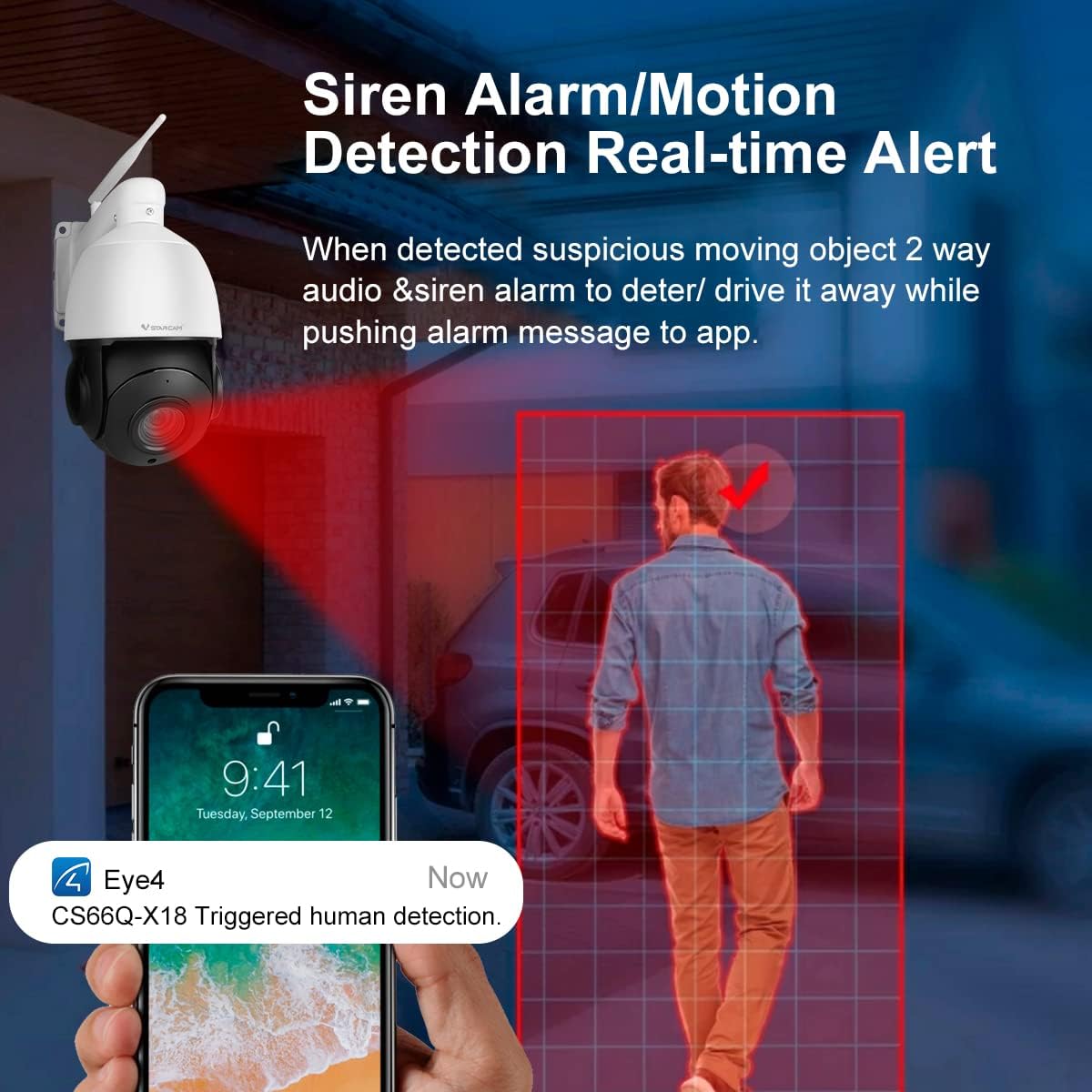
Image: The VSTARCAM camera with a red light indicating an alarm, focused on a person walking. A smartphone screen shows a notification: "CS66Q-X18 Triggered human detection," demonstrating the real-time alert system.
Two-Way Audio
Equipped with a built-in speaker and microphone, the camera supports two-way audio communication. This allows you to interact with visitors or deter unwanted individuals remotely through the Eye4 app.

Image: The VSTARCAM camera positioned near a door, with a delivery person outside. Speech bubbles illustrate a two-way conversation: "Hi, You got a package" from the delivery person and "Put it at the door, thanks" from the user via the phone app.
Infrared Night Vision
The camera provides clear night vision up to 165 feet (50 meters), ensuring continuous surveillance even in complete darkness. It utilizes infrared technology to capture detailed black and white images at night.

Image: The VSTARCAM camera overlooking a city street at night. A smartphone screen displays the scene in black and white, demonstrating the camera's infrared night vision capabilities.
Storage Options
The camera supports local storage via a Micro SD card (up to 128GB, not included) and offers encrypted cloud storage services (subscription may be required). Motion-triggered video clips can be saved to either option.
Maintenance
To ensure optimal performance and longevity of your VSTARCAM PTZ Camera, regular maintenance is recommended:
- Cleaning: Periodically wipe the camera lens and exterior with a soft, damp cloth. Avoid using harsh chemicals or abrasive materials that could damage the surface or lens.
- Firmware Updates: Check the Eye4 app regularly for available firmware updates. Keeping the camera's firmware up-to-date ensures access to the latest features, security patches, and performance improvements.
- Cable Inspection: For wired installations, periodically inspect all cables for any signs of wear, damage, or corrosion. Ensure all connections are secure.
- Environmental Protection: While the camera is IP65 waterproof, extreme weather conditions (e.g., prolonged heavy rain, snow, or direct sunlight) can still impact performance over time. Ensure proper installation to minimize direct exposure where possible.
Troubleshooting
If you encounter issues with your VSTARCAM PTZ Camera, refer to the following common troubleshooting tips:
- No Power/Indicator Light Off: Ensure the power adapter is securely connected to both the camera and a working power outlet. Check the power source.
- Cannot Connect to Wi-Fi: Verify your Wi-Fi password is correct. Ensure the camera is within range of your Wi-Fi router. If using a dual-band router, try connecting to the 2.4GHz network.
- Poor Image Quality: Check if the lens is clean. Ensure there is sufficient lighting in the surveillance area. For night vision, ensure no obstructions are blocking the infrared LEDs.
- Motion Detection Not Triggering/Too Many False Alarms: Adjust the motion detection sensitivity settings within the Eye4 app. Define specific detection zones to minimize unwanted triggers.
- Two-Way Audio Issues: Ensure the microphone and speaker settings are enabled in the app. Check your phone's volume and microphone permissions for the Eye4 app.
- Camera Unresponsive (Pan/Tilt/Zoom): Check network connectivity. If the camera is frozen, try power cycling it (unplug and replug). As a last resort, locate the reset button (refer to the product diagram) and press and hold it for several seconds to restore factory settings.

Image: A detailed diagram of the VSTARCAM camera, highlighting key components such as the WiFi antenna, TF card slot, speaker, microphone, HD lens, power interface, Ethernet port, and reset button, along with its dimensions.
For further assistance, consult the Eye4 app's help section or contact VSTARCAM customer support.
Specifications
| Feature | Specification |
|---|---|
| Model Number | CS66Q-X1812 |
| Video Capture Resolution | 4MP (2560*1440@30fps) |
| Optical Zoom | 18X |
| Pan/Tilt Range | 350° Pan, 90° Tilt |
| Night Vision Range | 165 feet (50 meters) |
| Connectivity | Wi-Fi, Ethernet Cable |
| Waterproof Rating | IP65 |
| Storage Support | Micro SD Card (up to 128GB), Cloud Storage |
| Power Source | 12V DC, 6W |
| Dimensions (L x W x H) | 11 x 9 x 6 inches |
| Item Weight | 14.1 ounces (0.4 kg) |
| Control Method | Mobile App (Eye4) |
Warranty and Support
For information regarding product warranty, please refer to the warranty card included with your purchase or visit the official VSTARCAM website. For technical support, troubleshooting assistance, or any inquiries not covered in this manual, please contact VSTARCAM customer service through the contact information provided on their official website or within the Eye4 application.
Ask a question about this manual
Ask about setup, troubleshooting, compatibility, parts, safety, or missing instructions. Manuals+ will review the question and use this page’s manual context to help answer it.