
UNIKAMI SQ13
UNIKAMI Mini Camera SQ13 User Manual
Model: SQ13
Introduction
Thank you for purchasing the UNIKAMI Mini Camera SQ13. This compact and versatile camera is designed for various recording needs, offering 1080P HD video, IR night vision, and motion detection capabilities. Please read this manual carefully before using the product to ensure proper operation and to maximize its features.
What's in the Box
- UNIKAMI Mini Camera SQ13 (Dark Red)
- User Manual
- Giftbox Packing
- USB Data Cable
- Camera Mount
- Waterproof Case
Product Overview
Familiarize yourself with the camera's components and controls.

Figure 1: UNIKAMI Mini Camera SQ13 and Included Accessories. This image displays the compact camera unit, its transparent waterproof housing, and a universal mounting bracket, along with two additional views of the camera without the case.

Figure 2: Camera Controls and Indicators. This image highlights the various buttons, LED indicators, and ports on the camera body, essential for operation.
Key Components:
- Lens: 155-degree wide-angle lens for broad coverage.
- IR LEDs: 8 infrared lights for night vision.
- Power Button: Turns the camera on/off.
- Mode Button: Switches between video, photo, and motion detection modes.
- USB Port: For charging and data transfer.
- MicroSD Card Slot: Supports up to 64GB TF card for storage.
- Reset Hole: For factory reset.
- Microphone: For audio recording.
Setup
1. Charging the Camera
Before first use, fully charge the camera. Connect the camera to a USB power source (e.g., computer USB port or wall adapter) using the provided USB data cable. The charging indicator light will illuminate during charging and turn off when fully charged.
2. Inserting a MicroSD Card
The camera requires a MicroSD (TF) card for storing recordings. Ensure the camera is off before inserting or removing the card.
- Locate the MicroSD card slot on the camera.
- Gently insert the MicroSD card into the slot with the gold contacts facing down until it clicks into place.
- To remove, push the card in slightly until it springs out.
Note: A Class 10 or higher MicroSD card (up to 64GB) is recommended for optimal performance.
Operating the Camera
Power On/Off
- To Power On: Press and hold the Power button for 2-3 seconds. The indicator light will turn on.
- To Power Off: Press and hold the Power button for 5 seconds. The indicator light will turn off.
Mode Selection
Press the Mode button to cycle through different operating modes:
- Video Recording Mode: Records continuous video.
- Photo Mode: Takes still images.
- Motion Detection Mode: Records video only when motion is detected.
Video Recording
- Power on the camera.
- Ensure the camera is in Video Recording Mode (check indicator light).
- Press the Power button once to start recording. The indicator light will flash.
- Press the Power button again to stop recording. The indicator light will stop flashing and remain solid.
Video: Example of video recording quality from the SQ13 camera. This video demonstrates the clarity and wide-angle view captured by the camera in an outdoor setting, showcasing its performance in real-world conditions.
Taking Photos
- Power on the camera.
- Press the Mode button to switch to Photo Mode.
- Press the Power button once to take a photo. The indicator light will flash once.
Night Vision
The camera automatically activates night vision in low-light conditions. The 8 IR LEDs provide clear recording up to 5-8 meters in total darkness.

Figure 3: Night Vision Capability. This image illustrates the camera's ability to record in low-light conditions, emphasizing the effectiveness of its infrared night vision feature for clear footage in darkness.
Motion Detection
In Motion Detection Mode, the camera will only record when movement is detected within its field of view, saving storage space.
- Power on the camera.
- Press the Mode button to switch to Motion Detection Mode.
- The camera will enter standby mode and begin recording automatically when motion is detected.
Wi-Fi Connectivity (AP Hotspot & Remote Monitoring)
The SQ13 camera features wireless Wi-Fi connectivity, allowing for remote monitoring via a mobile phone within a 20-meter range without requiring a router or broadband connection.
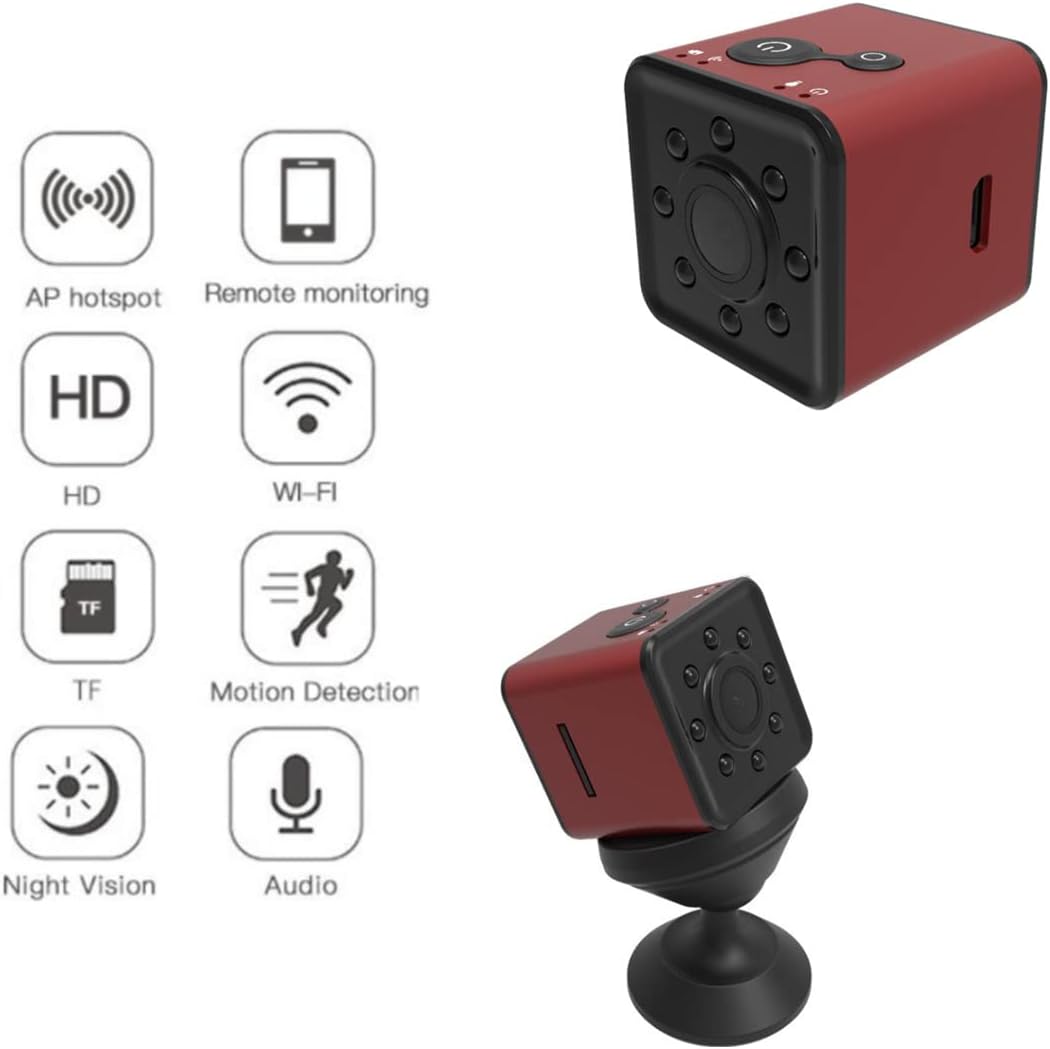
Figure 4: Wi-Fi and Remote Monitoring Features. This graphic highlights the camera's wireless capabilities, including AP hotspot functionality and remote monitoring via a smartphone application.
- Download the appropriate mobile application (refer to the product packaging or manufacturer's website for app details).
- Power on the camera and ensure it is in Wi-Fi mode (if applicable, some models may have a dedicated Wi-Fi button or mode).
- On your smartphone, connect to the camera's Wi-Fi hotspot (SSID usually starts with "SQ13-" followed by numbers).
- Open the mobile application to view the live feed, change settings, or download recordings.
Waterproof Functionality
The camera, when enclosed in its waterproof case, is designed to be submersible up to 30 meters, making it suitable for various water sports and underwater recording.

Figure 5: Waterproof Capability. This image demonstrates the camera's waterproof functionality when used with its included case, showing it submerged underwater alongside a diver, highlighting its suitability for aquatic environments.
Maintenance
- Keep the camera and its accessories clean. Use a soft, dry cloth to wipe the lens and body.
- Avoid exposing the camera to extreme temperatures, humidity, or direct sunlight for prolonged periods.
- Do not attempt to disassemble the camera, as this will void the warranty.
- Ensure the waterproof case is properly sealed and free of debris before submerging the camera in water.
- Regularly back up important recordings from the MicroSD card to prevent data loss.
Troubleshooting
| Problem | Possible Cause | Solution |
|---|---|---|
| Camera does not power on. | Low battery; faulty battery; power button issue. | Charge the camera fully. If problem persists, contact support. |
| Cannot record video/take photos. | No MicroSD card; card full; card error; incorrect mode. | Insert a MicroSD card. Format or replace the card. Ensure correct mode is selected. |
| Poor video/image quality. | Dirty lens; insufficient lighting; low resolution setting. | Clean the lens. Ensure adequate lighting or use night vision. Check settings via app. |
| Wi-Fi connection issues. | Too far from camera; app issues; camera not in Wi-Fi mode. | Move closer to the camera. Restart the app and camera. Ensure Wi-Fi mode is active. |
Specifications
- Model: SQ13
- Video Resolution: 1080P HD / 720P HD
- Lens Angle: 155 degrees (Wide Angle)
- Night Vision: 8 IR LEDs, 5-8 meter range
- Motion Detection: Yes
- Storage: Supports MicroSD (TF) card up to 64GB (Class 10 recommended)
- Waterproof: Up to 30 meters (with waterproof case)
- Connectivity: Wireless Wi-Fi (AP Hotspot)
- Battery: 1 Lithium Polymer battery (included)
- Dimensions: Approximately 1.1 x 1.1 x 1.02 inches
- Weight: Approximately 4.8 ounces
- Video Format: AVI
- Supported Audio Format: AAC, MP3
Warranty and Support
For warranty information and technical support, please refer to the contact details provided on the product packaging or visit the official UNIKAMI website. Keep your purchase receipt as proof of purchase for warranty claims.
For common questions and further assistance, you may also refer to the product's listing page on Amazon: Amazon Product Page