
Canon TS6220
Canon PIXMA TS6220 Wireless All-in-One Photo Printer User Manual
Model: TS6220 | Brand: Canon
1. Introduction
This manual provides essential information for the safe and efficient operation of your Canon PIXMA TS6220 Wireless All-in-One Photo Printer. The PIXMA TS6220 is designed for everyday printing needs, offering print, copy, and scan functionalities with wireless connectivity.
Key features include built-in Wi-Fi, front and rear paper feeding, and a 5-color individual ink system. It supports mobile printing and works with Amazon Alexa for voice commands.
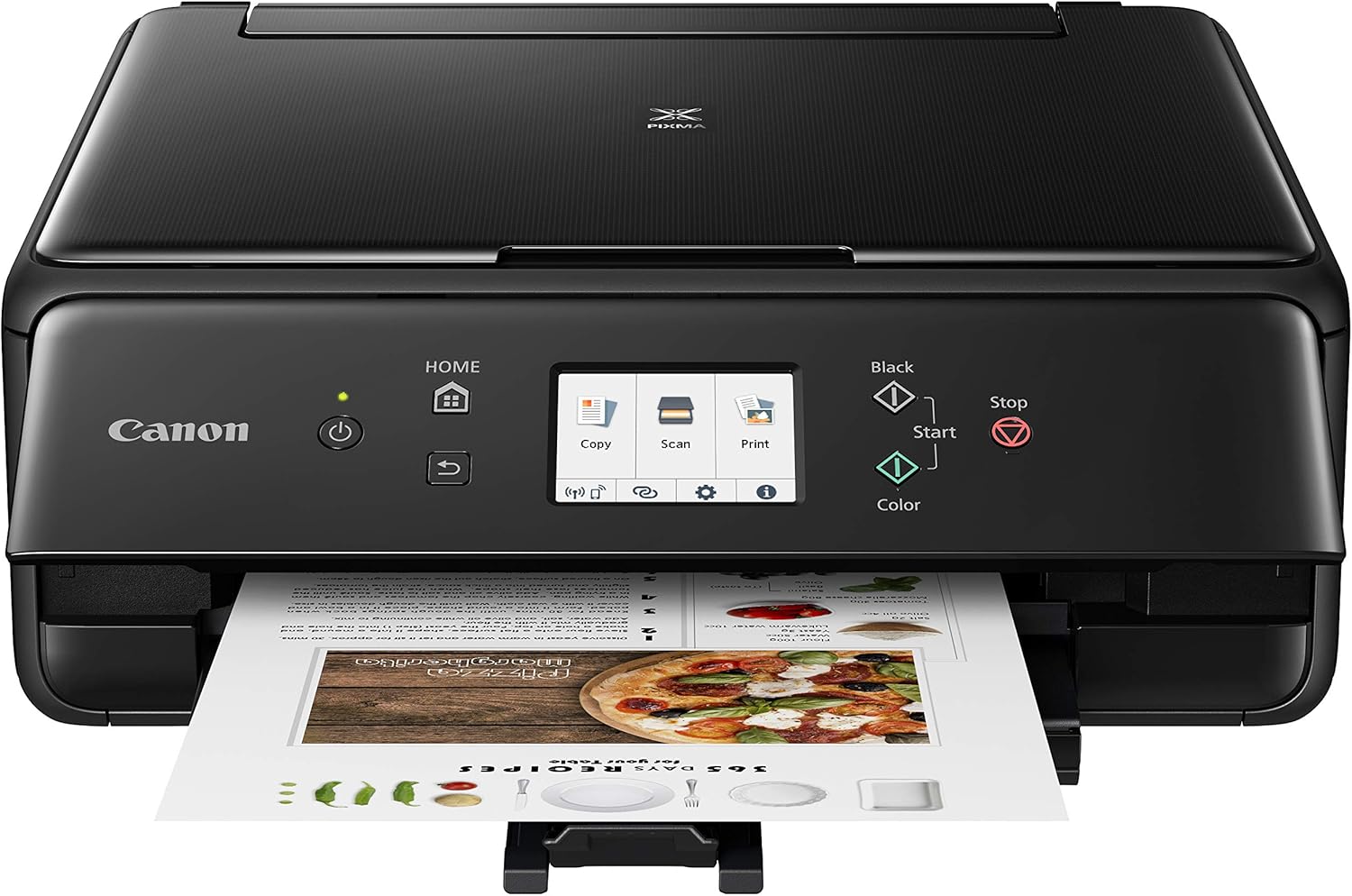
Figure 1: Front view of the Canon PIXMA TS6220 printer with a document being printed.
2. Safety Information
Please read all safety instructions before using the printer to prevent injury or damage to the device. Keep this manual for future reference.
- Power Source: Use only the power cord supplied with the printer. Connect to a grounded electrical outlet.
- Location: Place the printer on a stable, level surface. Avoid locations with excessive dust, vibrations, direct sunlight, or extreme temperature changes.
- Ventilation: Ensure adequate space around the printer for proper ventilation. Do not block ventilation openings.
- Handling Ink Cartridges: Do not ingest ink. Keep ink cartridges out of reach of children.
- Cleaning: Disconnect the power cord before cleaning. Use a soft, dry cloth. Do not use liquid or aerosol cleaners.
- Servicing: Do not attempt to service the printer yourself. Refer all servicing to qualified service personnel.
3. Setup Guide
3.1 Unpacking and Initial Setup
- Unpack the Printer: Carefully remove the printer from its packaging. Remove all protective tapes and packing materials from the exterior and interior of the printer.
- Connect Power: Connect the supplied power cord to the printer and then to a wall outlet.
- Install Ink Tanks: Open the printer's cover and install the set of standard ink tanks provided. Ensure each tank clicks into place.
- Load Paper: Load plain paper into the front paper cassette or the rear paper tray. The printer supports multi-size paper up to 8.5 x 14 inches.

Figure 2: The Canon PIXMA TS6220 with the rear paper tray extended and paper loaded, ready for printing.
3.2 Software and Connectivity Setup
The PIXMA TS6220 offers multiple connectivity options including Wireless (Wi-Fi), Bluetooth, and USB.
- Wireless Setup (Recommended):
- For easy setup, use the Wireless Connect feature directly from your smartphone or tablet via the Canon PRINT app.
- Alternatively, use the printer's touchscreen panel to select Wi-Fi Setup and follow the on-screen instructions to connect to your wireless network.
- USB Connection: Connect the printer to your computer using a USB cable (not included). Install the necessary drivers from the setup CD or Canon's official website.
- Bluetooth Connection: Enable Bluetooth on your device and the printer, then pair them according to your device's instructions.
4. Operating Instructions
4.1 Printing Documents and Photos
The PIXMA TS6220 can print documents and high-quality photos. It supports automatic dual-sided printing (duplex).
- Ensure paper is loaded in the appropriate tray (front cassette for plain paper, rear tray for photo paper or specialty media).
- From your computer or mobile device, open the document or photo you wish to print.
- Select "Print" from the application's menu.
- Choose the Canon PIXMA TS6220 as your printer. Adjust print settings such as paper size, media type, print quality, and duplex printing as needed.
- Click "Print" to start the printing process.

Figure 3: Front view of the Canon PIXMA TS6220, showing the control panel and paper output tray.
4.2 Copying Documents
Use the built-in copier function for quick duplicates.
- Place the original document face-down on the scanner glass or face-up in the Automatic Document Feeder (if available and supported by model, though TS6220 is flatbed).
- On the printer's touchscreen, select "Copy".
- Adjust settings such as number of copies (up to 99), copy quality, or paper type.
- Press the "Start" button (Black or Color) to begin copying.
4.3 Scanning Documents and Photos
The flatbed scanner allows you to digitize documents and photos.
- Place the original document face-down on the scanner glass.
- On the printer's touchscreen, select "Scan".
- Choose your desired scan destination (e.g., computer, cloud service, email) and adjust scan settings like resolution and file type.
- Initiate the scan from the printer or your computer/mobile device using the Canon scanning software or app.
4.4 Mobile Printing and Voice Control
Print directly from your smartphone or tablet using the Canon PRINT app. The printer also supports voice commands via Amazon Alexa.
- Canon PRINT App: Download the Canon PRINT Inkjet/SELPHY app from your device's app store. Connect your device to the same Wi-Fi network as the printer. The app allows you to print photos, documents, and scan directly to your mobile device.
- Amazon Alexa: Enable the Canon PIXMA skill in your Alexa app. Link your Canon account. You can then use voice commands like "Alexa, print my shopping list" or "Alexa, print my to-do list" (requires compatible services).

Figure 4: A smartphone wirelessly connected to the Canon PIXMA TS6220, demonstrating mobile printing capabilities.
5. Maintenance
5.1 Replacing Ink Tanks
The PIXMA TS6220 uses a 5-color individual ink system. Replace ink tanks when the ink level is low or depleted, indicated by the printer's display or software.
- Ensure the printer is powered on.
- Open the ink tank cover. The print head holder will move to the replacement position.
- Press the tab on the empty ink tank and lift it out.
- Unpack a new ink tank, remove the orange protective cap, and insert it into the correct slot until it clicks into place.
- Close the ink tank cover. The printer will perform an initialization process.
5.2 Cleaning the Printer
- Exterior: Wipe the exterior of the printer with a soft, lint-free cloth. For stubborn stains, dampen the cloth slightly with water.
- Scanner Glass: Clean the scanner glass with a soft, lint-free cloth dampened with a small amount of glass cleaner. Avoid spraying cleaner directly onto the glass.
- Print Head Cleaning: If print quality degrades (e.g., streaks, missing colors), perform a print head cleaning from the printer's maintenance menu or through the printer driver software on your computer.
6. Troubleshooting
This section addresses common issues you might encounter. For more detailed troubleshooting, refer to the online support resources.
| Problem | Possible Cause | Solution |
|---|---|---|
| Printer is not turning on. | Power cord is disconnected or not fully inserted. | Ensure the power cord is securely connected to the printer and a working electrical outlet. |
| Cannot print wirelessly. | Printer not connected to Wi-Fi network; incorrect network settings; device not on same network. | Verify printer's Wi-Fi connection status on the touchscreen. Reconfigure network settings if necessary. Ensure your device is connected to the same Wi-Fi network as the printer. |
| Poor print quality (streaks, faded colors). | Low ink levels; clogged print nozzles; incorrect paper type setting. | Check ink levels and replace empty tanks. Perform a print head cleaning and nozzle check from the printer's maintenance menu. Ensure paper type setting matches the loaded paper. |
| Paper jam. | Paper loaded incorrectly; foreign object in paper path. | Remove all jammed paper carefully, following instructions on the printer's display. Ensure paper is loaded correctly and not creased or torn. |
7. Specifications
Detailed technical specifications for the Canon PIXMA TS6220 printer.
| Feature | Detail |
|---|---|
| Product Dimensions (D x W x H) | 12.5" x 14.7" x 5.5" |
| Item Weight | 13.5 pounds |
| Printing Technology | Inkjet |
| Functions | Print, Copy, Scan (All-In-One) |
| Max Print Resolution (Color) | 4800 x 1200 dpi |
| Max Print Resolution (Black & White) | 1200 x 2400 dpi |
| Max Print Speed (Monochrome) | 15.0 ipm |
| Max Print Speed (Color) | 10.0 ipm |
| Scanner Type | Flatbed |
| Max Copy Resolution (Color) | 4800 x 1200 dpi |
| Max Copies Per Run | 99 |
| Connectivity Technology | Bluetooth, USB, Wireless (Wi-Fi) |
| Paper Capacity | 150 sheets (Max Input) |
| Dual-sided Printing | Yes (Automatic Duplex) |
| Compatible Devices | Printer, Amazon Alexa, IFTTT, Vera |
| Included Components | PIXMA TS6220 Wireless Inkjet All-In-One Printer, Power Cord, Set of Standard Ink Tanks, Setup CD, 4” x 6” Photo Paper Sample Pack (3 sheets PP-301) |

Figure 5: Diagram showing the physical dimensions of the Canon PIXMA TS6220 printer.
8. Warranty and Support
The Canon PIXMA TS6220 comes with a Full Warranty. For specific warranty terms and conditions, please refer to the documentation included with your product or visit the official Canon support website.
For technical assistance, driver downloads, or further troubleshooting, please visit the Canon Support Page or contact Canon customer service.