
Canon TR4520
Canon PIXMA TR4520 Wireless All-in-One Photo Printer User Manual
Model: TR4520
1. Introduction
The Canon PIXMA TR4520 is a compact and versatile all-in-one printer designed for home and office use. It offers printing, scanning, and faxing capabilities, along with convenient features such as Wi-Fi connectivity, automatic two-sided printing, and an Automatic Document Feeder (ADF). This manual provides detailed instructions for setting up, operating, and maintaining your PIXMA TR4520 printer.
2. Product Overview
The PIXMA TR4520 is engineered to provide efficient and high-quality output in a space-saving design. Its integrated features simplify common office tasks, making it an ideal solution for various document and photo needs.

Figure 2.1: Front view of the Canon PIXMA TR4520 printer in operation, showing paper being fed from the rear tray and exiting the front output tray.

Figure 2.2: Compact front view of the Canon PIXMA TR4520 printer with all trays and covers closed, highlighting its space-saving design.

Figure 2.3: Top view of the Canon PIXMA TR4520, illustrating the Automatic Document Feeder (ADF) with documents loaded for scanning or copying.
Key Features:
- Wireless Connectivity: Easily set up and print from your smartphone or tablet using Wireless Connect and the Canon Print app.
- Versatile Functions: All-in-One capabilities including printing, scanning, and faxing.
- Automatic 2-Sided Printing: Save paper with automatic duplex printing.
- Automatic Document Feeder (ADF): Efficiently scan or fax multi-page documents.
- Mobile Printing Support: Compatible with AirPrint and Mopria Print Service for seamless printing from various devices.
- Voice-Activated Printing: Works with Amazon Alexa for convenient voice commands.
3. Setup
Unpacking and Initial Setup:
- Carefully remove the printer from its packaging.
- Remove all protective tapes and packing materials from the exterior and interior of the printer.
- Connect the power cord to the printer and then to a power outlet.
- Install the included Inkjet Cartridges into their designated slots.
- Load Paper into the rear paper tray.
Wireless Connection Setup:
The PIXMA TR4520 supports wireless connectivity for easy printing from various devices. Use the Canon Print app on your smartphone or tablet for a guided setup process.
- Download the Canon PRINT Inkjet/SELPHY app from your device's app store.
- Open the app and follow the on-screen instructions to connect your printer to your Wi-Fi network.
- Alternatively, you can use the Setup CD provided to install drivers and software on your computer for a wired USB connection or guided wireless setup.
4. Operating Instructions
The control panel on your PIXMA TR4520 provides intuitive access to all printer functions.

Figure 4.1: Detailed view of the PIXMA TR4520 control panel, showing the LCD screen, navigation buttons, numeric keypad, and function buttons for copy, scan, and fax operations.
4.1. Printing
The printer supports various print media, including glossy photo paper, and can print up to 8.5 x 14 inch documents. It features a maximum color print resolution of 4800 x 1200 dpi.
- From a Computer: Ensure the printer drivers are installed. Select your printer from the print dialog box in your application. Adjust settings like paper size (e.g., 8.5 inch x 11), print quality, and duplex options (Automatic).
- Mobile Printing: Use the Canon Print app, AirPrint (for Apple devices), or Mopria Print Service (for Android devices) to print directly from your smartphone or tablet.

Figure 4.2: A user wirelessly printing a document from a smartphone to the Canon PIXMA TR4520 printer, demonstrating mobile printing convenience.

Figure 4.3: The Canon PIXMA TR4520 printer positioned on a desk in an office environment, alongside a laptop and smartphone, illustrating its integration into a modern workspace.
4.2. Scanning
The PIXMA TR4520 features both Photo and Sheetfed scanner types, with an Automatic Document Feeder (ADF) for multi-page scanning.
- Using the ADF: Place documents face-up in the ADF. Select the scan function from the control panel or your computer's scanning software.
- Using the Platen Glass: Lift the scanner lid and place the document or photo face-down on the glass. Close the lid and initiate the scan.
4.3. Faxing
The printer supports fax functionality, allowing you to send and receive faxes directly from the device.
- Connect a telephone line to the printer's LINE port.
- Use the control panel to dial the recipient's fax number and send documents placed in the ADF or on the platen glass.
4.4. Voice Control with Amazon Alexa
The Canon PIXMA TR4520 is compatible with Amazon Alexa, enabling voice-activated printing for certain tasks.
- Enable the Canon Print Skill: In the Alexa app, search for and enable the "Canon Print" skill.
- Link Your Printer: Follow the instructions in the Alexa app to link your PIXMA TR4520 printer to your Alexa account.
- Voice Commands: Once linked, you can use commands like "Alexa, print my shopping list" or "Alexa, print my to-do list" to print directly from your connected Alexa device.
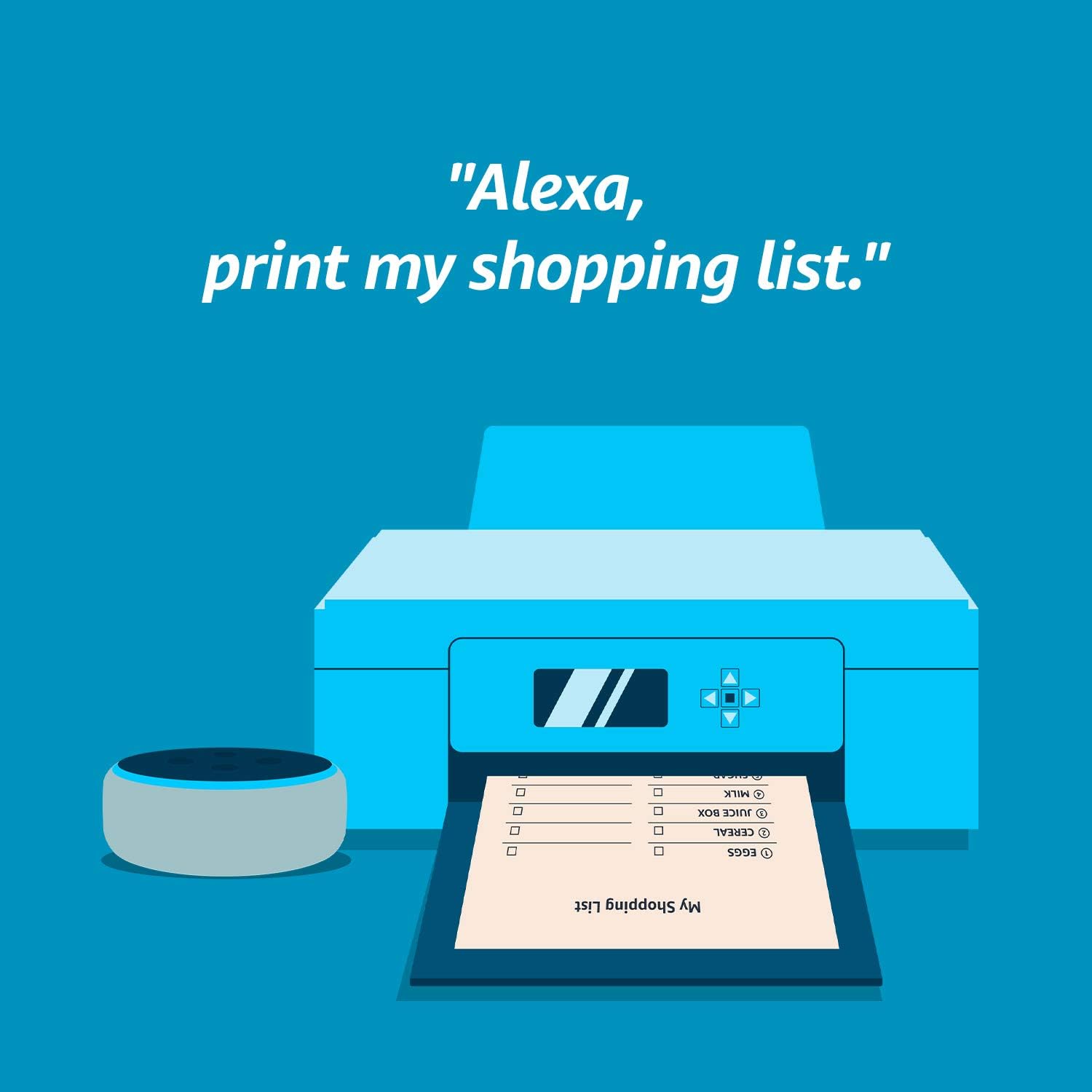
Figure 4.4: An illustrative image depicting an Alexa device interacting with a printer to print a shopping list, showcasing the voice command feature.

Figure 4.5: An illustration showing a person relaxing while an Alexa device commands a printer to print a to-do list, emphasizing the convenience of voice-activated printing.
5. Maintenance
Regular maintenance ensures optimal performance and longevity of your Canon PIXMA TR4520 printer.
- Ink Cartridge Replacement: Replace ink cartridges (Black, Cyan, Magenta, Yellow) when indicated by the printer's display or print quality issues. Use genuine Canon ink for best results.
- Cleaning: Periodically clean the exterior of the printer with a soft, damp cloth. For print quality issues, perform print head cleaning or deep cleaning from the printer's maintenance menu or computer software.
- Firmware Updates: Check the Canon website for any available firmware updates to ensure your printer has the latest features and bug fixes.
6. Troubleshooting
If you encounter issues with your PIXMA TR4520, refer to the following common troubleshooting tips:
- Printer Not Responding:
- Ensure the printer is powered on and connected securely to the power outlet.
- Check USB or Wi-Fi connection. For Wi-Fi, ensure the printer is connected to the correct network and the signal is strong.
- Restart both the printer and your computer/device.
- Poor Print Quality:
- Check ink levels and replace any empty cartridges.
- Perform a print head alignment or nozzle check from the printer's maintenance menu.
- Ensure you are using appropriate paper for your print settings.
- Paper Jams:
- Turn off the printer and carefully remove any jammed paper from all access points (rear tray, output tray, internal areas).
- Ensure paper is loaded correctly and not overfilled.
- Wireless Connection Issues:
- Verify your Wi-Fi password is correct.
- Move the printer closer to the wireless router.
- Reset the printer's network settings and attempt to reconnect.
For more detailed troubleshooting, refer to the online manual available on the Canon support website.
7. Specifications
| Feature | Detail |
|---|---|
| Product Dimensions | 11.7"D x 17.2"W x 7.5"H |
| Item Weight | 13 pounds |
| Printing Technology | Inkjet |
| Connectivity Technology | USB, Wireless |
| Maximum Color Print Resolution | 4800 x 1200 dpi |
| Max Printspeed Monochrome | 8.80 ppm |
| Maximum Print Speed (Color) | 4.40 ppm |
| Scanner Type | Photo, Sheetfed |
| Max Input Sheet Capacity | 100 sheets |
| Duplex Printing | Automatic |
| Ink Color | Black, Cyan, Magenta, Yellow |
| Control Method | Voice (Amazon Alexa), Buttons |
| Included Components | Inkjet Cartridges, PIXMA TR4520 Wireless Office All-In-One Printer, Paper, Power Cord, Setup CD |
8. Warranty and Support
Your Canon PIXMA TR4520 printer comes with a limited warranty provided by Canon USA Inc.
For warranty details, technical support, driver downloads, and additional resources, please visit the official Canon support website or contact Canon customer service.
Manufacturer: Canon USA Inc.